> ## Documentation Index
> Fetch the complete documentation index at: https://docs.idemeum.com/llms.txt
> Use this file to discover all available pages before exploring further.
# Allowlisting rules
> With rules you define what is blocked and what is allowed to execute on your workstations.
## How to think about allowlisting rules
In this case we are showing the end to end cycle of the rule where both [allowlisting](/allowlisting/allowlisting-overview) and [EPM](/epm/endpoint-privilege-management-overview) are enabled. You can [enable EPM](/epm/enable-endpoint-privilege-management) or [allowlisting](/allowlisting/enable-allowlisting) or both.
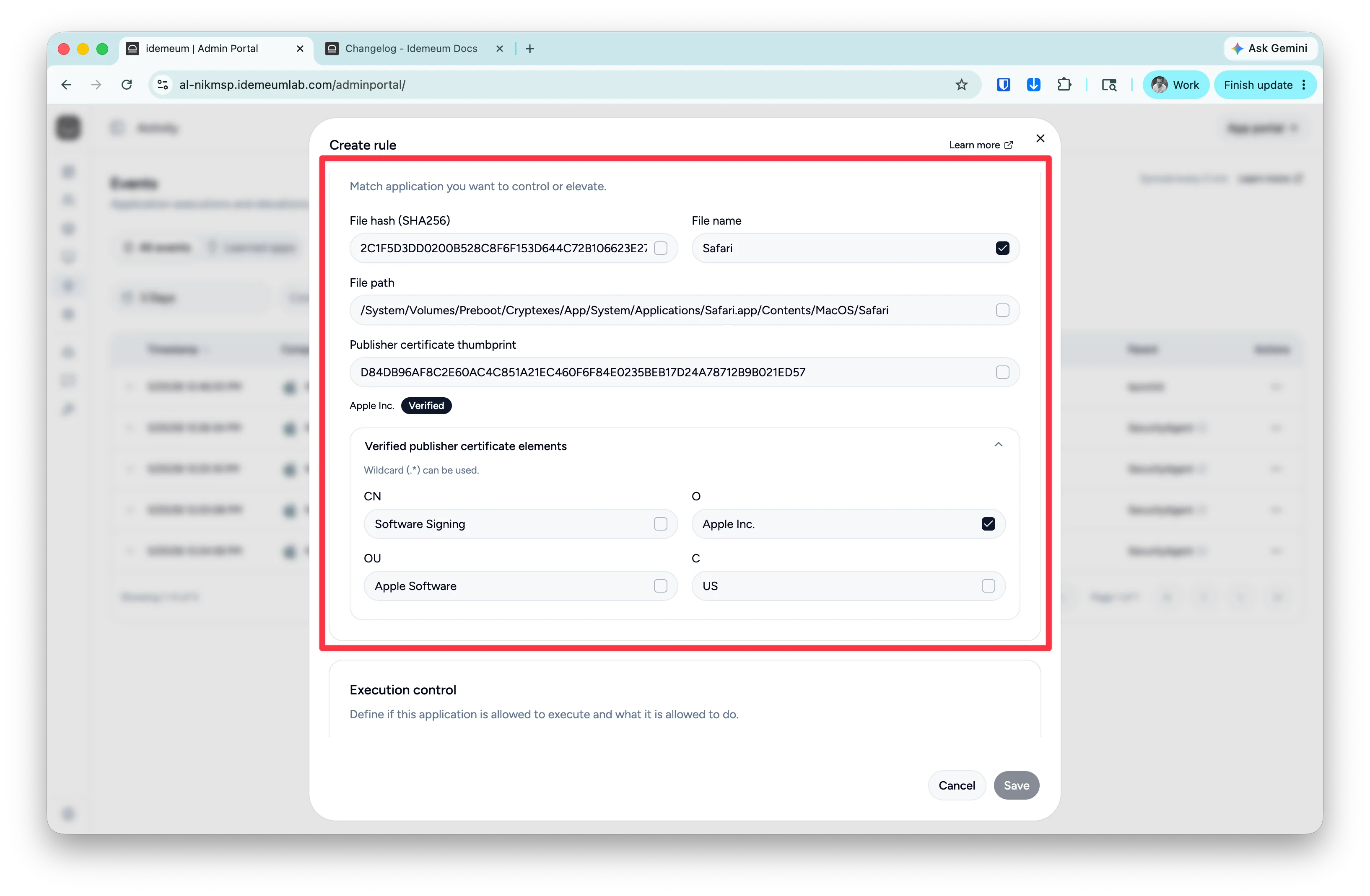
The first part of the rule is to catch or match the application you are trying to control. Before allowing something, we need to know what we are allowing. You can match the target application using `file attributes` (hash, name. path, etc.), `publisher thumbprint` (the hash of the certificate that is used to sign the executable, or `certificate elements` (when application is signed you can use certificate elements of the signing certificate to match the app).
With allowlisting the default policy is to `default deny` everything. if you want to allow an application you need to allow execution, otherwise the application will not launch.
With application fencing you can control child process execution or application interactions (i.e. notepad can not launch command prompt). You can allow all child processes if you trust the application, or define the custom set of processes that application can launch.
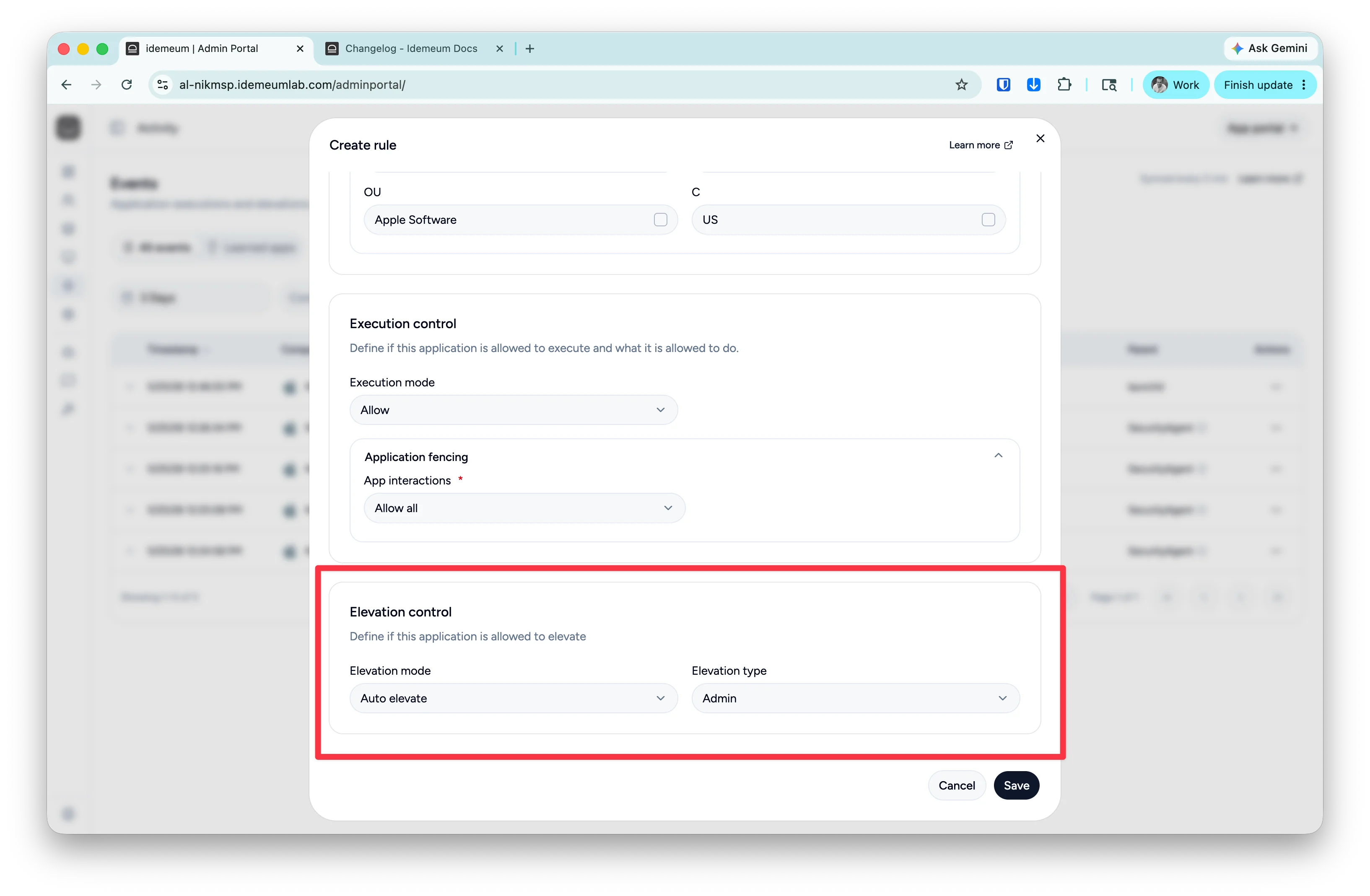
If an application requires admin privileges, and you maintain standard rights for all users, you can allow the application to automatically elevate.
When application or elevation is blocked, your users can request the permission to run or elevate the application.
## Rule best practices
These are some of the best practices related to rule management:
* Give rules descriptive names so that you know what the rule is doing
* The best rules are the ones that leverage `certificate elements`. For instance you create a rule that allows everything that is signed by certificate belonging to `Zoom Inc`.
* If you do not want to use certificate elements, use `certificate thumbprint`. This is second best. Allowing the whole organization might be too broad, but allowing a certain publisher certificate is a good balance. When the application is updated, rule will still work. But if the organization renews the certificate, you will need to update the rules.
* If the application is not signed and you can not use certificates, then use `file attributes`. Bear in mind that `hash` based rules are the worst, because if the application is updated, the hash will change, and the rule will no longer work. For applications that launch from protected paths, you can leverage the `path` rules, for instance for Windows apps that launch from protected directory.
## Catalog rules
Idemeum comes pre-configured with allowlisting and elevation rules for most common applications. We constantly update applications to make sure the rules are current and do not create any disruptions. With a click of a button you can allow most used applications in your environment. Idemeum comes pre-configured with allowlisting and elevation rules for most common applications. We constantly update applications to make sure the rules are current and do not create any disruptions. With a click of a button you can allow most used applications in your environment.
Create elevation or allowlisting rules with a single click.
## Create allowlisting rule
If you want to create your own custom rules or allow applications that are not listed in idemeum catalog, you can simply do that from the event. Launch the application you want to allowlist (or trigger elevated launch), the event will be generated and sent to the cloud. Now you can create rule from the event.
* Navigate to the admin portal of your idemeum tenant
* Access `Activity` → `Events` section
* Search for the application / event that you want to create a rule for
* Click on `...` and choose to create a rule
* All metadata for the event will be pre-populated and you can start selecting the attributes.
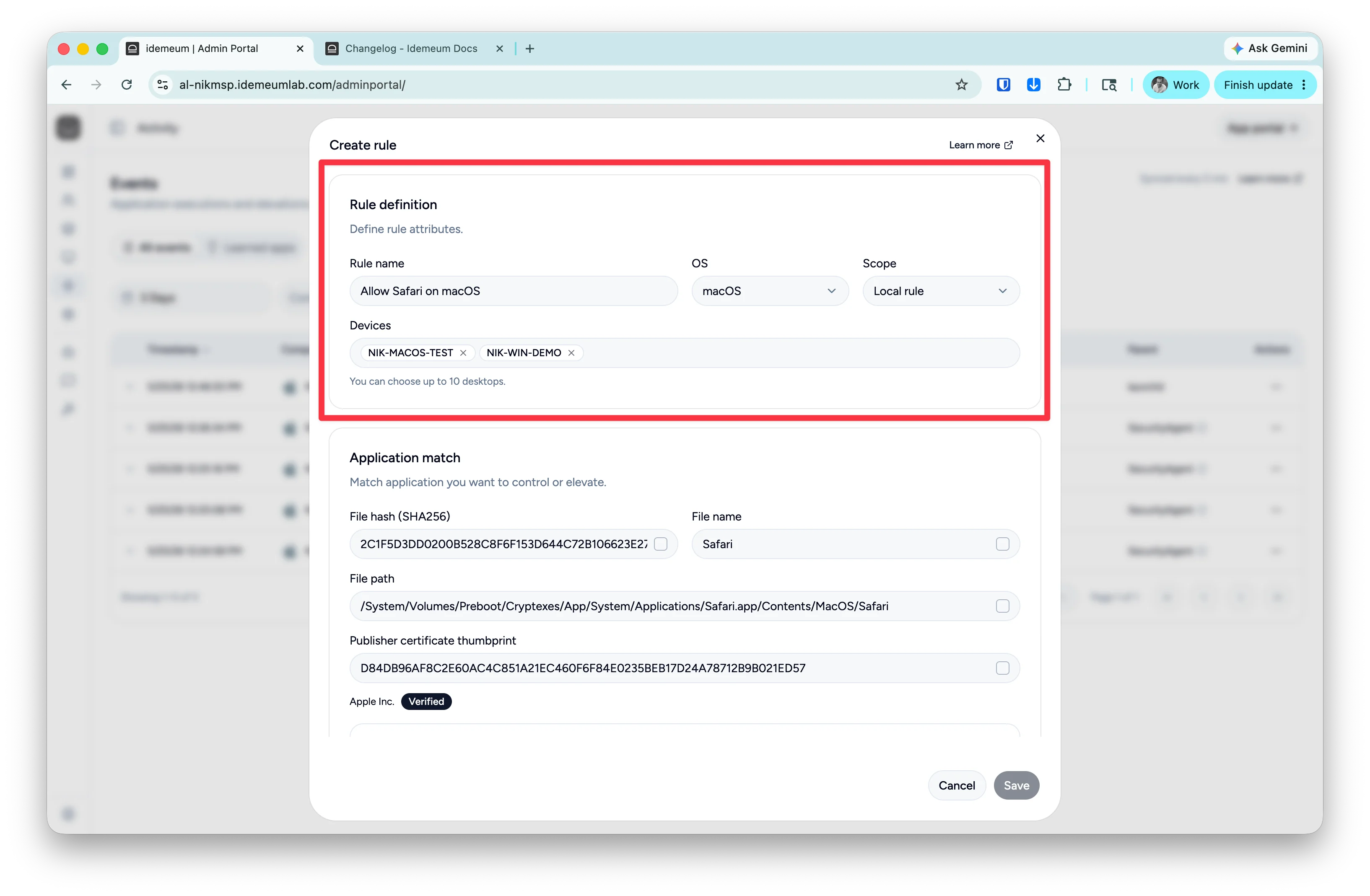
* Define rule by providing the rule name, choosing the OS where you want the rule to apply, and provide the rule scope (for MSP setting, `local` - only apply to one customer tenant, `global` - apply cross customers).
 * Now you can match the application by selecting the attributes. Simply check the box next to the attribute that you want to use to identify the application.
 * Define if you want to allow the application to execute and specify the application fencing rules. You can allow all child processes for an application, or you can create a custom rule to define what the application is allowed to do.
 * As a final step define if the application is allowed to elevate or not.
 ## Allowlisting rules Regex
Idemeum rule engine supports regular expressions when matching the applications using various attributes. We support regex for `file name`, `file path`, and `certificate elements`. We use case-insensitive match.
* Match the exact file name for the edge browser
```regexp theme={null}
^msedge.exe$
```
* Match any filename that contains `video`
```regexp theme={null}
.*video.*
```
* Match the path that starts with `C:\Program Files\WindowsApps\` and then contains `linkedin` in the path
```regexp theme={null}
C:\Program Files\WindowsApps\.*linkedin.*
```
* Use this in `O `for certificate element to match anything that is signed by organization that contains `Microsoft`
```regexp theme={null}
Microsoft.*
```
## Allowlisting rules Regex
Idemeum rule engine supports regular expressions when matching the applications using various attributes. We support regex for `file name`, `file path`, and `certificate elements`. We use case-insensitive match.
* Match the exact file name for the edge browser
```regexp theme={null}
^msedge.exe$
```
* Match any filename that contains `video`
```regexp theme={null}
.*video.*
```
* Match the path that starts with `C:\Program Files\WindowsApps\` and then contains `linkedin` in the path
```regexp theme={null}
C:\Program Files\WindowsApps\.*linkedin.*
```
* Use this in `O `for certificate element to match anything that is signed by organization that contains `Microsoft`
```regexp theme={null}
Microsoft.*
```