> ## Documentation Index
> Fetch the complete documentation index at: https://docs.idemeum.com/llms.txt
> Use this file to discover all available pages before exploring further.
# Custom skills
> Create custom skills for Endpoint Care.
# Create custom skills
You can create custom skills for AI support agent using the following:
1. **Manual .md upload** - manually upload the .md file to idemeum admin portal.
2. **Skill builder** - build skill using visual step editor.
# Manual skill upload
* Navigate to idemeum admin portal and access `Skills` menu on the left
* Click `Add skill` → `Manual upload`
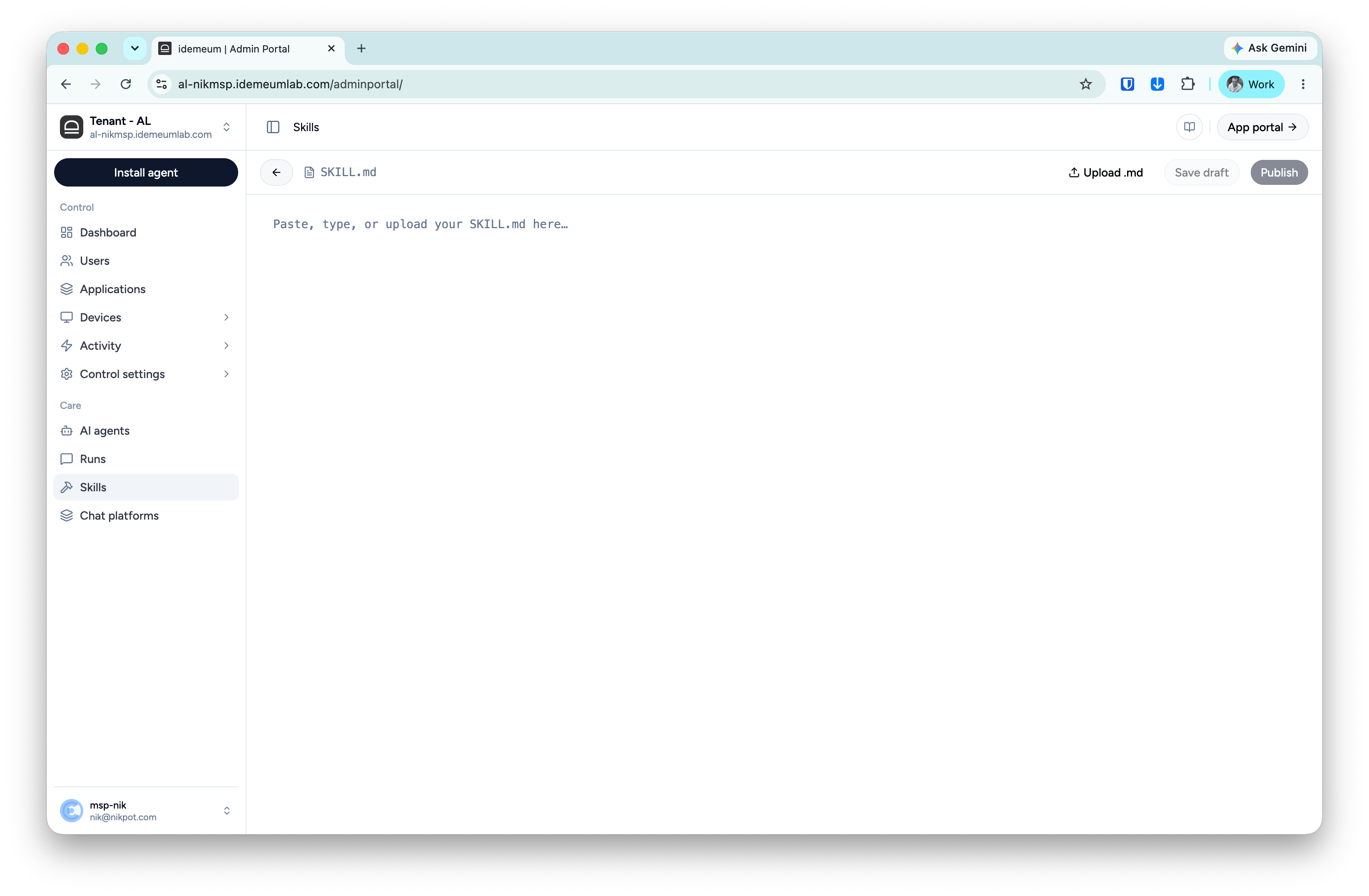
* Paste your .md file into the skill editor. It will perform basic validation for the skill syntax
 ## Skill builder
* Navigate to idemeum admin portal and access `Skills` menu on the left
* Click `Add skill` → `Skill builder`
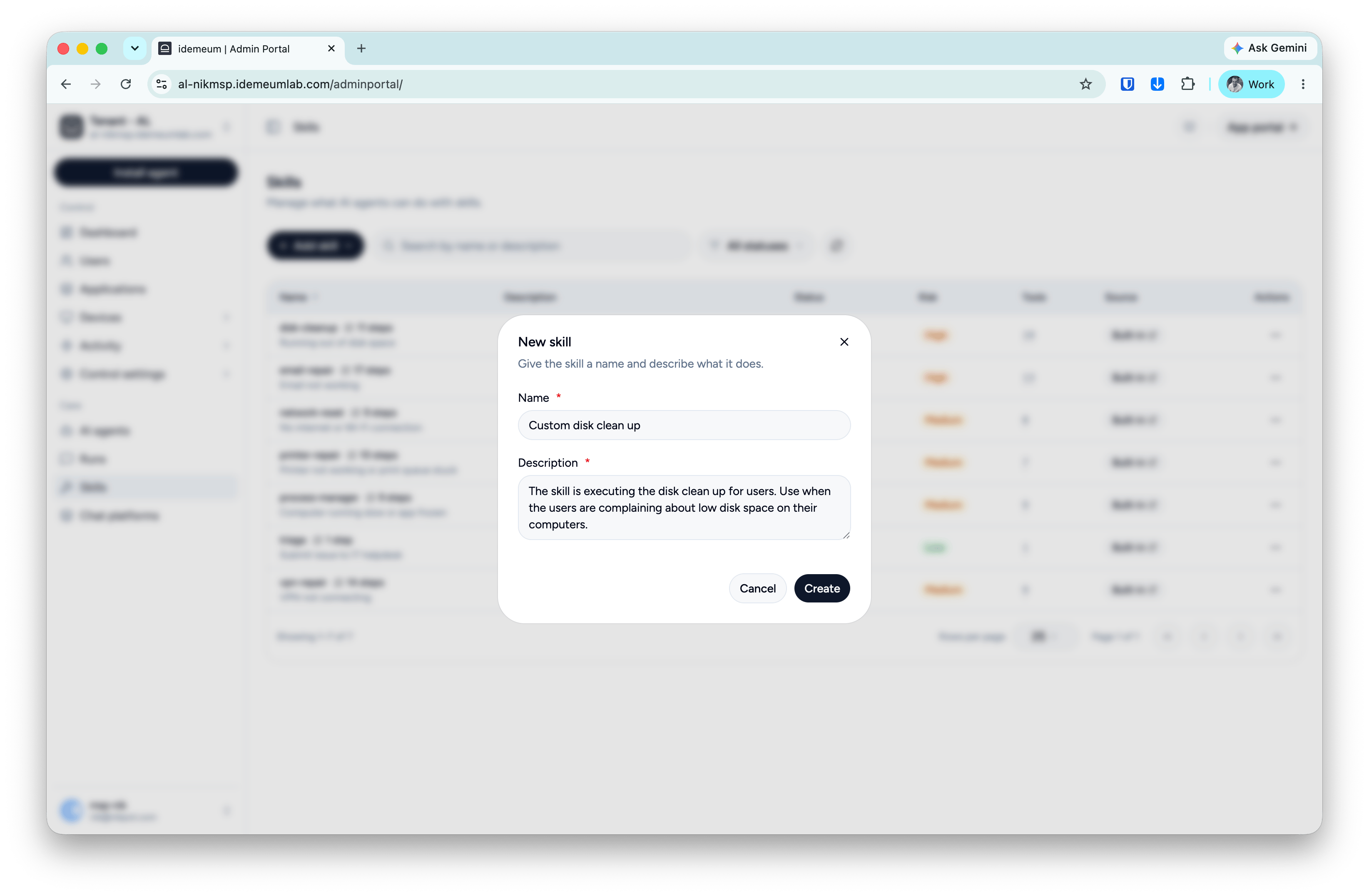
* Provide the skill name as well as description (used to match the user requests)
## Skill builder
* Navigate to idemeum admin portal and access `Skills` menu on the left
* Click `Add skill` → `Skill builder`
* Provide the skill name as well as description (used to match the user requests)
 ### AI to generate the skill steps
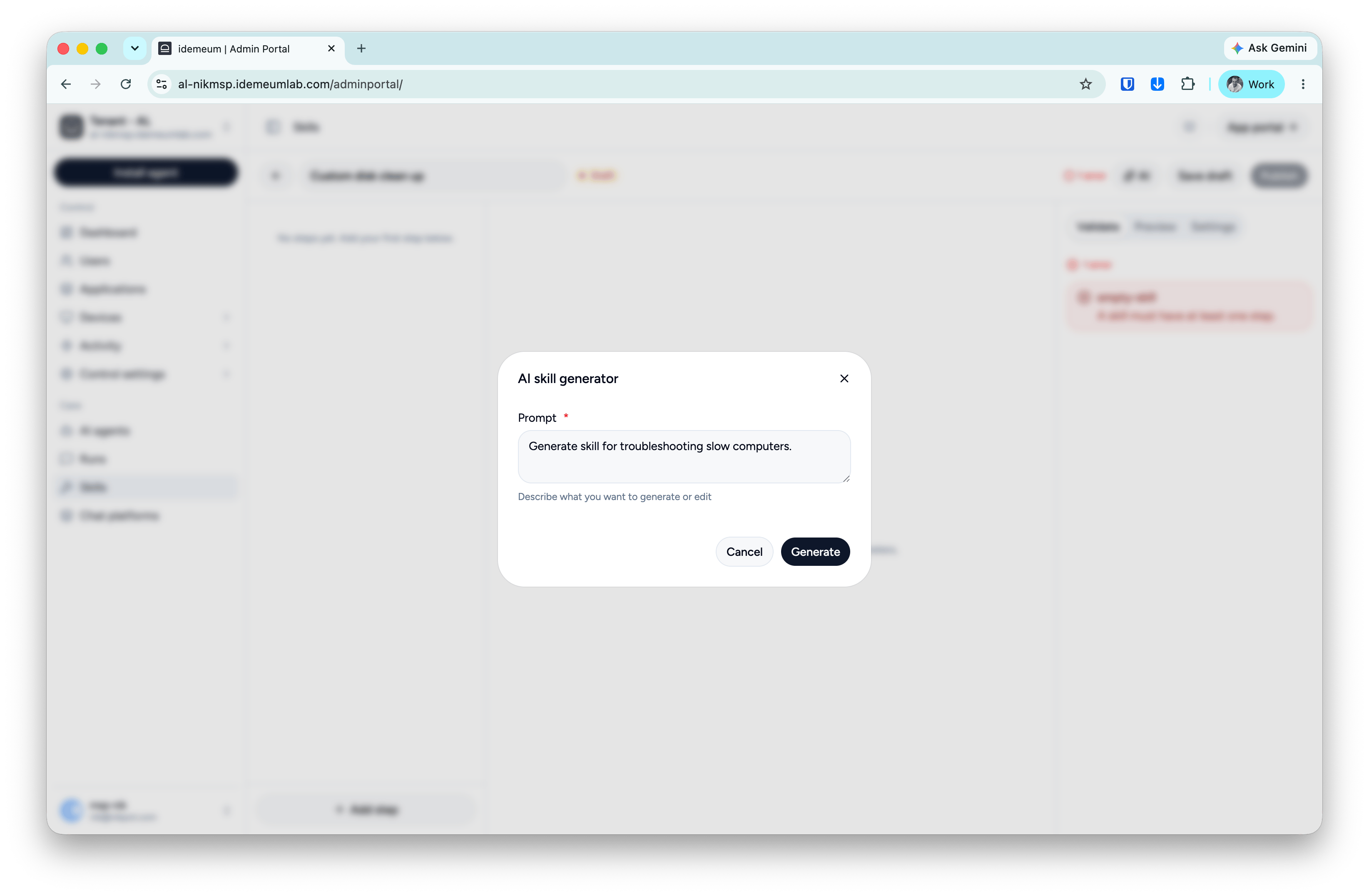
You can use AI to generate skill steps. Simply click on the `AI` button at the top right an provide the description prompt for what you want the skill to do.
### AI to generate the skill steps
You can use AI to generate skill steps. Simply click on the `AI` button at the top right an provide the description prompt for what you want the skill to do.
 ### Visual step builder
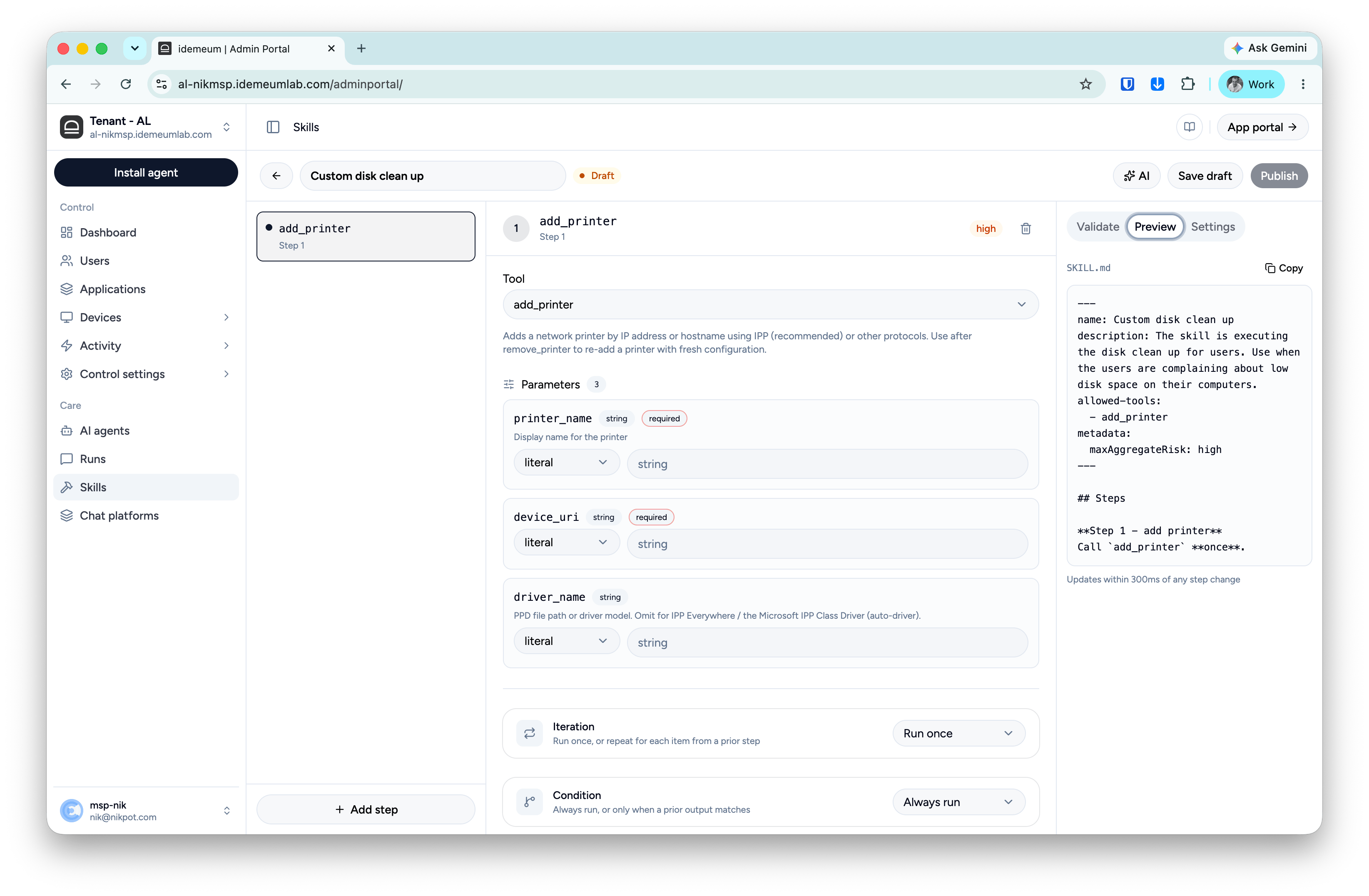
Another option is to define the steps with the visual builder. Click on the `Add step` button at the bottom left and choose from the available tools that you want the step to execute.
### Visual step builder
Another option is to define the steps with the visual builder. Click on the `Add step` button at the bottom left and choose from the available tools that you want the step to execute.
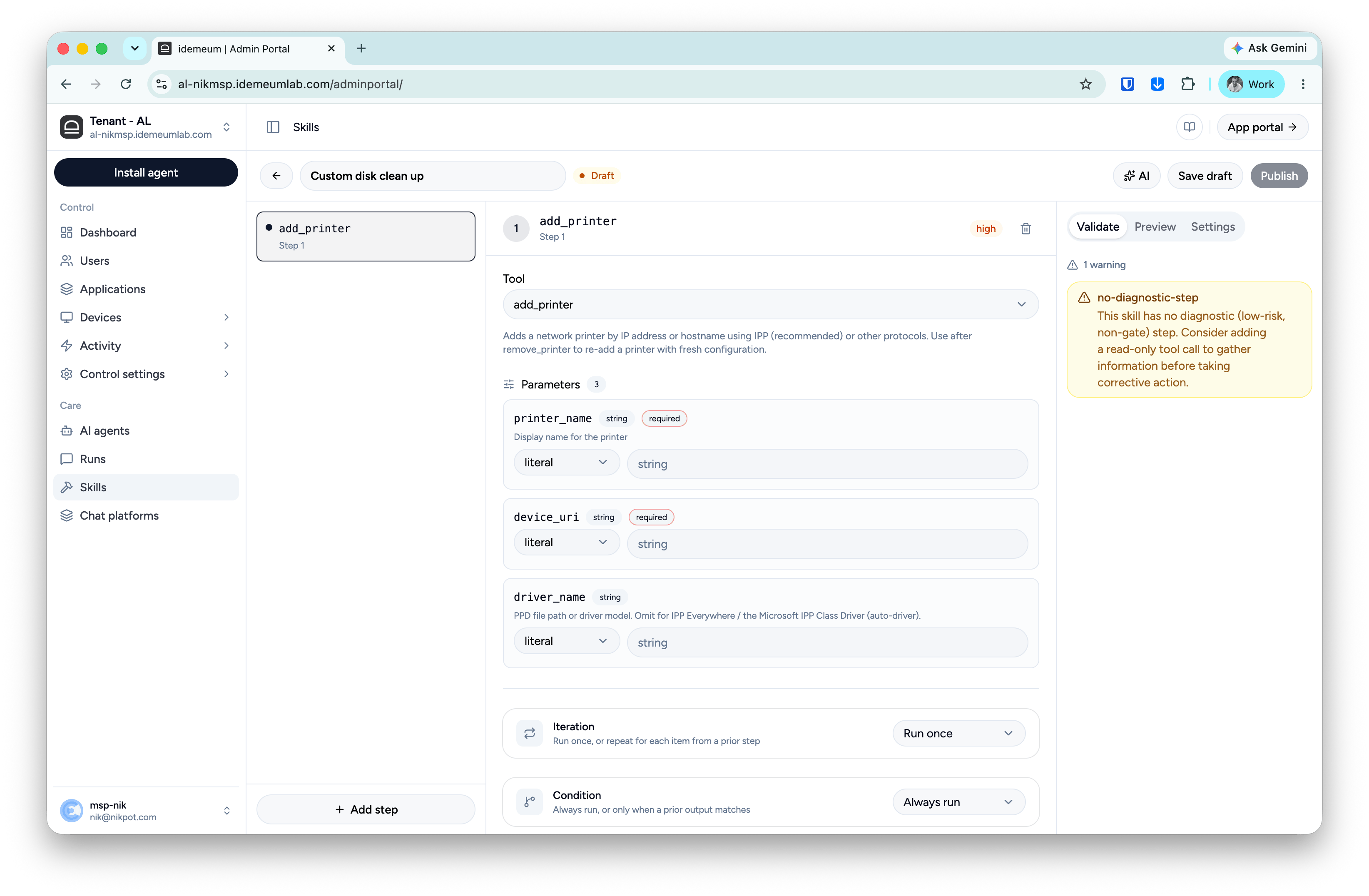 In the middle section you can configure the step, including notes, conditions, and parameters you want to pass between the steps.
### Preview tab
In the preview tab you can view the live generate markdown from the steps that you are using in the visual builder.
In the middle section you can configure the step, including notes, conditions, and parameters you want to pass between the steps.
### Preview tab
In the preview tab you can view the live generate markdown from the steps that you are using in the visual builder.