> ## Documentation Index
> Fetch the complete documentation index at: https://docs.idemeum.com/llms.txt
> Use this file to discover all available pages before exploring further.
# Admin / user elevation
> You can elevate applications with on-demand account or temporarily promote the user account.
## How different elevation types work
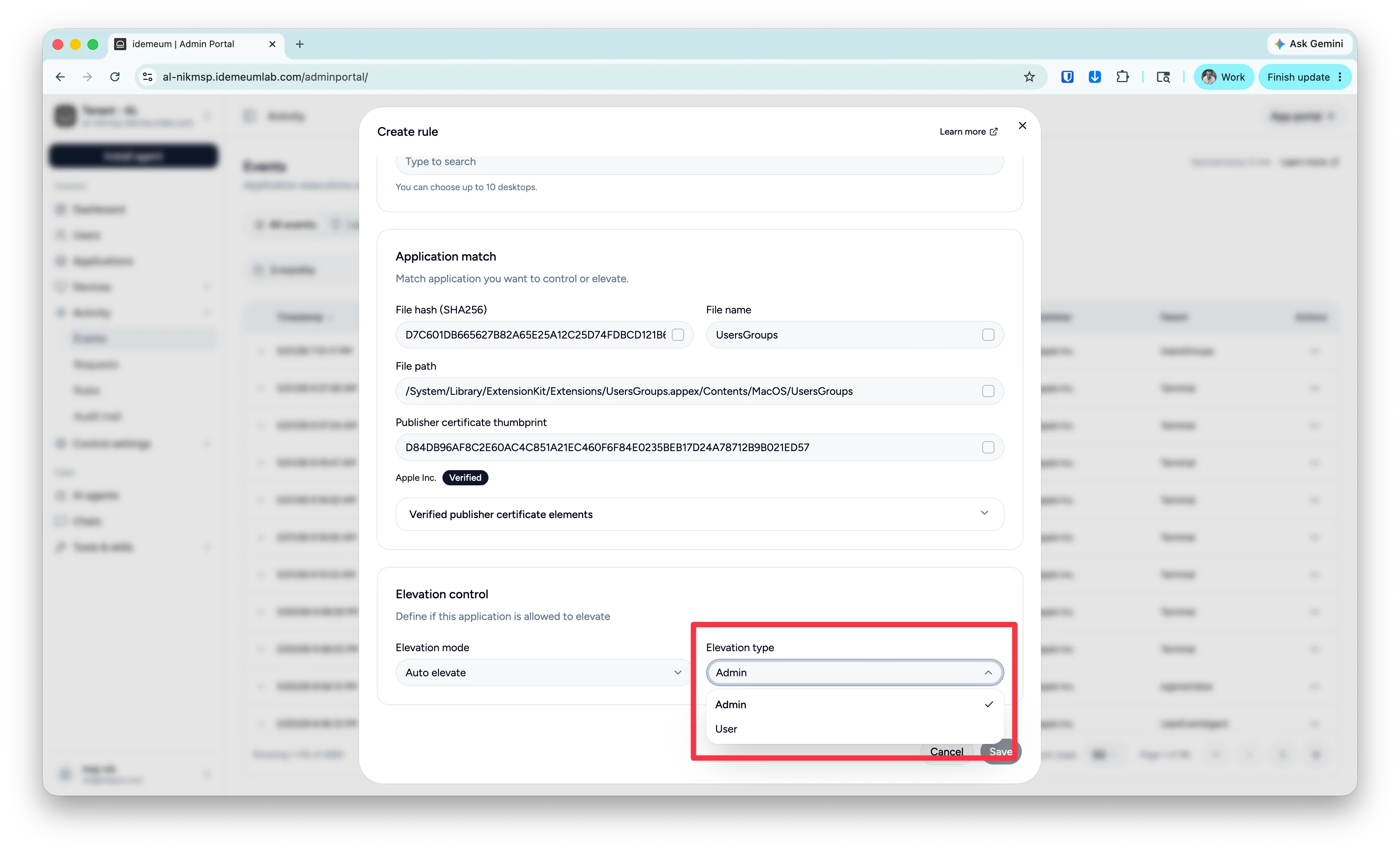
Idemeum EPM offers two types of elevation:
User request is elevated using another admin account, therefore the program will run in the context of an admin user. Agent will use `msp-elevate` account that will be automatically created on the workstation. This is the default elevation type. No user authentication is needed.
User who made the request will be temporarily promoted to an `Administrator` role. And then this user account will be used to elevate the privileged action. As a result, the requested application will run in the context of a user who made the request. Immediately after the elevation is competed, the user is demoted back to a Standard user. When the user elevation occurs for the first time for any given user, idemeum will prompt the user to enter username and password. Once the valid credentials are entered, these credentials will be stored locally on the workstation and will be used for manage UAC prompts.
## Choose elevation type
When approving elevation requests (on the mobile or web portal), or creating the elevation rules you will be presented with the drop down to select elevation type.