> ## Documentation Index
> Fetch the complete documentation index at: https://docs.idemeum.com/llms.txt
> Use this file to discover all available pages before exploring further.
# Elevation rules
> With elevation rules you can define what can auto elevate on your workstations.
## Elevation rules framework
In this case we are only looking at elevation rules, without allowlisting to control application execution. If you want to learn more about allowlisting and full cycle rules, please check [here.](/allowlisting/allowlisting-rules)
The first part of the rule is to catch or match the application you are trying to elevate. Before elevating something, we need to know what it is. You can match the target application using `file attributes` (hash, name. path, etc.), `publisher thumbprint` (the hash of the certificate that is used to sign the executable, or `certificate elements` (when application is signed you can use certificate elements of the signing certificate to match the app).
If an application requires admin privileges, and you maintain standard rights for all users, you can allow the application to automatically elevate.
When application elevation is blocked, your users can request the permission or elevate the application.
## Elevation rules best practices
These are some of the best practices related to rule management:
* Give rules descriptive names so that you know what the rule is doing
* The best rules are the ones that leverage `certificate elements`. For instance you create a rule that allows everything that is signed by certificate belonging to `Zoom Inc`.
* If you do not want to use certificate elements, use `certificate thumbprint`. This is second best. Allowing the whole organization might be too broad, but allowing a certain publisher certificate is a good balance. When the application is updated, rule will still work. But if the organization renews the certificate, you will need to update the rules.
* If the application is not signed and you can not use certificates, then use `file attributes`. Bear in mind that `hash` based rules are the worst, because if the application is updated, the hash will change, and the rule will no longer work. For applications that launch from protected paths, you can leverage the `path` rules, for instance for Windows apps that launch from protected directory.
## Catalog rules
Idemeum comes pre-configured with allowlisting and elevation rules for most common applications. We constantly update applications to make sure the rules are current and do not create any disruptions. With a click of a button you can allow most used applications in your environment. Idemeum comes pre-configured with allowlisting and elevation rules for most common applications. We constantly update applications to make sure the rules are current and do not create any disruptions. With a click of a button you can allow most used applications in your environment.
Create elevation or allowlisting rules with a single click.
## Create elevation rule
If you want to create your own custom rules or elevate applications that are not listed in idemeum catalog, you can simply do that from the event. Launch the application you want to elevate, the event will be generated and sent to the cloud. Now you can create rule from the event.
* Navigate to the admin portal of your idemeum tenant
* Access `Activity` → `Events` section
* Search for the application / event that you want to create a rule for
* Click on `...` and choose to create a rule
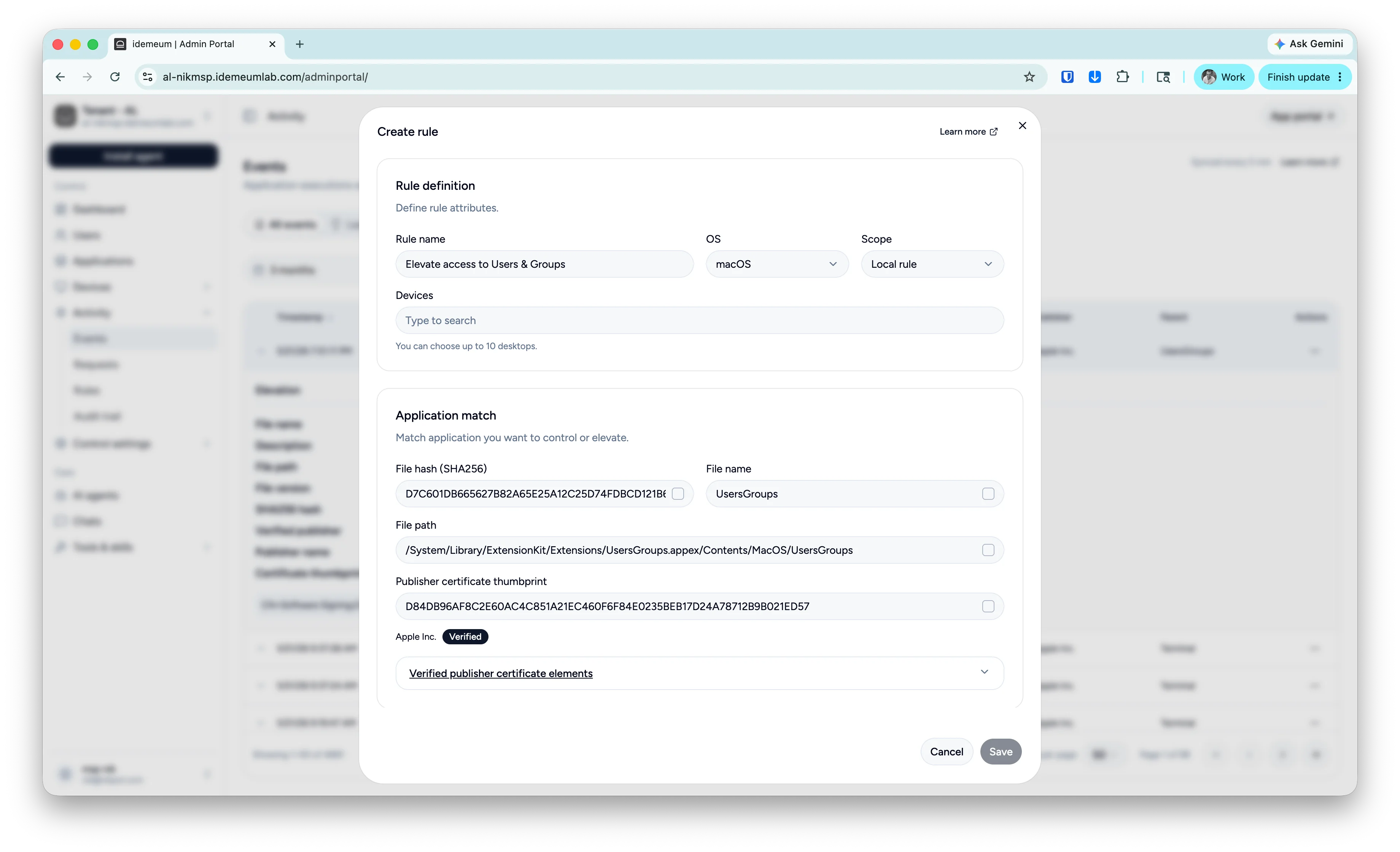
* All rule metadata will be populated and you can choose the attributes:
* Define the rule by providing the rule name, OS it applies to, the scope of the rule (used for MSP tenants - `local` customer only, `global` - across customers). And optionally choose the devices this rule needs to apply to.
* Match application by file attributes, certificate thumbprint, or certificate elements. Simply click the checkbox next to the attribute.
* Define what you want to do with the rule - auto elevate or block.
* Define the rule by providing the rule name, OS it applies to, the scope of the rule (used for MSP tenants - `local` customer only, `global` - across customers). And optionally choose the devices this rule needs to apply to.
* Match application by file attributes, certificate thumbprint, or certificate elements. Simply click the checkbox next to the attribute.
* Define what you want to do with the rule - auto elevate or block.
* Save the rule
 ## Elevation rules Regex
Idemeum rule engine supports regular expressions when matching the applications using various attributes. We support regex for `file name`, `file path`, and `certificate elements`. We use case-insensitive match.
* Match the exact file name for the edge browser
```regexp theme={null}
^msedge.exe$
```
* Match any filename that contains `video`
```regexp theme={null}
.*video.*
```
* Match the path that starts with `C:\Program Files\WindowsApps\` and then contains `linkedin` in the path
```regexp theme={null}
C:\Program Files\WindowsApps\.*linkedin.*
```
* Use this in `O `for certificate element to match anything that is signed by organization that contains `Microsoft`
```regexp theme={null}
Microsoft.*
```
## Elevation rules Regex
Idemeum rule engine supports regular expressions when matching the applications using various attributes. We support regex for `file name`, `file path`, and `certificate elements`. We use case-insensitive match.
* Match the exact file name for the edge browser
```regexp theme={null}
^msedge.exe$
```
* Match any filename that contains `video`
```regexp theme={null}
.*video.*
```
* Match the path that starts with `C:\Program Files\WindowsApps\` and then contains `linkedin` in the path
```regexp theme={null}
C:\Program Files\WindowsApps\.*linkedin.*
```
* Use this in `O `for certificate element to match anything that is signed by organization that contains `Microsoft`
```regexp theme={null}
Microsoft.*
```