> ## Documentation Index
> Fetch the complete documentation index at: https://docs.idemeum.com/llms.txt
> Use this file to discover all available pages before exploring further.
# EPM control mode
> Configure how control agent is enforcing elevation rules on your workstations.
## EPM control modes
Assuming the [EPM is enabled](/epm/enable-endpoint-privilege-management) for your tenant, you can change the `control mode` for each device to define how the control agent will handle elevations.
* offline - idemeum control agent is not doing anything
* audit - idemeum control agent collects events, but does not enforce rules
* rules - idemeum agent applies rules and performs auto elevation
The sections below show how Windows and macOS devices behave with idemeum control agent installed depending on certain parameters.
### Windows
| Mode | User type | Control agent | User experience |
| ----------------------------------- | --------- | -------------- | --------------------------------------------------------------------------- |
| offline | admin | no actions | No experience change |
| offline | standard | no actions | No experience change |
| audit | admin | capture events | UAC set to always prompt
Native auth
Events captured in the cloud |
| audit | standard | capture events | UAC set to always prompt
Native auth
Events captured in the cloud |
| rules | admin | no actions | Native auth
No events in the cloud
No rules or auto elevations |
| rules | standard | enforce rules | Rules and auto elevations
Events captured in the cloud |
### macOS
| Mode | User type | Control agent | User experience |
| ----------------------------------- | --------- | -------------- | ------------------------------------------------------------------------ |
| offline | admin | no actions | No experience change |
| offline | standard | no actions | No experience change |
| audit | admin | capture events | Native auth
Events captured in the cloud |
| audit | standard | capture events | Native auth
Events captured in the cloud |
| rules | admin | no actions | Native auth
No events in the cloud
No rules or auto elevations |
| rules | standard | enforce rules | Rules and auto elevations
Events captured in the cloud |
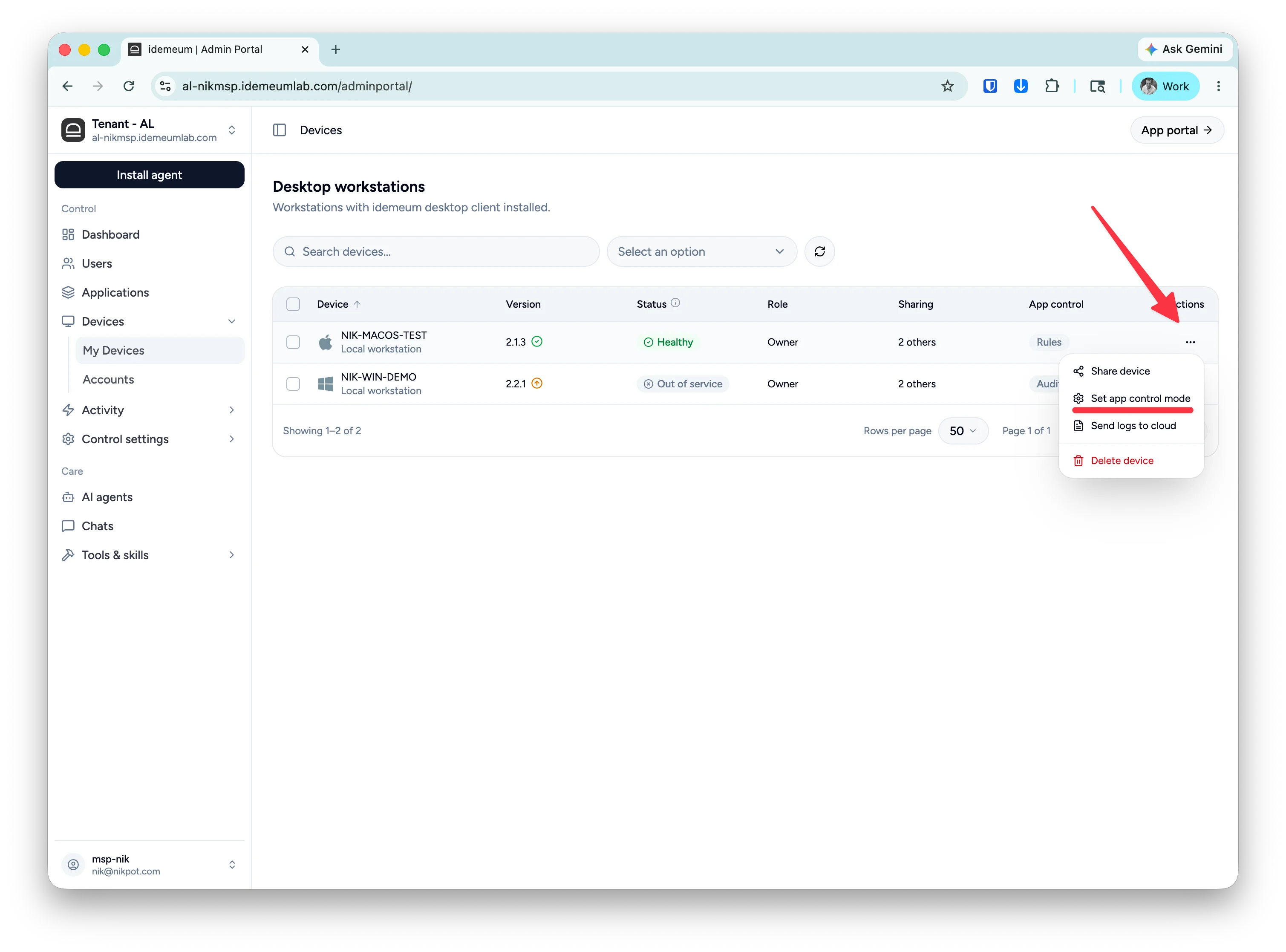
## Change EPM control mode
* Navigate to your idemeum admin portal
* Select `Devices` and search for the device you want to change the app control mode for
* Click on `...` then choose `Set app control mode`
* Choose the mode and save the configuration
 ## Bulk EPM control mode change
* Navigate to your idemeum admin portal
* Access `Devices` section and select multiple devices with checkboxes
* Click on the bulk change button at the top and choose `Set app control mode`
* Choose the mode and save the configuration
## Bulk EPM control mode change
* Navigate to your idemeum admin portal
* Access `Devices` section and select multiple devices with checkboxes
* Click on the bulk change button at the top and choose `Set app control mode`
* Choose the mode and save the configuration