> ## Documentation Index
> Fetch the complete documentation index at: https://docs.idemeum.com/llms.txt
> Use this file to discover all available pages before exploring further.
# User elevation notifications
> How users are notified when elevation requests are approved or denied.
## How user notifications work
When users request application elevations, and these requests are approved or denied by IT team, idemeum offers a feedback loop to notify users of the request outcome. There are several ways users get notified.
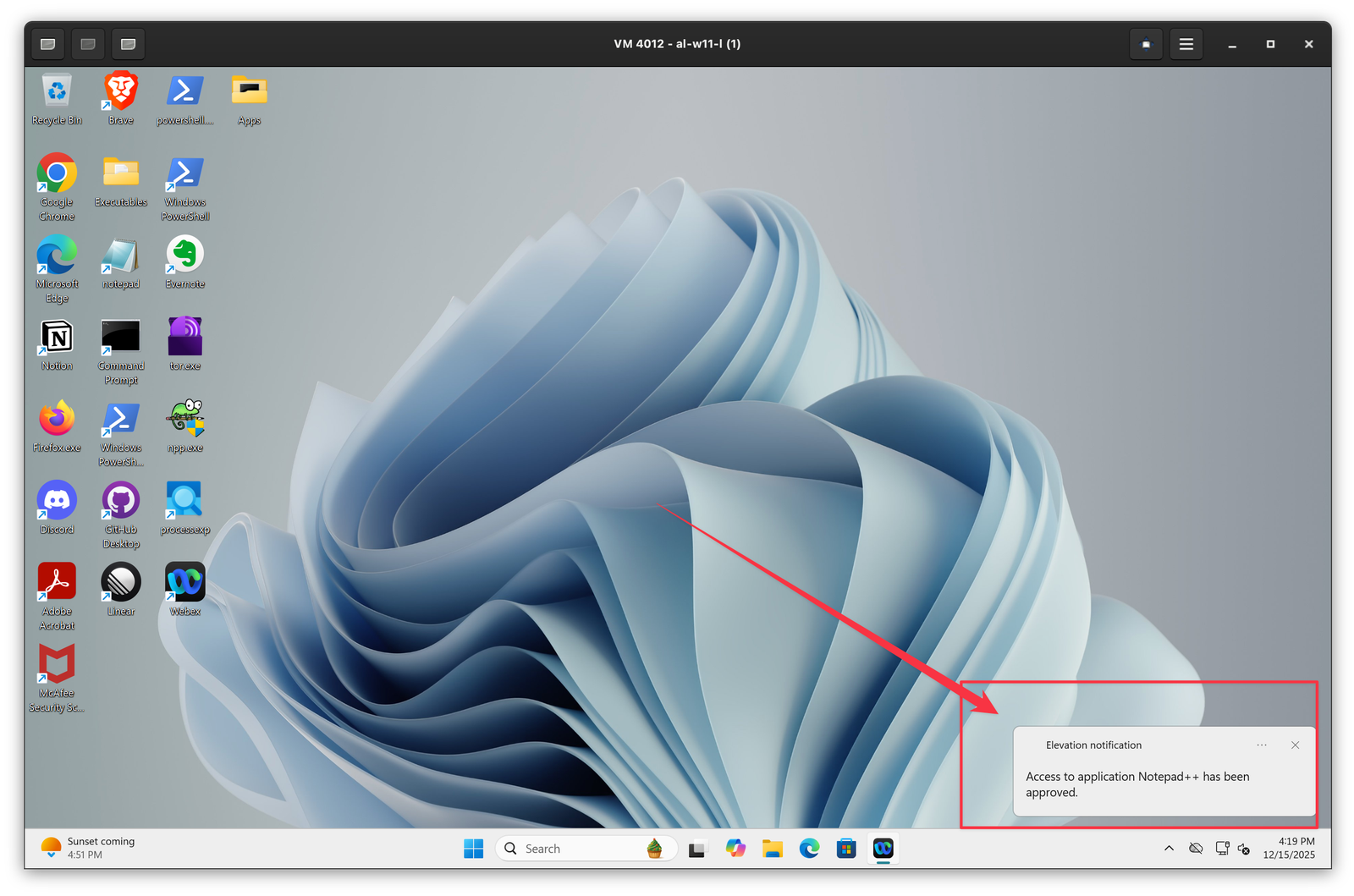
When the elevation request is approved or denied, idemeum will send a push notification back to Windows or macOS agent. If notifications are enabled on the desktop, the user will see a pop up notification detailing the request and the outcome.
We are leveraging [**APNS**](https://en.wikipedia.org/wiki/Apple_Push_Notification_service?ref=docs.idemeum.com) for macOS and [**FCM**](https://firebase.google.com/docs/cloud-messaging?ref=docs.idemeum.com) for Windows to deliver notifications. While these notifications can be real time, they are best effort and not guaranteed. If the device is offline when the push notification is sent, the notification will be lost.
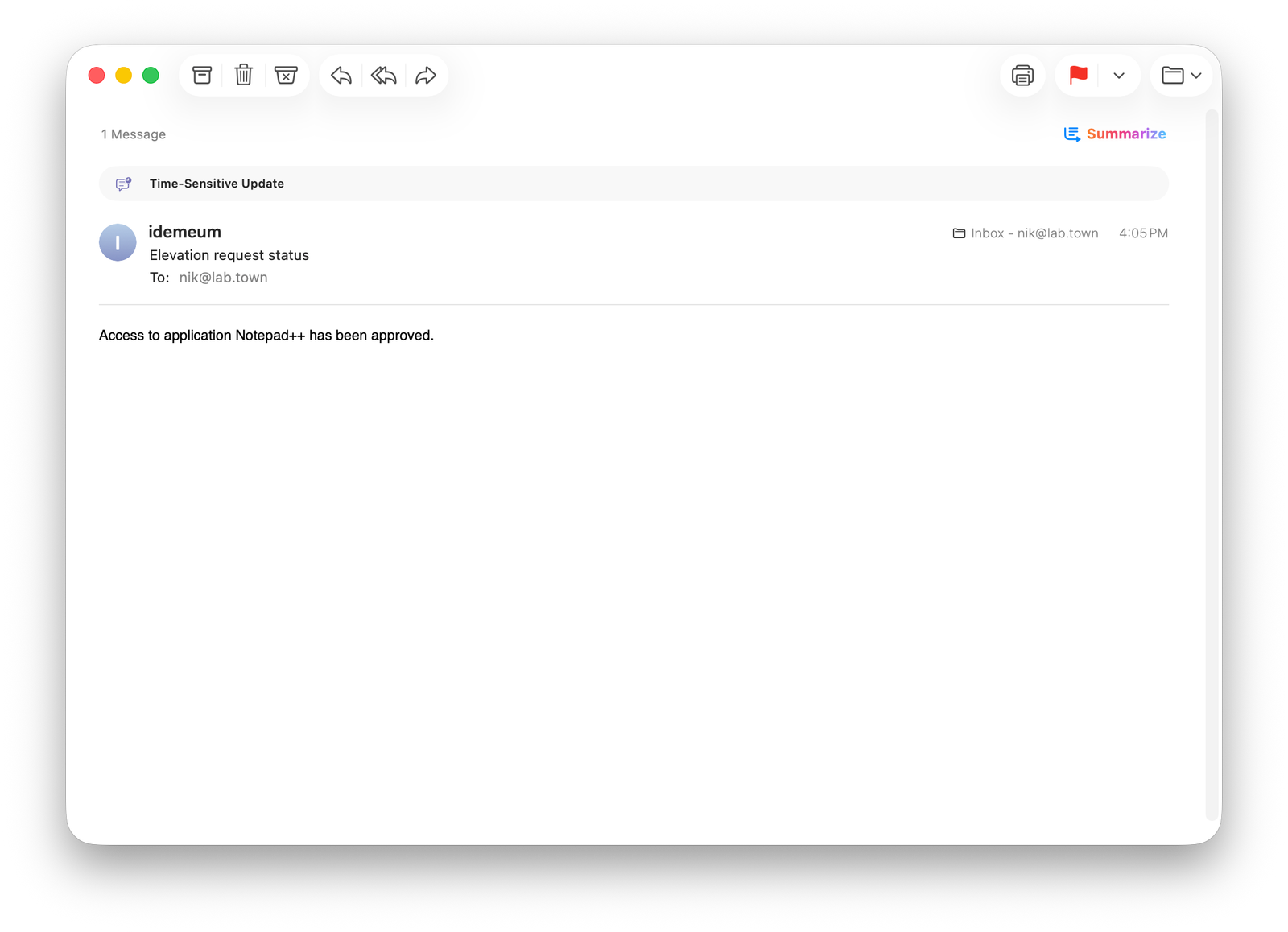
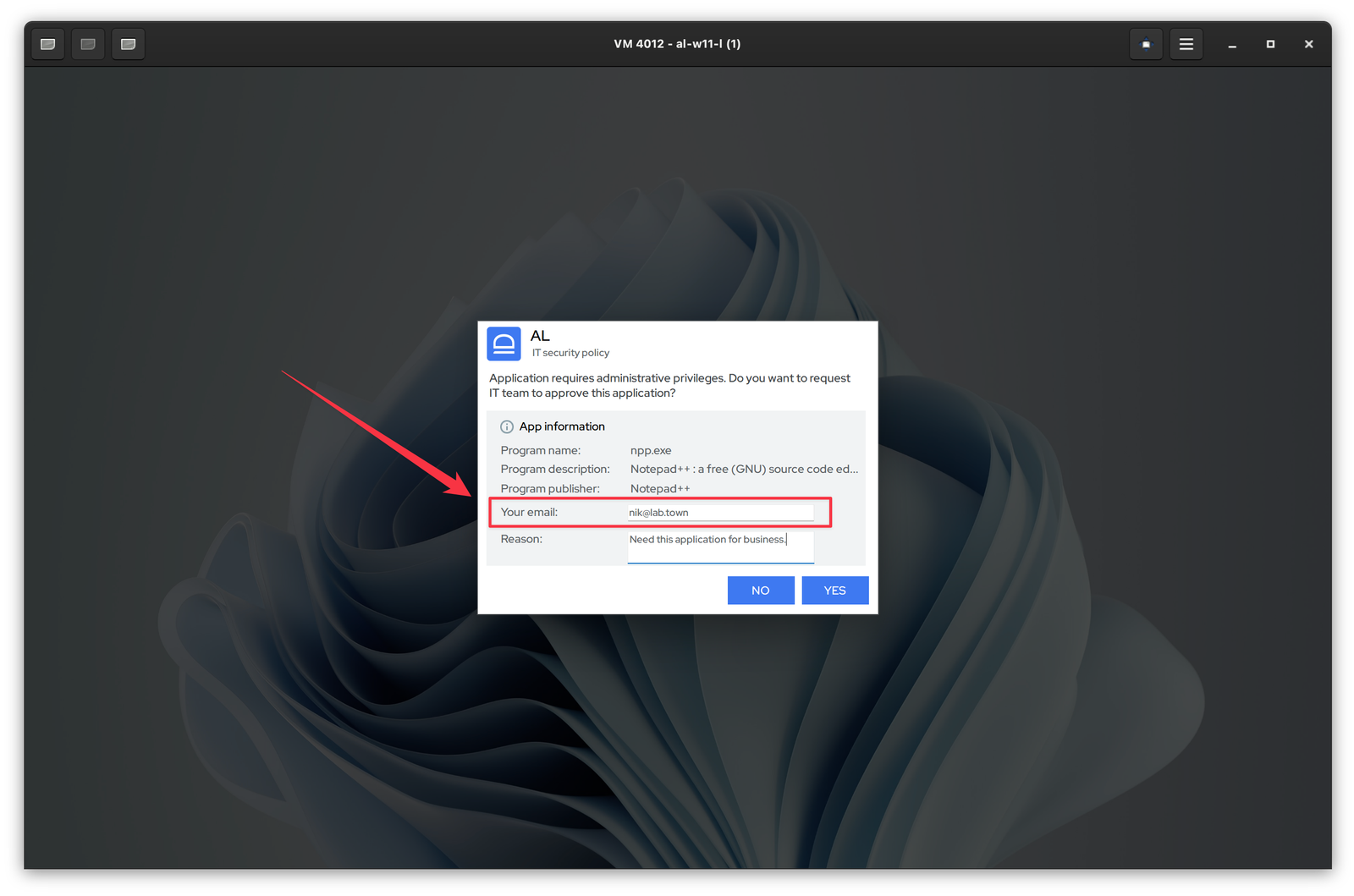
When users request application elevations, they can provide certain pieces of information with the request, including email address. When the application elevation is approved or denied, the email with the result will be sent to user provided email address.
Users need to provide the email only once. Once entered, it will saved and auto filled for any subsequent requests.
## Push notifications user experience
On Windows we send the notification back to device and display it at the bottom right of the screen.
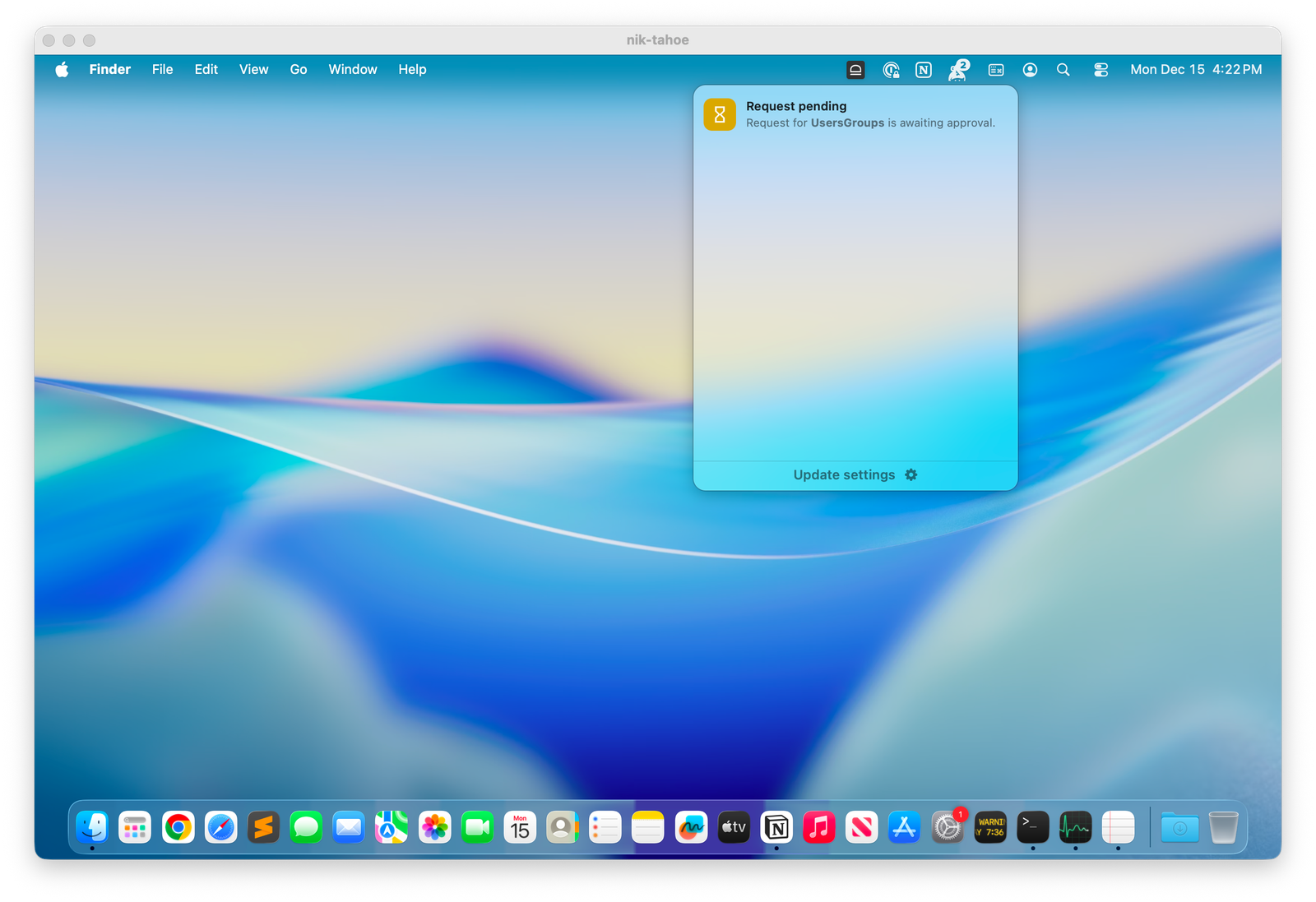
 On macOS we also display application notifications in a standard way. In addition to this, we offer the notification tray in the top bar menu. When you click on the idemeum icon, you will be able to see all your requests along with the requests status.
 ## Email notifications user experience
On Windows or macOS workstation users can provide the email address when requesting application elevation.
## Email notifications user experience
On Windows or macOS workstation users can provide the email address when requesting application elevation.
 When application is approved or denied, the email is sent to the user to specified email address to inform about the request resolution.