> ## Documentation Index
> Fetch the complete documentation index at: https://docs.idemeum.com/llms.txt
> Use this file to discover all available pages before exploring further.
# Quickstart - Allowlisting
> Set up application control on Windows and macOS.
## What is allowlisting?
Instead of blocking everything that is bad in your environment, you explicitly allow what applications need to run on user workstations. In simple terms, you only allow applications that you trust, and block everything else, including malware and ransomware. When idemeum agent is installed, it intercepts every process execution event and applies `Default deny` policy - if application is not explicitly trusted, it is not allowed.
Full documentation section for allowlisting
## Get started with allowlisting
In this guide we will install the agent and quickly try the application control enforcement.
Sign up for free idemeum IT or MSP tenant on our website → [idemeum.com](https://idemeum.com)
If you are an MSP, please create a child tenant / organization.
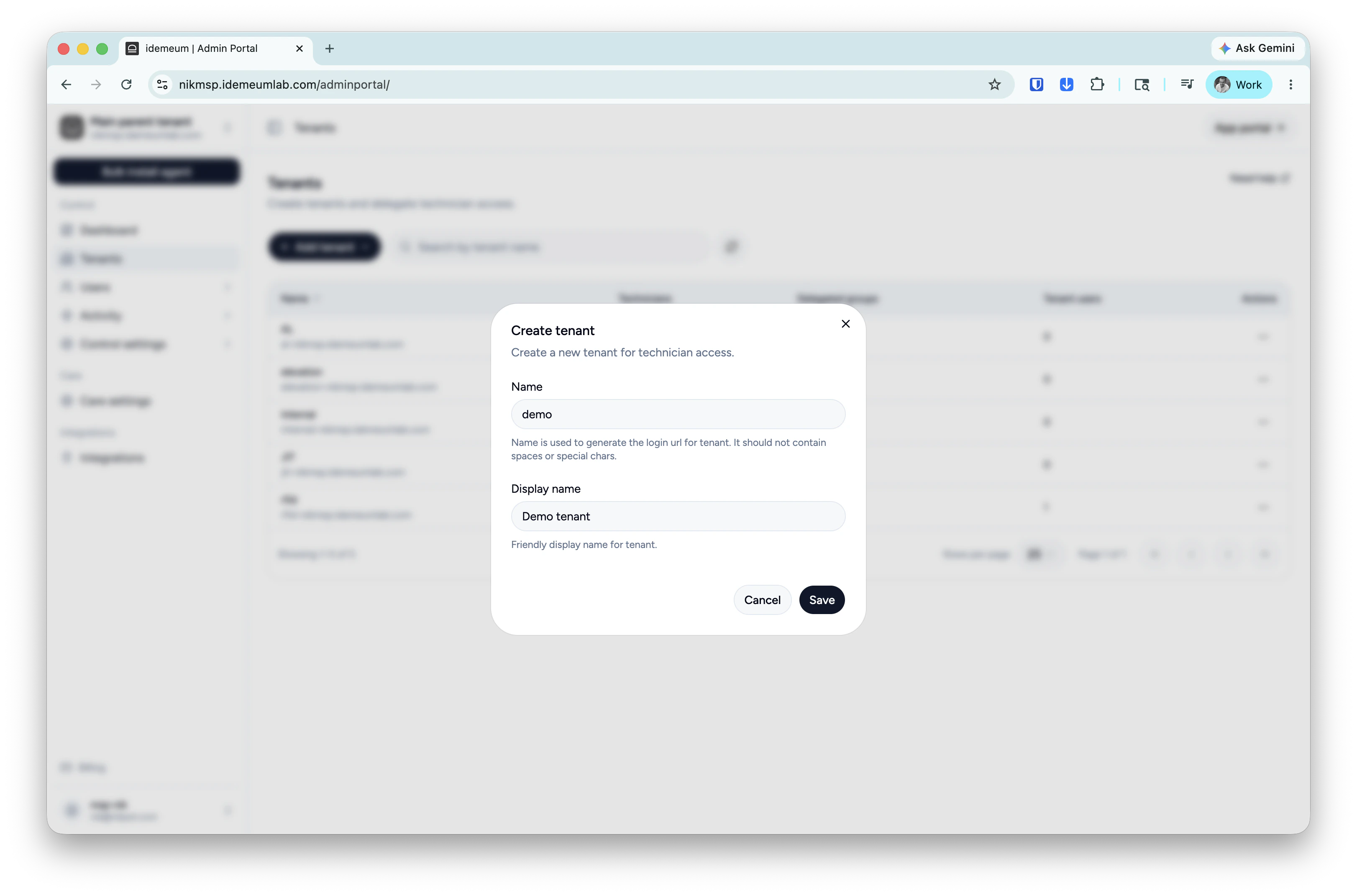
* Login to your MSP admin portal
* Navigate to `Tenants` → click `Add tenant` and choose manually
* Provide subdomain and display names and save the configuration
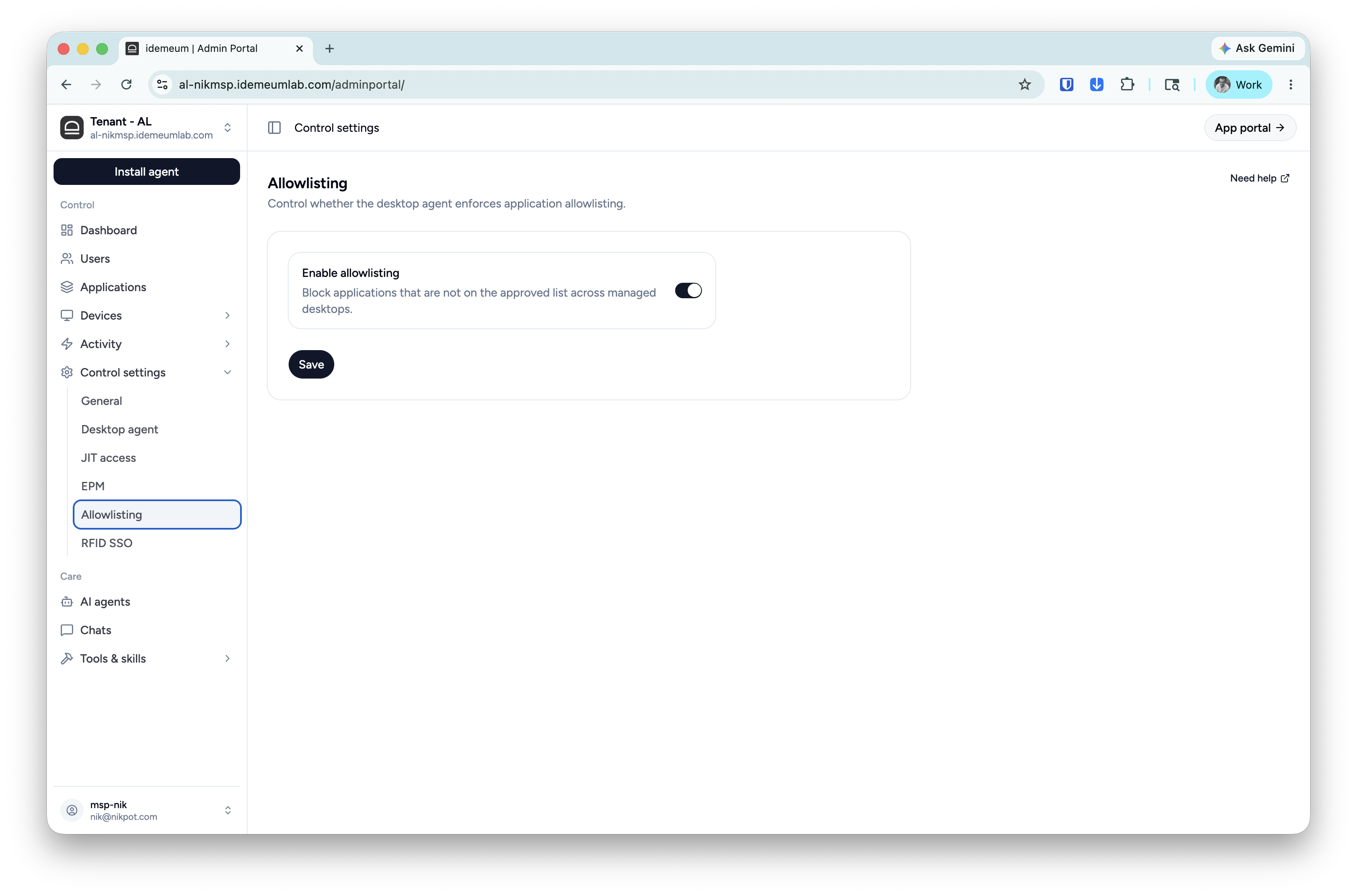
 * Navigate to your idemeum tenant admin portal
* Click `Control settings` → `Allowlisting`
* Make sure allowlisting is enabled for your tenant
* Navigate to your idemeum tenant admin portal
* Click `Control settings` → `Allowlisting`
* Make sure allowlisting is enabled for your tenant
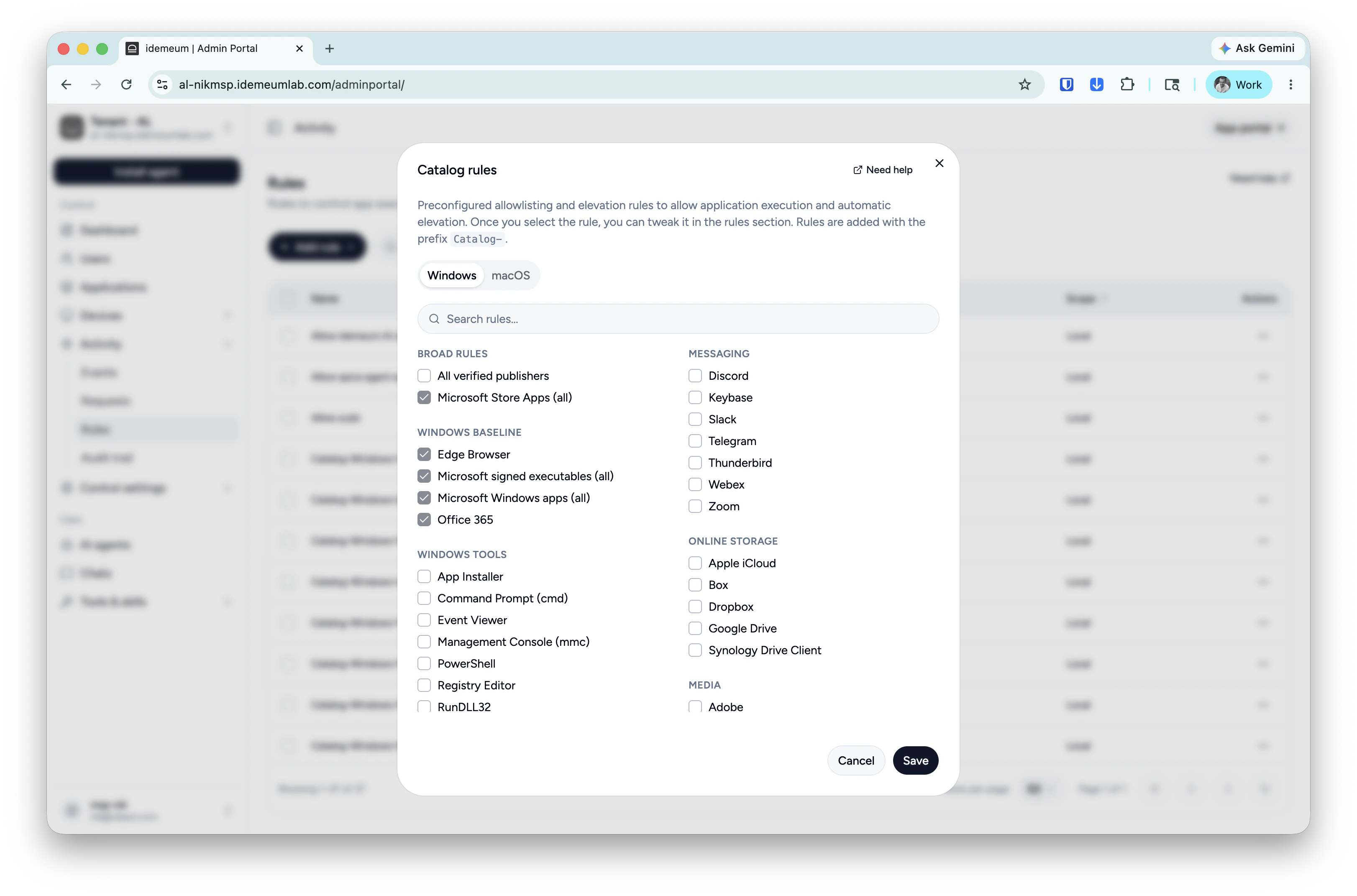
 We will now create baseline rules for most used applications on your workstation.
* Access `Activity` → `Rules`
* Click `Add rule` → `Catalog`
* Check the rules that you need.
* We recommend allowing everything that is signed by Microsoft, Apple, and Google.
We will now create baseline rules for most used applications on your workstation.
* Access `Activity` → `Rules`
* Click `Add rule` → `Catalog`
* Check the rules that you need.
* We recommend allowing everything that is signed by Microsoft, Apple, and Google.
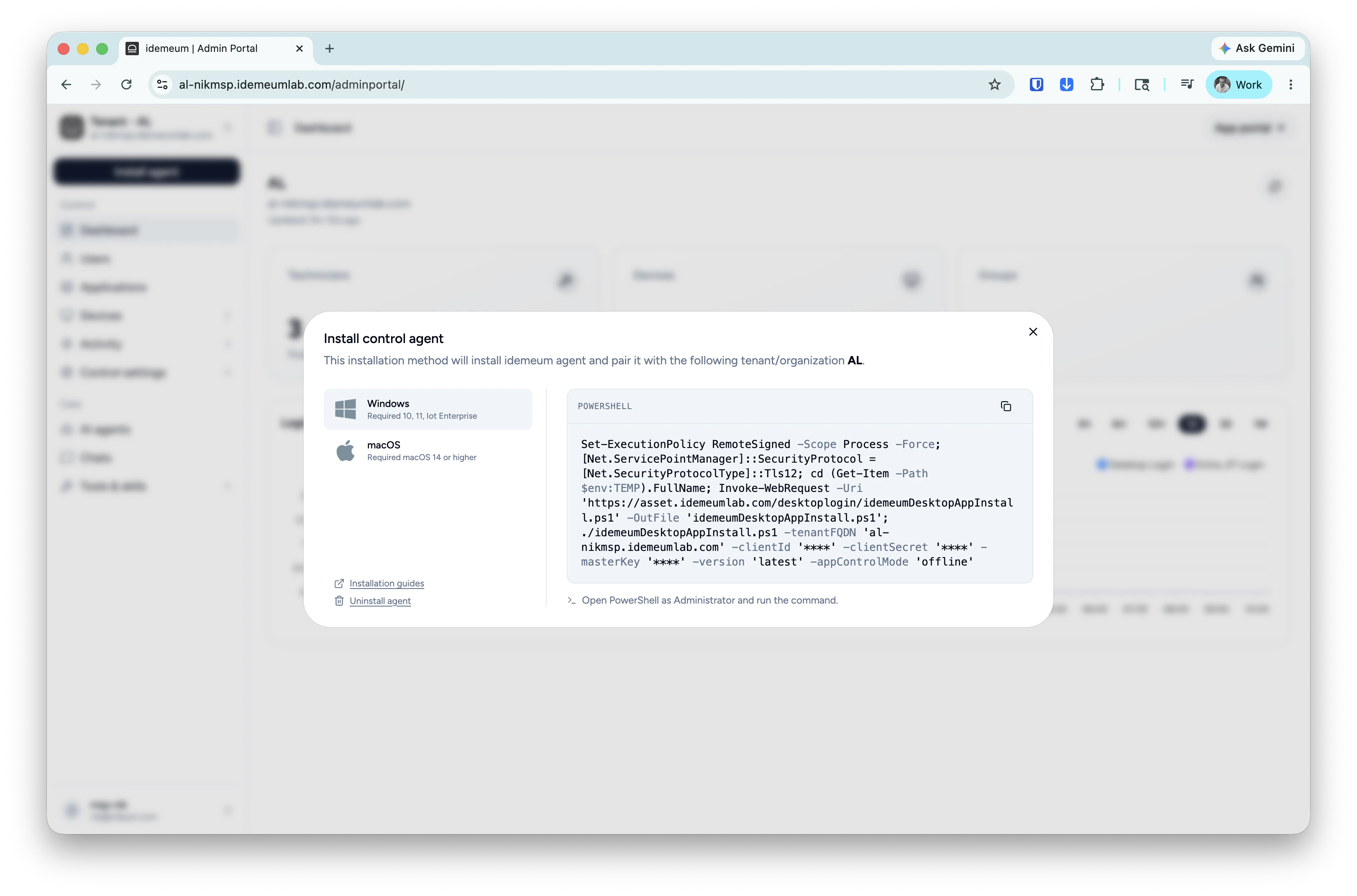
 macOS agent deployment requires privacy and security permissions so it is recommended to deploy the agent with an MDM profile.
Click on the `Install agent` → choose `Control agent` and copy the installation command for Windows or macOS.
macOS agent deployment requires privacy and security permissions so it is recommended to deploy the agent with an MDM profile.
Click on the `Install agent` → choose `Control agent` and copy the installation command for Windows or macOS.
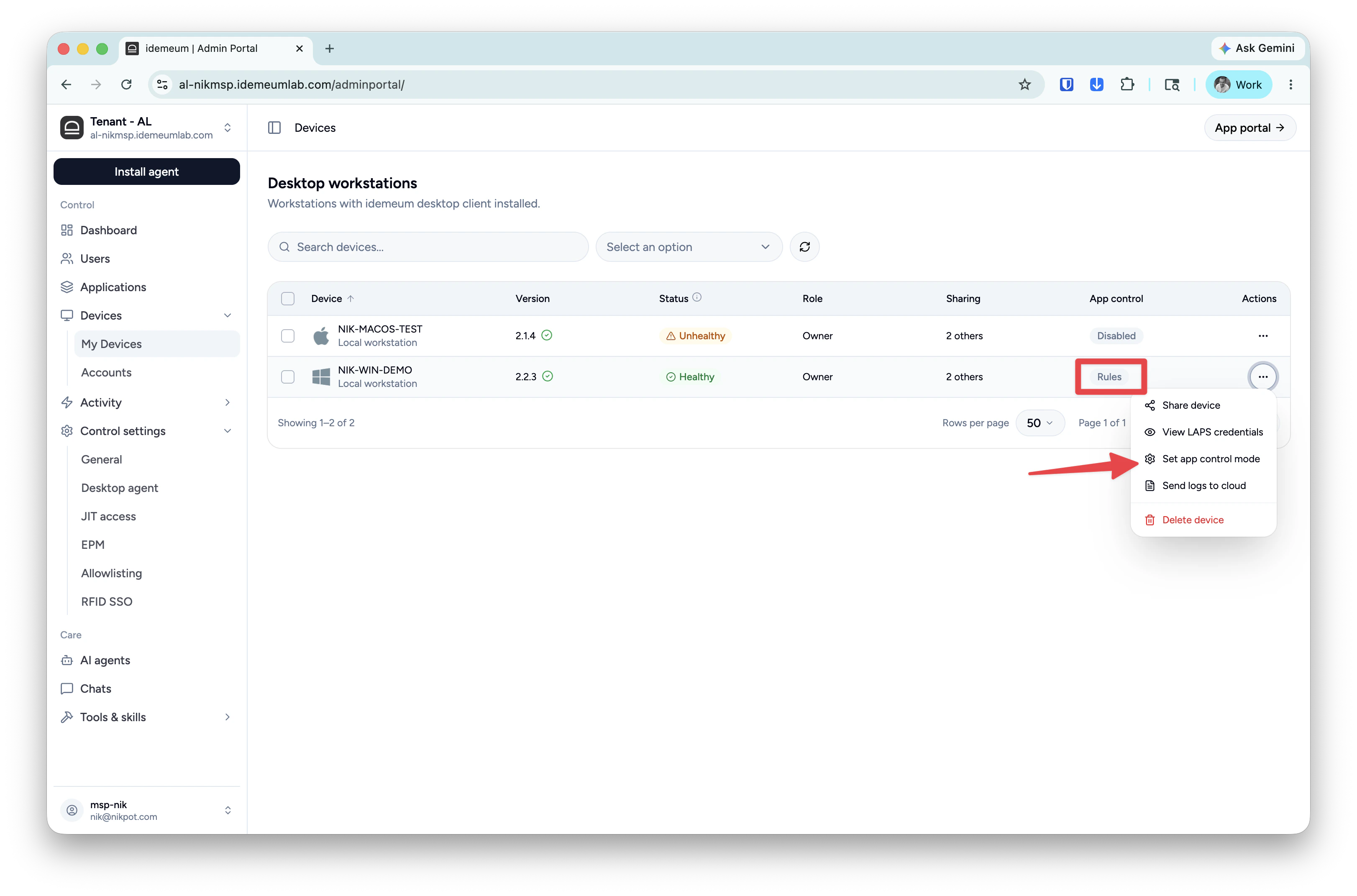
 Once the agent is installed it will appear in the `Devices` table and the default mode for application control will be turned off. Click on `...` and turn the application control mode to `Rules`.
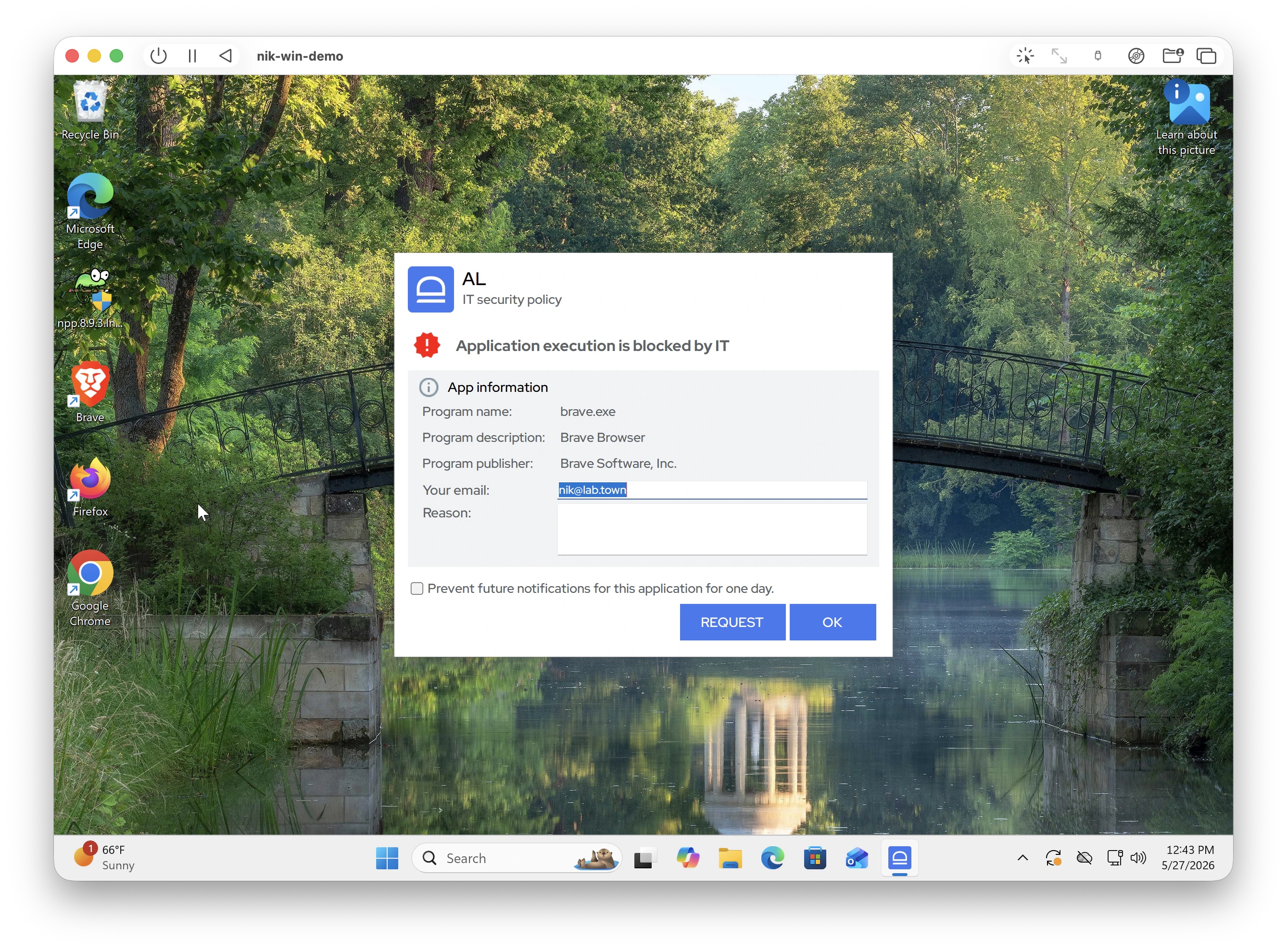
 * Launch any application that is not covered by any rules - application will be blocked
* Launch any application what is covered by rules - it will be allowed
* Launch any application that is not covered by any rules - application will be blocked
* Launch any application what is covered by rules - it will be allowed
 Allowlisting has many more features that we can cover in this guide. Please consult our [documentation](/allowlisting-overview) to learn about all features EPM has to offer.