> ## Documentation Index
> Fetch the complete documentation index at: https://docs.idemeum.com/llms.txt
> Use this file to discover all available pages before exploring further.
# Quickstart - Cloud LAPS
> Set up break-glass password rotation for computers and Entra tenants.
## What is LAPS for computers?
Cloud LAPS allows you to create break-glass / emergency accounts on all customer workstations (including domain controllers), automatically rotate passwords for these accounts every `24 hours`, and store the credentials in idemeum zero-knowledge cloud vault.
Full documentation section for Cloud LAPS
## Get started with Cloud LAPS
### LAPS for computers
In this section we will set up break-glass account rotation on workstations. We will need to enable LAPS and install idemeum control agent on workstations.
Sign up for free idemeum IT or MSP tenant on our website → [idemeum.com](https://idemeum.com)
If you are an MSP, please create a child tenant / organization.
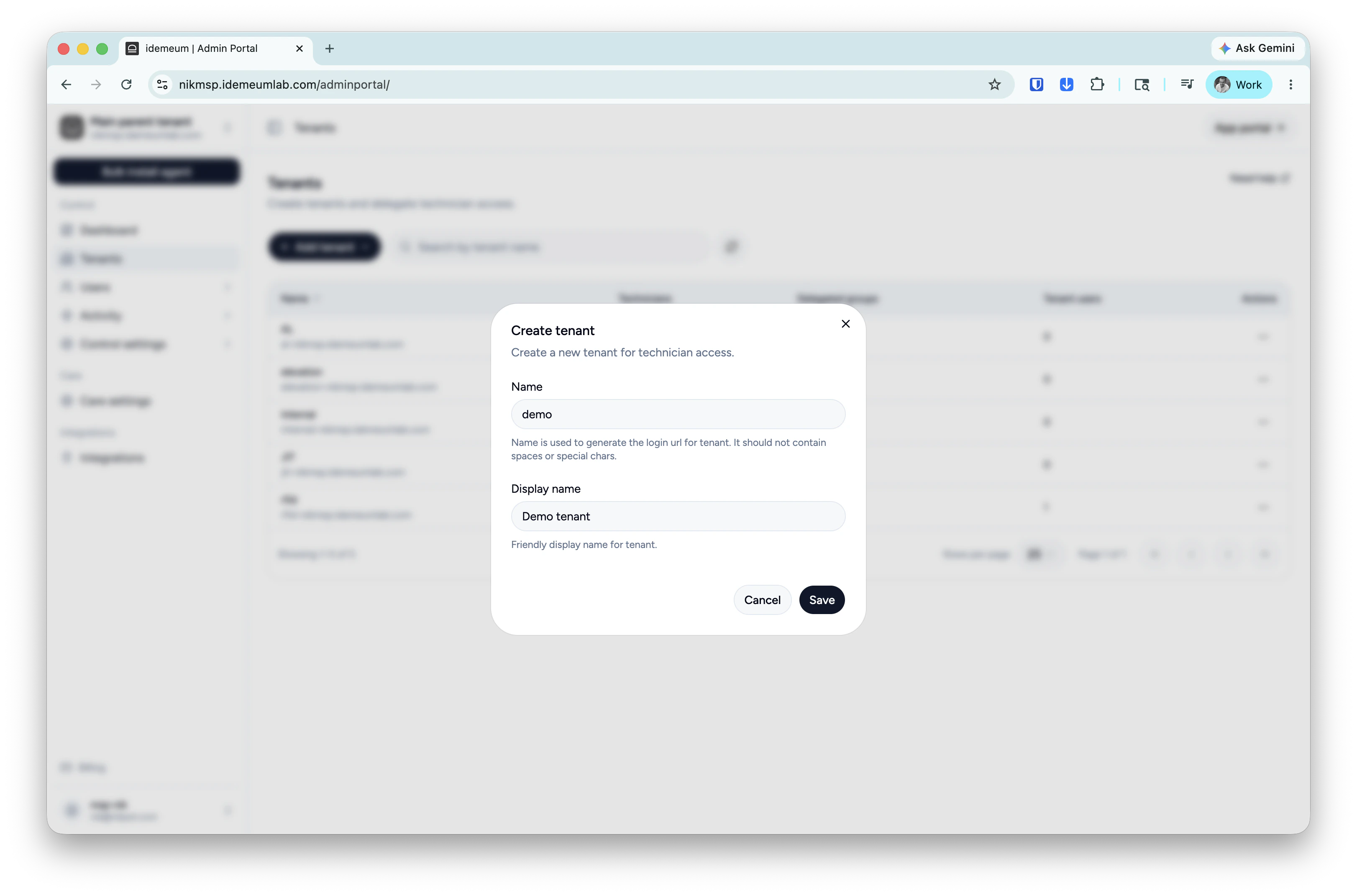
* Login to your MSP admin portal
* Navigate to `Tenants` → click `Add tenant` and choose manually
* Provide subdomain and display names and save the configuration
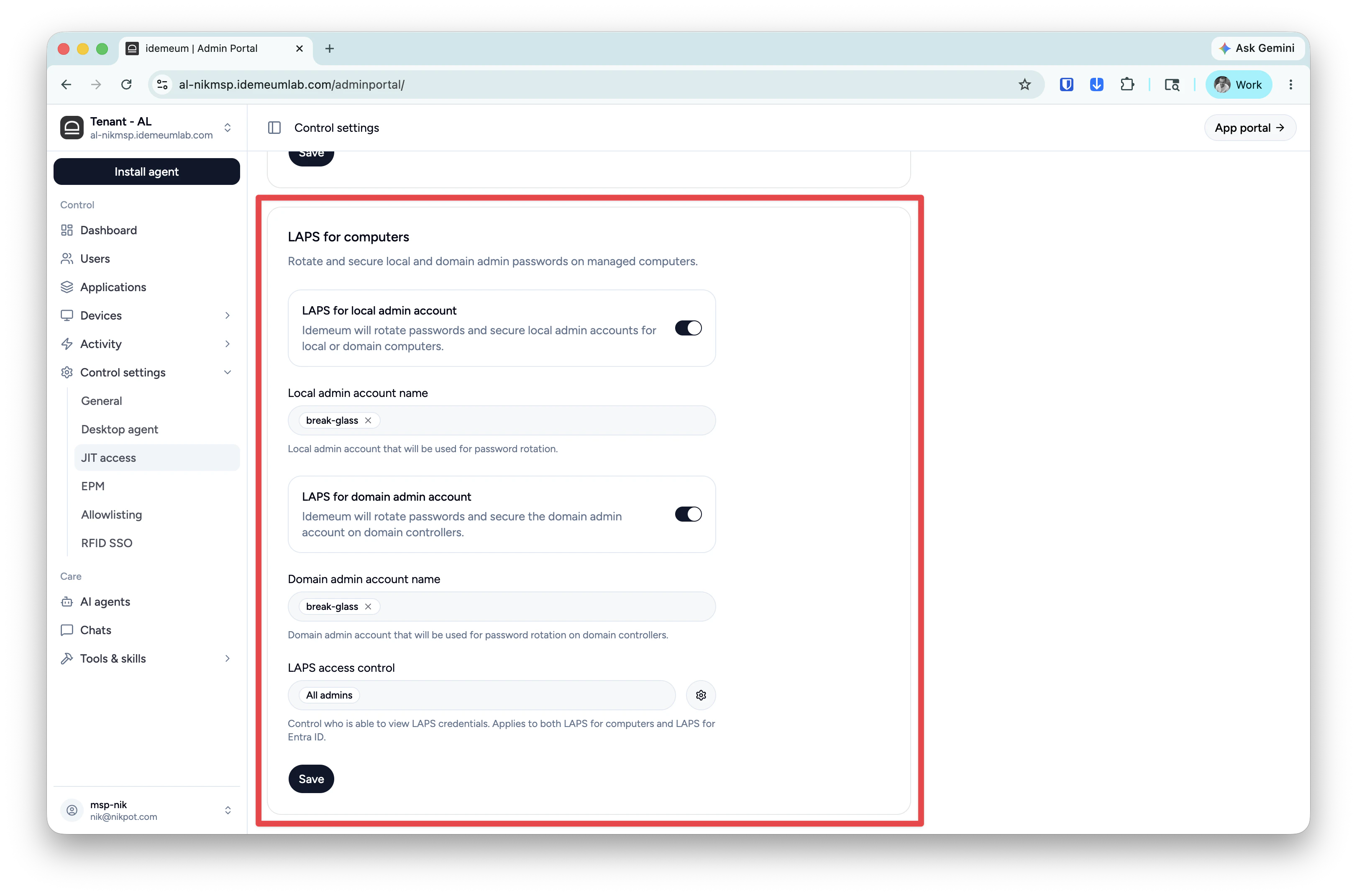
 * In your tenant navigate to `Control settings` → `JIT access` and scroll down to the LAPS section
* Enable LAPS (you can enable LAPS for workstations to rotate local admin accounts, and for domain controllers to rotate domain admin accounts)
* Specify the account name to use (if account exists, it will be taken over for password rotation)
* In your tenant navigate to `Control settings` → `JIT access` and scroll down to the LAPS section
* Enable LAPS (you can enable LAPS for workstations to rotate local admin accounts, and for domain controllers to rotate domain admin accounts)
* Specify the account name to use (if account exists, it will be taken over for password rotation)
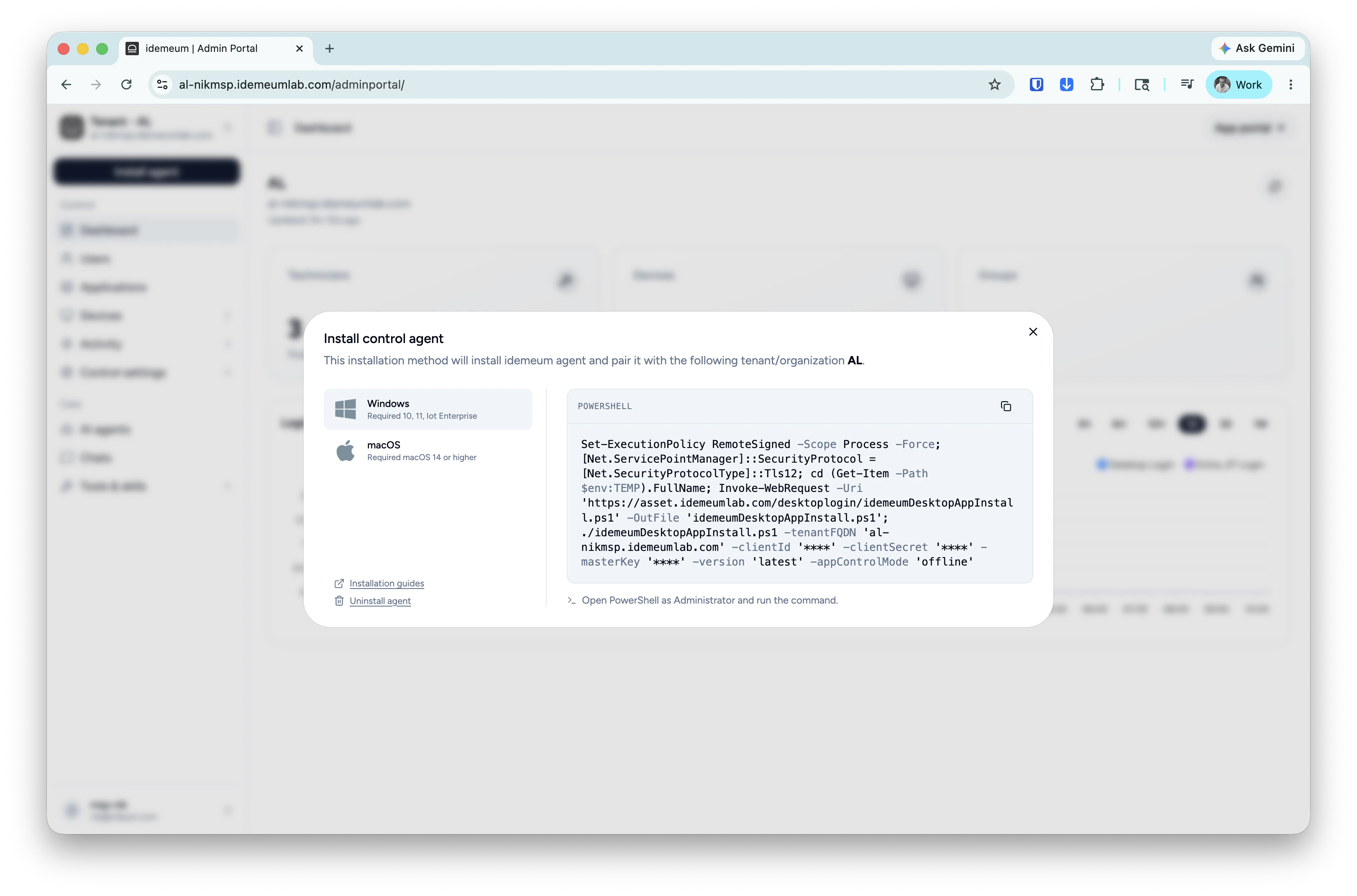
 macOS agent deployment requires privacy and security permissions so it is recommended to deploy the agent with an MDM profile.
Click on the `Install agent` → choose `Control agent` and copy the installation command for Windows or macOS.
macOS agent deployment requires privacy and security permissions so it is recommended to deploy the agent with an MDM profile.
Click on the `Install agent` → choose `Control agent` and copy the installation command for Windows or macOS.
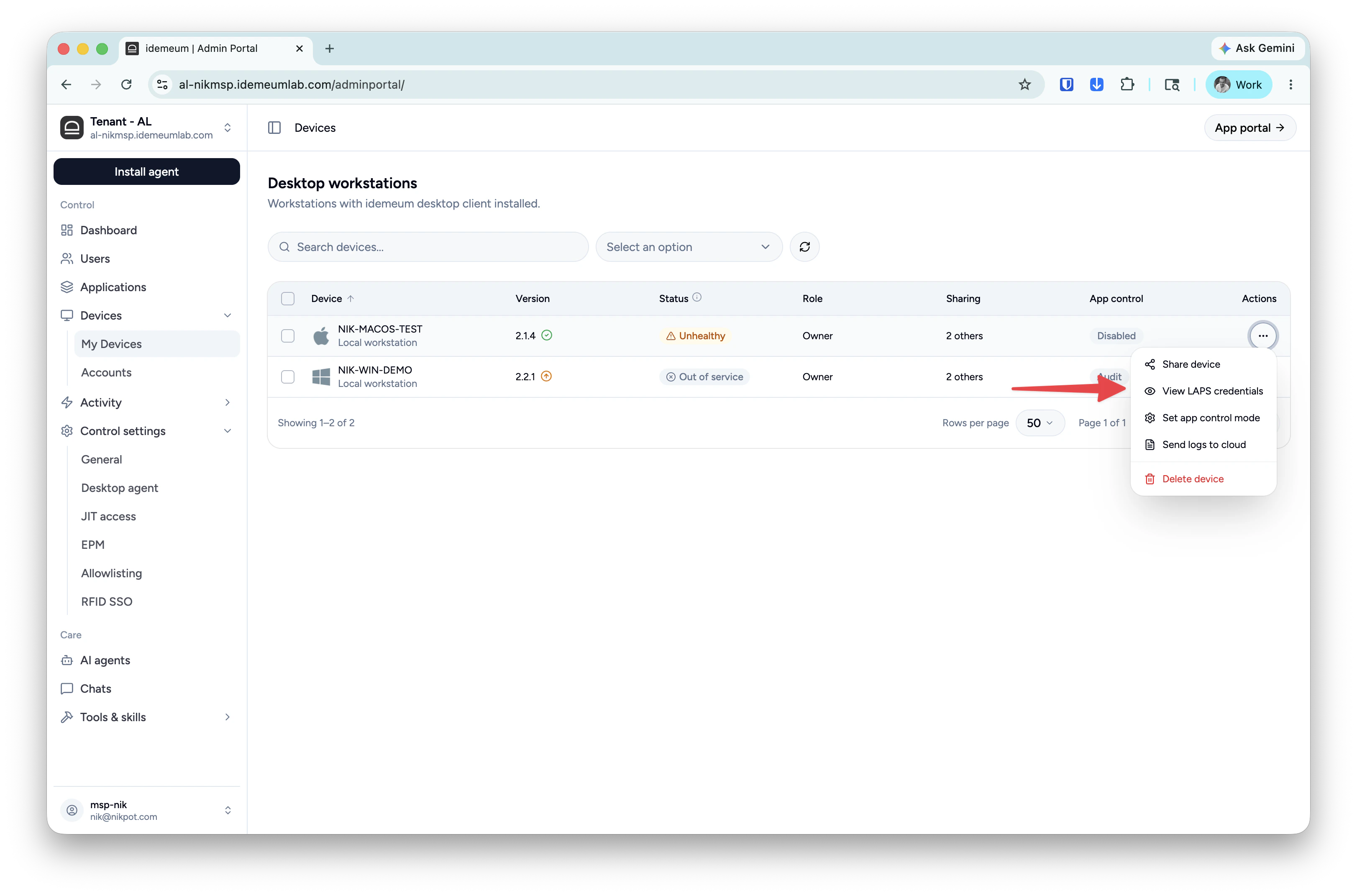
 Navigate to `Devices` table and search for the device agent that you installed, click on `...` and choose `View LAPS credentials`.
 ### LAPS for Entra ID
In this section we will configure break-glass password rotation for Microsoft Entra ID tenants. We will need to connect Entra ID tenant to idemeum tenant to create accounts and rotate passwords.
At this step you need to create an application in Entra ID tenant and set up idemeum to connect to M365 tenant using that application.
Follow these [steps](/jit/jit-for-entra-configuration) to perform this configuration.
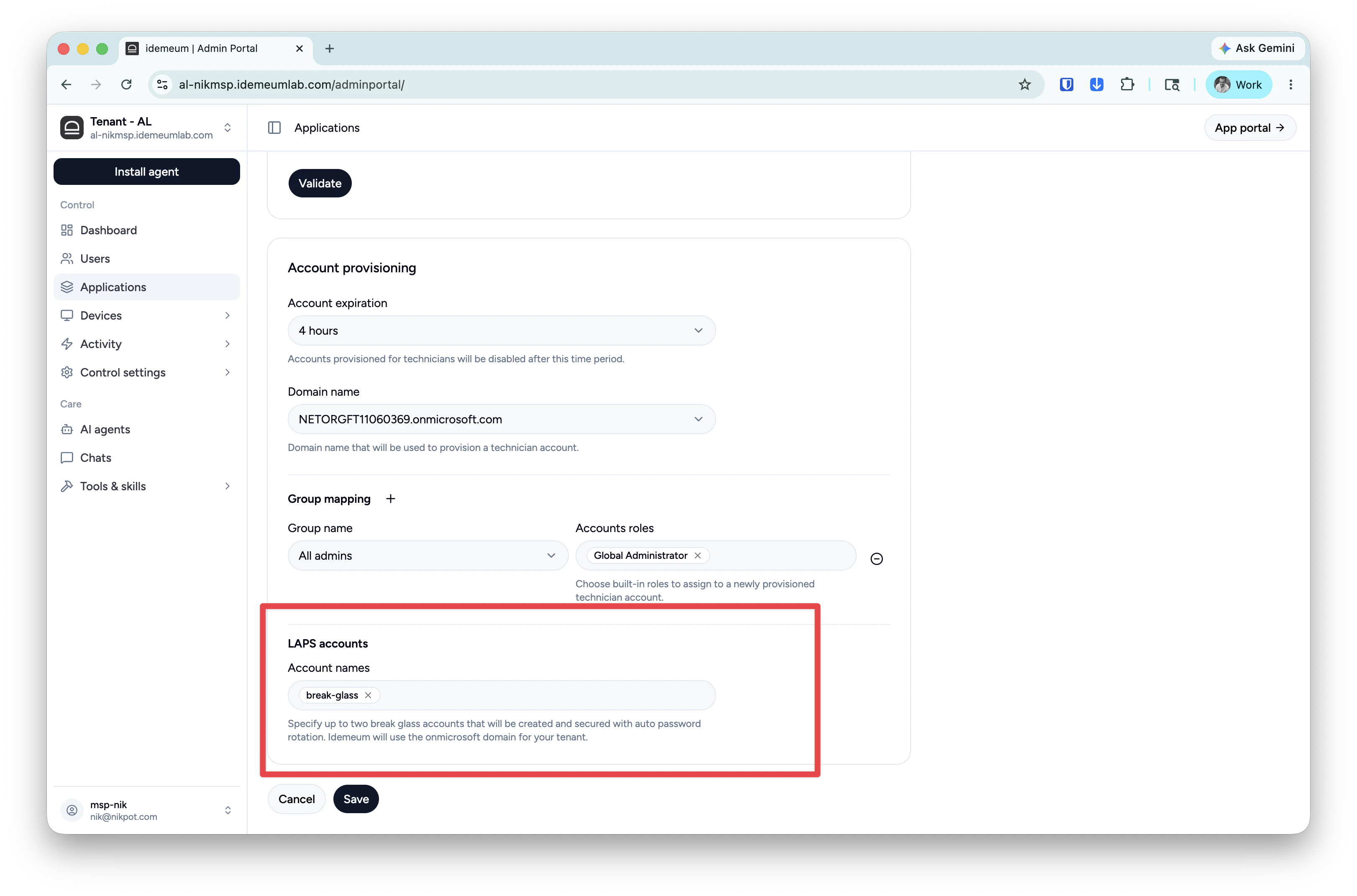
At the bottom of the Entra ID application configuration make sure you have LAPS enabled and the account name specified.
### LAPS for Entra ID
In this section we will configure break-glass password rotation for Microsoft Entra ID tenants. We will need to connect Entra ID tenant to idemeum tenant to create accounts and rotate passwords.
At this step you need to create an application in Entra ID tenant and set up idemeum to connect to M365 tenant using that application.
Follow these [steps](/jit/jit-for-entra-configuration) to perform this configuration.
At the bottom of the Entra ID application configuration make sure you have LAPS enabled and the account name specified.
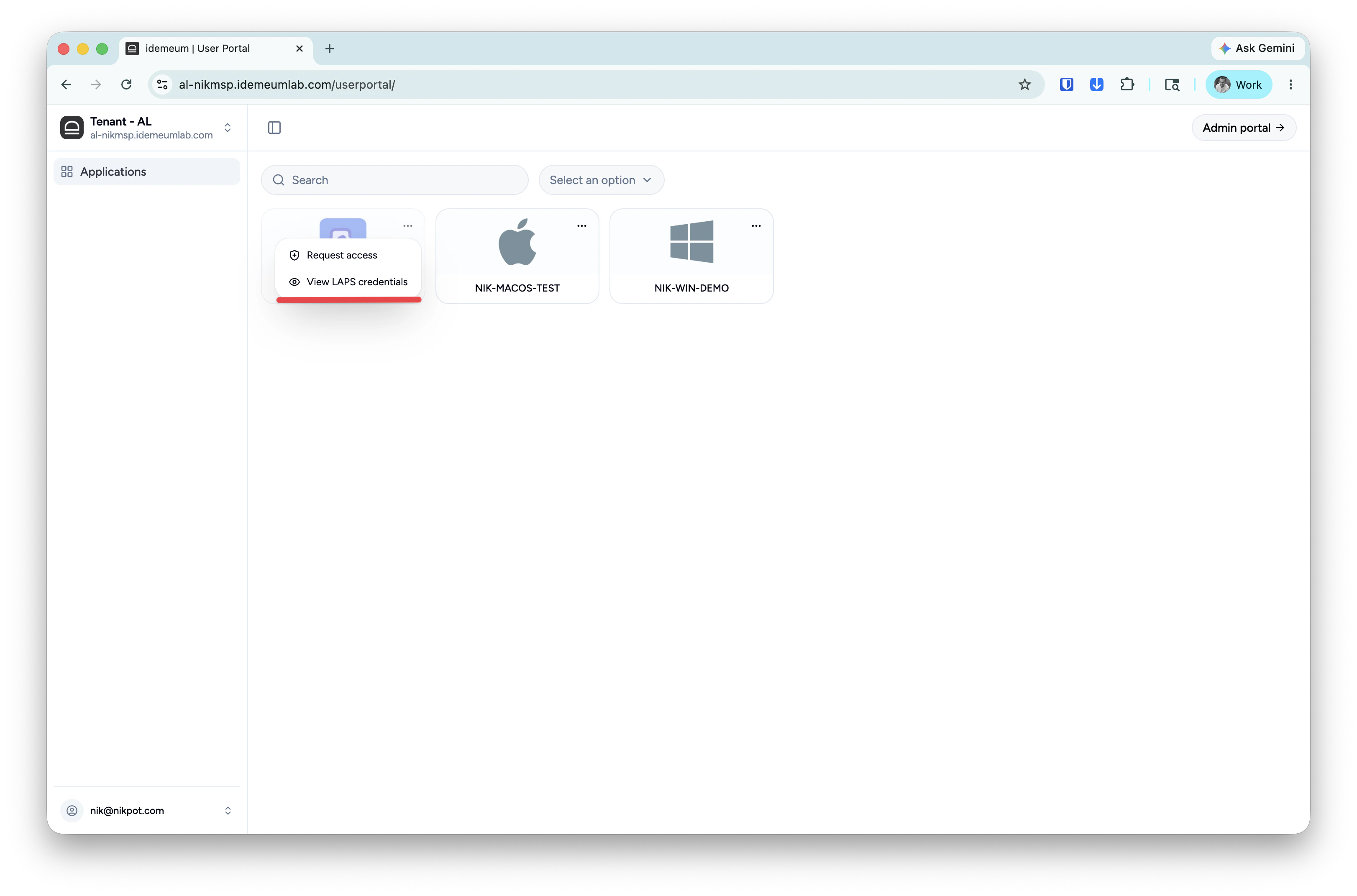
 * Navigate to the customer / organization user portal
* Search for Entra ID application and click on `...`
* Choose `View LAPS credentials`
* Navigate to the customer / organization user portal
* Search for Entra ID application and click on `...`
* Choose `View LAPS credentials`