> ## Documentation Index
> Fetch the complete documentation index at: https://docs.idemeum.com/llms.txt
> Use this file to discover all available pages before exploring further.
# Atera RMM
> Control agent deployment with Atera RMM.
In this guide we will take a look at how you can deploy control agent to Atera managed workstations with unified deployment script. We will create a script and leverage a placeholder variable, so that when the script is deployed, you can dynamically pass the customer name to idemeum script. This way the idemeum agent will be associated with the appropriate organization in idemeum, and if the organization does not exist, it will be automatically created.
## **Obtain unified install script**
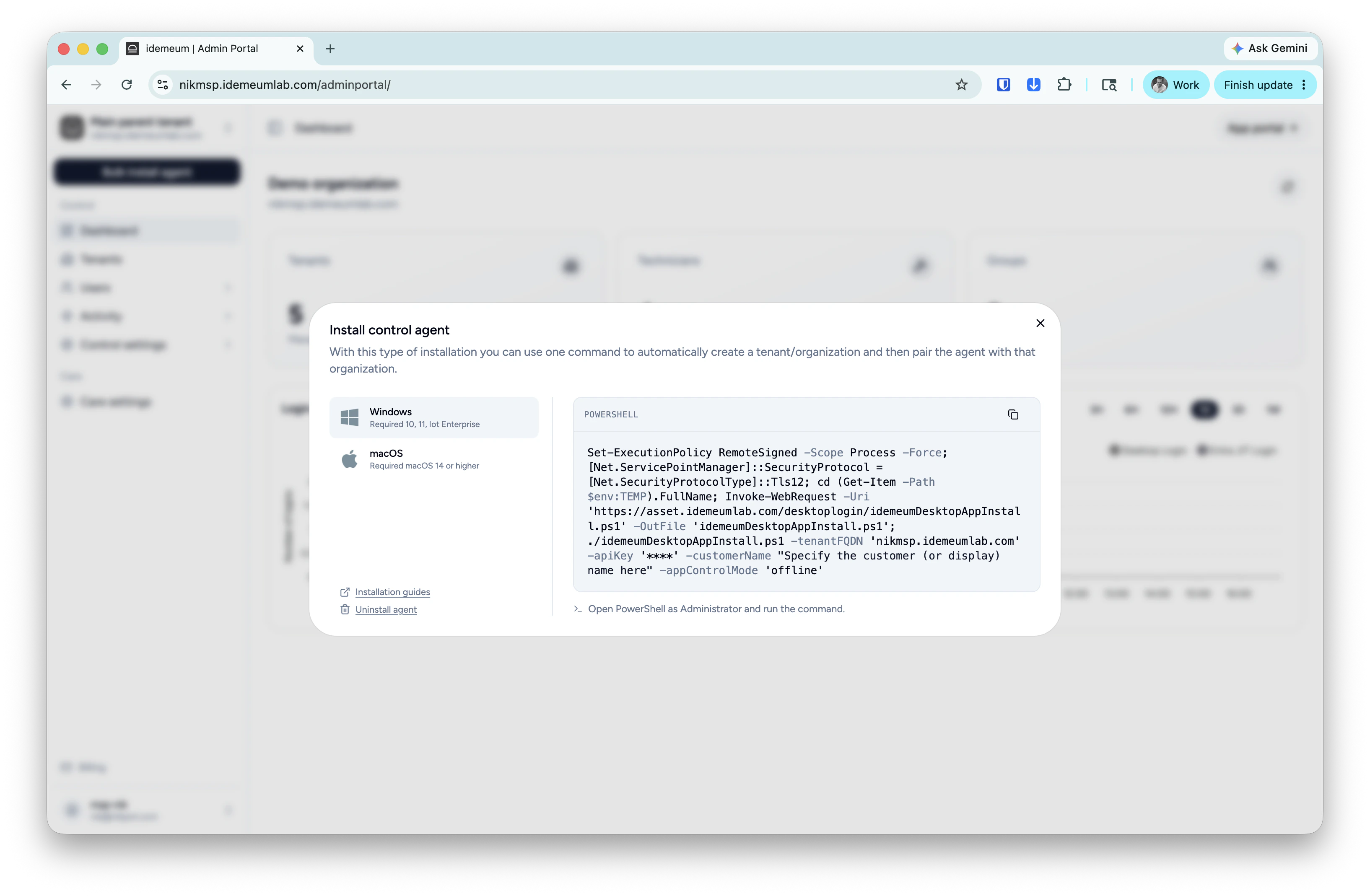
* Navigate to the admin portal of your `Main MSP dashboard`
* Click on `Bulk install agent` then choose `Control agent`
* Choose the operating system and copy the unified install script command
* Save this command somewhere as we will need to use it in Atera
 ## **Create script in Atera**
* Access the Atera management dashboard
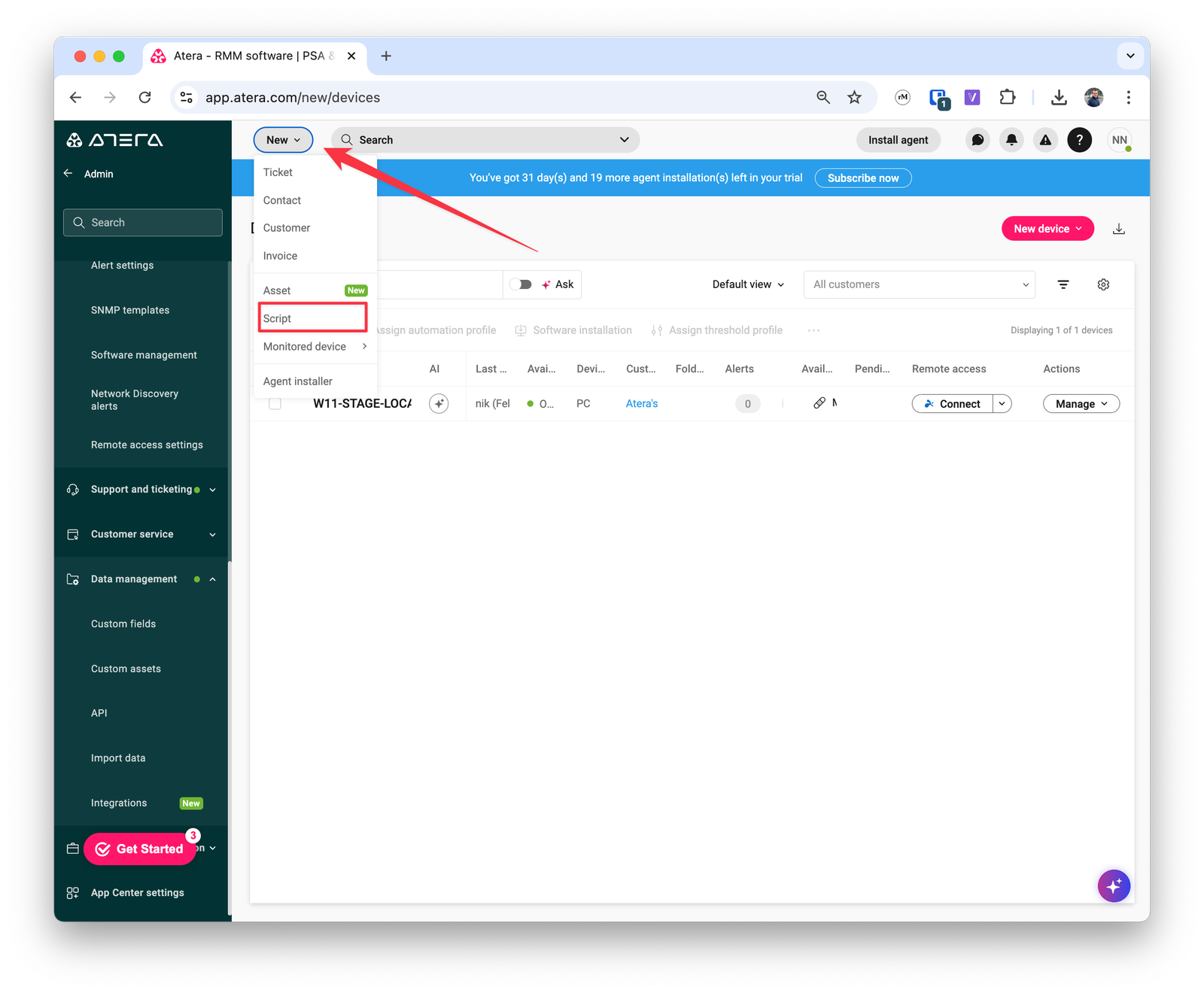
* Click on `New` at the top left and choose `Script`
## **Create script in Atera**
* Access the Atera management dashboard
* Click on `New` at the top left and choose `Script`
 * Specify the following parameters for the script
* Provide script name and description
* File type `ps1`
* Max run minutes `10`
* Run as `System`
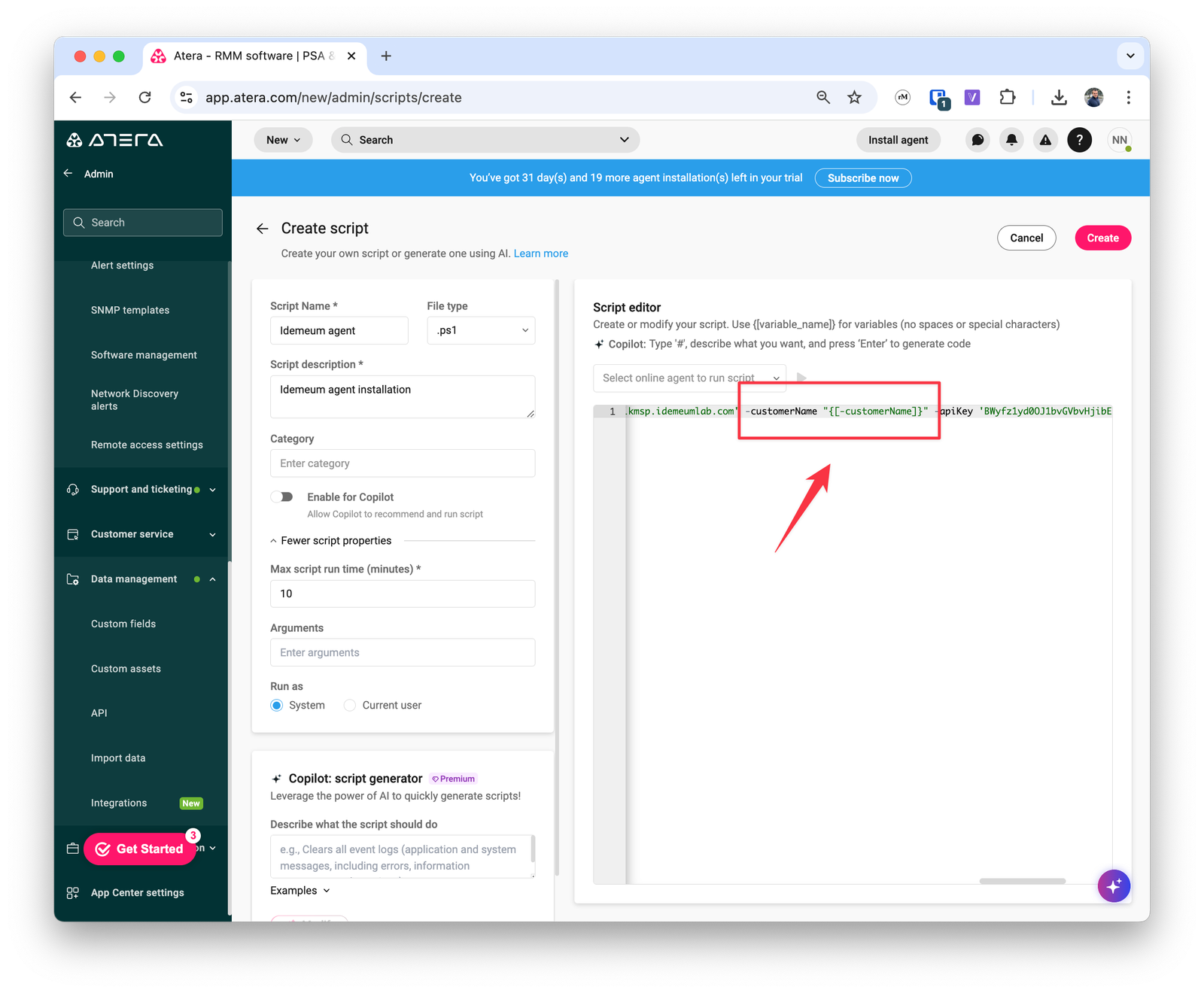
* In the script editor window paste the idemeum command that you obtained in the previous section
* Scroll to the `-customerName` attribute and reference a dynamic variable using `""`. In this care we are using variable `{[customerName]}`.
* Create the script
* Specify the following parameters for the script
* Provide script name and description
* File type `ps1`
* Max run minutes `10`
* Run as `System`
* In the script editor window paste the idemeum command that you obtained in the previous section
* Scroll to the `-customerName` attribute and reference a dynamic variable using `""`. In this care we are using variable `{[customerName]}`.
* Create the script
 ## **Deploy Atera script**
* Access the workstation where you would like to deploy idemeum
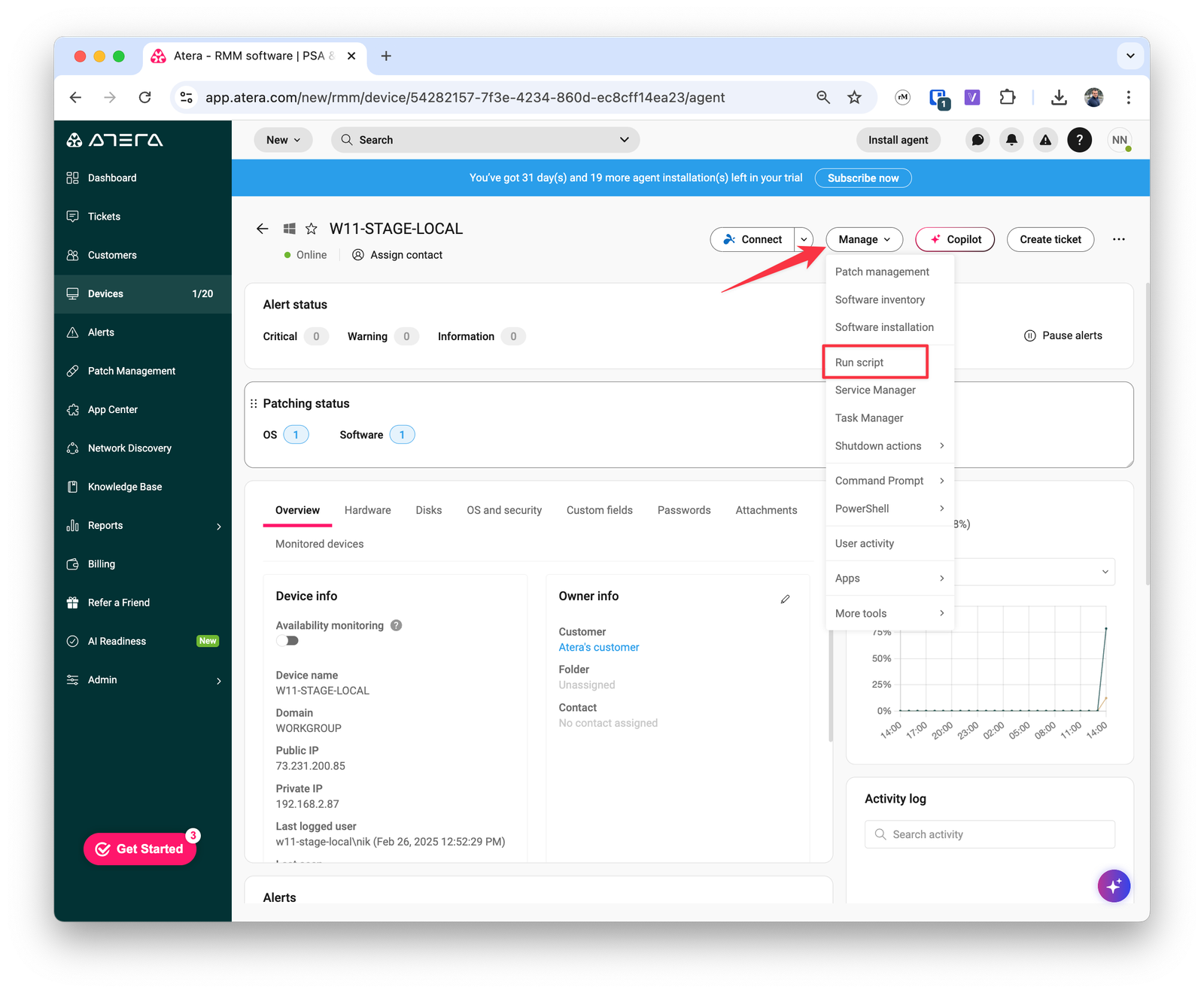
* Click `Manage` and choose `Run script`
## **Deploy Atera script**
* Access the workstation where you would like to deploy idemeum
* Click `Manage` and choose `Run script`
 * Choose the idemeum script you created before and click `Run` next to it
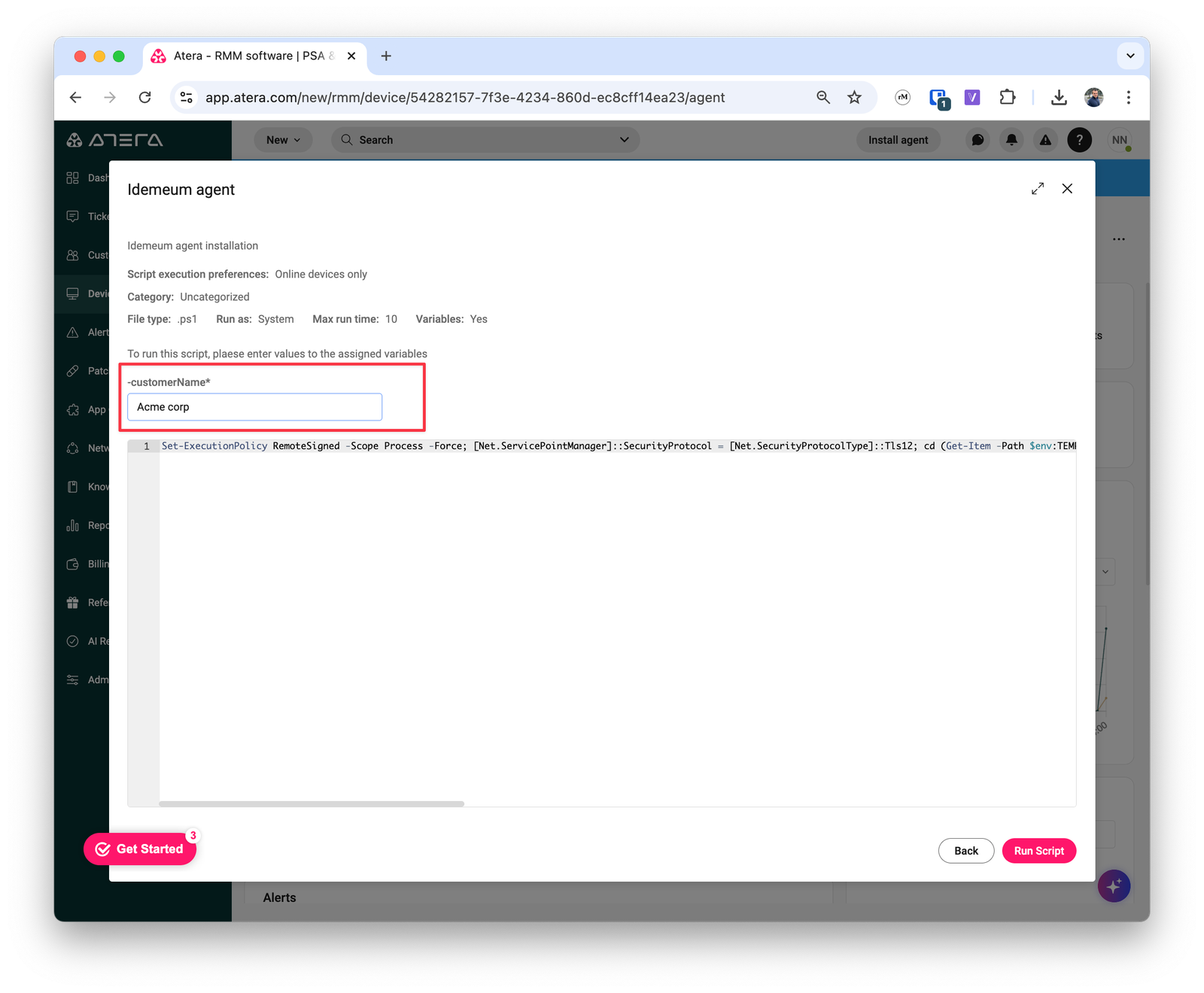
* You will be prompted to enter the customer name. You can provide the organization name for which you are deploying idemeum agent. If the organization does not exist in idemeum, the customer tenant will be automatically created.
* Run the script for idemeum agent to be installed and configured
* Choose the idemeum script you created before and click `Run` next to it
* You will be prompted to enter the customer name. You can provide the organization name for which you are deploying idemeum agent. If the organization does not exist in idemeum, the customer tenant will be automatically created.
* Run the script for idemeum agent to be installed and configured