> ## Documentation Index
> Fetch the complete documentation index at: https://docs.idemeum.com/llms.txt
> Use this file to discover all available pages before exploring further.
# Hudu
> Hudu LAPS integration for break-glass account management.
You can connect your idemeum tenant to Hudu documentation platform and push all LAPS credentials there. Here is what is supported:
* Push computer LAPS credentials to Hudu
* Push Entra ID LAPS credentials to Hudu
* Automatically map customer names in idemeum to customer names in Hudu
* Manually map customer names in idemeum to customer names in Hudu
Push LAPS break-glass credentials for all computers and Entra ID tenants to Hudu documentation platform.
## **Create Hudu API key**
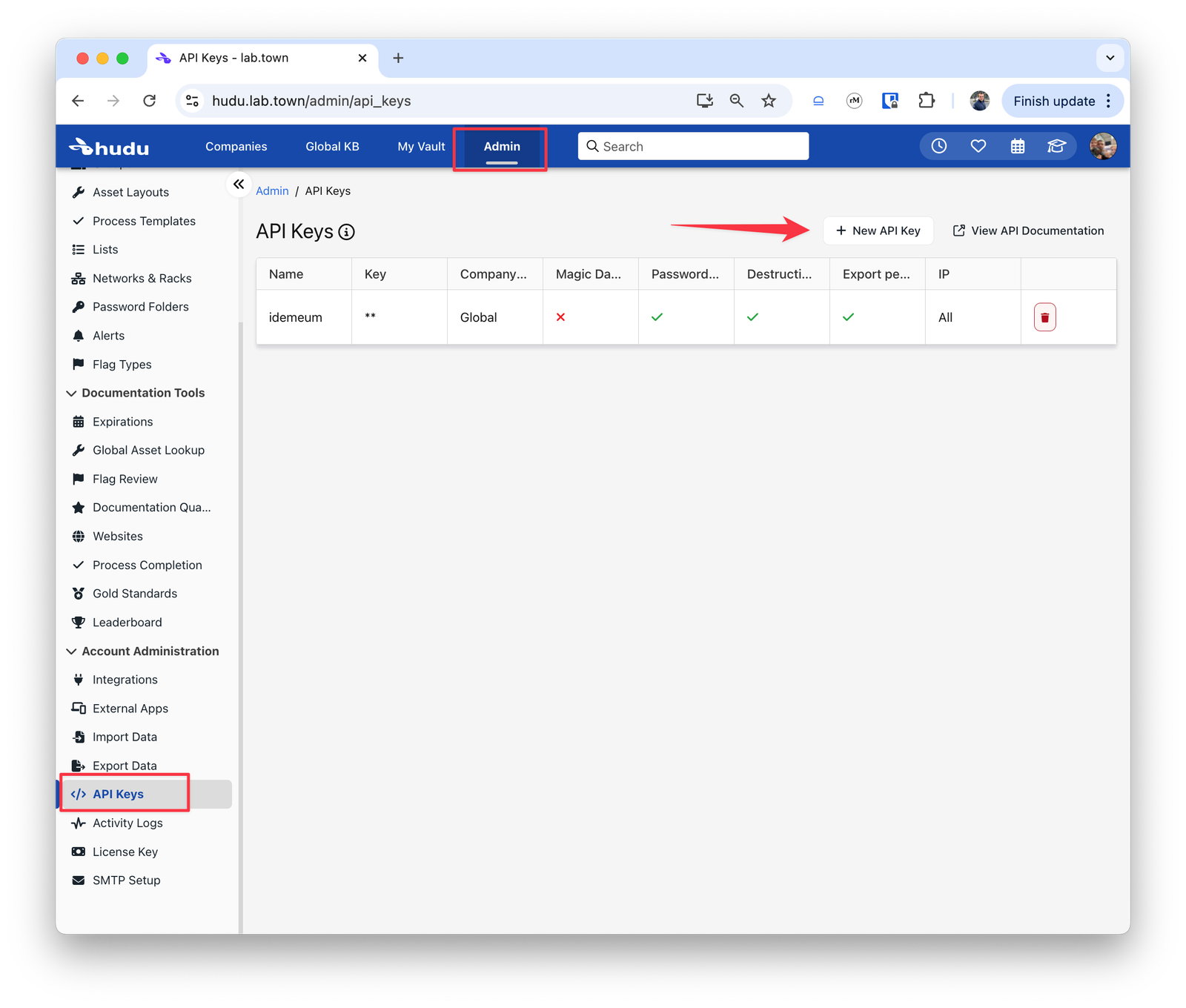
* Navigate to `Admin` → `API keys` and choose `+ New API key`
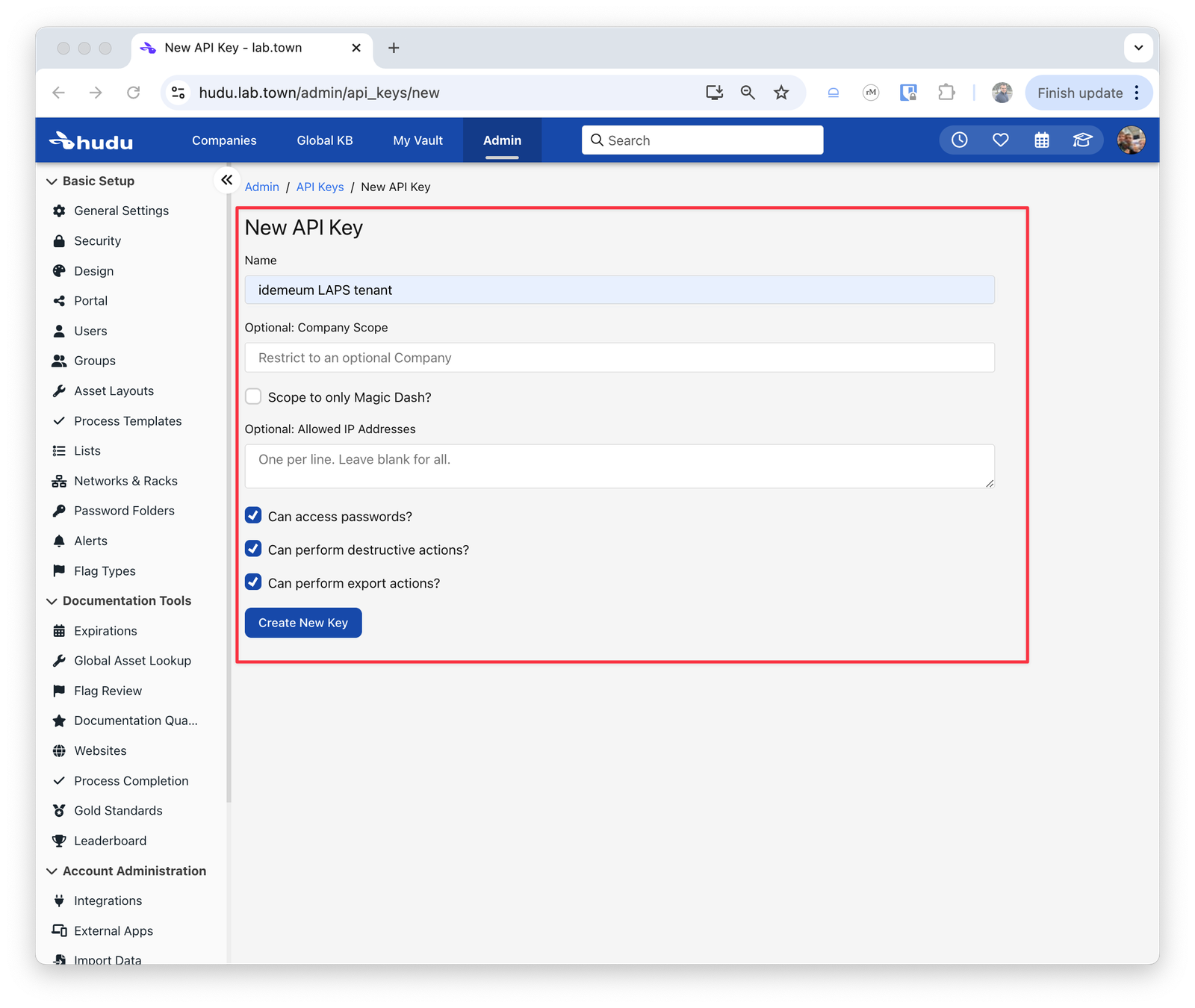
 * Provide the key name and allow access permissions
 * Copy the key as you will need to use it for idemeum configuration
## **Configure idemeum**
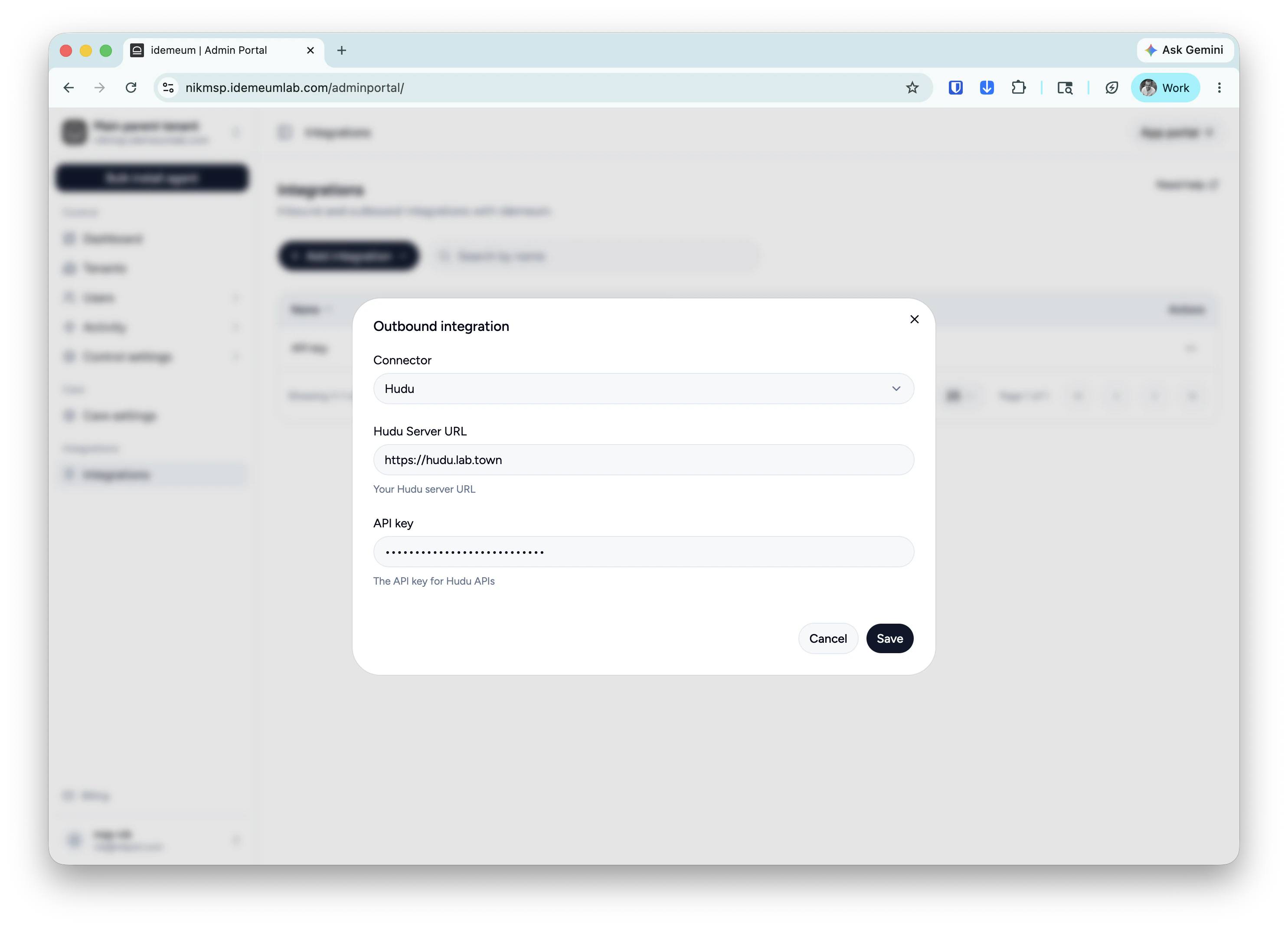
* Access your idemeum tenant admin portal and navigate to `Integrations`
* Choose `Add new integration` and then `Outbound integration`
* From the dropdown choose `Hudu`
* Add your Hudu URL and the API key that we generated in the previous step
* Save the configuration
* Copy the key as you will need to use it for idemeum configuration
## **Configure idemeum**
* Access your idemeum tenant admin portal and navigate to `Integrations`
* Choose `Add new integration` and then `Outbound integration`
* From the dropdown choose `Hudu`
* Add your Hudu URL and the API key that we generated in the previous step
* Save the configuration
 ## **Customers mapping**
Once the integration with Hudu is added, you will see the new `Hudu` column in the `Tenants` section.
### **Automatic mapping**
As a first step idemeum will try to `automatically` map the customers in idemeum to customers in Hudu. Here is how we will try to do that:
1. Use the `Display Name` of the customer in idemeum to search for a customer in Hudu
2. If no match was found using the `Display Name`, then we would use the `Name` of the customer in idemeum to search for a customer in Hudu
3. If no match was found using the `Name`, then the admin will have to manually link the customers
For example, in the image below, one of my customers was automatically mapped, however, others still show the `Link` button to manually map the customer in Hudu.
### **Manual mapping**
The admin can manually link a customer from idemeum with one in Hudu by providing the name of the customer from Hudu.
* Enter the Hudu customer name to map this idemeum customer to
* Once found we will display the customer name from Hudu in the idemeum customer table
## **LAPS credentials**
It can take up to 24 hours for LAPS password to start showing up in Hudu. Next time desktops or Entra ID tenants will be rotating LAPS credentials (happens every 24 hours) these credentials will be pushed to Hudu.
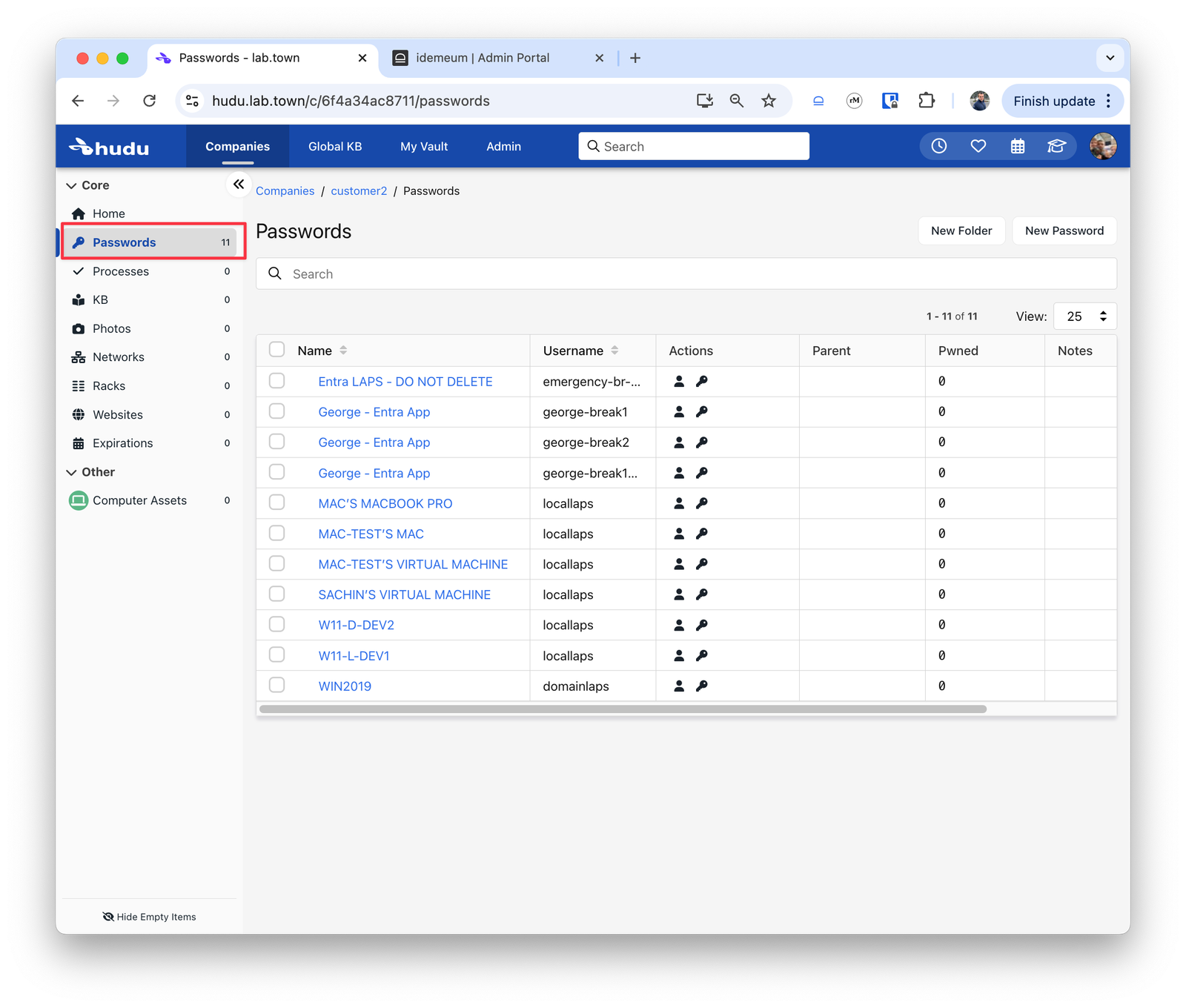
* Navigate to any company in Hudu and access `Passwords`.
* You will now be able to see all LAPS credentials
## **Customers mapping**
Once the integration with Hudu is added, you will see the new `Hudu` column in the `Tenants` section.
### **Automatic mapping**
As a first step idemeum will try to `automatically` map the customers in idemeum to customers in Hudu. Here is how we will try to do that:
1. Use the `Display Name` of the customer in idemeum to search for a customer in Hudu
2. If no match was found using the `Display Name`, then we would use the `Name` of the customer in idemeum to search for a customer in Hudu
3. If no match was found using the `Name`, then the admin will have to manually link the customers
For example, in the image below, one of my customers was automatically mapped, however, others still show the `Link` button to manually map the customer in Hudu.
### **Manual mapping**
The admin can manually link a customer from idemeum with one in Hudu by providing the name of the customer from Hudu.
* Enter the Hudu customer name to map this idemeum customer to
* Once found we will display the customer name from Hudu in the idemeum customer table
## **LAPS credentials**
It can take up to 24 hours for LAPS password to start showing up in Hudu. Next time desktops or Entra ID tenants will be rotating LAPS credentials (happens every 24 hours) these credentials will be pushed to Hudu.
* Navigate to any company in Hudu and access `Passwords`.
* You will now be able to see all LAPS credentials