> ## Documentation Index
> Fetch the complete documentation index at: https://docs.idemeum.com/llms.txt
> Use this file to discover all available pages before exploring further.
# Immy bot
> Control agent deployment with Immy bot.
With Immy there are two integration types that we support:
* `Manual` - with this integration you can simply grab the idemeum unified deployment script, create a deployment package, and push to your customers in Immy. With this integration there is no need to create customer tenants in idemeum, as they will be created automatically leveraging the `$TenantName` variable in Immy.
* `Catalog` - with this integration you can leverage integration catalog in Immy in select pre-configured idemeum integration. With this integration you will need to create customers in idemeum before hand, so that they can be mapped in Immy.
## Manual integration
With this integration idemeum customer tenants will be auto created - grab the unified install command in idemeum, create deployment in Immy, and deploy.
### **Obtain unified install script**
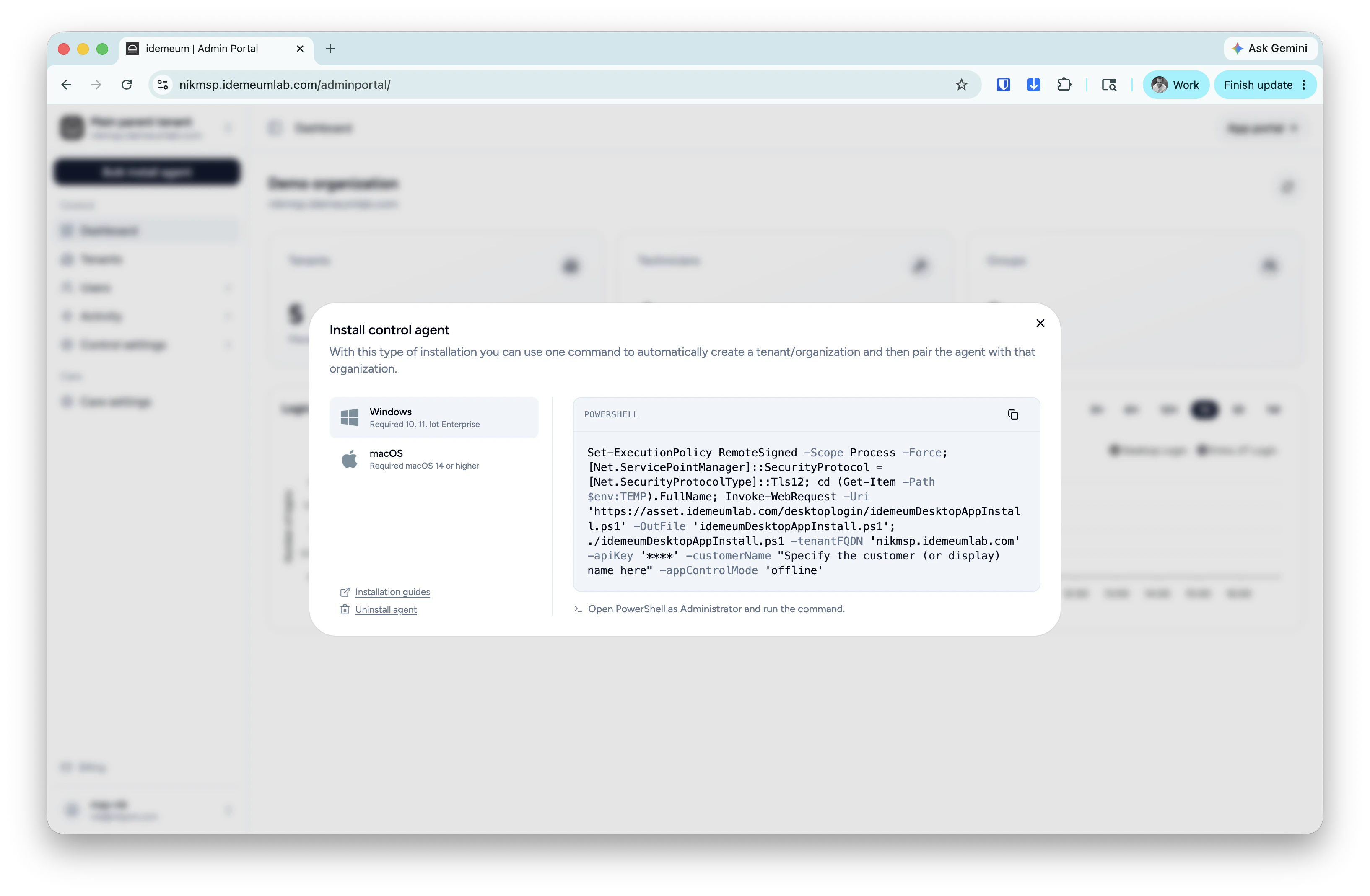
* Navigate to the admin portal of your `Main MSP dashboard`
* Click on the `Bulk install agent` and then choose `Control agent`
* Copy and save the unified command for Windows
 ### **Create software package in Immy**
* Access your [Immy.bot](http://Immy.bot) management dashboard
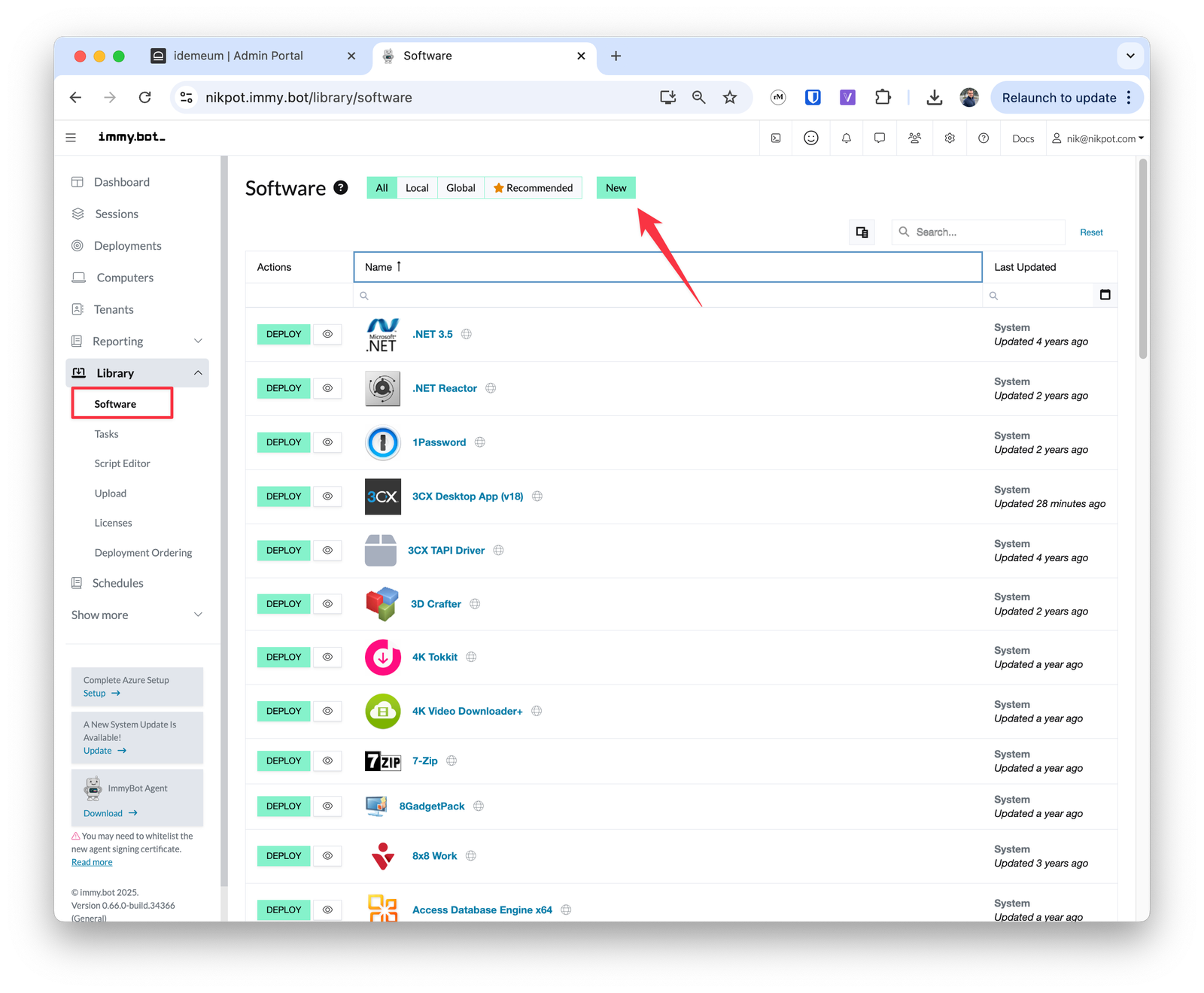
* Navigate to `Library` → `Software` and click `New`
### **Create software package in Immy**
* Access your [Immy.bot](http://Immy.bot) management dashboard
* Navigate to `Library` → `Software` and click `New`
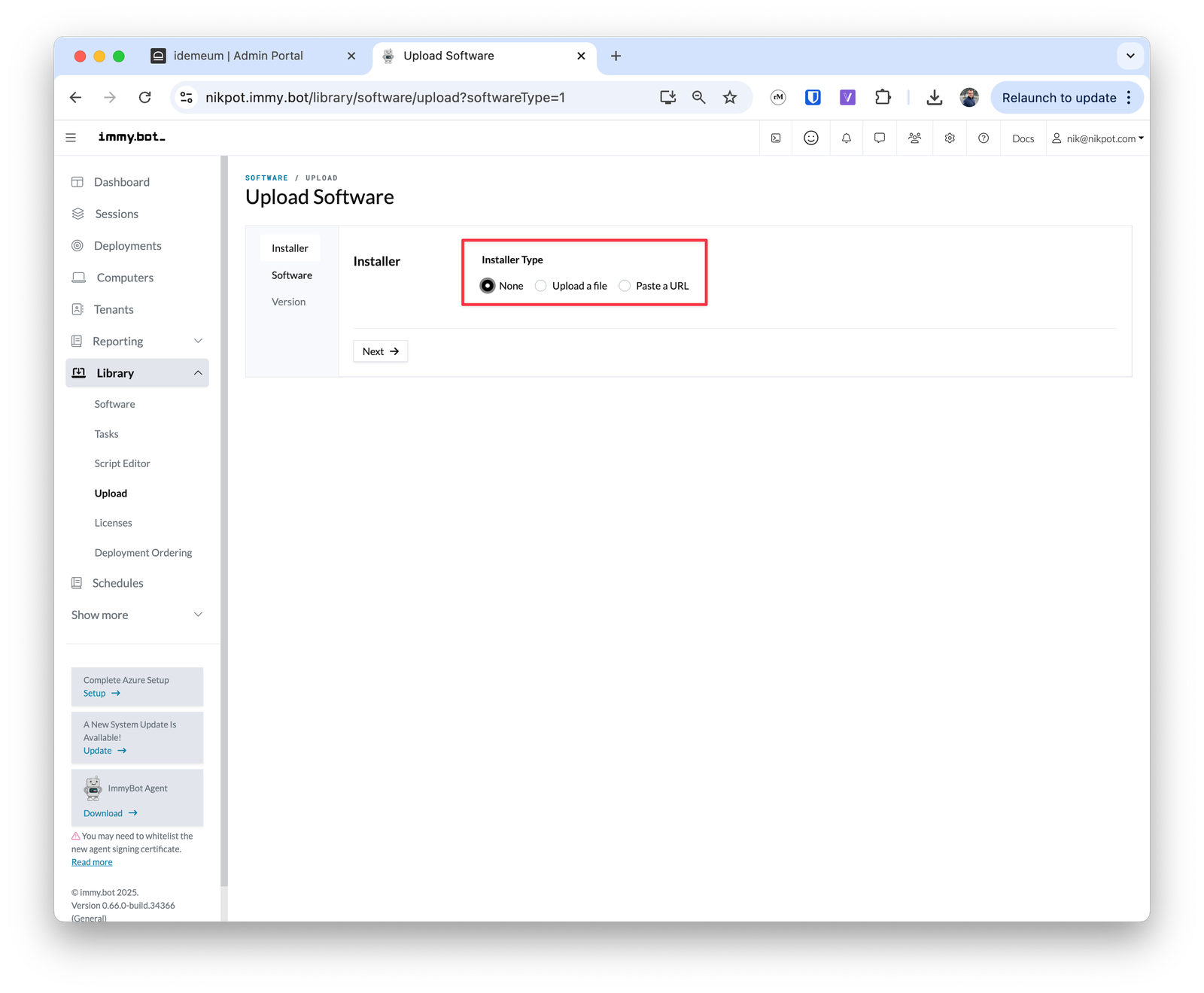
 * For Installer Type choose `None` and click `Next`
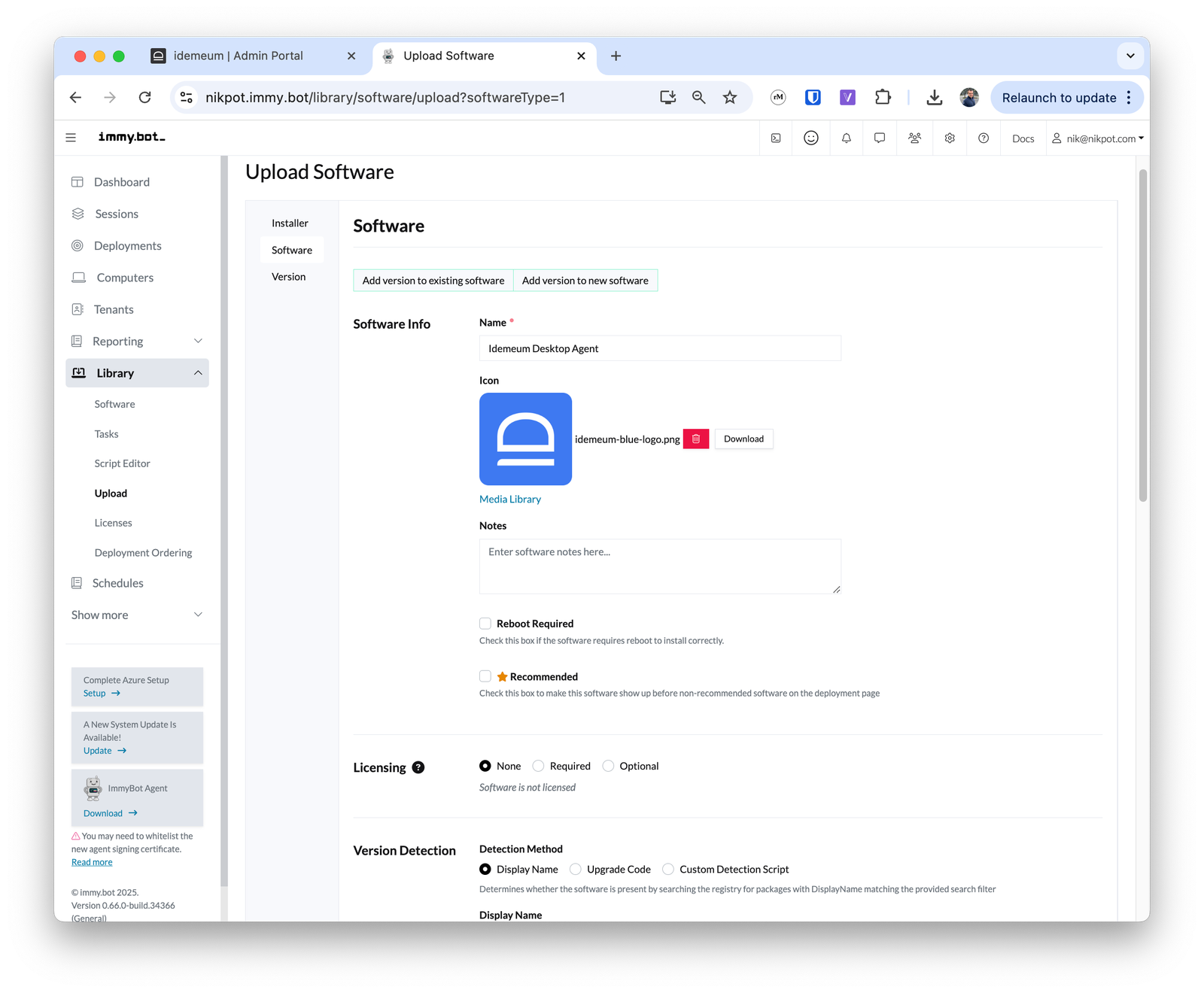
 * Choose `Add version to new software`
* Provide the name of the software
* Upload the icon
* Choose `Add version to new software`
* Provide the name of the software
* Upload the icon
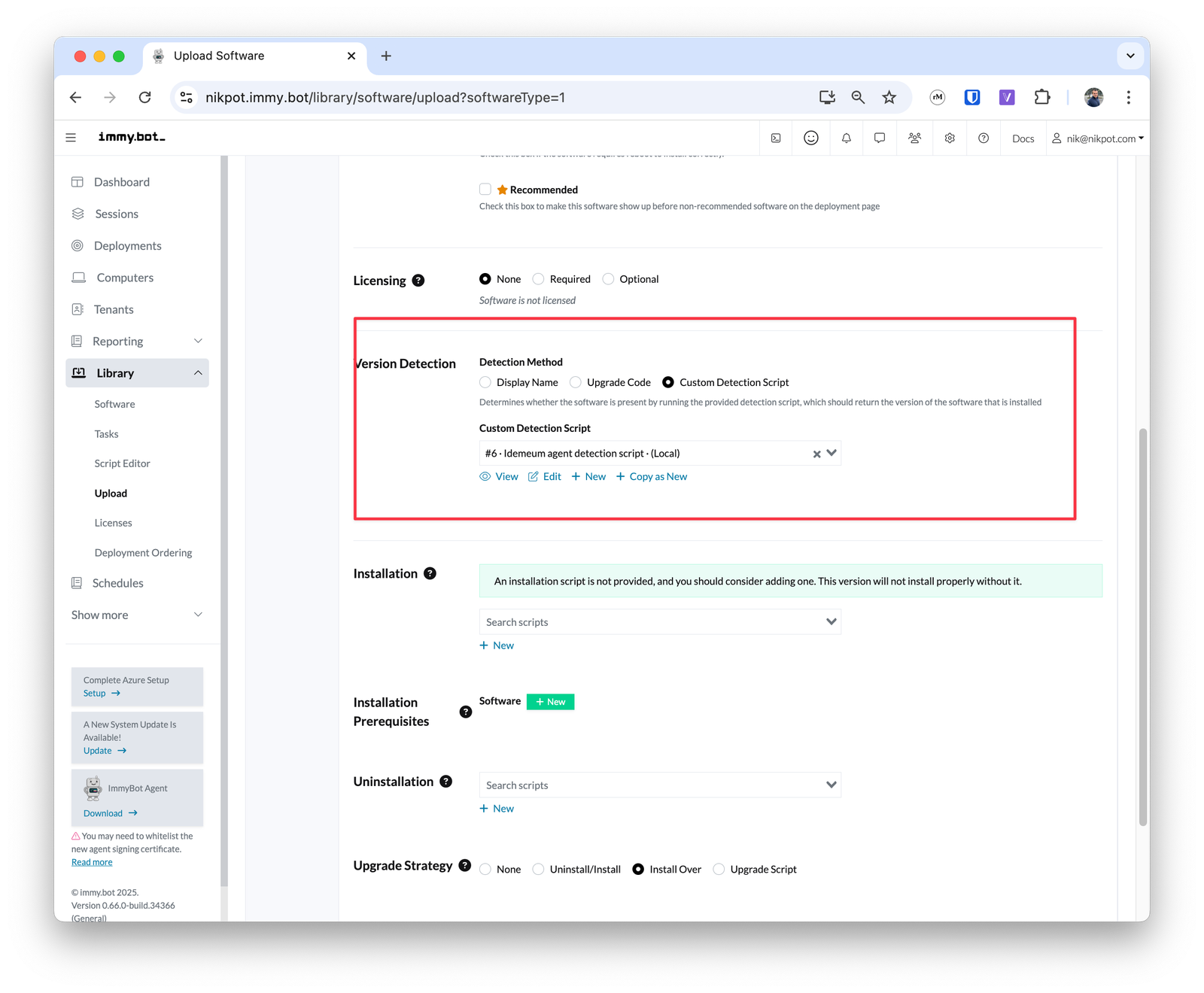
 * For licensing choose `None`
* For `Version detection` choose `Custom Detection Script` and add the following script below
* For script type use `Software detection`
* Language is `Powershell`
* Execution context `System`
```powershell theme={null}
# Step 1: retrive the registry key to identify that idemeum is installed
$key = [Microsoft.Win32.RegistryKey]::OpenBaseKey([Microsoft.Win32.RegistryHive]::LocalMachine, [Microsoft.Win32.RegistryView]::Registry64)
$installed = $key.OpenSubKey("SOFTWARE\Idemeum Inc\Idemeum Desktop Client")
#Step 2: if the agent is installed, retrive the version that is installed
if($installed) {
$key = [Microsoft.Win32.RegistryKey]::OpenBaseKey([Microsoft.Win32.RegistryHive]::LocalMachine, [Microsoft.Win32.RegistryView]::Registry64)
$subKey = $key.OpenSubKey("SOFTWARE\Microsoft\Windows\CurrentVersion\Uninstall\{71216D26-573B-402B-A3F5-A7CB9F950CFF}")
$installedVersion = $subKey.GetValue("DisplayVersion")
Write-Host "Idemeum desktop agent is installed"
return $installedVersion
exit 0
} else {
Write-Host "Idemeum desktop agent is not installed"
exit -1
}
```
* For licensing choose `None`
* For `Version detection` choose `Custom Detection Script` and add the following script below
* For script type use `Software detection`
* Language is `Powershell`
* Execution context `System`
```powershell theme={null}
# Step 1: retrive the registry key to identify that idemeum is installed
$key = [Microsoft.Win32.RegistryKey]::OpenBaseKey([Microsoft.Win32.RegistryHive]::LocalMachine, [Microsoft.Win32.RegistryView]::Registry64)
$installed = $key.OpenSubKey("SOFTWARE\Idemeum Inc\Idemeum Desktop Client")
#Step 2: if the agent is installed, retrive the version that is installed
if($installed) {
$key = [Microsoft.Win32.RegistryKey]::OpenBaseKey([Microsoft.Win32.RegistryHive]::LocalMachine, [Microsoft.Win32.RegistryView]::Registry64)
$subKey = $key.OpenSubKey("SOFTWARE\Microsoft\Windows\CurrentVersion\Uninstall\{71216D26-573B-402B-A3F5-A7CB9F950CFF}")
$installedVersion = $subKey.GetValue("DisplayVersion")
Write-Host "Idemeum desktop agent is installed"
return $installedVersion
exit 0
} else {
Write-Host "Idemeum desktop agent is not installed"
exit -1
}
```
 * For installation we will use the command that you obtained in the previous section. Click `New` in the installation section to create new installation script.
* For script type choose `Software version action`, language is `Powershell` and execution context is `System`.
* Paste the command that you obtained from idemeum in the script editor window
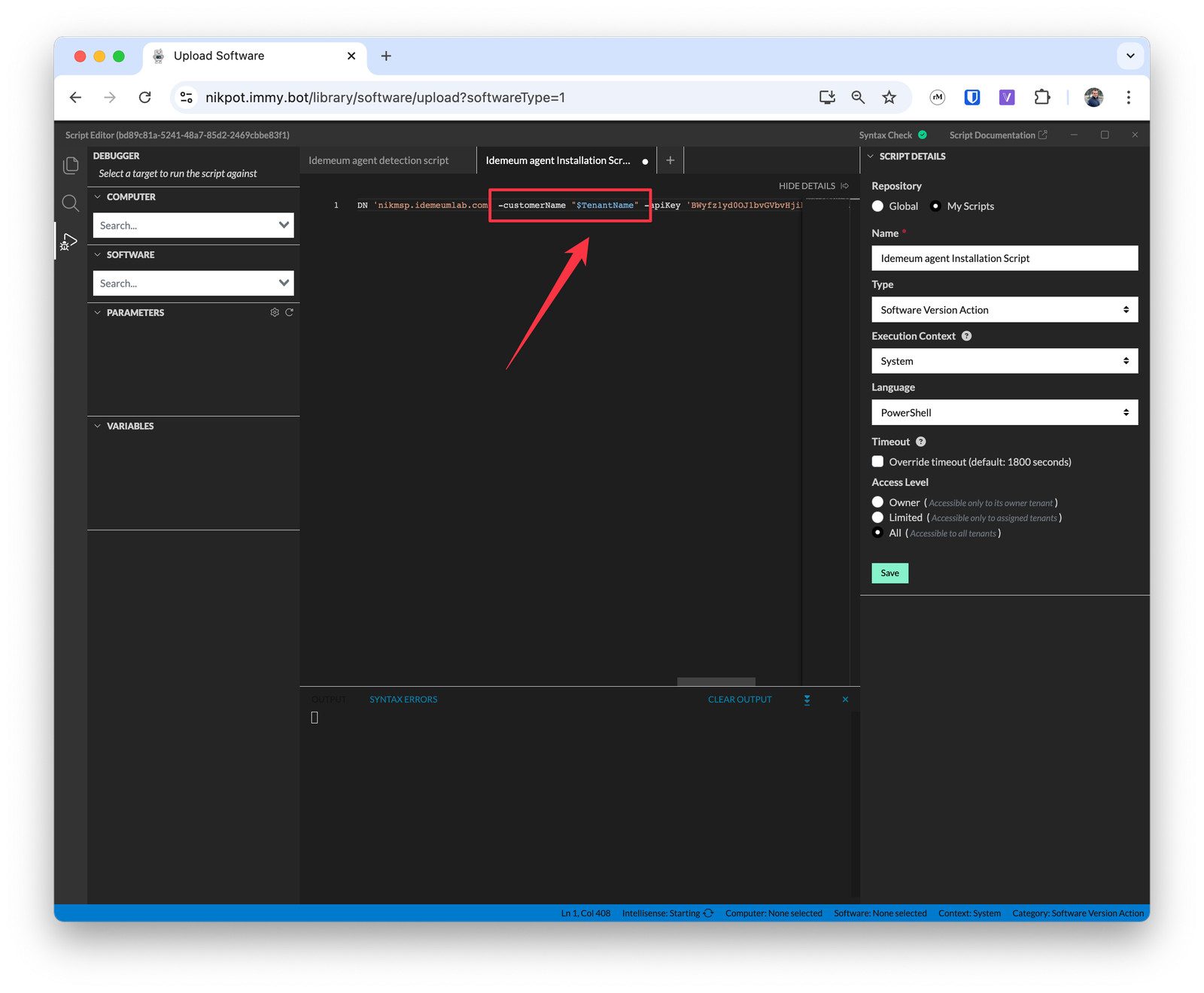
* Scroll to `-customerName` variable and enter `$TenantName` inside `""`. This way we will automatically pass the organization name to idemeum script.
* For installation we will use the command that you obtained in the previous section. Click `New` in the installation section to create new installation script.
* For script type choose `Software version action`, language is `Powershell` and execution context is `System`.
* Paste the command that you obtained from idemeum in the script editor window
* Scroll to `-customerName` variable and enter `$TenantName` inside `""`. This way we will automatically pass the organization name to idemeum script.
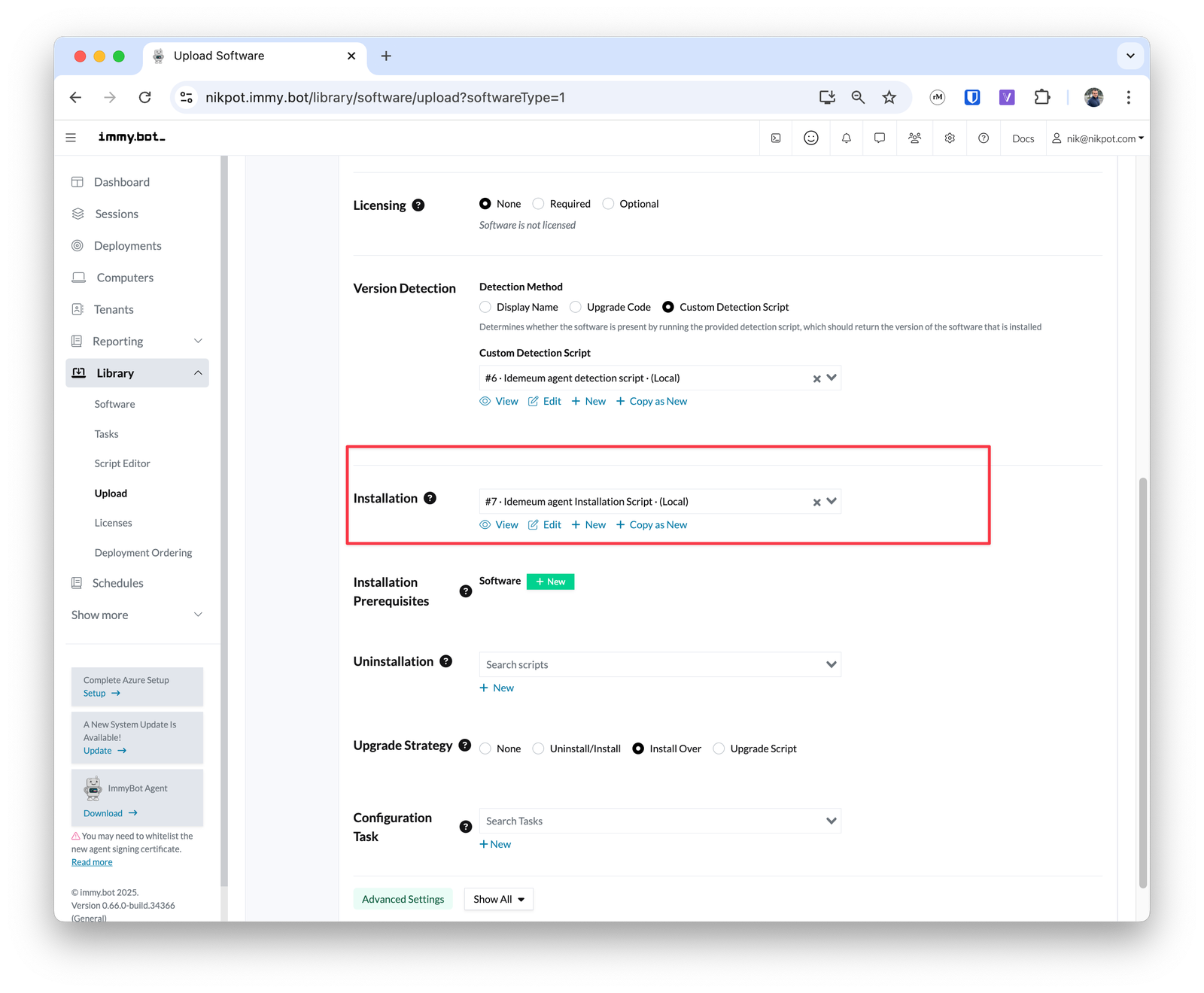
 * Save the installation script and return to the previous menu
 * For `Uninstallation` section create new script and enter the script as below
* Type is `Software version action`, execution context is `System` and language is `PowerShell`
```powershell theme={null}
Start-Process -FilePath "msiexec.exe" -ArgumentList "/x {93B9CC98-6004-411E-A8BF-88F7C3BC5541} /qn /norestart" -Wait
Start-Process -FilePath "msiexec.exe" -ArgumentList "/x {71216D26-573B-402B-A3F5-A7CB9F950CFF} /qn /norestart" -Wait
```
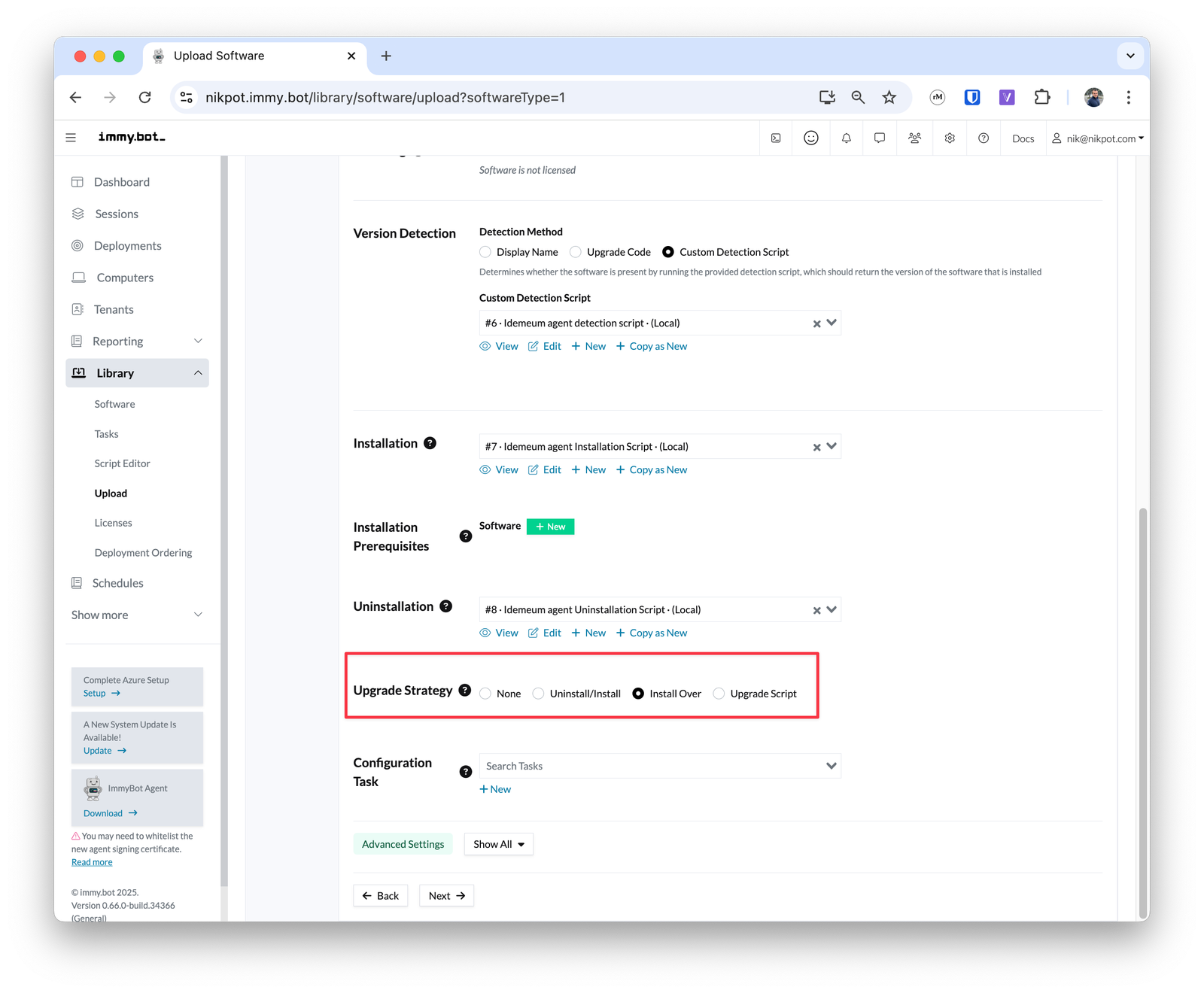
* For `Upgrade strategy` choose `Install over` as our installation script will handle all necessary actions. What is more idemeum offers the feature to automatically update agents when the new version is released. This feature is automatically enabled for your MSP tenant.
* For `Uninstallation` section create new script and enter the script as below
* Type is `Software version action`, execution context is `System` and language is `PowerShell`
```powershell theme={null}
Start-Process -FilePath "msiexec.exe" -ArgumentList "/x {93B9CC98-6004-411E-A8BF-88F7C3BC5541} /qn /norestart" -Wait
Start-Process -FilePath "msiexec.exe" -ArgumentList "/x {71216D26-573B-402B-A3F5-A7CB9F950CFF} /qn /norestart" -Wait
```
* For `Upgrade strategy` choose `Install over` as our installation script will handle all necessary actions. What is more idemeum offers the feature to automatically update agents when the new version is released. This feature is automatically enabled for your MSP tenant.
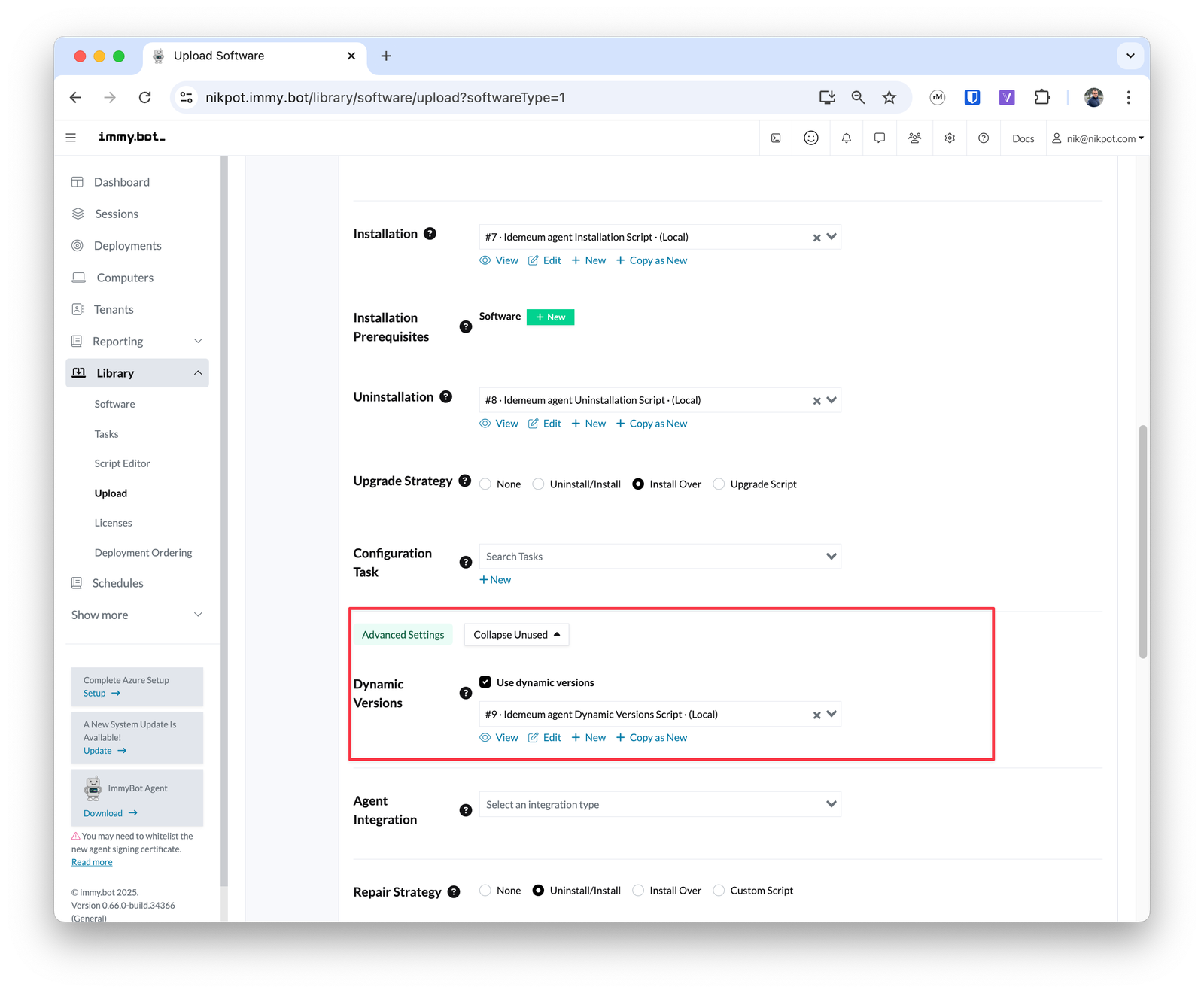
 * Expand the `Advanced settings` and enable `Use dynamic versions`
* Add the new script for version detection
* Type is `Dynamic versions`
* Language is `PowerShell`
* Paste the following script for version detection
```powershell theme={null}
# Step 1: Identify latest Windows version from API response
$apiUrl = "https://dvmi.idemeum.com/api/system/info"
$response = Invoke-RestMethod -Uri $apiUrl -Method Get -ErrorAction Stop
$desktopAppVersion = ($response.clientApplicationVersions | Where-Object { $_.applicationName -eq "DESKTOP_LOGIN_APP_WINDOWS" }).version
# Step 2: Construct the link for latest MSI installer download
$fileUrl = "https://asset.idemeum.com/desktoplogin/Idemeum_Desktop_Client_Main_v${desktopAppVersion}.msi"
# Step 3: Get dynamic version from installer
Get-DynamicVersionFromInstallerURL $fileUrl
```
* Save the dynamic version detection script
* Expand the `Advanced settings` and enable `Use dynamic versions`
* Add the new script for version detection
* Type is `Dynamic versions`
* Language is `PowerShell`
* Paste the following script for version detection
```powershell theme={null}
# Step 1: Identify latest Windows version from API response
$apiUrl = "https://dvmi.idemeum.com/api/system/info"
$response = Invoke-RestMethod -Uri $apiUrl -Method Get -ErrorAction Stop
$desktopAppVersion = ($response.clientApplicationVersions | Where-Object { $_.applicationName -eq "DESKTOP_LOGIN_APP_WINDOWS" }).version
# Step 2: Construct the link for latest MSI installer download
$fileUrl = "https://asset.idemeum.com/desktoplogin/Idemeum_Desktop_Client_Main_v${desktopAppVersion}.msi"
# Step 3: Get dynamic version from installer
Get-DynamicVersionFromInstallerURL $fileUrl
```
* Save the dynamic version detection script
 * Now click `Next` and finish creating of idemeum software
### **Deploy software**
With this integration there is no need to create idemeum tenants manually. Simply deploy the agent in Immy and the idemeum customer tenant will be automatically created.
Now you can create a deployment in [Immy.bot](http://Immy.bot) and idemeum agent will be installed and the software versions will be tracked and updated.
* Now click `Next` and finish creating of idemeum software
### **Deploy software**
With this integration there is no need to create idemeum tenants manually. Simply deploy the agent in Immy and the idemeum customer tenant will be automatically created.
Now you can create a deployment in [Immy.bot](http://Immy.bot) and idemeum agent will be installed and the software versions will be tracked and updated.
 ## **Catalog integration**
### **Create idemeum customer tenants**
With this integration you first need to create idemeum customer tenants. There are various ways you can do this: manually, with CSV upload, or using idemeum API.
### **Enable idemeum integration in Immy**
* Access Immy admin dashboard
* Navigate to `Show more` → `Integrations` → `Add integration` and add Idemeum integration
## **Catalog integration**
### **Create idemeum customer tenants**
With this integration you first need to create idemeum customer tenants. There are various ways you can do this: manually, with CSV upload, or using idemeum API.
### **Enable idemeum integration in Immy**
* Access Immy admin dashboard
* Navigate to `Show more` → `Integrations` → `Add integration` and add Idemeum integration
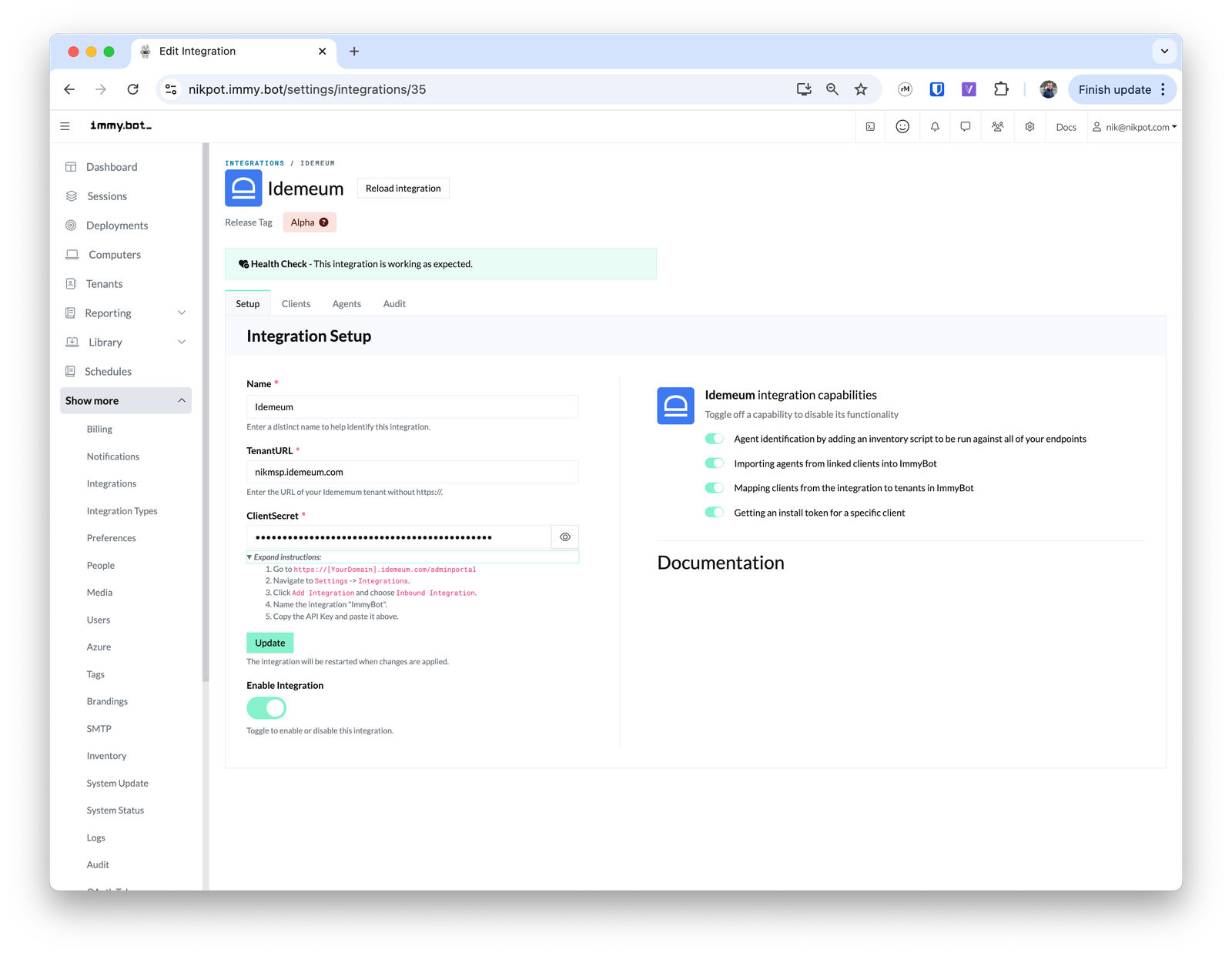 * In the settings type your idemeum MSP tenant URL (i.e. `nikmsp.idemeum.com`)
* For the `ClientSecret` you need to paste the idemeum API key
* Access idemeum admin portal
* Go to `Global settings` → `Integrations`
* If `Inbound` integration is already enabled, click on `...` and copy the API key
* If `Inbound` integration is not enabled, simply create one by clicking on `Add integrations`
* Click `Update` to apply the changes to integration in Immy
### **Map customer tenants**
* In the Idemeum Immy integration click on `Clients` tab
* You can now map the customers in idemeum to customers in Immy
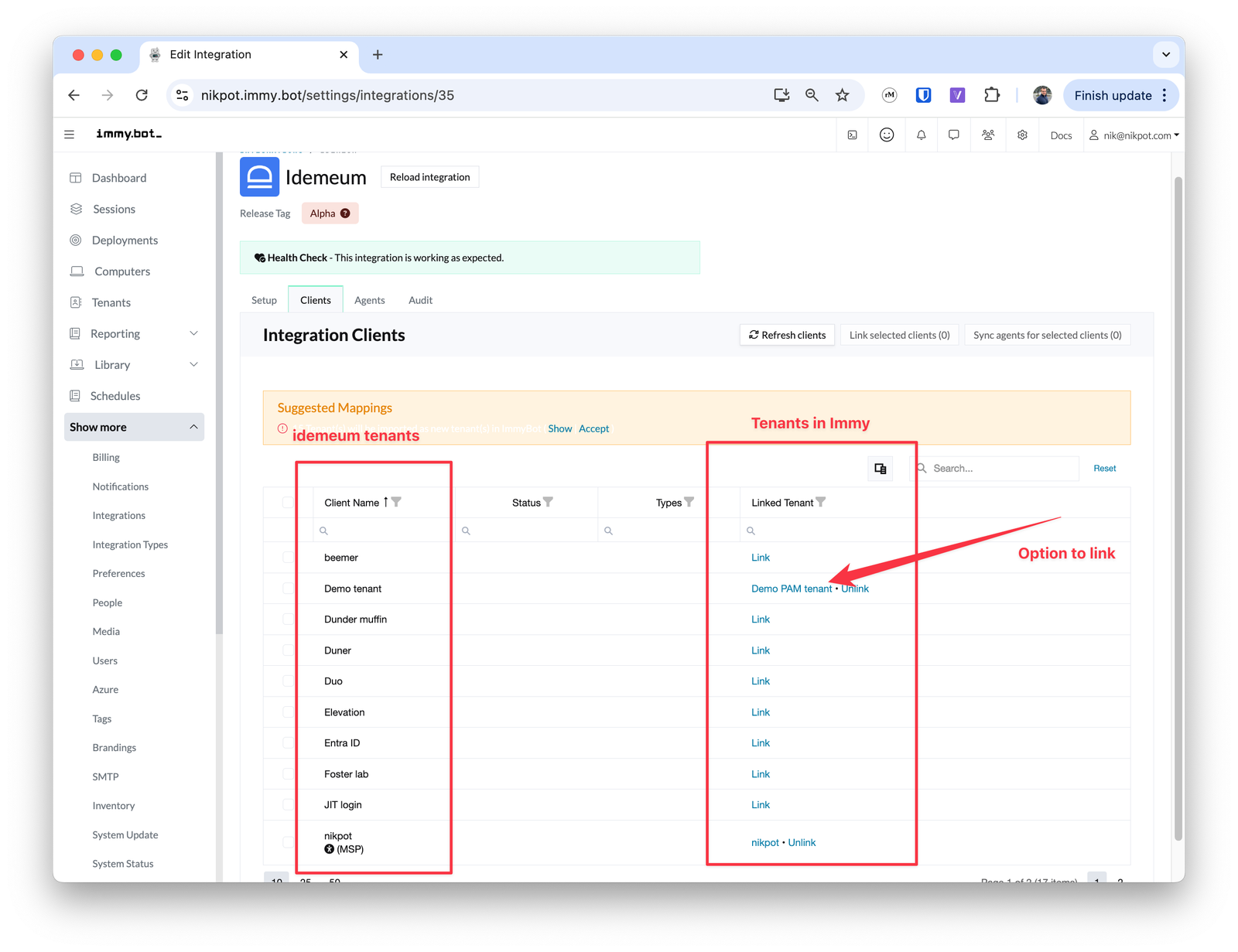
* Customer list on the left comes from idemeum, then you need to click on the `Link` next to the customer you want to map, and then choose the customer in Immy
### **Deploy idemeum in Immy**
* Now you can start deploying idemeum agents to Immy managed endpoints
* Create a deployment, choose `Idemeum Global Software` and apply for the customer that was mapped with idemeum customer
* In the settings type your idemeum MSP tenant URL (i.e. `nikmsp.idemeum.com`)
* For the `ClientSecret` you need to paste the idemeum API key
* Access idemeum admin portal
* Go to `Global settings` → `Integrations`
* If `Inbound` integration is already enabled, click on `...` and copy the API key
* If `Inbound` integration is not enabled, simply create one by clicking on `Add integrations`
* Click `Update` to apply the changes to integration in Immy
### **Map customer tenants**
* In the Idemeum Immy integration click on `Clients` tab
* You can now map the customers in idemeum to customers in Immy
* Customer list on the left comes from idemeum, then you need to click on the `Link` next to the customer you want to map, and then choose the customer in Immy
### **Deploy idemeum in Immy**
* Now you can start deploying idemeum agents to Immy managed endpoints
* Create a deployment, choose `Idemeum Global Software` and apply for the customer that was mapped with idemeum customer
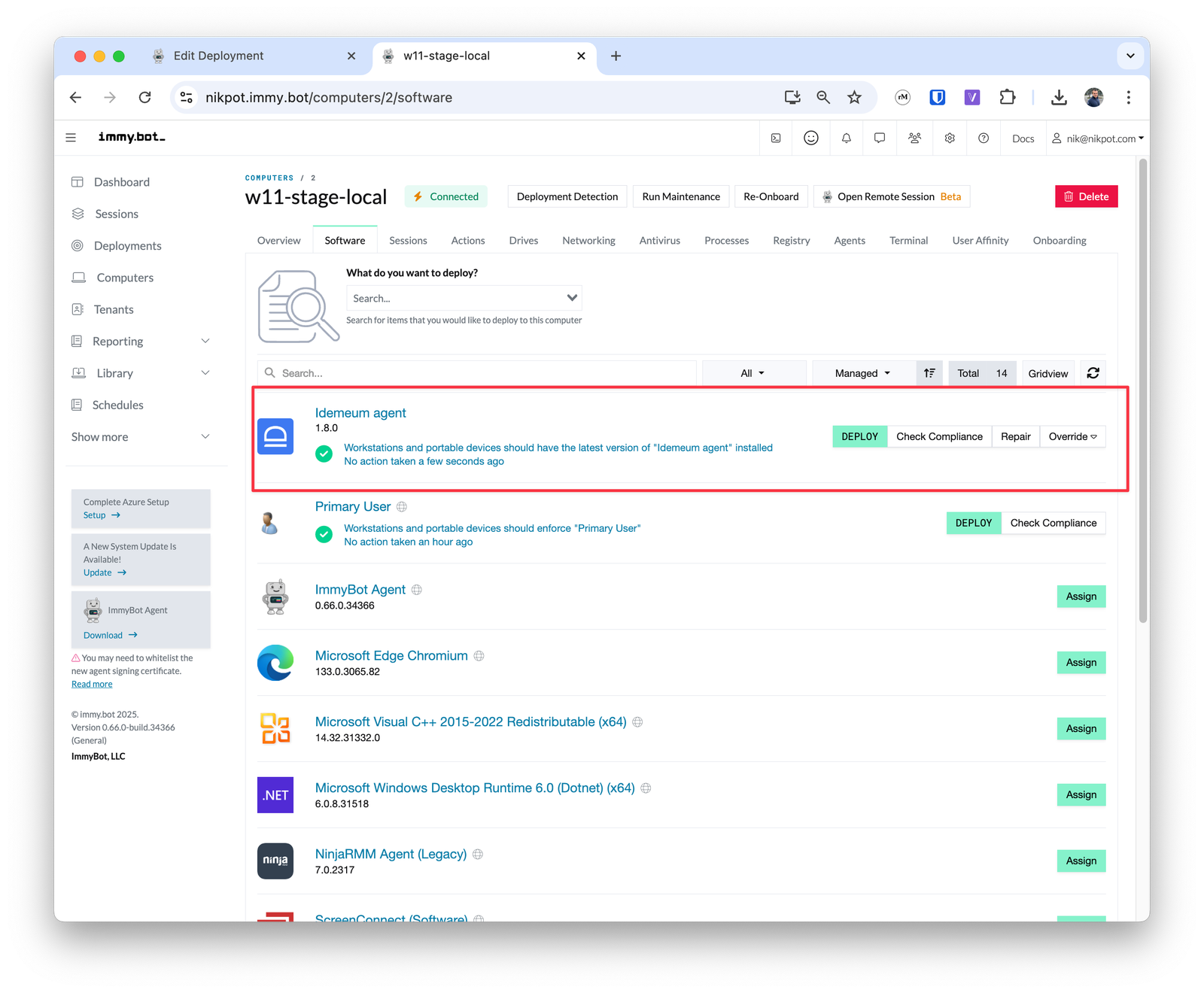
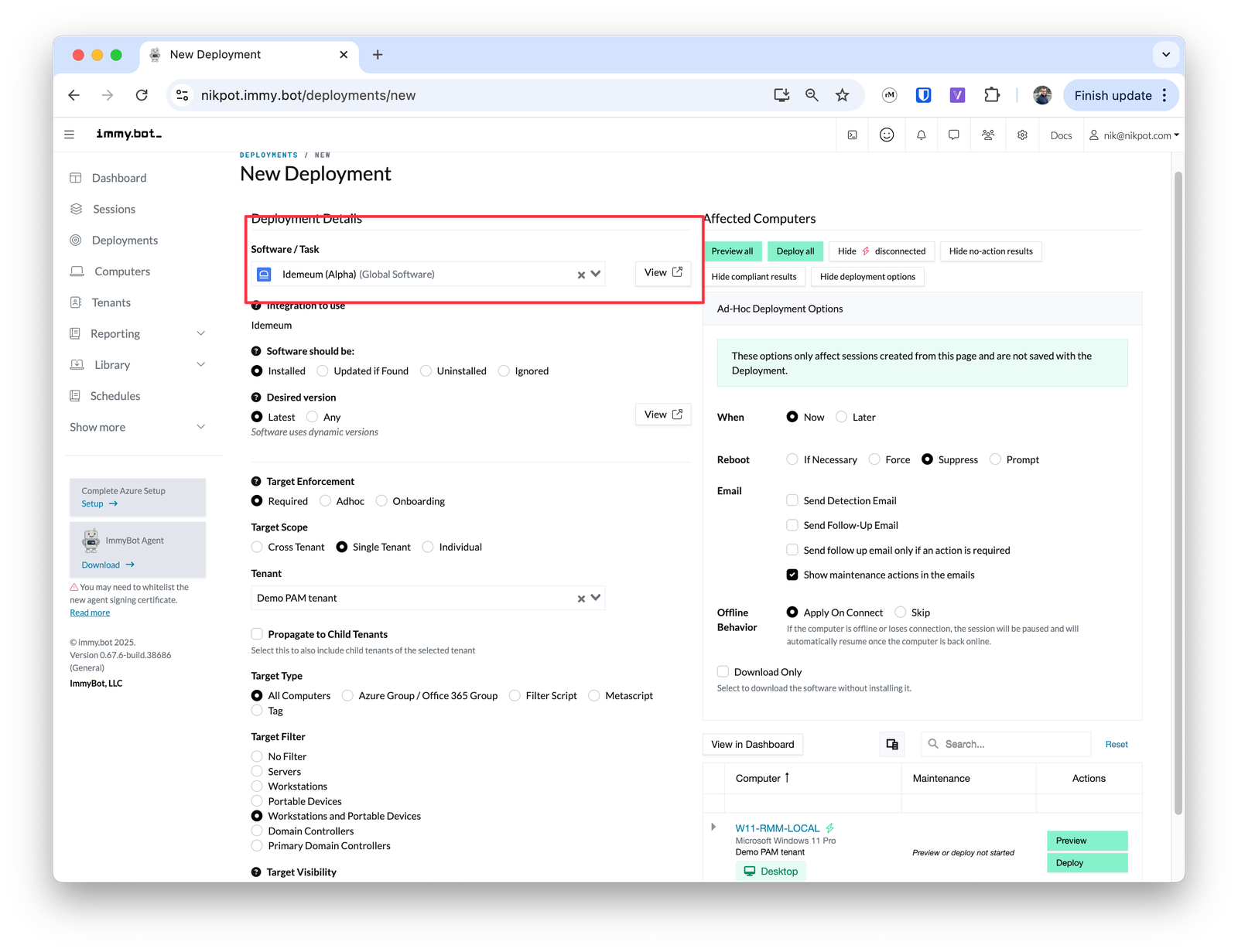 * Once the agents are deployed each machine will have the idemeum logo attached to it