> ## Documentation Index
> Fetch the complete documentation index at: https://docs.idemeum.com/llms.txt
> Use this file to discover all available pages before exploring further.
# Microsoft Intune
> Deploy idemeum desktop agent to a fleet of Windows or macOS workstations with Microsoft Intune.
## Instal Windows agent with Intune
* Navigate to your idemeum tenant and access admin portal
* Click `Install new agent`
* Copy the command for Windows and save it on your desktop as `ps1` file
* Access your Intune admin dashboard
* Navigate to `Devices` → `Windows` → `Scripts` → `Platform scripts` and then click `Add`
* Give script a name
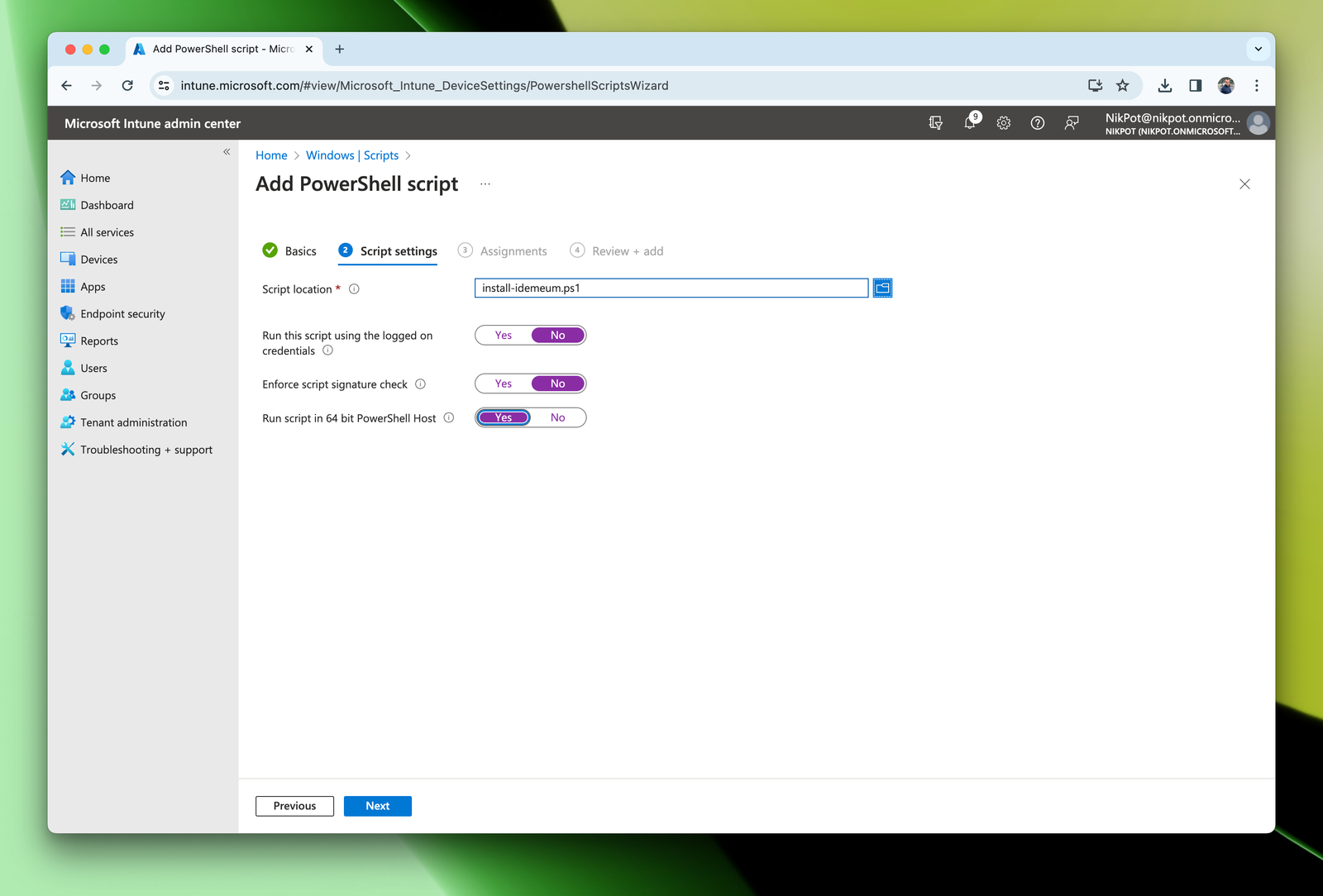
* Upload the installation script file that you created
* Configure the settings as shown below
 * For assignments add the workstations or groups to which you would like to deploy idemeum client
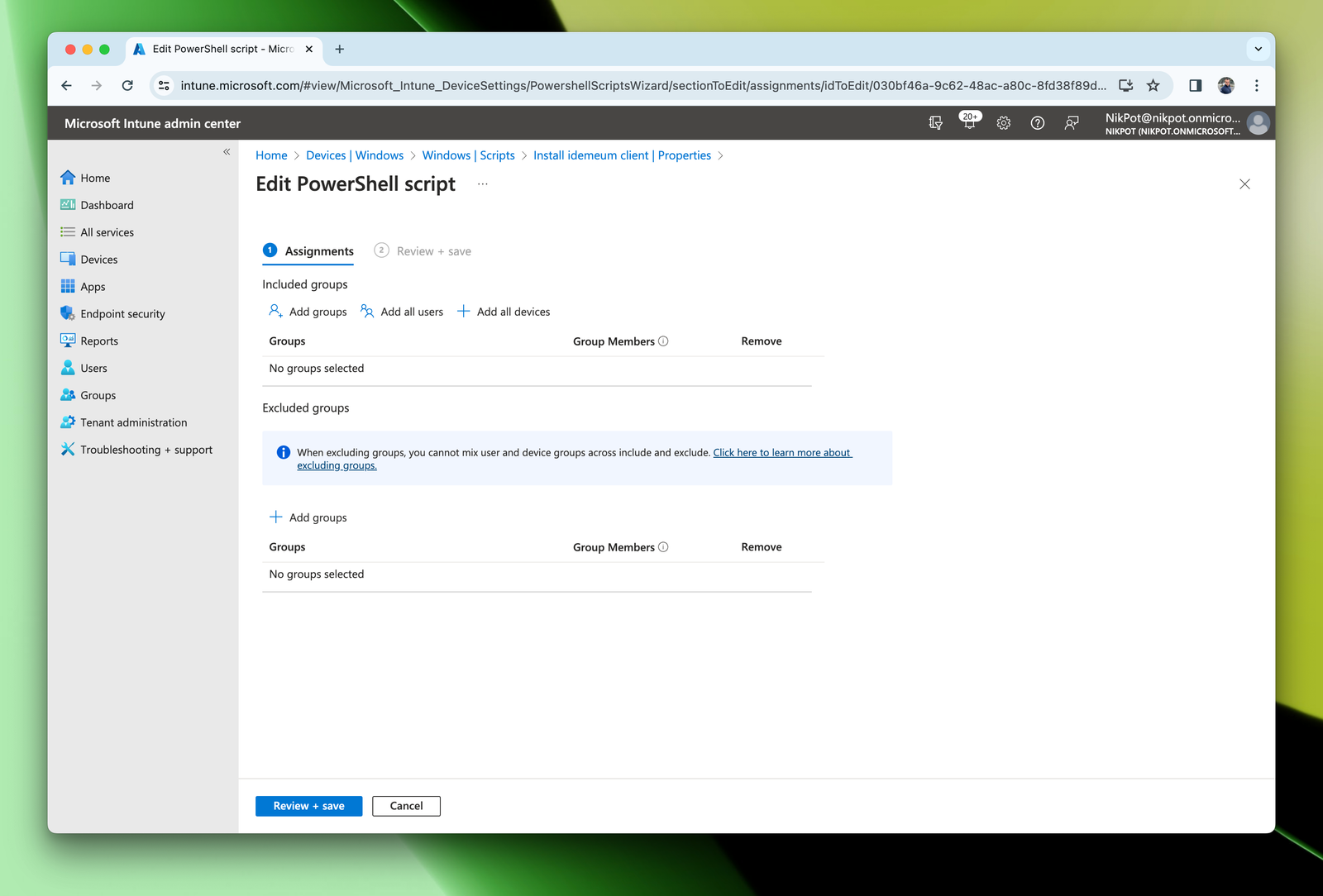 * Save the script configuration
Once complete you can manually trigger the deployment by navigating to `Devices`, choosing the workstation, and then triggering manual sync by clicking on `Sync` button. Or you can wait until the Intune agent will pick up the configuration and perform an installation within an hour.
## Instal macOS agent with Intune
### Obtain macOS profile and install script
* Navigate to your idemeum tenant and access admin portal
* Click `Install new agent`
* Copy the command for macOS and save it as `.sh` file
* Also download the macOS deployment MDM profile
For macOS pelase also download the MDM deployment profile. This profile will be used to silently enable all required permission on macOS workstations.
### Deploy macOS idemeum profile
* In Intune admin dashboard navigate to `Devices` → `macOS` → `Configuration`
* Click `Create` → `New policy`
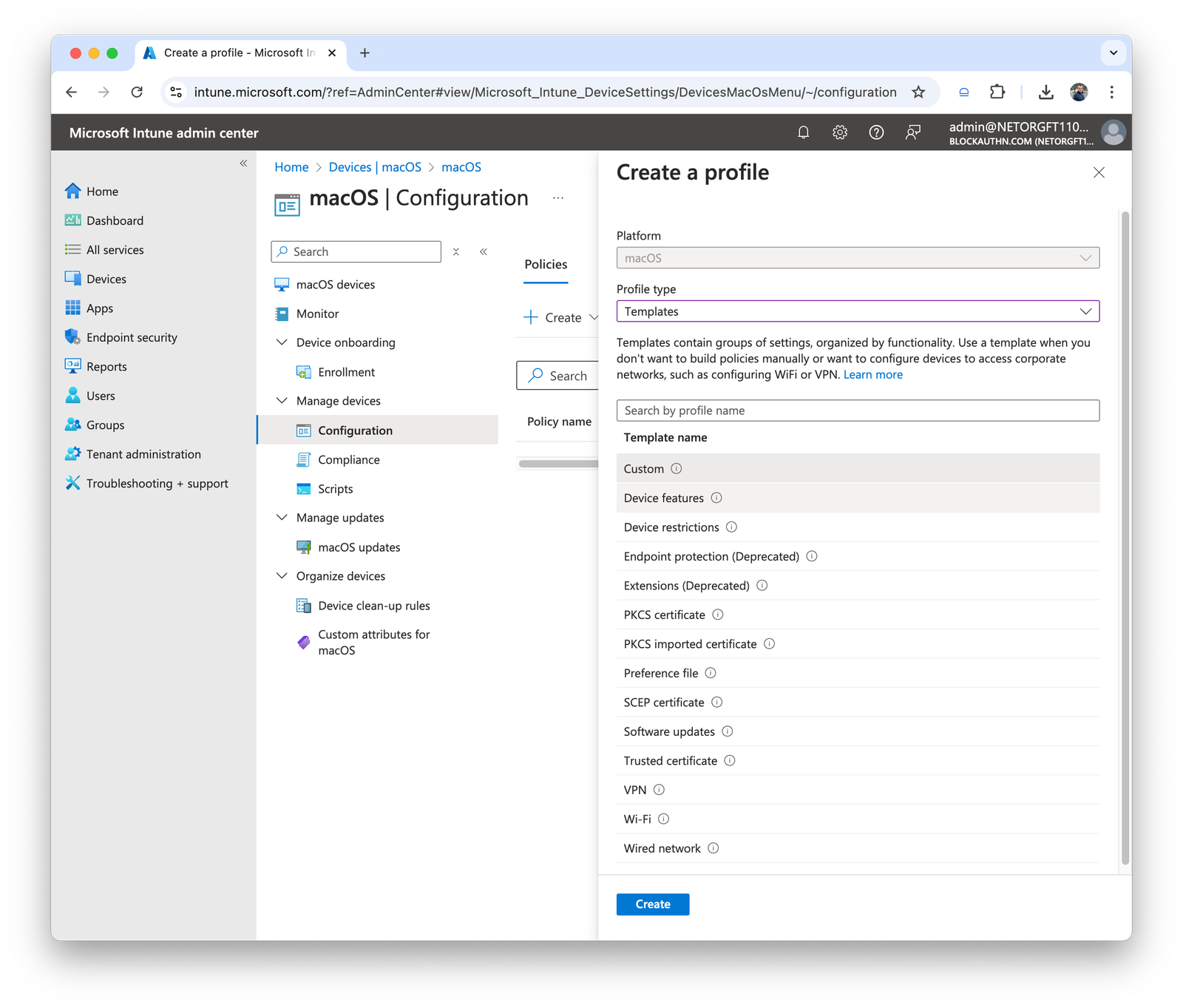
* Select `Templates` for `Profile type`
* Then choose `Custom`
* Save the script configuration
Once complete you can manually trigger the deployment by navigating to `Devices`, choosing the workstation, and then triggering manual sync by clicking on `Sync` button. Or you can wait until the Intune agent will pick up the configuration and perform an installation within an hour.
## Instal macOS agent with Intune
### Obtain macOS profile and install script
* Navigate to your idemeum tenant and access admin portal
* Click `Install new agent`
* Copy the command for macOS and save it as `.sh` file
* Also download the macOS deployment MDM profile
For macOS pelase also download the MDM deployment profile. This profile will be used to silently enable all required permission on macOS workstations.
### Deploy macOS idemeum profile
* In Intune admin dashboard navigate to `Devices` → `macOS` → `Configuration`
* Click `Create` → `New policy`
* Select `Templates` for `Profile type`
* Then choose `Custom`
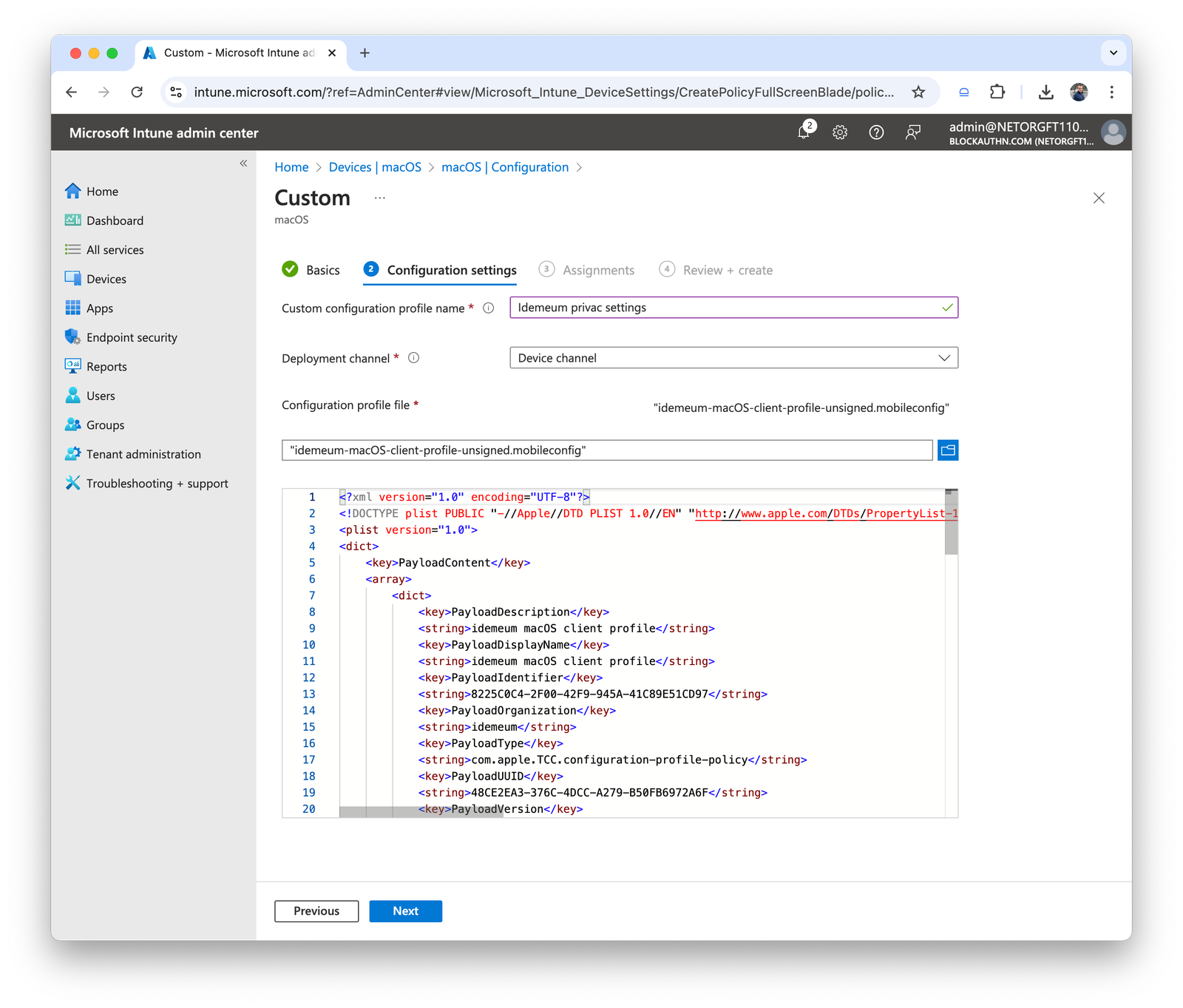
 * Give profile a name
* Provide the name that will be displayed to users
* Choose `Device channel` and upload the profile that you downloaded in the steps above
* Give profile a name
* Provide the name that will be displayed to users
* Choose `Device channel` and upload the profile that you downloaded in the steps above
 * Choose the groups of devices or users that you want to deploy this profile to
* Deploy the profile to target macOS workstations
### Deploy macOS idemeum agent
* In Intune navigate to `Devices` → `MacOS` → `Scripts`
* Create a new script and give it a name
* Upload the script that you created before
* For the `Run script as signed-in user` choose `No` to make sure script runs as `root`
* Choose the groups of devices or users that you want to deploy this profile to
* Deploy the profile to target macOS workstations
### Deploy macOS idemeum agent
* In Intune navigate to `Devices` → `MacOS` → `Scripts`
* Create a new script and give it a name
* Upload the script that you created before
* For the `Run script as signed-in user` choose `No` to make sure script runs as `root`
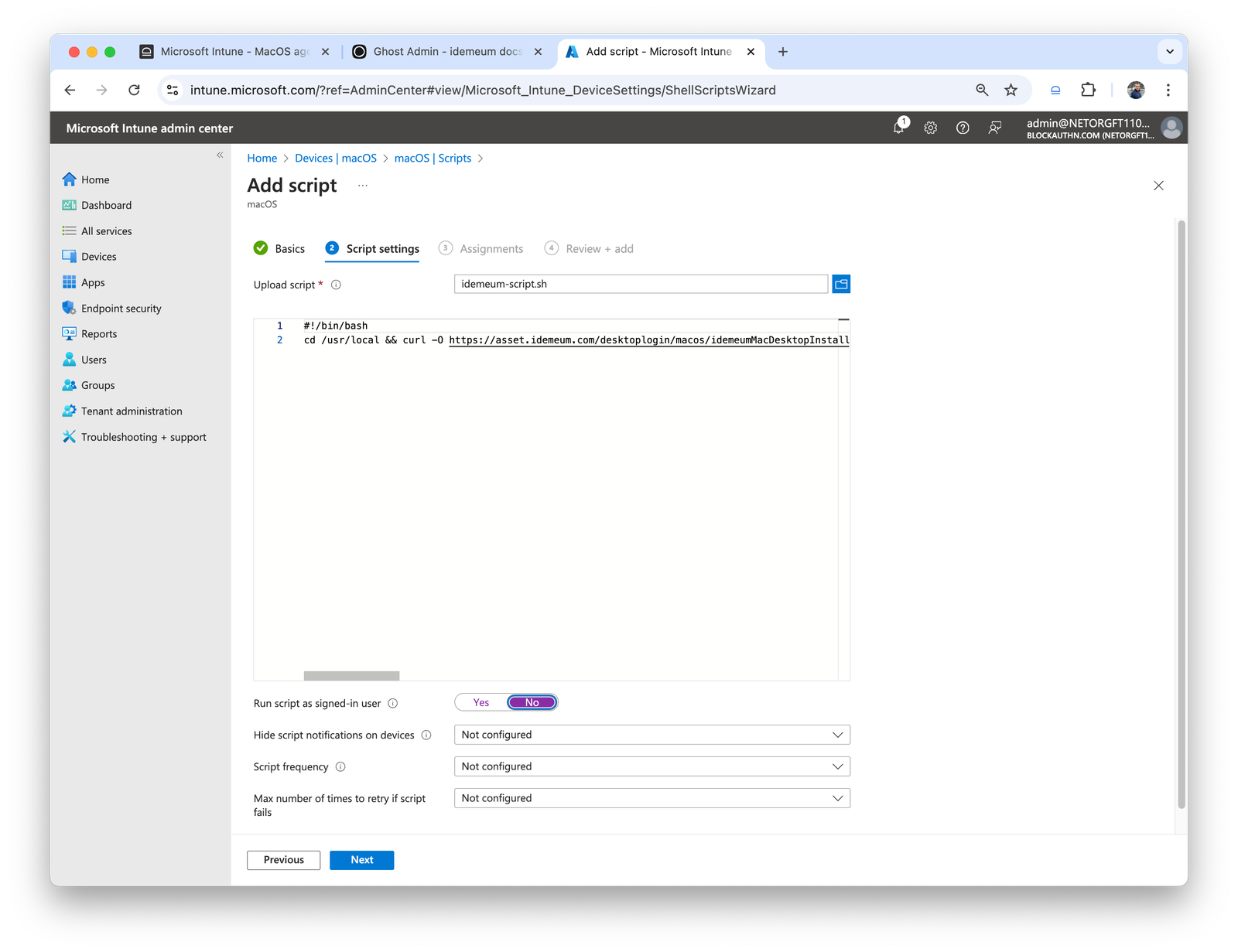 * Click next and choose the devices where you need to install idemeum
* Review the configuration and save the script
* Now idemeum client will be installed to a list of target devices
* Click next and choose the devices where you need to install idemeum
* Review the configuration and save the script
* Now idemeum client will be installed to a list of target devices