> ## Documentation Index
> Fetch the complete documentation index at: https://docs.idemeum.com/llms.txt
> Use this file to discover all available pages before exploring further.
# SuperOps RMM
> Control agent deployment with SuperOps RMM.
In this guide we will take a look at how to deploy idemeum control agent with a unified script to SuperOps customers. We take one script, create one deployment in SuperOps, automatically grab the `Client name` in SuperOps and associate idemeum agent with that customer. If the customer tenant with this name does not exist in idemeum, it will be automatically created.
## **Obtain unified install script**
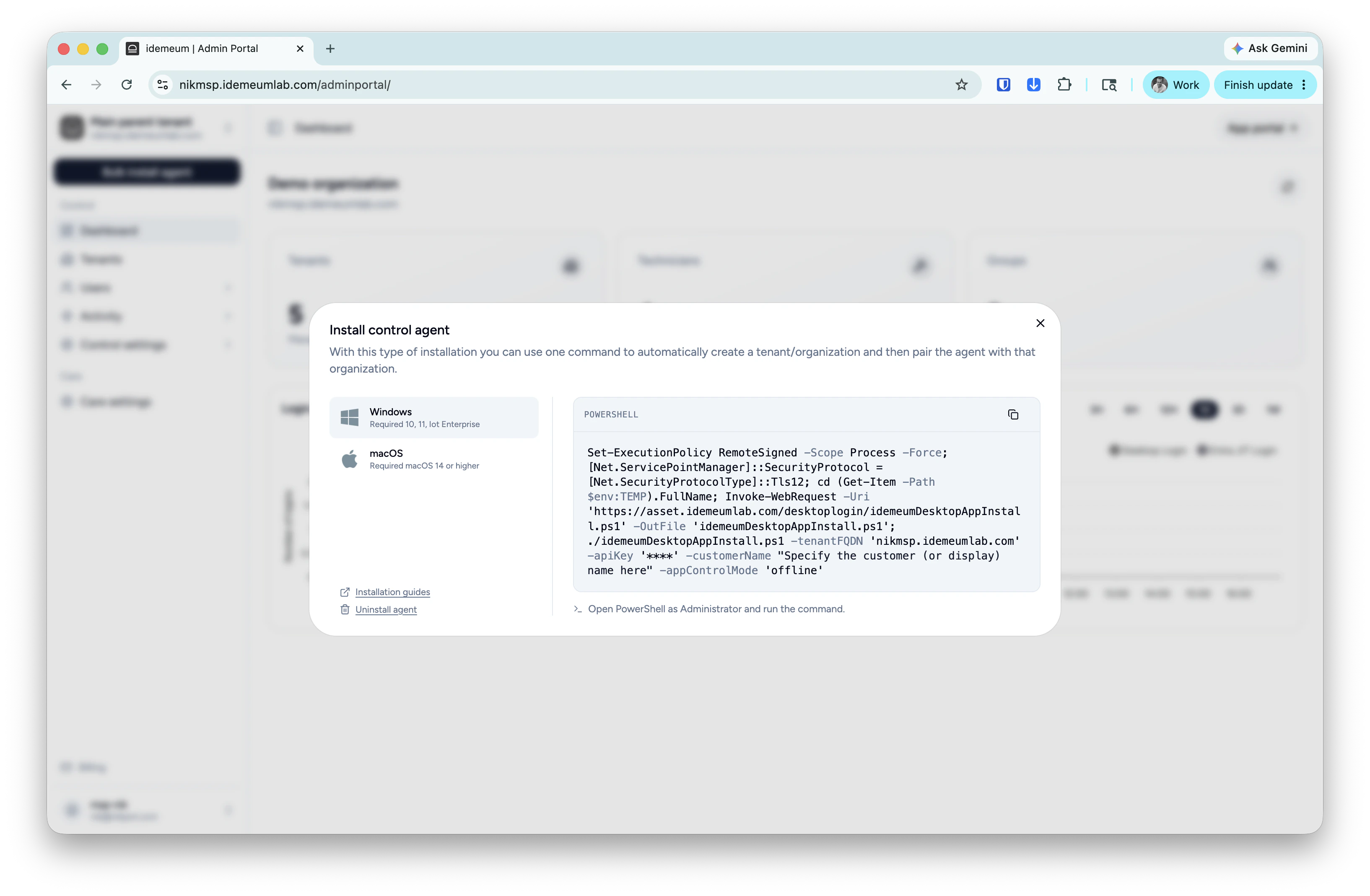
* Navigate to the admin portal of your `Main MSP dashboard`
* Click on the `Bulk install agent` and then `Control agent`
* Choose the operating system you want to use and grab the installation command
* Save this installation command in the text editor, as we will need to use it when creating deployment in SuperOps
 ## **Create SuperOPS deployment**
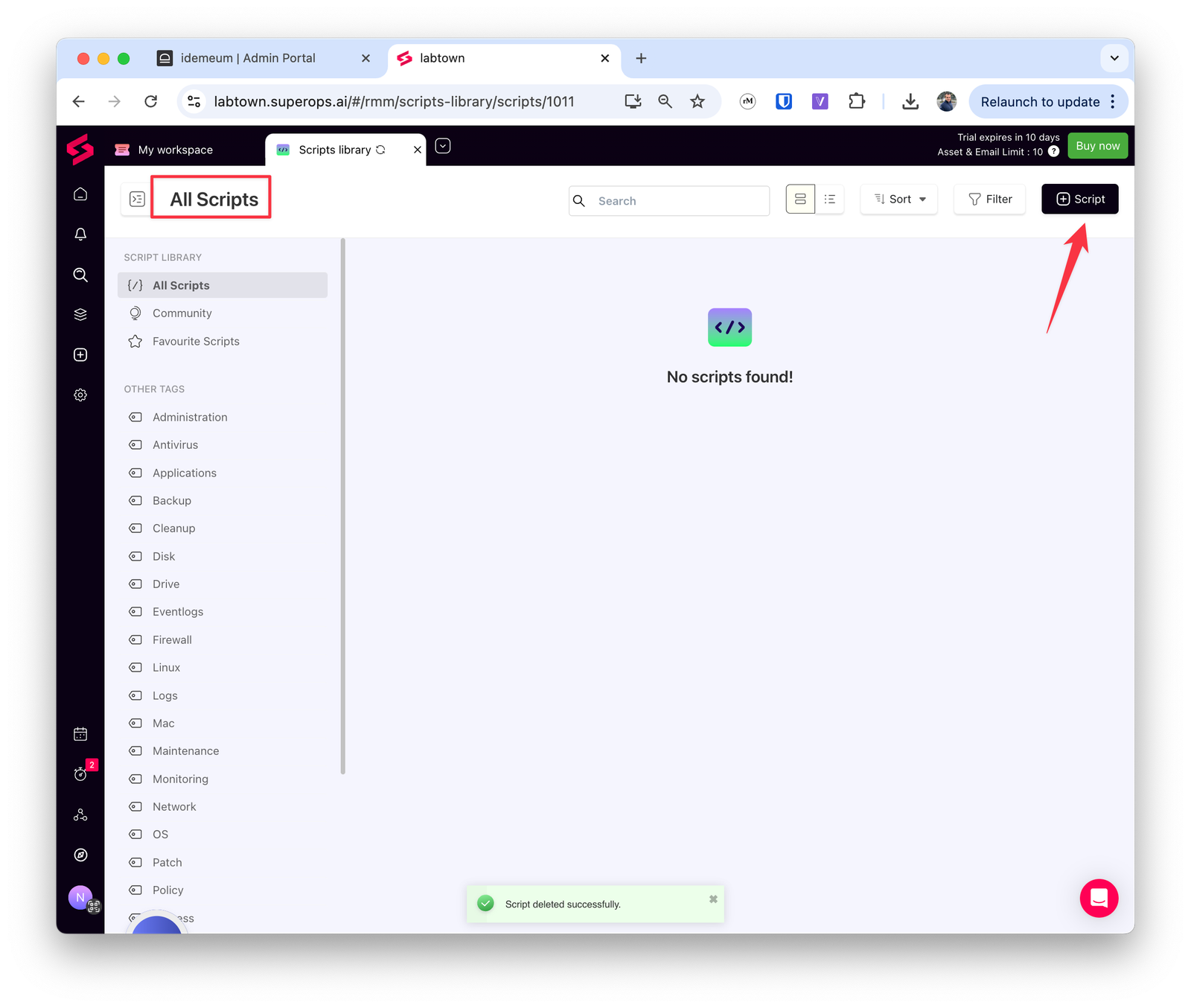
* Access your SuperOps admin console
* Navigate to `Scripts` section and click `+ Script`
## **Create SuperOPS deployment**
* Access your SuperOps admin console
* Navigate to `Scripts` section and click `+ Script`
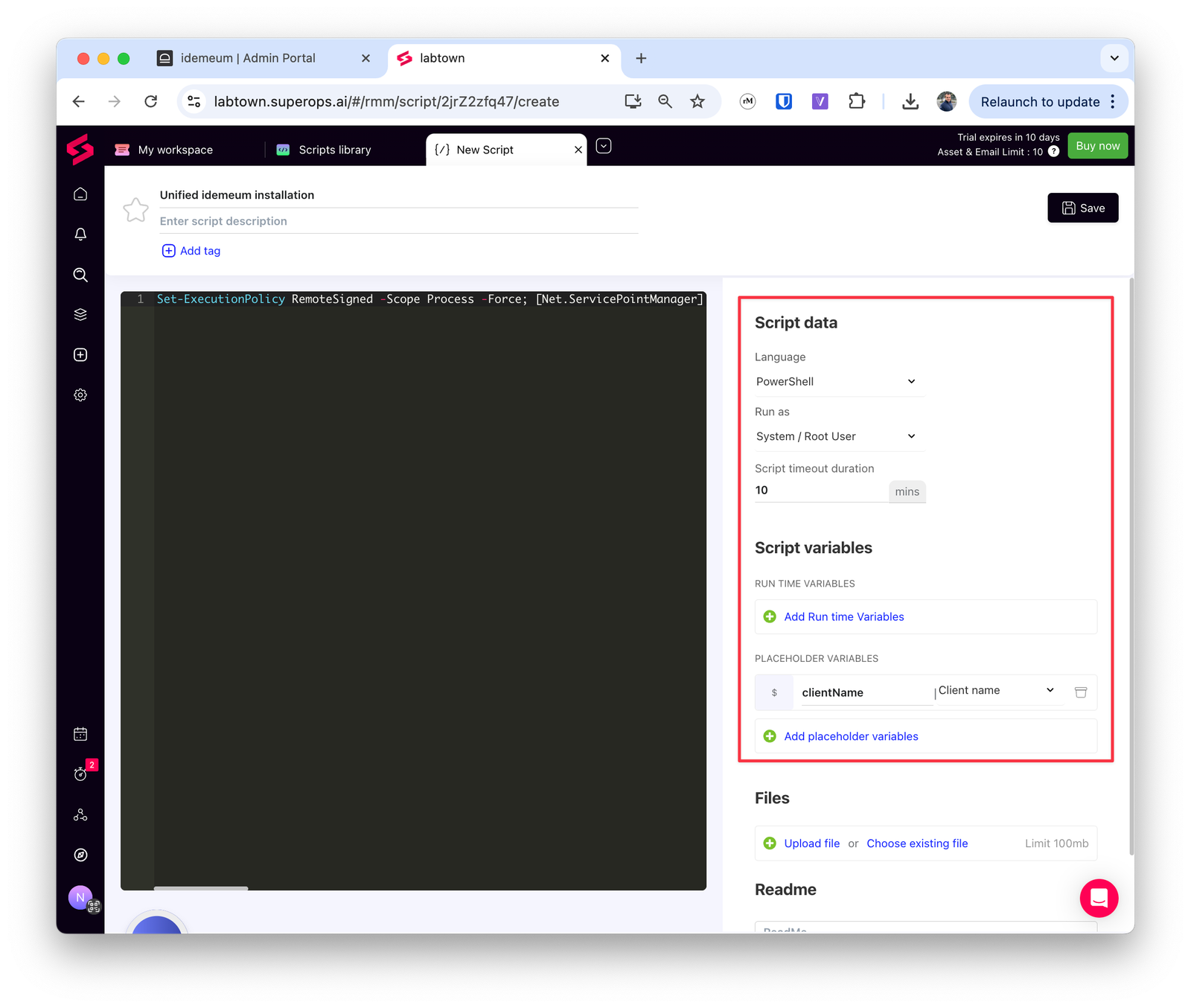
 * Give script a name
* Paste the command that we obtained in the previous section in the script editor Window
* For Windows choose `PowerShell` as language
* Choose run as `System user`
* Script duration set to be `10` minutes.
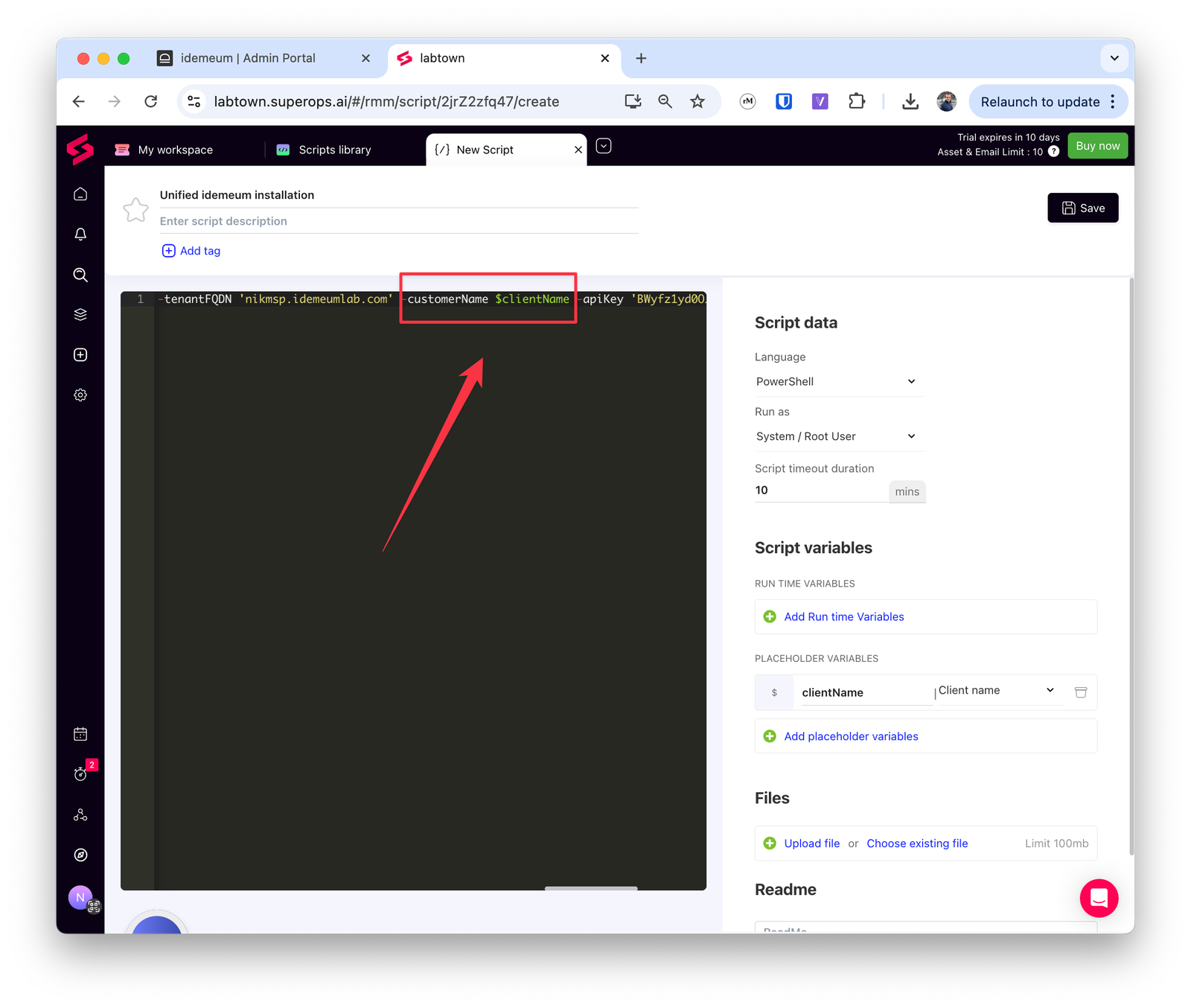
* Add a `Placeholder variable` and choose the variable `Client name` and give it a name `clientName`
* Give script a name
* Paste the command that we obtained in the previous section in the script editor Window
* For Windows choose `PowerShell` as language
* Choose run as `System user`
* Script duration set to be `10` minutes.
* Add a `Placeholder variable` and choose the variable `Client name` and give it a name `clientName`
 * Now edit the script to specify that we are passing `clientName` variable as `-customerName` attribute to idemeum. Use the `$` sign, and you do not need to use `""`
 * Save script configuration
## **Trigger deployment**
Now you can trigger deployment for any of your customers. Idemeum will automatically create a customer tenant in idemeum if it does not exist.
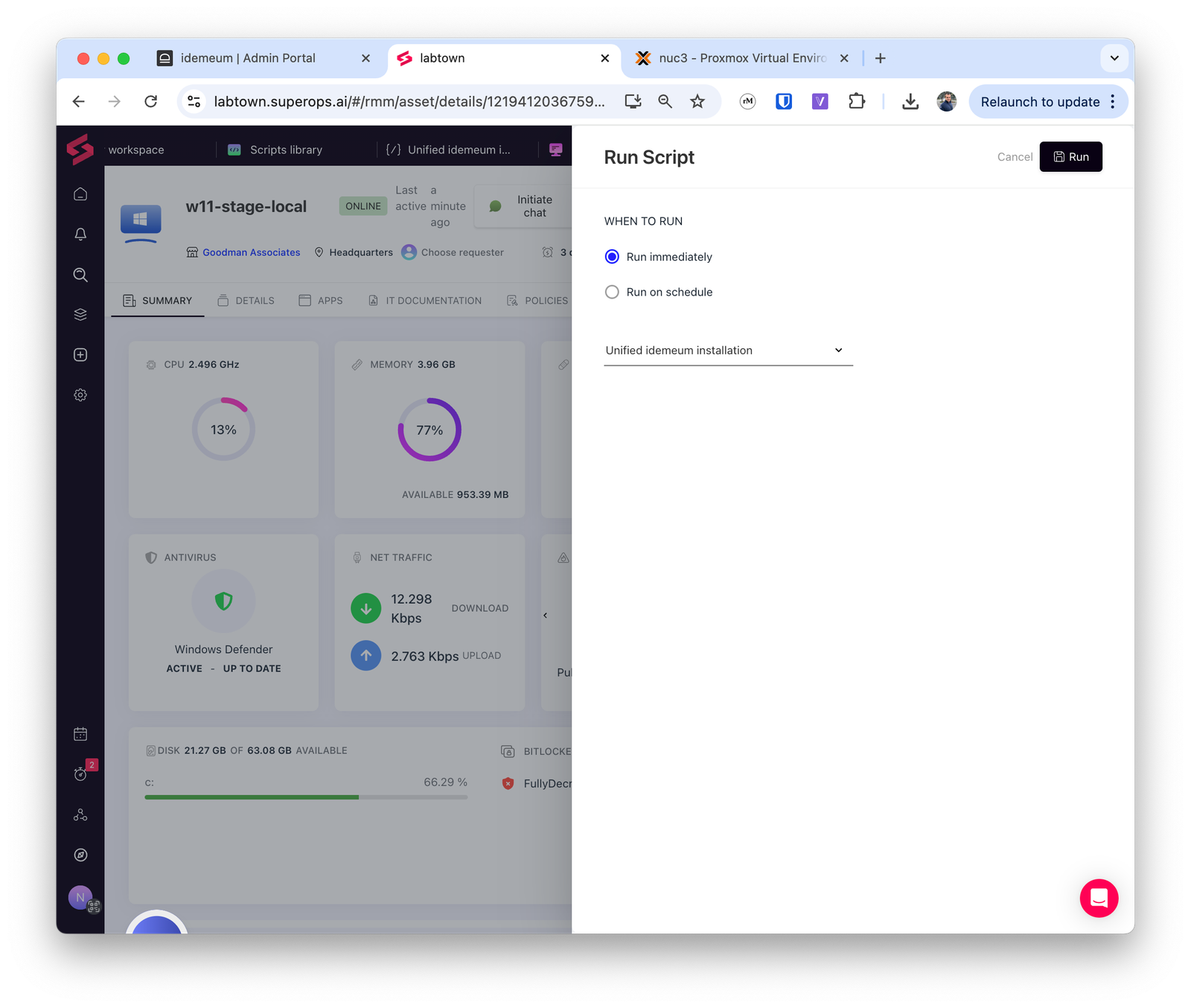
* Access any of your assets in SuperOps
* Choose `Run script` → `Run immediately` and choose the script that we created
* Save script configuration
## **Trigger deployment**
Now you can trigger deployment for any of your customers. Idemeum will automatically create a customer tenant in idemeum if it does not exist.
* Access any of your assets in SuperOps
* Choose `Run script` → `Run immediately` and choose the script that we created