> ## Documentation Index
> Fetch the complete documentation index at: https://docs.idemeum.com/llms.txt
> Use this file to discover all available pages before exploring further.
# JIT for computers features
> Major features that you can use with JIT for computer access.
## JIT computer elevation
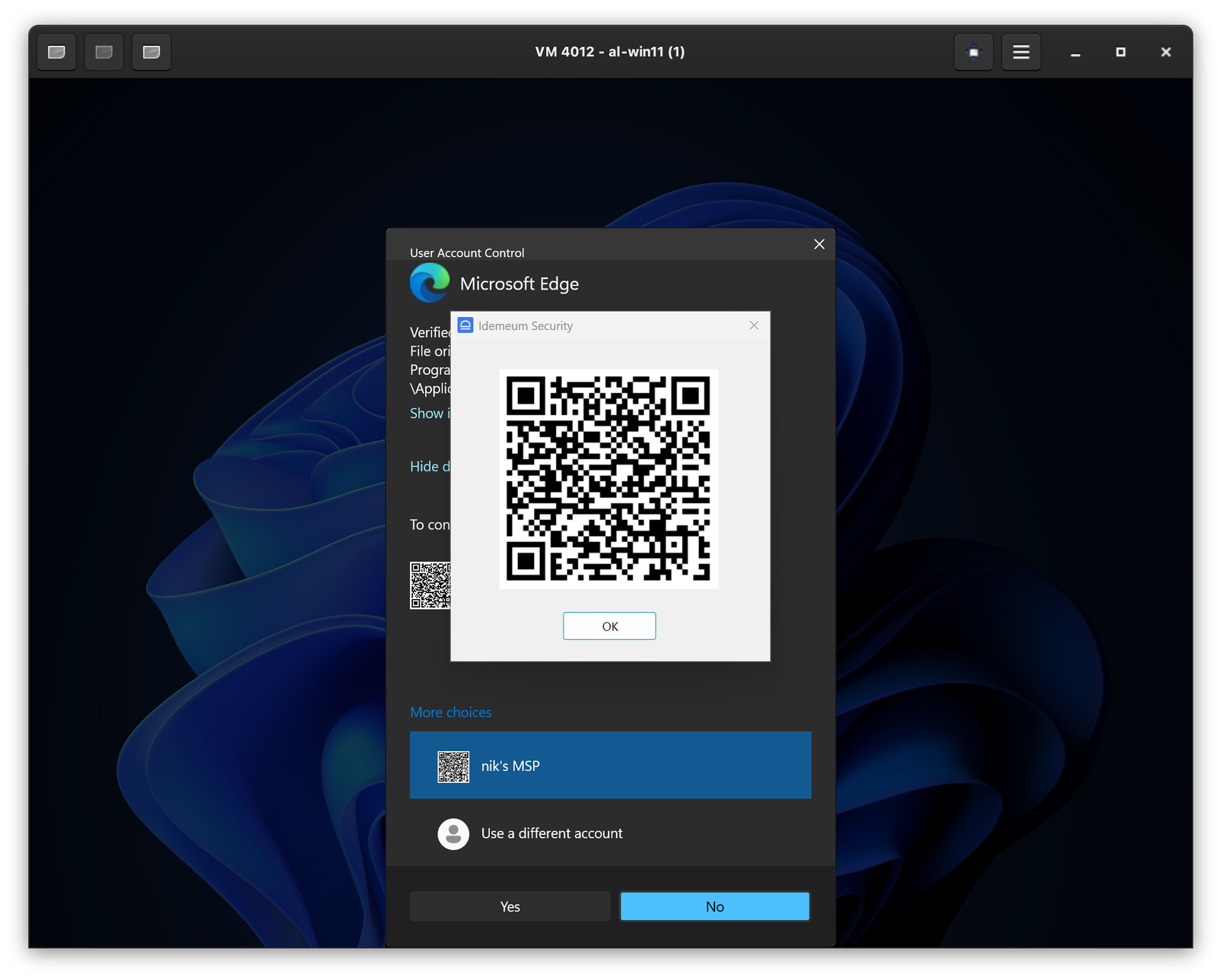
When you login as technician with mobile device, you might need to perform certain actions that require elevation. When the elevation screen comes up, you can simply scan the QR-code to elevate the application. For instance, on Windows simply click `More options`, then enlarge idemeum QR-code, and scan with your mobile app. The action will be elevated and UAC will be handled by idemeum agent behind the scenes. Similar experience is offered on macOS workstations.
 ## JIT for computers login methods
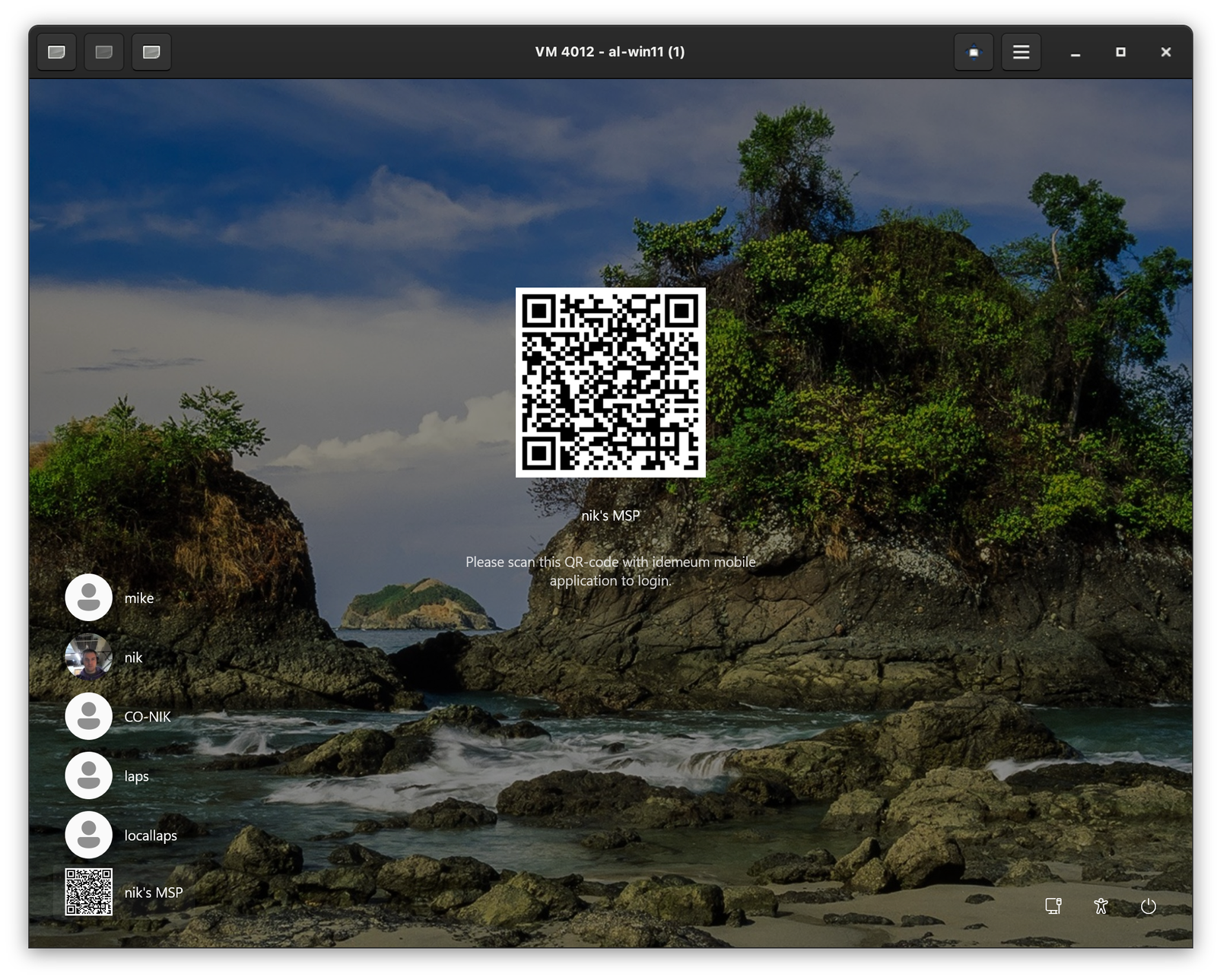
Navigate to workstation where idemeum agent is installed, click on the QR-code at the bottom of the screen, and then scan the QR-code with idemeum mobile app.
## JIT for computers login methods
Navigate to workstation where idemeum agent is installed, click on the QR-code at the bottom of the screen, and then scan the QR-code with idemeum mobile app.
 You need to [enable](/jit/jit-for-computers-confiruation) this option in JIT settings first.
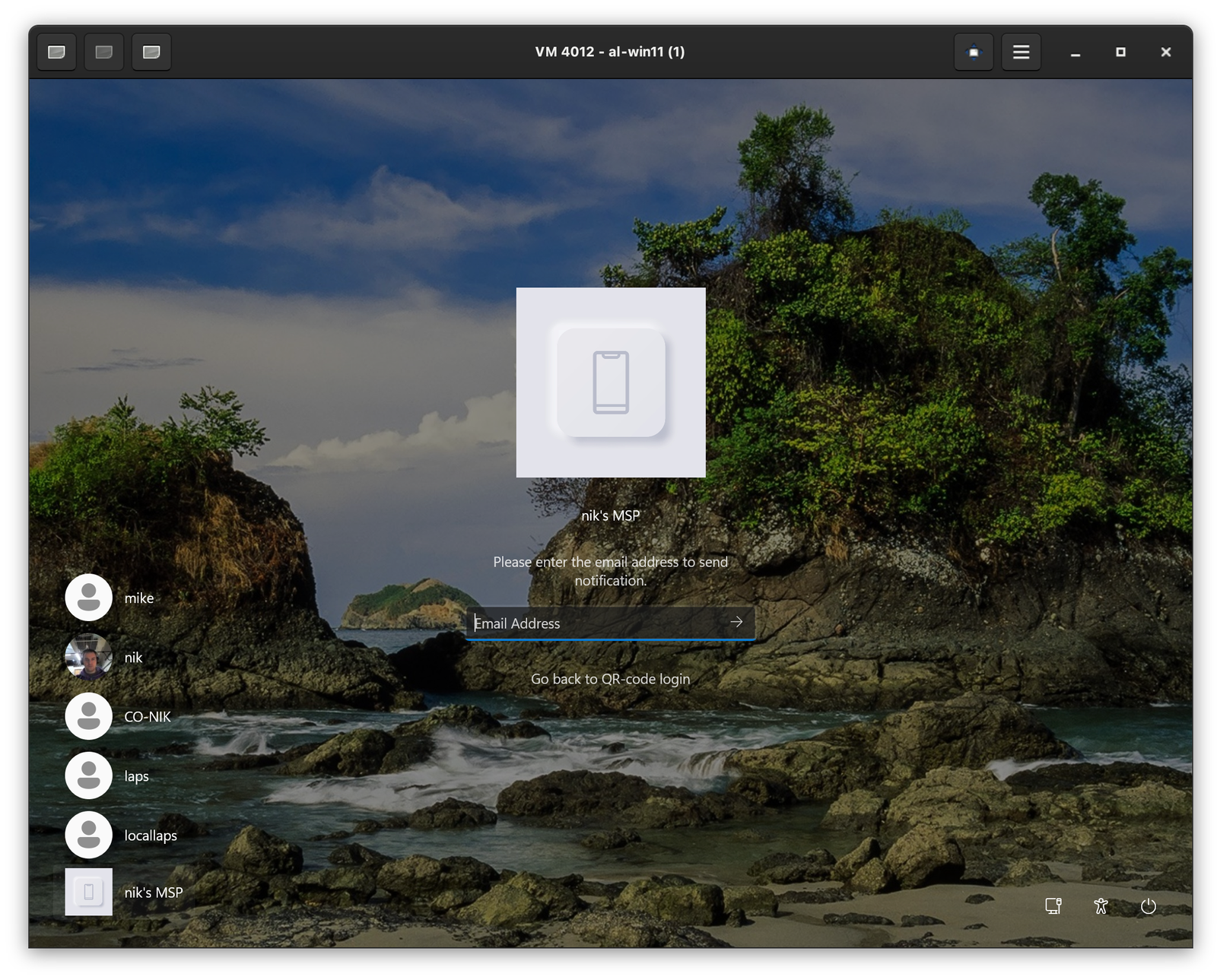
Navigate to workstation where idemeum agent is installed, click on the QR-code icon at the bottom left to load idemeum login option, click on `Send notification` link. Now you are able to enter your email address (the one you registered with in idemeum) and you will receive a login notification.
You need to [enable](/jit/jit-for-computers-confiruation) this option in JIT settings first.
Navigate to workstation where idemeum agent is installed, click on the QR-code icon at the bottom left to load idemeum login option, click on `Send notification` link. Now you are able to enter your email address (the one you registered with in idemeum) and you will receive a login notification.
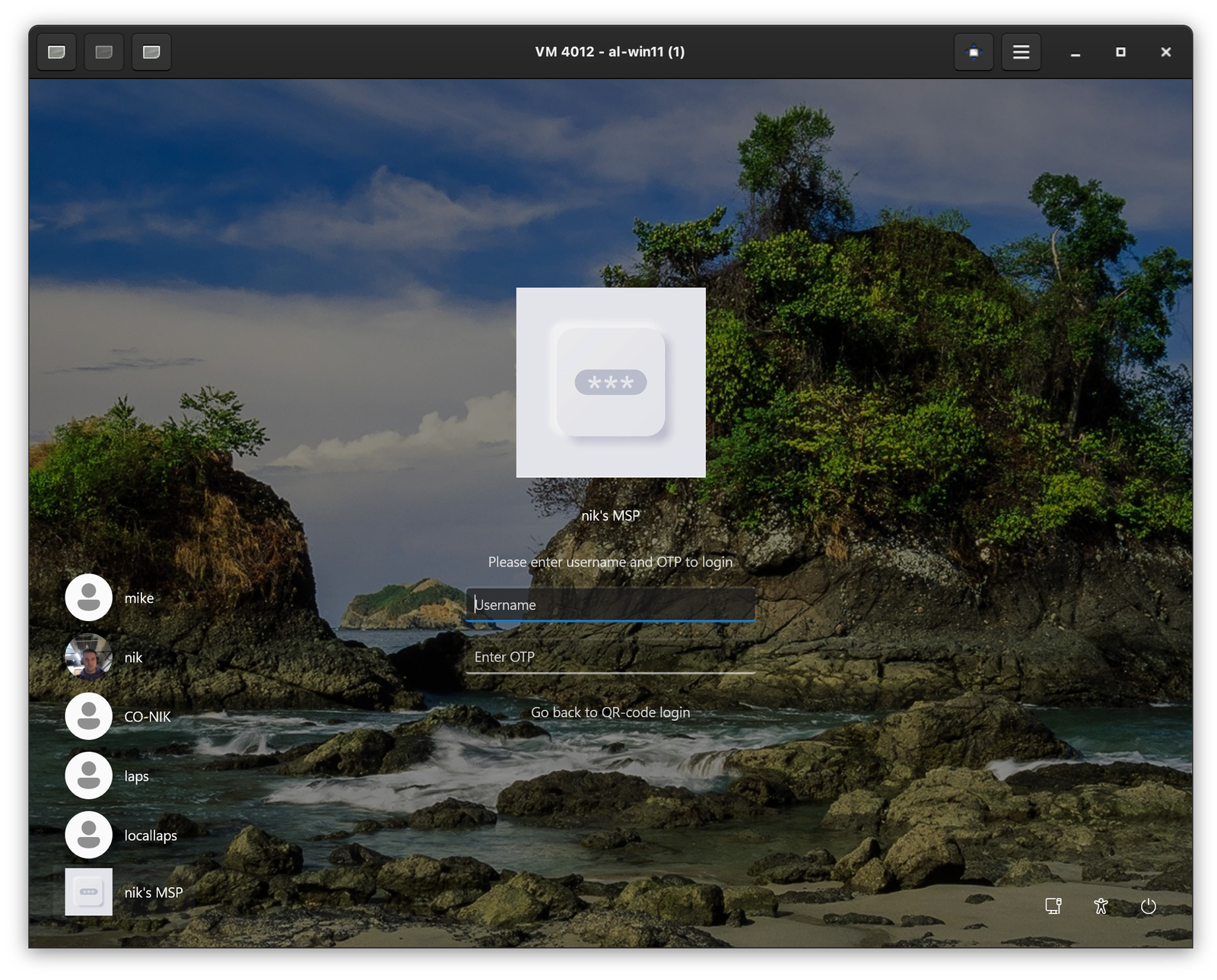
 You can use this method when computer is offline. When computer is offline, idemeum agent can not render a QR-code and automatically switches to OTP login mode. Or you can enable this option to login with OTP even when computer is not offline. Navigate to workstation, click on QR-code at the bottom left to load idemeum login options, click on `Login via OTP`. Now you can retrieve username and OTP for the workstation from your idemeum mobile app.
 ## Offline computer access
When the computer is offline, idemeum credential provider will automatically switch to offline mode. Instead of displaying the QR-code for admin access, it will show the username and offline secret fields.
## Offline computer access
When the computer is offline, idemeum credential provider will automatically switch to offline mode. Instead of displaying the QR-code for admin access, it will show the username and offline secret fields.
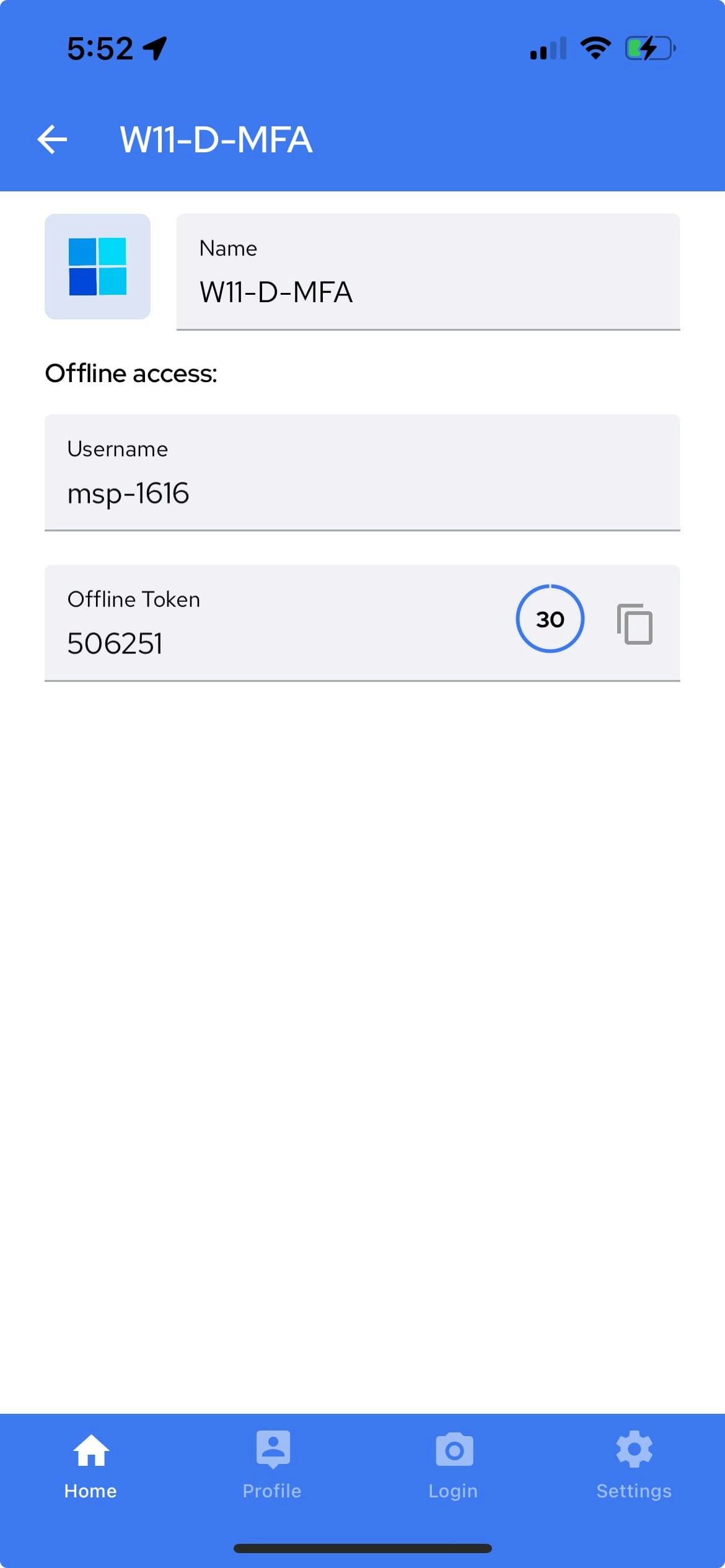
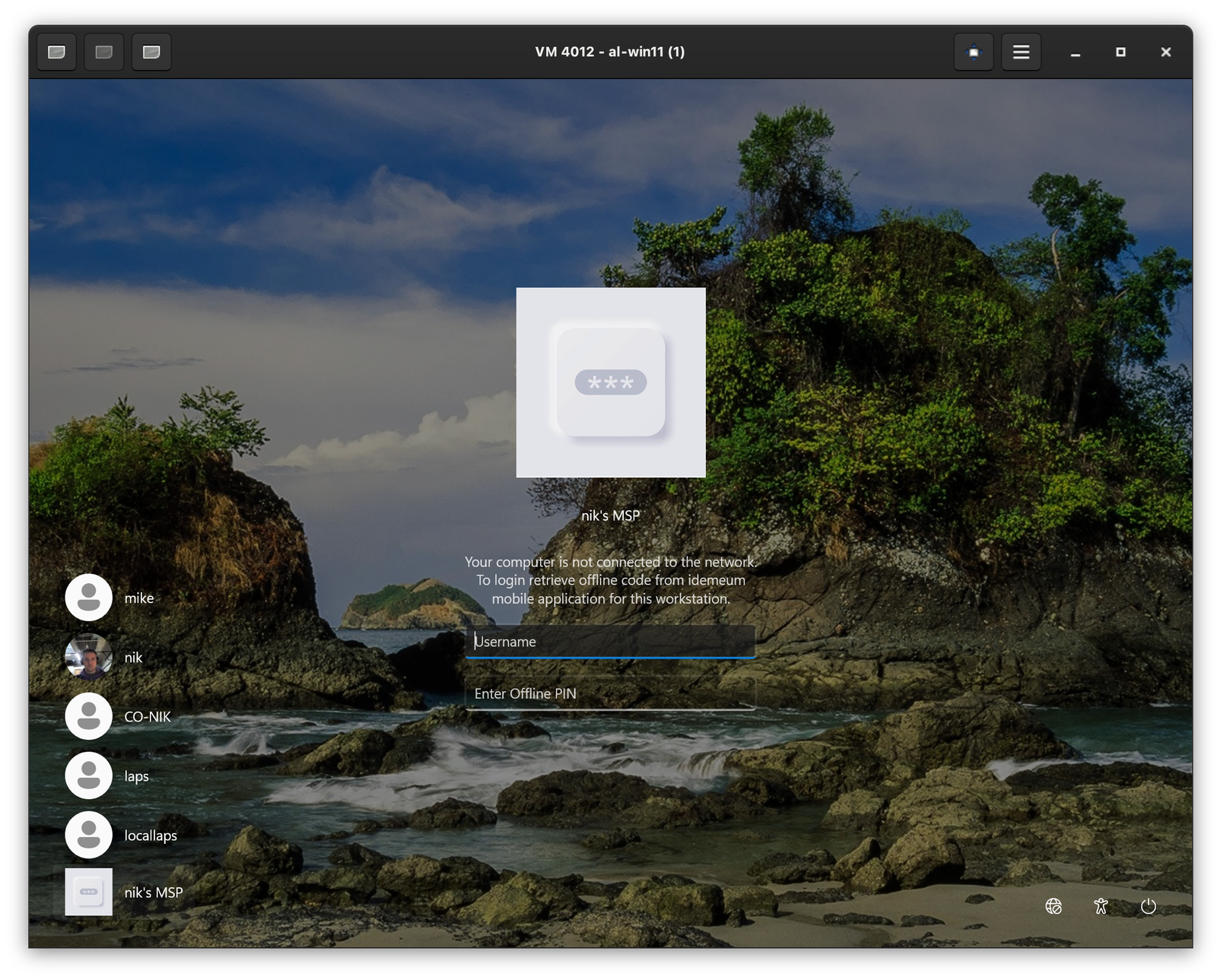 To retrieve username and your offline OTP code, open idemeum mobile application, switch to appropriate organization / customer, then search for workstation, click on `...` and retrieve username and OTP code.
 ## Selective computer JIT login
You need to enable this feature for the tenant. More about configuration [here](/jit/jit-for-computers-confiruation).
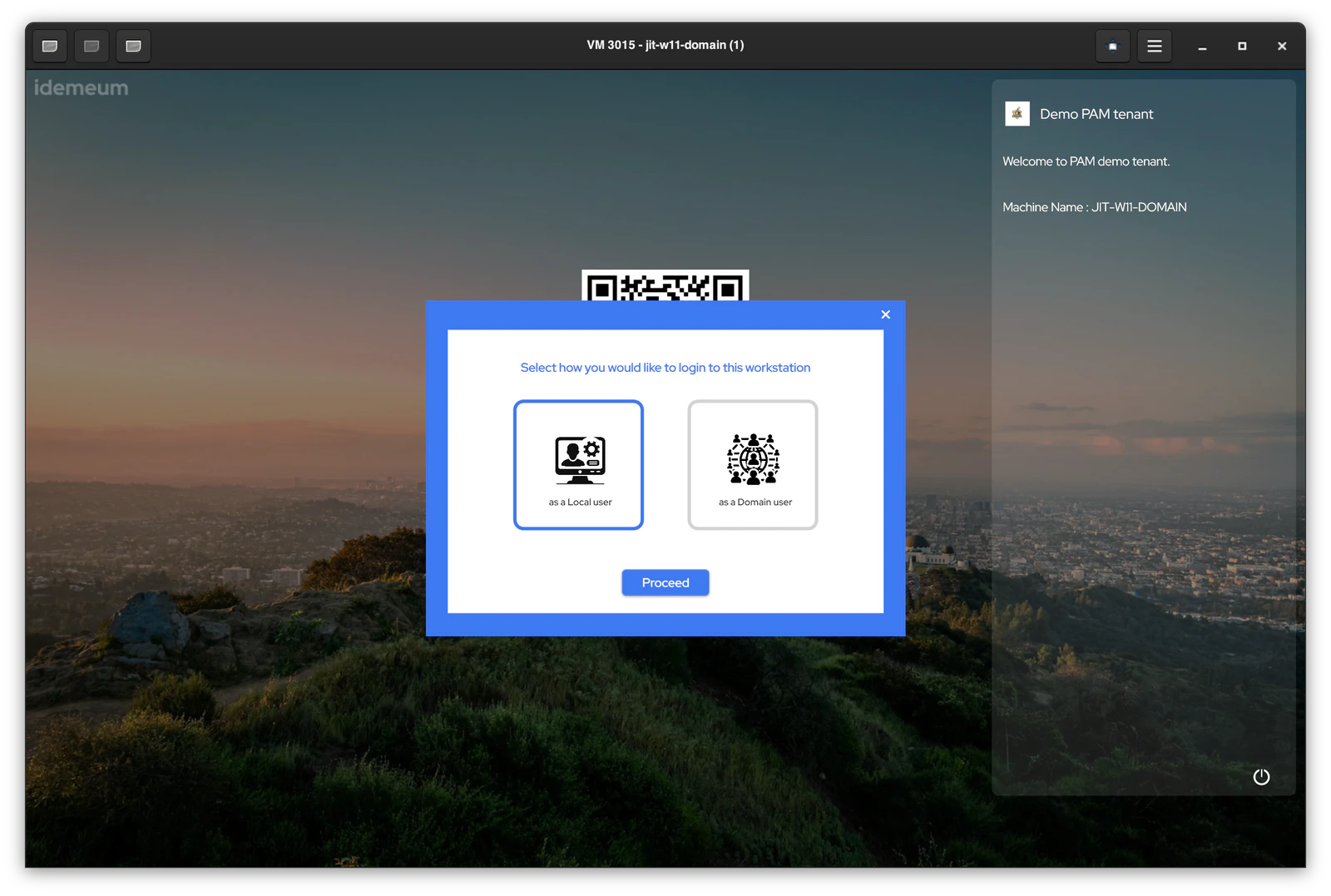
For domain-joined workstations where idemeum desktop client is installed, you can choose what account to use for technician login on the fly at login time. When you scan the QR-code you will be presented with the option to use domain account or local. This feature is useful if you want to control on which workstations you want to expose your domain admin account.
## Selective computer JIT login
You need to enable this feature for the tenant. More about configuration [here](/jit/jit-for-computers-confiruation).
For domain-joined workstations where idemeum desktop client is installed, you can choose what account to use for technician login on the fly at login time. When you scan the QR-code you will be presented with the option to use domain account or local. This feature is useful if you want to control on which workstations you want to expose your domain admin account.
 ## RDP with JIT accounts
RDP with JIT accounts works between domain-joined workstations. You need to make sure idemeum agent is installed on domain controller, source, and destination Windows workstation.
Quick demo for how to RDP with JIT accounts.
When idemeum desktop agent is installed on domain-joined workstations, technicians can RDP from one machine to the other without the need to use any passwords - simply scan the QR-code and approve with biometrics. Just-in-time accounts will be used behind the scenes, accounts will be enabled / disabled on-demand, and passwords will be rotated after each login.
### RDP JIT prerequisites
* Supported on domain-joined workstations only
* Desktop agent installed on `source` and `target` machine
* Domain accounts login enabled for the customer tenant
* Domain controller is reachable from the RDP `source` workstation
* Agent is installed on domain controller
### How to RDP with JIT account
* Login to `source` domain-joined workstation
* Open Windows Remote Desktop Client and connect to the `target` domain-joined machine
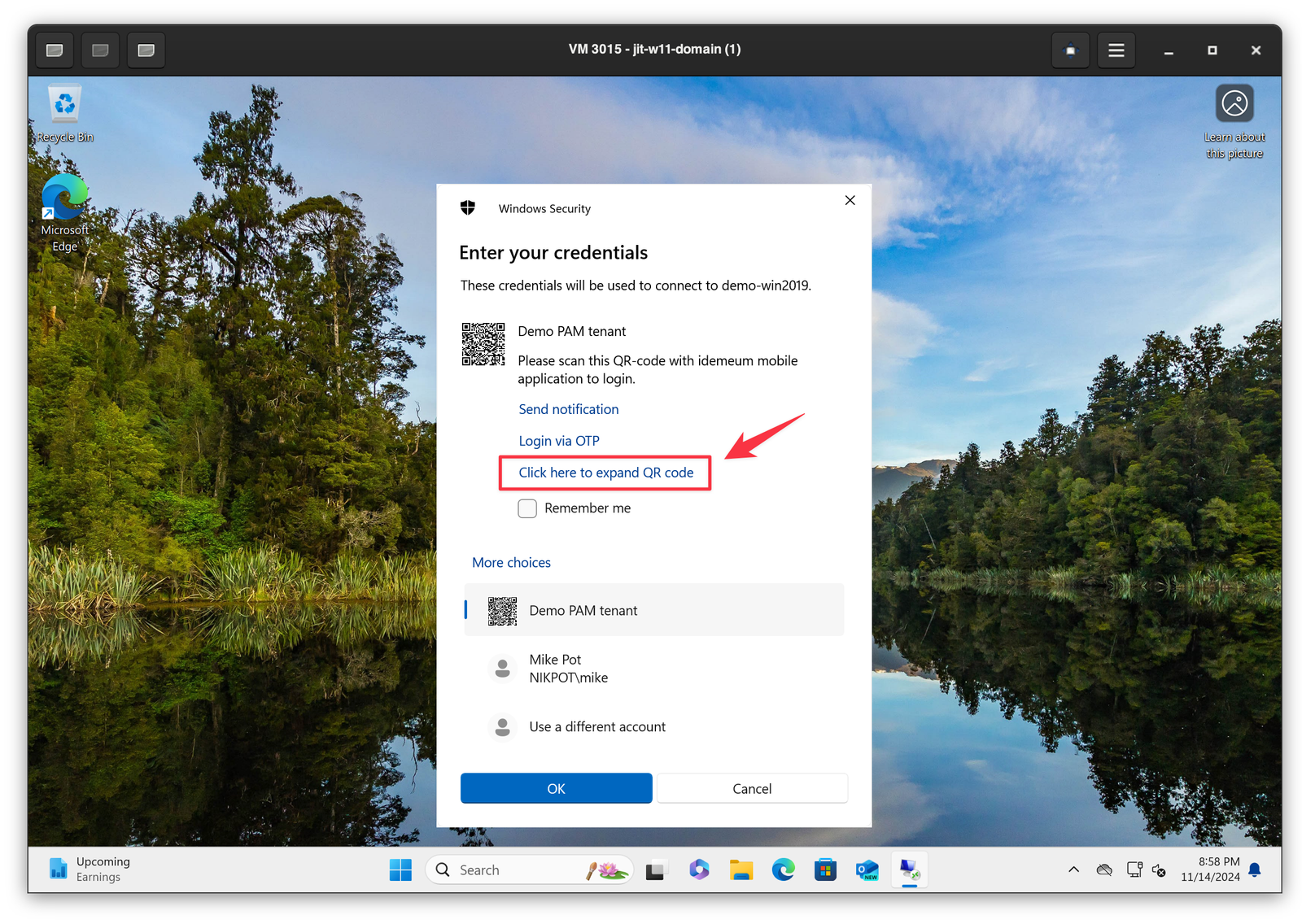
* You will then be prompted to authenticate. Click `More options` and then select `idemeum credential provider` to scan the QR-code.
* You can enlarge the QR-code so that it is easier to scan by clicking on `Click here to expand QR code`
* Scan the QR-code with idemeum mobile application and approve with biometrics
* You will be logged in to the `target` workstation
## RDP with JIT accounts
RDP with JIT accounts works between domain-joined workstations. You need to make sure idemeum agent is installed on domain controller, source, and destination Windows workstation.
Quick demo for how to RDP with JIT accounts.
When idemeum desktop agent is installed on domain-joined workstations, technicians can RDP from one machine to the other without the need to use any passwords - simply scan the QR-code and approve with biometrics. Just-in-time accounts will be used behind the scenes, accounts will be enabled / disabled on-demand, and passwords will be rotated after each login.
### RDP JIT prerequisites
* Supported on domain-joined workstations only
* Desktop agent installed on `source` and `target` machine
* Domain accounts login enabled for the customer tenant
* Domain controller is reachable from the RDP `source` workstation
* Agent is installed on domain controller
### How to RDP with JIT account
* Login to `source` domain-joined workstation
* Open Windows Remote Desktop Client and connect to the `target` domain-joined machine
* You will then be prompted to authenticate. Click `More options` and then select `idemeum credential provider` to scan the QR-code.
* You can enlarge the QR-code so that it is easier to scan by clicking on `Click here to expand QR code`
* Scan the QR-code with idemeum mobile application and approve with biometrics
* You will be logged in to the `target` workstation
 ## Computer access control
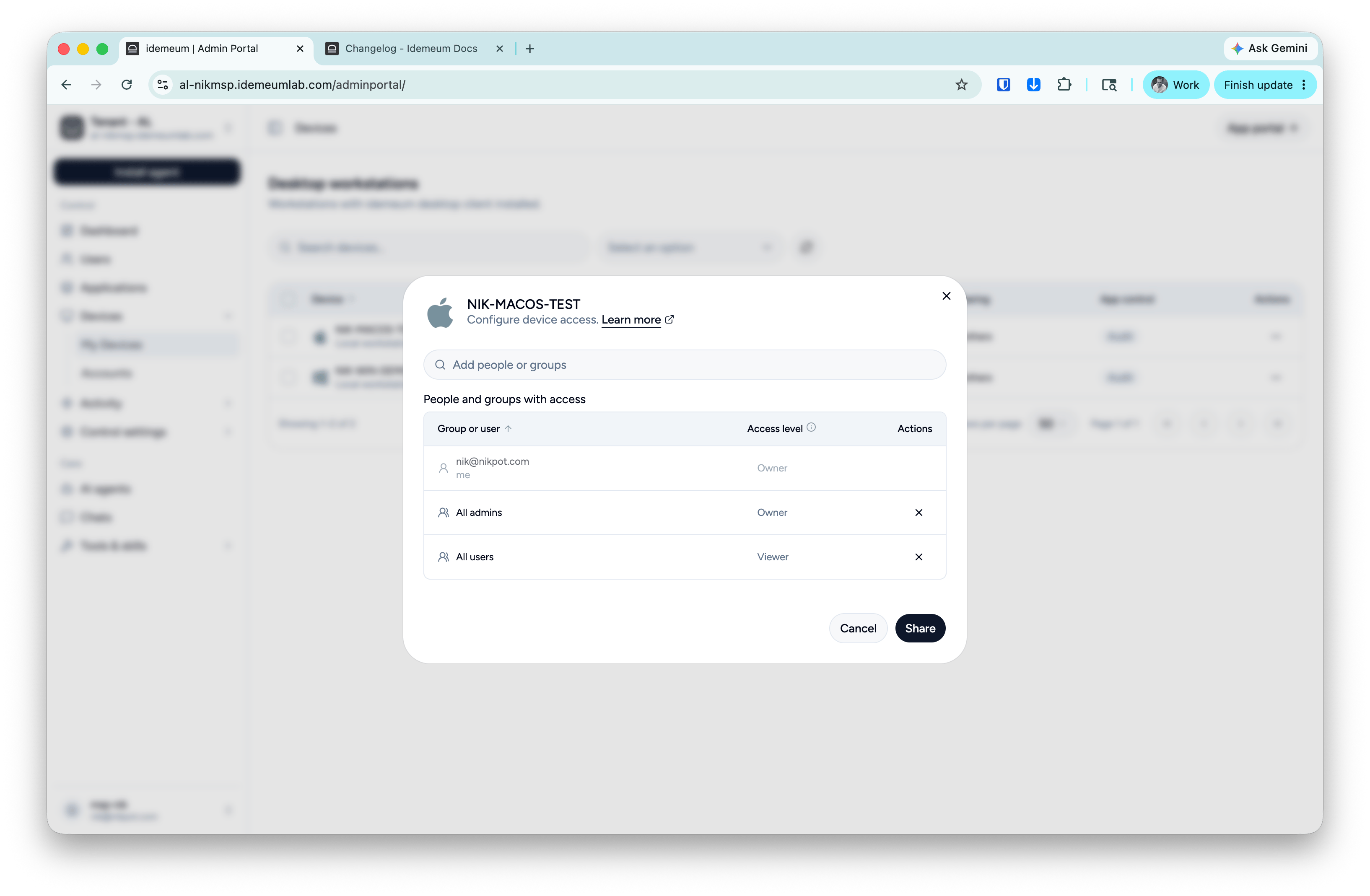
You can control what technicians have access to what workstations. Important to note that if technician is a `Global admin`, she can access and edit everything everywhere. If you want to apply access control you first need to delegate technician access to certain customer / organization with `read-only` permissions, and then edit workstation access control settings.
* Navigate to admin portal of customer / organization
* Access `Devices`, then click on `...` for the device you want to edit, and choose `Share device`
* By default `All admins` and `All users` will be there
* To control technician access, remove `All admins` role and only add technicians that need to access this workstation
## Computer access control
You can control what technicians have access to what workstations. Important to note that if technician is a `Global admin`, she can access and edit everything everywhere. If you want to apply access control you first need to delegate technician access to certain customer / organization with `read-only` permissions, and then edit workstation access control settings.
* Navigate to admin portal of customer / organization
* Access `Devices`, then click on `...` for the device you want to edit, and choose `Share device`
* By default `All admins` and `All users` will be there
* To control technician access, remove `All admins` role and only add technicians that need to access this workstation
 ## JIT domain account auto removal
When technicians use JIT access for computers in domain environments, individual domain admin accounts are created every time new technician logs in for the first time. When these accounts are not in use, they are in disabled state.
In order to make the number of accounts manageable, idemeum agent that is installed on domain controller will periodically inventory all technicain JIT accounts. And if the account has not been used for the last 30 days, it will be deleted.
Let's look at the example. Technician `alex` logs into the domain controller and the account `msp-alex` is created. Once `alex` logs out, the JIT account is disabled. For 30 days `alex` does not login to this domain environment. As a result, the account is deleted after 30 days. If `alex` tries to login after a period of 30 days the account `msp-alex` will be recreated.
## JIT domain account auto removal
When technicians use JIT access for computers in domain environments, individual domain admin accounts are created every time new technician logs in for the first time. When these accounts are not in use, they are in disabled state.
In order to make the number of accounts manageable, idemeum agent that is installed on domain controller will periodically inventory all technicain JIT accounts. And if the account has not been used for the last 30 days, it will be deleted.
Let's look at the example. Technician `alex` logs into the domain controller and the account `msp-alex` is created. Once `alex` logs out, the JIT account is disabled. For 30 days `alex` does not login to this domain environment. As a result, the account is deleted after 30 days. If `alex` tries to login after a period of 30 days the account `msp-alex` will be recreated.