> ## Documentation Index
> Fetch the complete documentation index at: https://docs.idemeum.com/llms.txt
> Use this file to discover all available pages before exploring further.
# Co-managed JIT login
> Onboard your customer co-managed admins so that they can leverage JIT access and elevation approvals.
## How co-managed JIT login works
Co-managed user will have full admin rights to the tenant. She will be able to JIT login to all machines, approve all elevation requests, and access the admin portal.
* You need to onboard co-managed admin into a customer tenant, not into your MSP tenant
* Once onboarded, you need to promote the user to admin, and that user will automatically assume the role of `co-managed` user
* We automatically generate the username for co-managed user and prefix it with `co-`. For instance, for user `nik@company.com` the username will be `co-nik`. You can change this username to whatever you like when creating the user.
## Configure co-managed JIT login
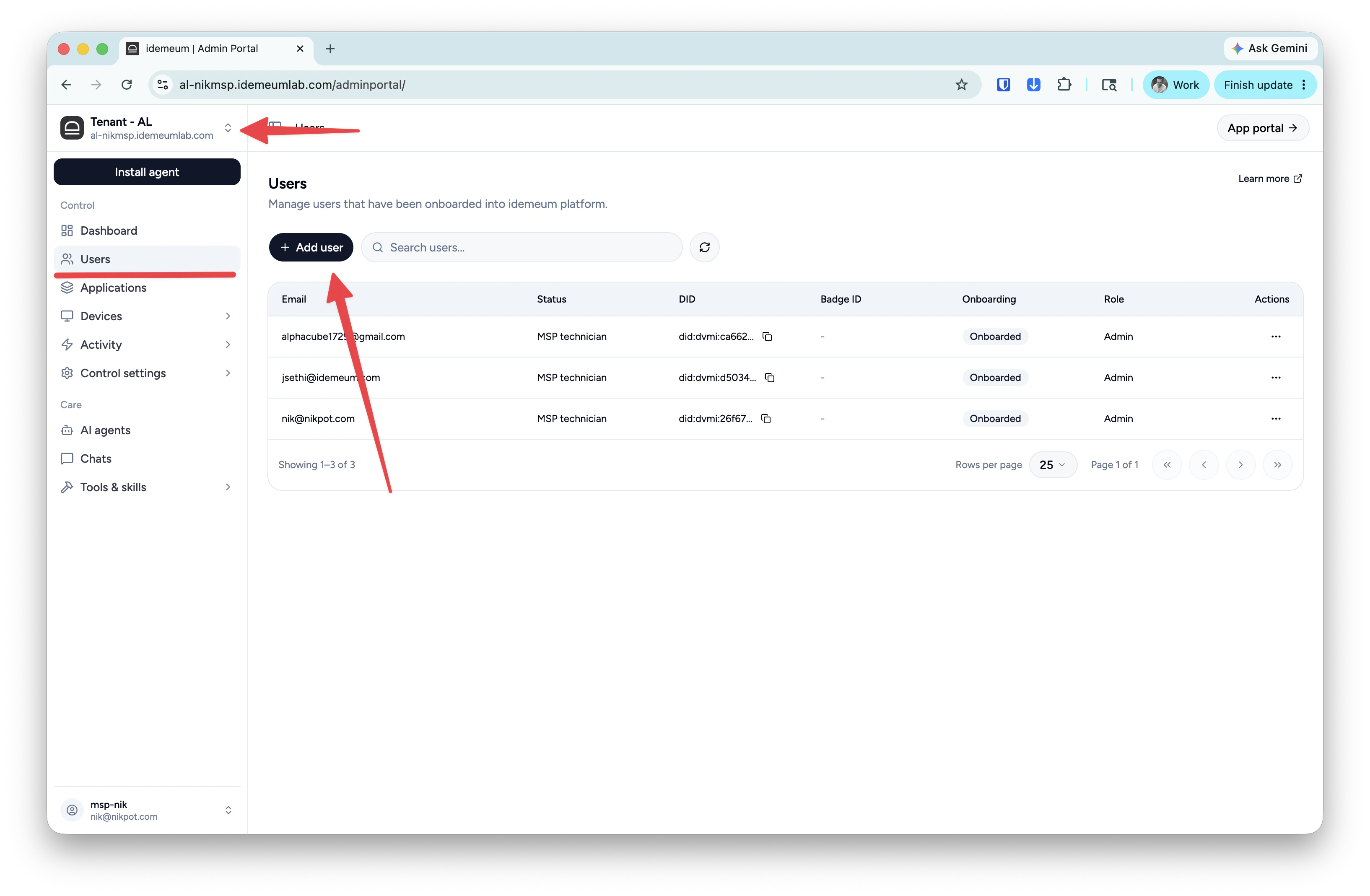
* Navigate to your customer tenant admin portal where you would like to onboard co-managed user
* Click on `Tenant users` and choose `Add user`
* Create the user record by providing first name, last name, and the email address. We will automatically generate the username.
* Now the user installs idemeum mobile app, verifies the email address that was used when creating the user record, navigates to the customer tenant URL and scans the QR-code.
* After the user is successfully onboarded, you click on `...` next to that user record and choose `Make admin.`
* Once you promote the user to admin, the user record will be assigned the `co-managed` status.
* The user can now access workstations with JIT login and will be able to approve elevation requests.