> ## Documentation Index
> Fetch the complete documentation index at: https://docs.idemeum.com/llms.txt
> Use this file to discover all available pages before exploring further.
# User onboarding
> Add new admin users to your idemeum portal.
## How user onboarding works
With idemeum every new admin user is onboarded with a mobile app. Think about the mobile app as a hardware key - it is used to authenticate a user with MFA and handle all encryption / decryption with a key that resides in the mobile app.
## Add new admin user
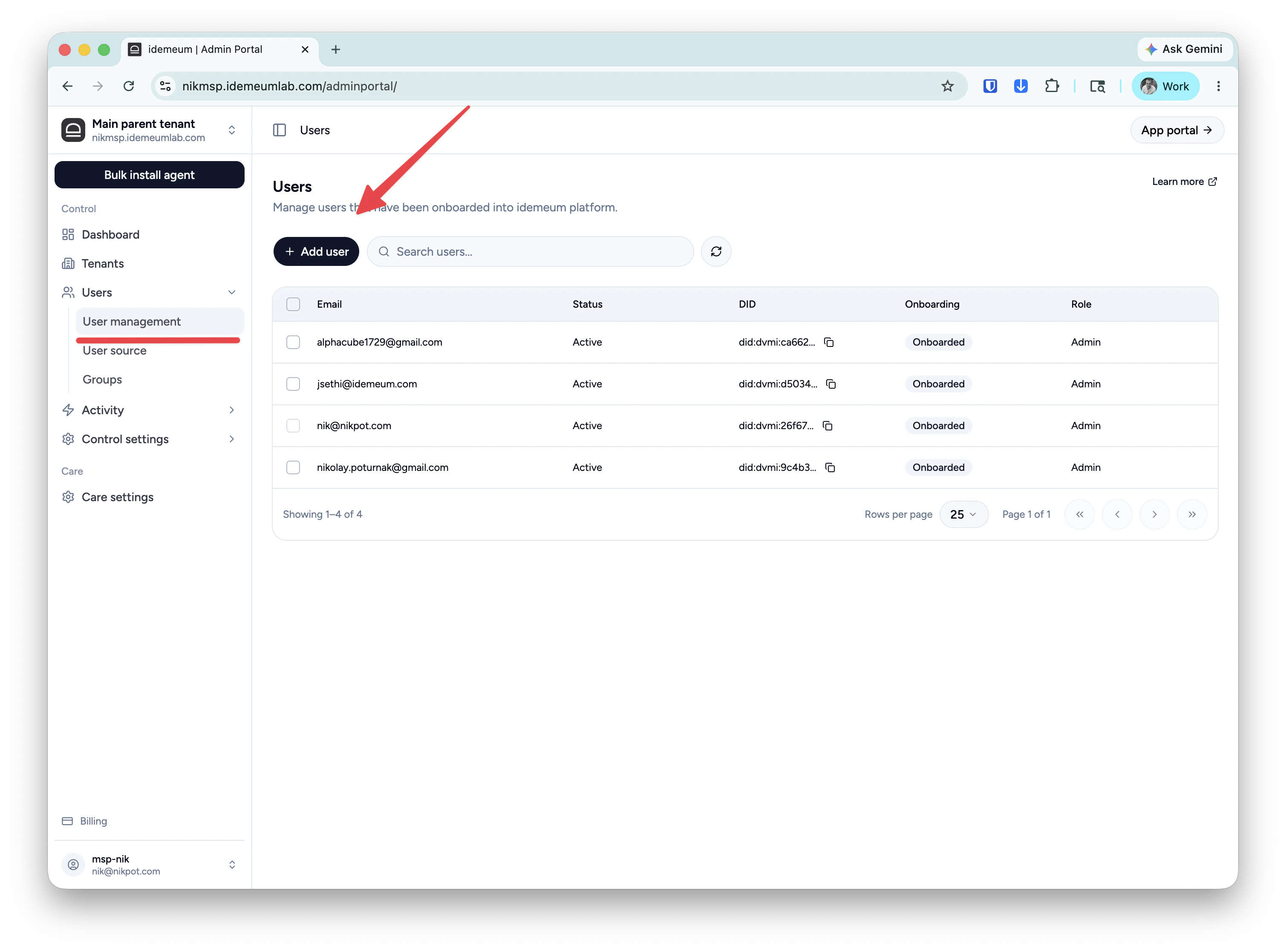
* Access your idemeum admin portal (in case of MSP tenant this is an MSP parent portal)
* Navigate to `Users` → `User management` and then click `Add user`
* All you need to do is to provide `First name`, `Last name`, and the `Email address`
* Save new user record
Now the user is in the `invited` state. User will receive a welcome email to the specified email address.
 Now new user downloads idemeum mobile app from Play Store or App Store, installs the app and verifies the same email address in the mobile application.
User navigates to your idemeum cloud portal URL, scans the QR-code with idemeum mobile application, and approves login with biometrics.
You can now promote user to administrator by locating the user record in the portal, clicking on `...` and choosing `Make admin`. Optionally you can delegate access only to certain customer tenants (MSP delegation feature).
## Delete or disable admin user
All you need to do to remove user access to idemeum is to disable or delete user.
* `Disable user` - block access but keep user record in the cloud.
* `Delete user` - remove user record from the cloud. You need to disable the user before deleting.
To proceed with deletion follow the steps below:
Now new user downloads idemeum mobile app from Play Store or App Store, installs the app and verifies the same email address in the mobile application.
User navigates to your idemeum cloud portal URL, scans the QR-code with idemeum mobile application, and approves login with biometrics.
You can now promote user to administrator by locating the user record in the portal, clicking on `...` and choosing `Make admin`. Optionally you can delegate access only to certain customer tenants (MSP delegation feature).
## Delete or disable admin user
All you need to do to remove user access to idemeum is to disable or delete user.
* `Disable user` - block access but keep user record in the cloud.
* `Delete user` - remove user record from the cloud. You need to disable the user before deleting.
To proceed with deletion follow the steps below: