
Documentation Index
Fetch the complete documentation index at: https://docs.idemeum.com/llms.txt
Use this file to discover all available pages before exploring further.
What is LAPS for Entra ID?
In this guide we will set up the Cloud LAPS feature that is part of the Privileged Access Management (PAM) offering for MSPs. Cloud LAPS allows you to create break-glass / emergency accounts for all Entra ID tenants connected to idemeum. You first create an organization in idemeum, then you connect Entra ID tenant to that organization, and enable LAPS to createGlobal admin account and rotate passwords every 24 hours.
Credentials are store in demeum zero-knowledge cloud vault.
Idemeum cloud is end-to-end encrypted, meaning our team does not see the passwords of your customers.
Set up LAPS for Entra ID
We are assuming you already have your MSP idemeum cloud tenant provisioned. If not, reach out to our support team for help.
Create idemeum child tenant
As a first step you need to create a child organization in your parent MSP tenant.
- Login to MSP admin portal
- Navigate to
Tenantsand create a child organization
More information about how to create a child organization.
Connect Entra ID tenant to idemeum child tenant
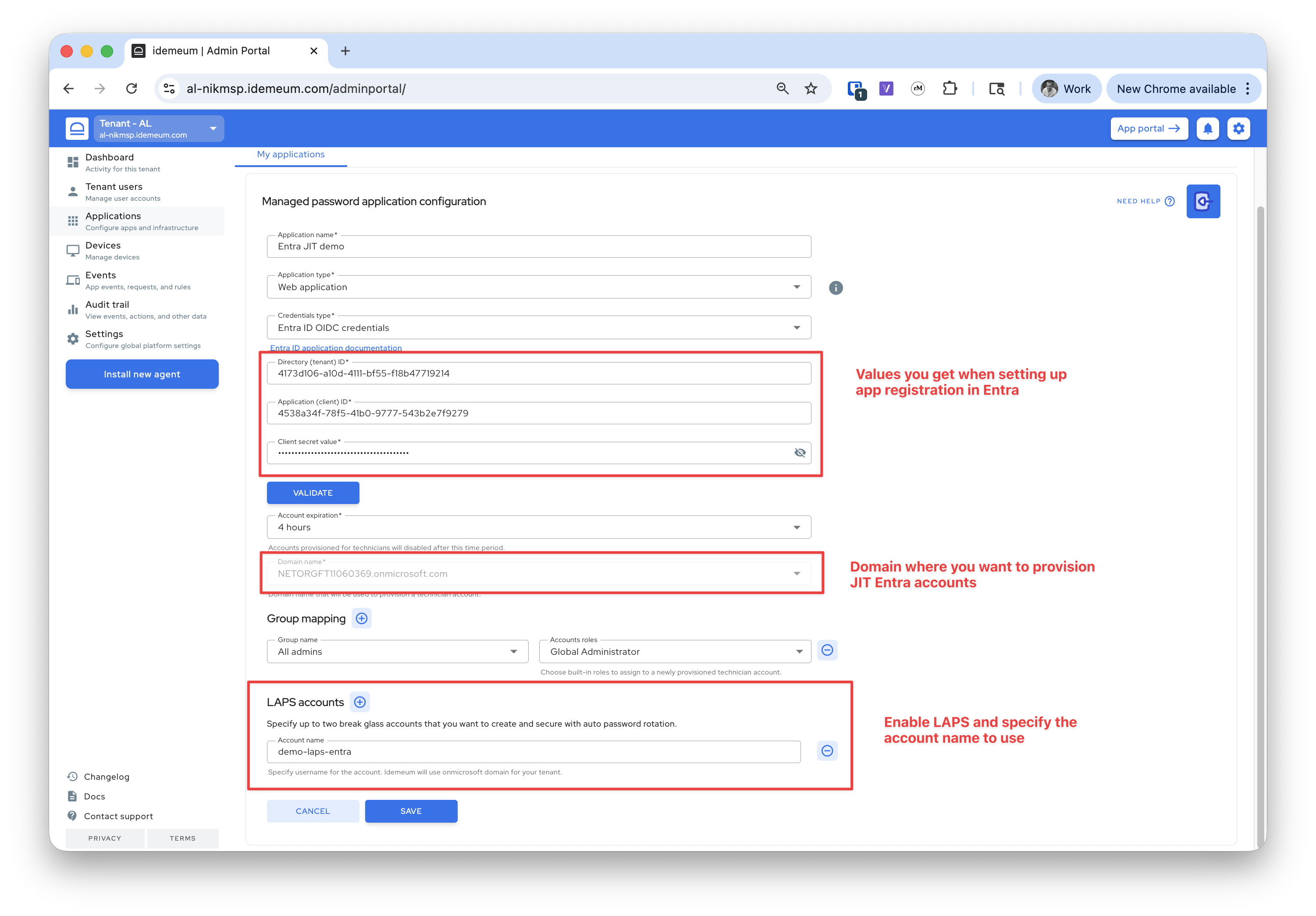
In this step we need to connect Entra ID tenant to the organization we just created so that idemeum could create and manage lifecycle of admin accounts.Please follow this page to connect Entra ID tenant.
Enable LAPS for Entra ID
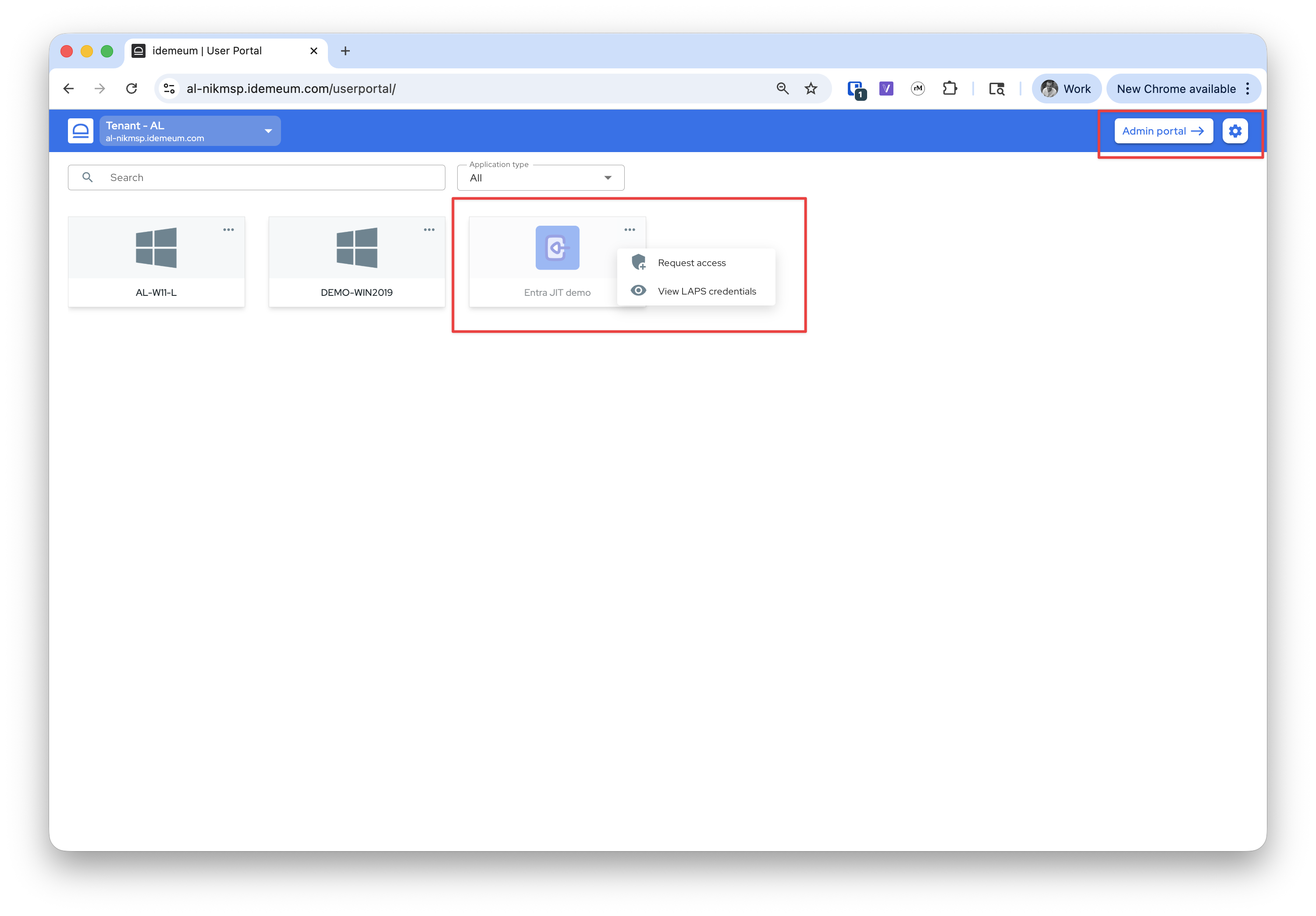
Once you connect the application to idemeum, please make sure you configure LAPS for Entra in the configuration. You need to enable it and specify the account name to use.