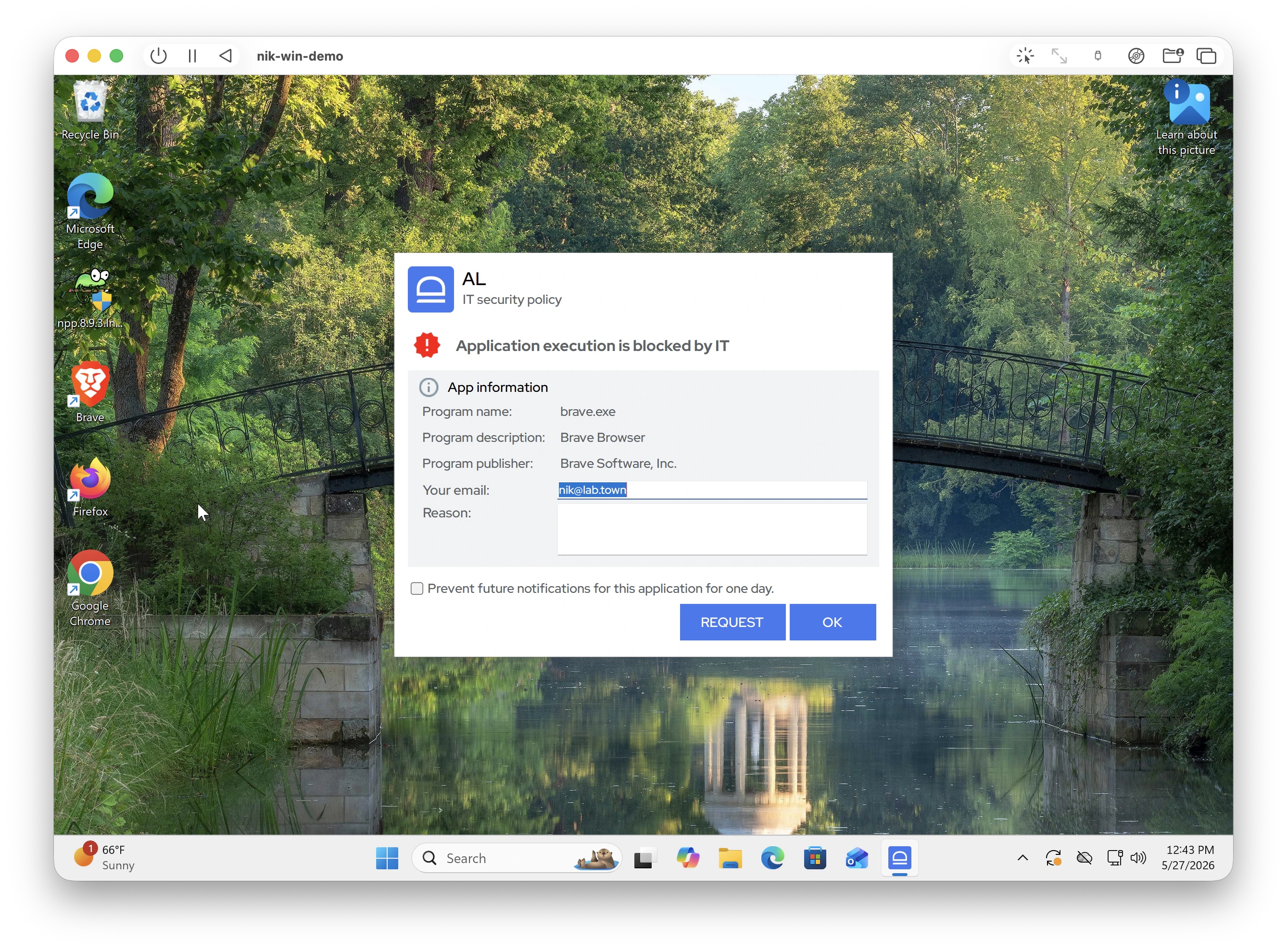
What is allowlisting?
Instead of blocking everything that is bad in your environment, you explicitly allow what applications need to run on user workstations. In simple terms, you only allow applications that you trust, and block everything else, including malware and ransomware. When idemeum agent is installed, it intercepts every process execution event and appliesDefault deny policy - if application is not explicitly trusted, it is not allowed.
Application allowlisting overview
Full documentation section for allowlisting
Get started with allowlisting
In this guide we will install the agent and quickly try the application control enforcement.1
Sign up for idemeum tenant
Sign up for free idemeum IT or MSP tenant on our website → idemeum.com
2
(MSP) - Create child tenant
If you are an MSP, please create a child tenant / organization.
- Login to your MSP admin portal
-
Navigate to
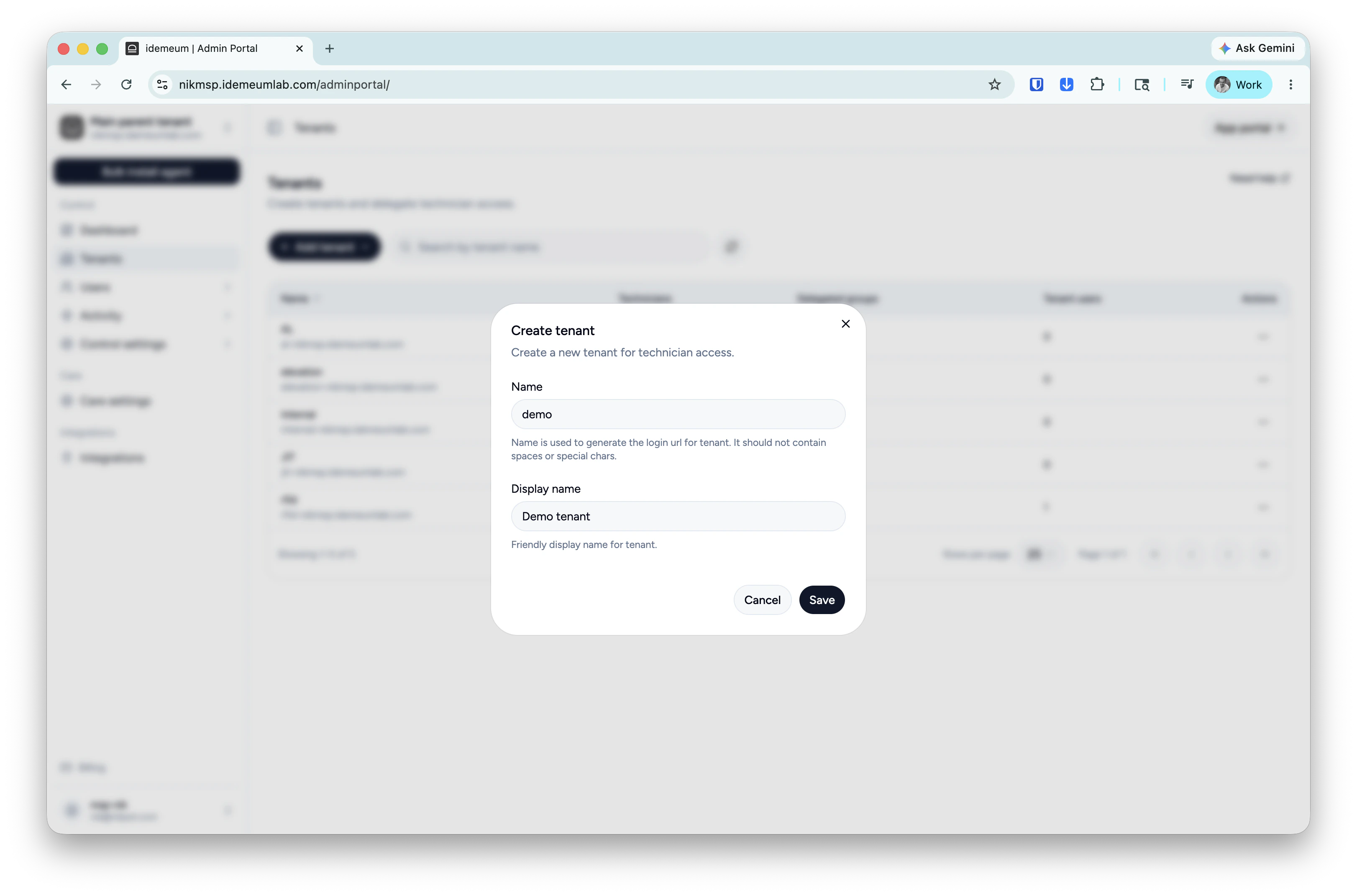
Tenants→ clickAdd tenantand choose manually -
Provide subdomain and display names and save the configuration
3
Enable allowlisting for your tenant
- Navigate to your idemeum tenant admin portal
-
Click
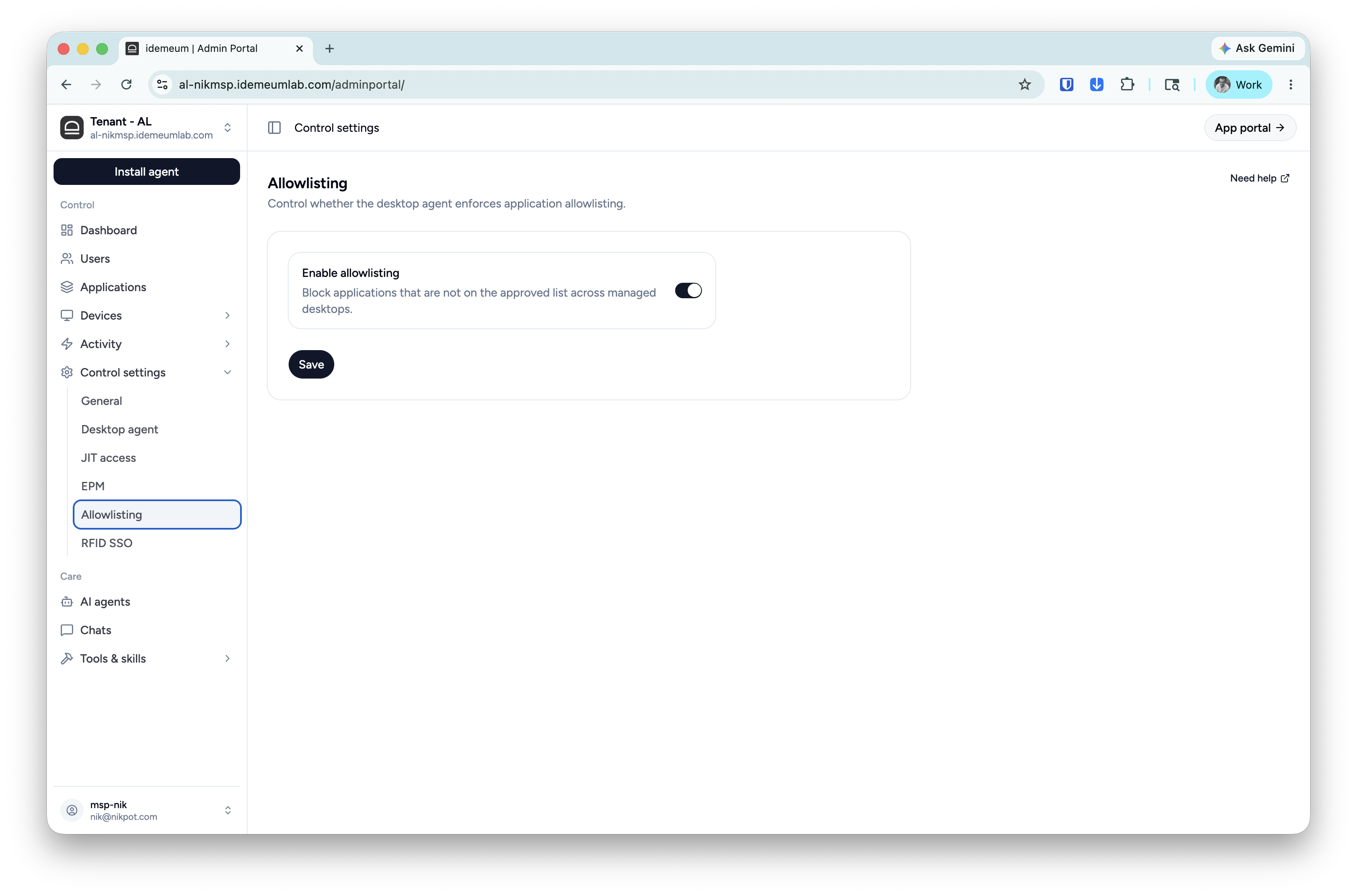
Control settings→Allowlisting -
Make sure allowlisting is enabled for your tenant
4
Configure baseline rules
We will now create baseline rules for most used applications on your workstation.
-
Access
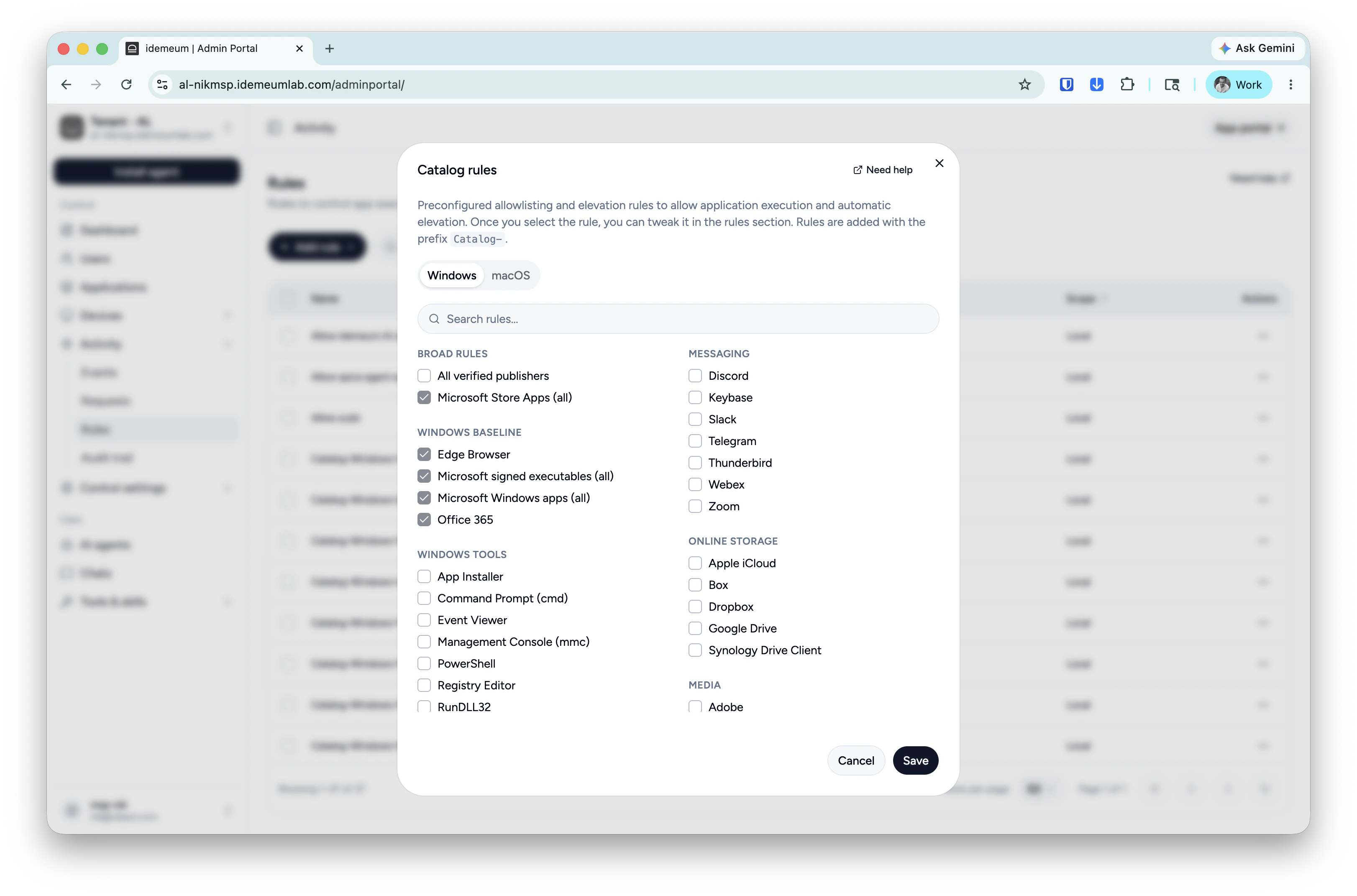
Activity→Rules -
Click
Add rule→Catalog - Check the rules that you need.
-
We recommend allowing everything that is signed by Microsoft, Apple, and Google.
5
Grab installation command to deploy agents
Click on the 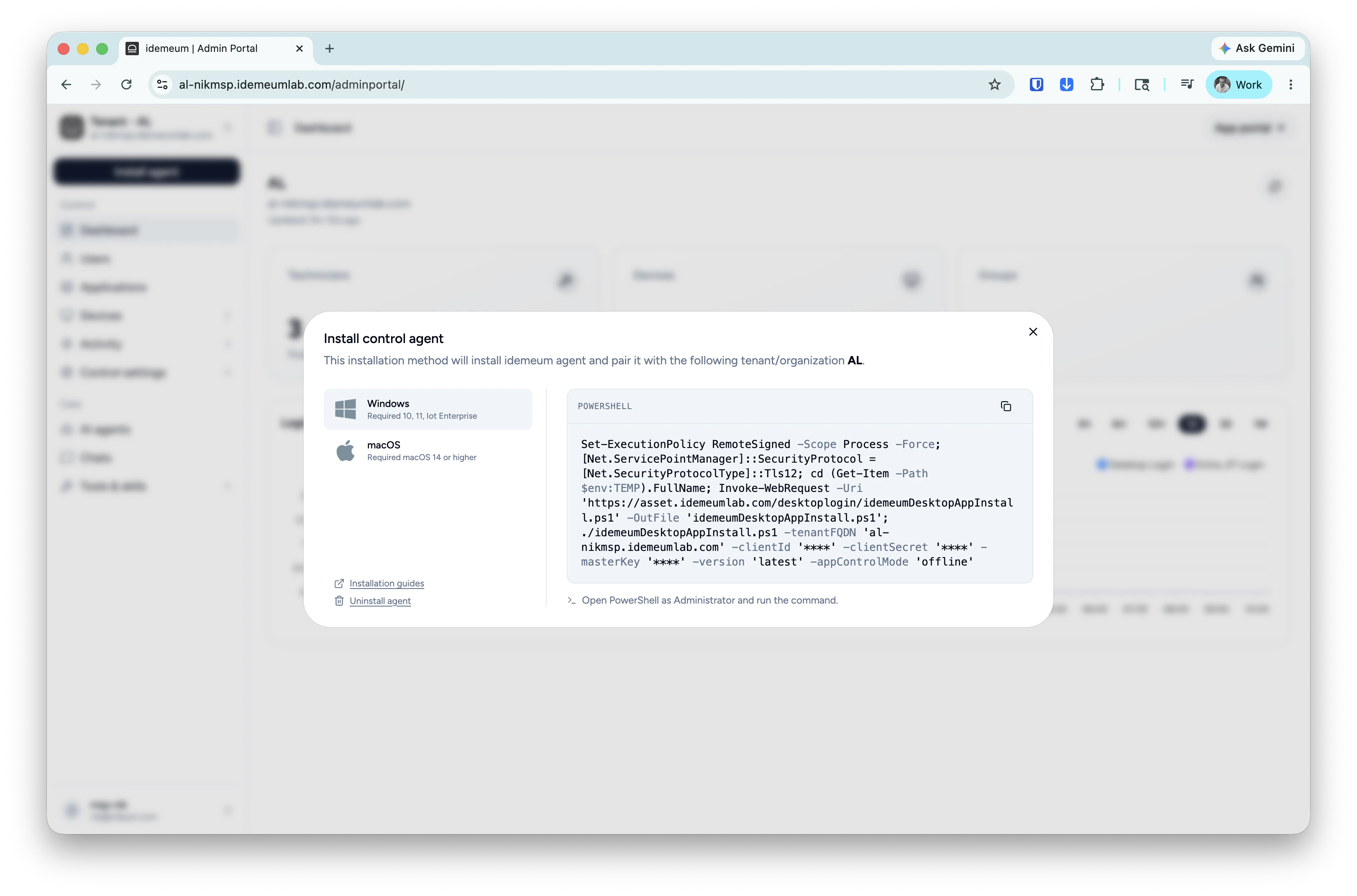
Install agent → choose Control agent and copy the installation command for Windows or macOS. 6
Turn application control mode to rules
Once the agent is installed it will appear in the 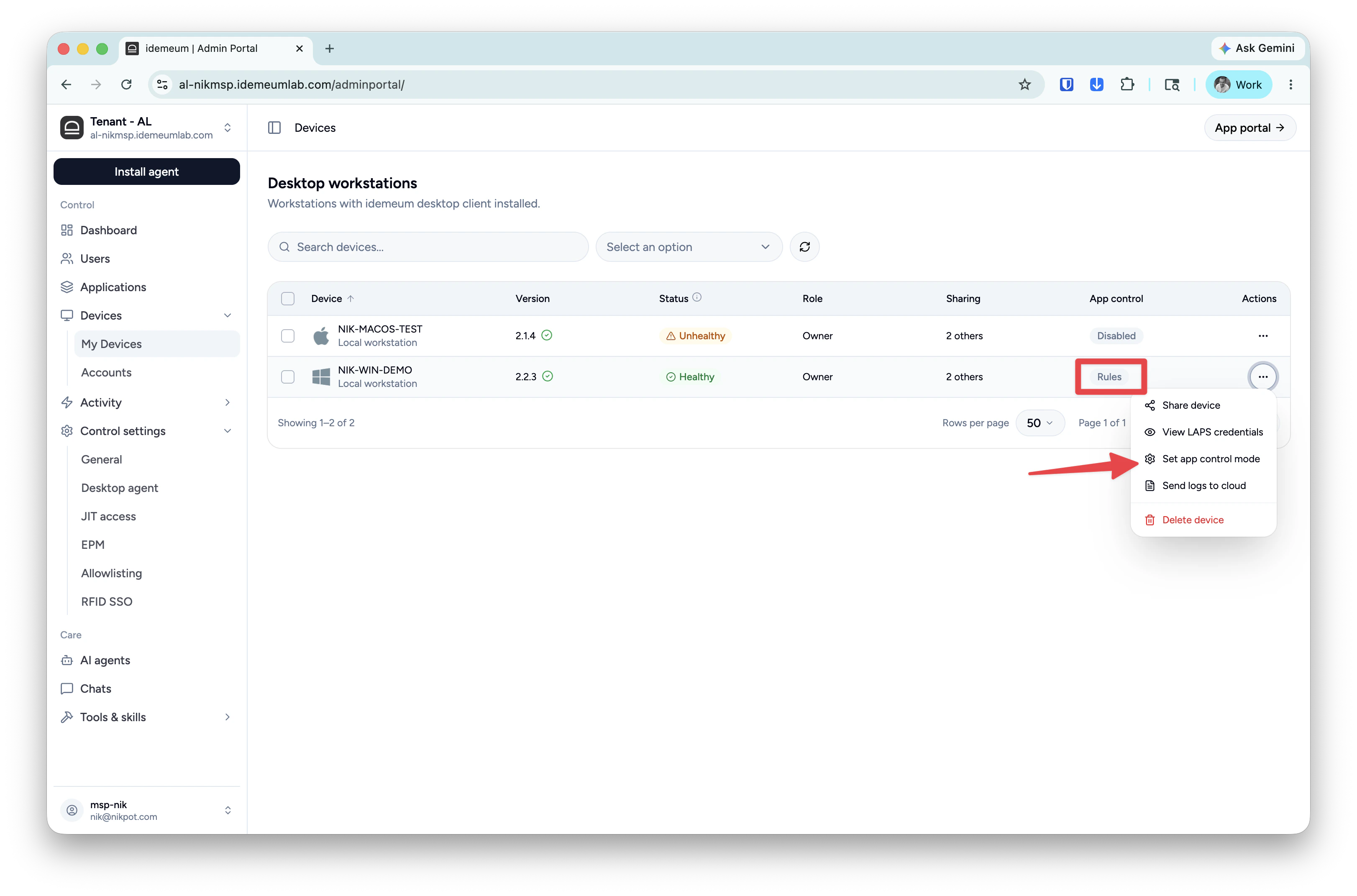
Devices table and the default mode for application control will be turned off. Click on ... and turn the application control mode to Rules.7
Test application launch
- Launch any application that is not covered by any rules - application will be blocked
-
Launch any application what is covered by rules - it will be allowed