
What is Endpoint Privilege Management?
Endpoint Privilege Management (EPM) is all about implementing least privilege security on your Windows and macOS workstations. It is a cloud solution that allows you to remove local admin rights on your workstations to protect your organization. A user without local admin rights can’t make changes to system folders, kill processes, remove security software, and more. This makes your organization more secure, but the weakness is that users still need admin rights from time to time to install, update, or use business software. With idemeum EPM you can apply rules to automatically elevate certain apps or system actions without giving users permanent admin permissions.Endpoint Privilege Management overview
Full documentation section for EPM.
Get started with EPM
In this guide we will install idemeum agent, enable EPM, and test the elevation approval flow.1
Sign up for idemeum tenant
Sign up for free idemeum IT or MSP tenant on our website → idemeum.com
2
(MSP) - Create child tenant
If you are an MSP, please create a child tenant / organization.
- Login to your MSP admin portal
-
Navigate to
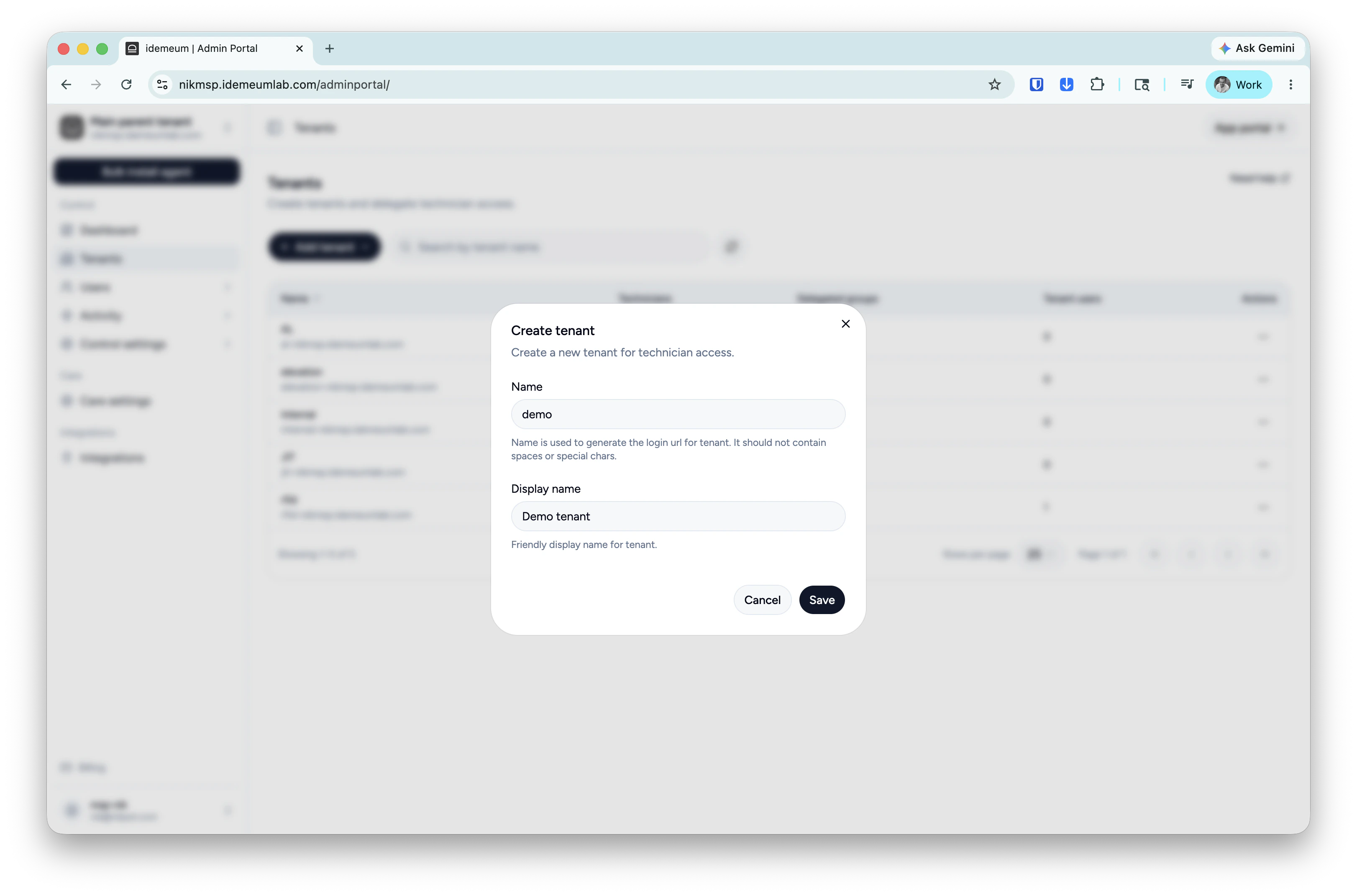
Tenants→ clickAdd tenantand choose manually -
Provide subdomain and display names and save the configuration
3
Enable EPM for your tenant
- Navigate to your idemeum tenant admin portal
-
Click
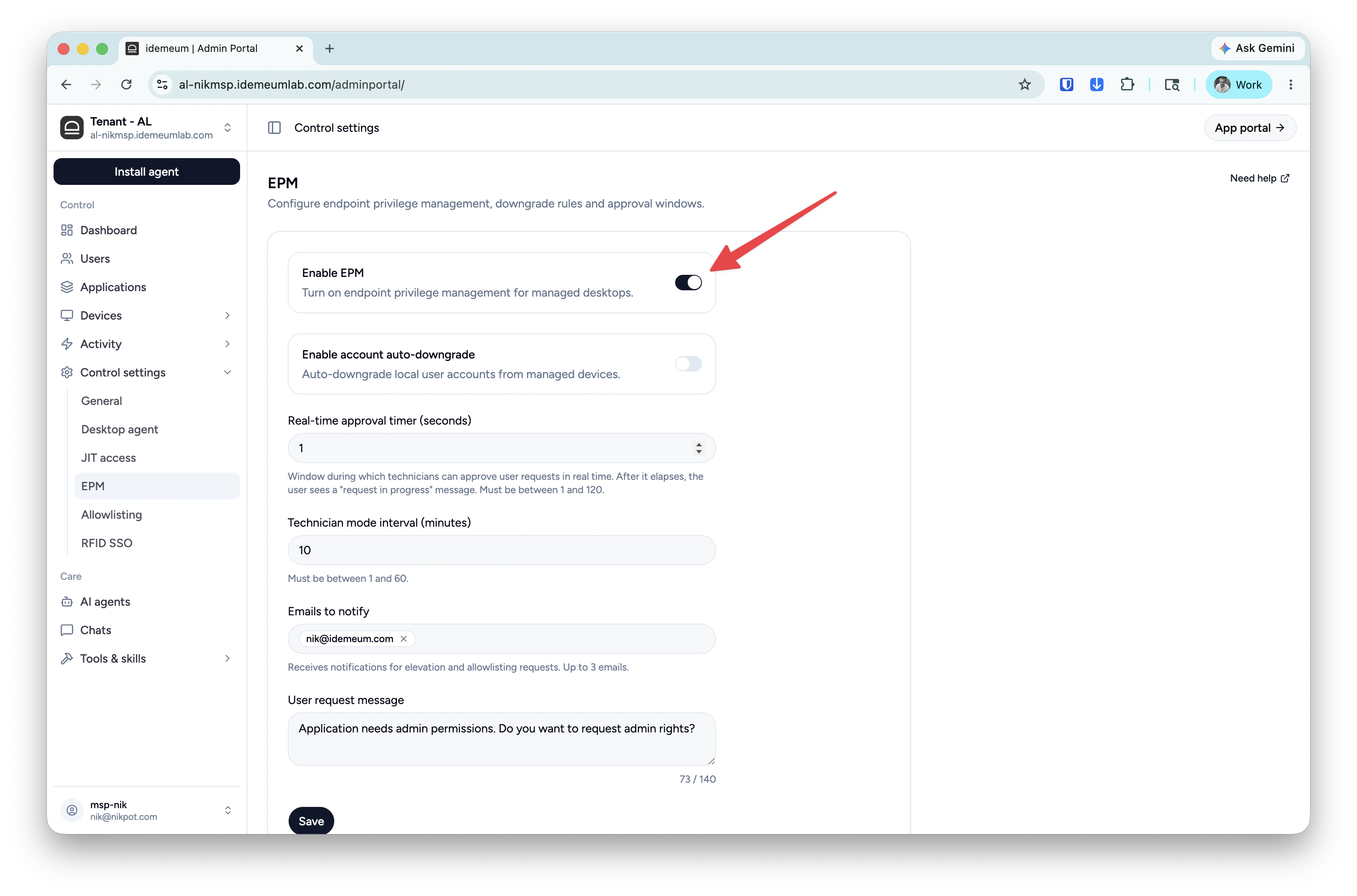
Control settings→EPM -
Make sure EPM is enabled for your tenant
4
Grab installation command to deploy agents
Click on the 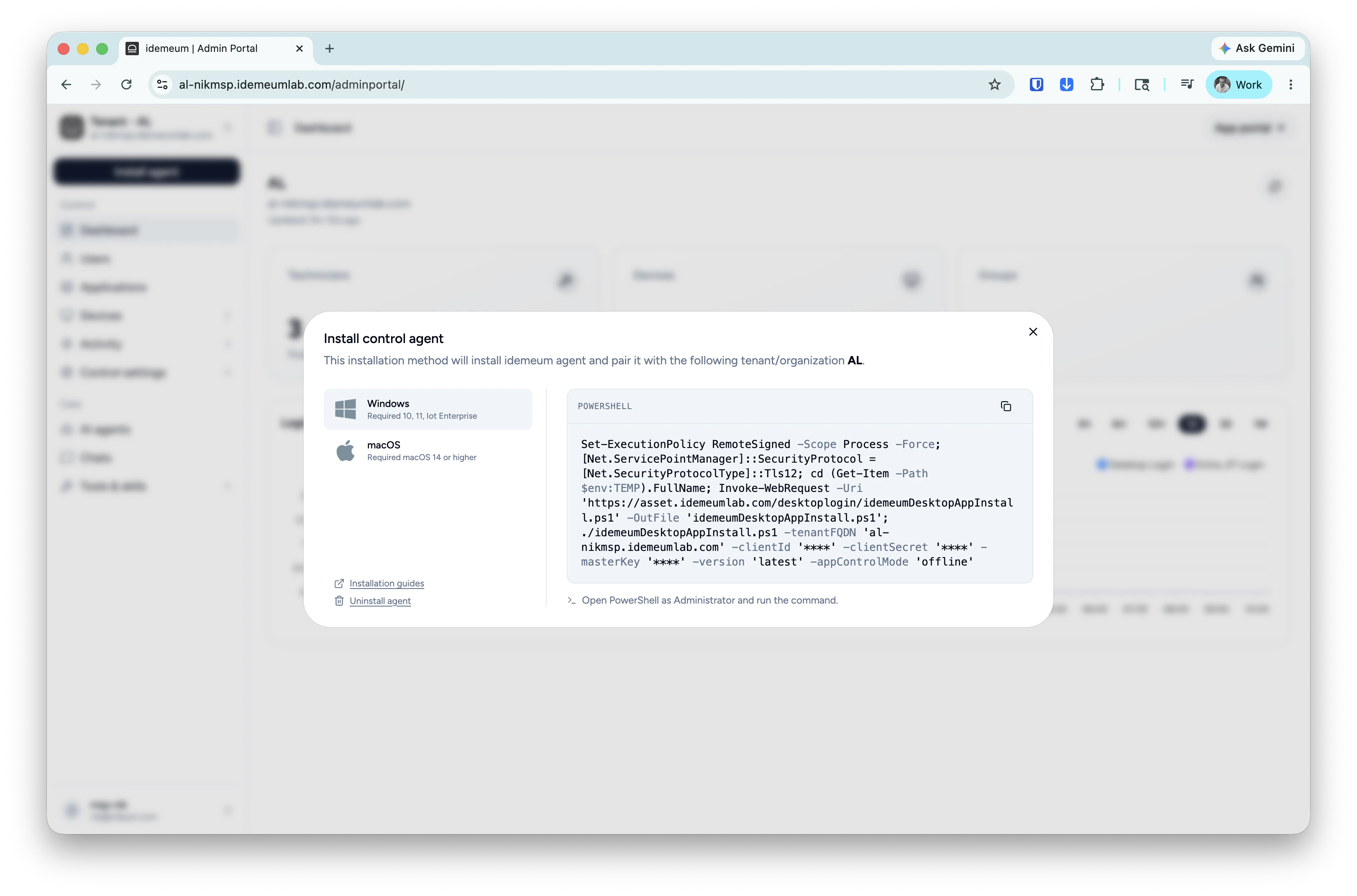
Install agent → choose Control agent and copy the installation command for Windows or macOS. 5
Turn elevation mode to rules
Once the agent is installed it will appear in the 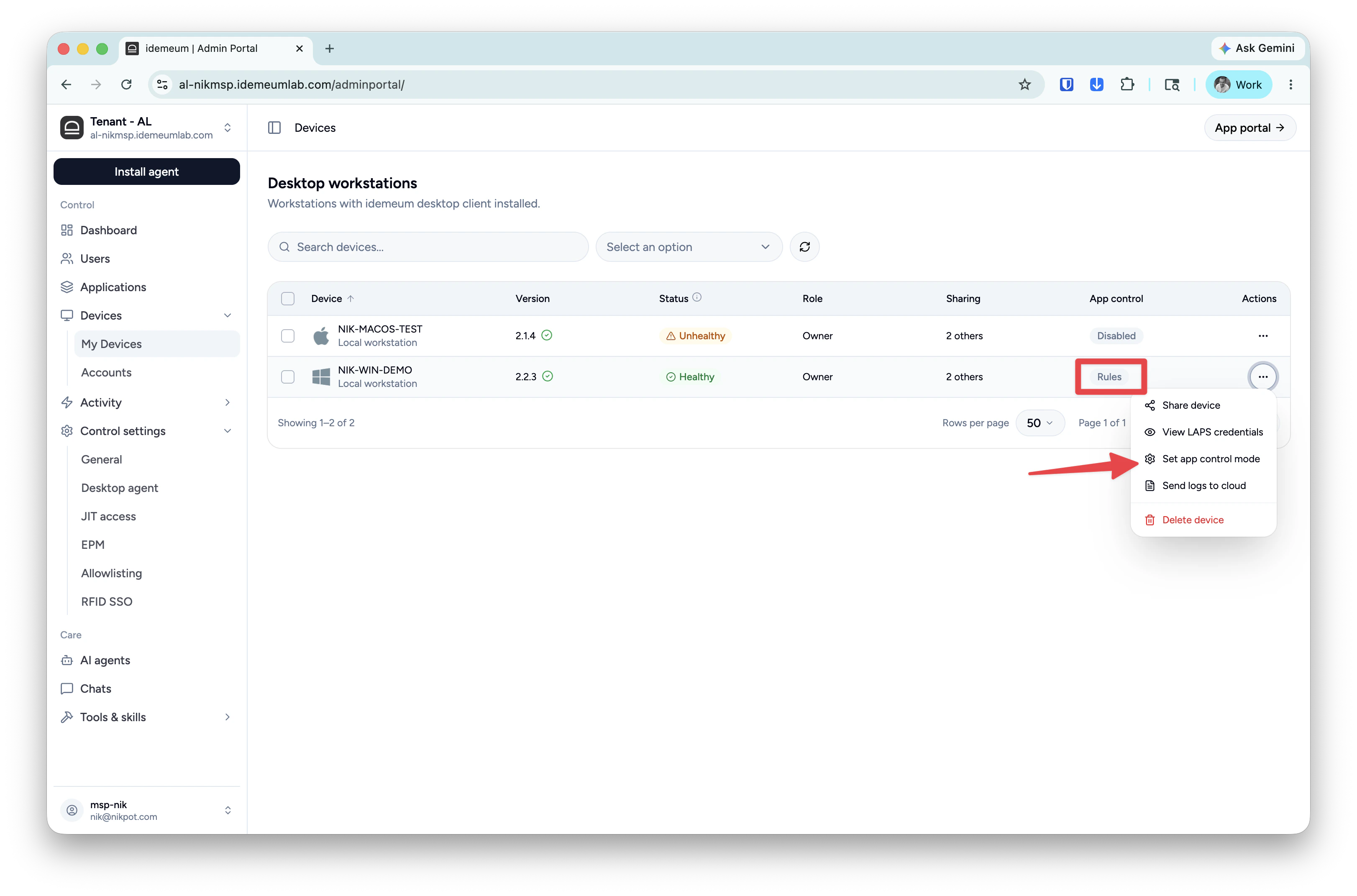
Devices table and the default mode for elevation will be turned off. Click on ... and turn the elevation mode to Rules.6
Test request elevation flow
- Login to your workstation with a standard account
- Launch some application the requires admin privileges
-
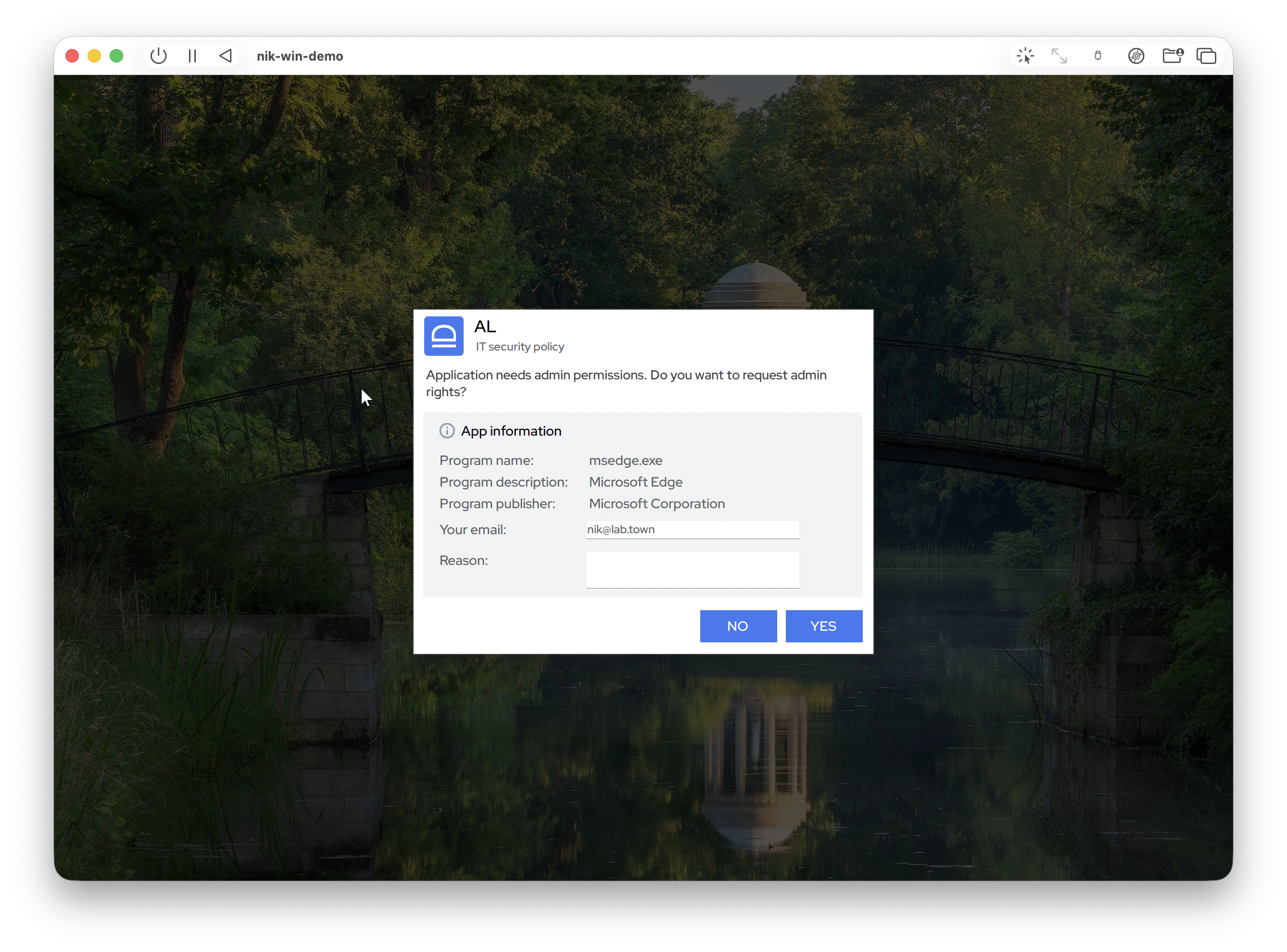
You will see the idemeum request window. When there are no rules present, the default behavior is to offer the request option to the user.
-
In idemeum portal navigate to
Activity→Requestsand approve the elevation request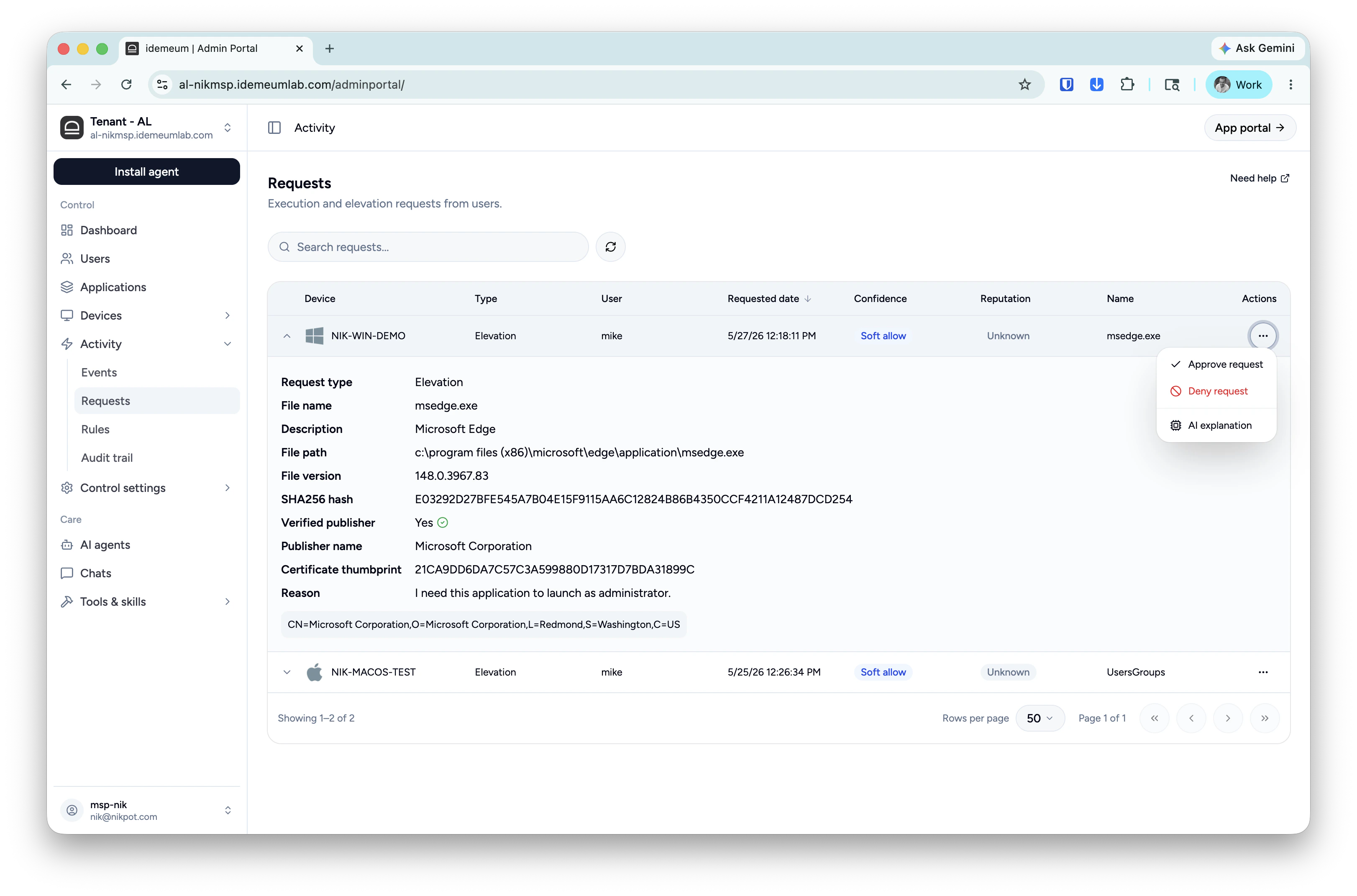
- You can now relaunch the application on your workstation, and it will be automatically elevated.
7
Create elevation rules
If you want to create rules to automatically elevate or deny applications, please follow the steps here.