
What is JIT for computers?
JIT for computers is all about eliminating shared credentials and standing privileges when accessing Windows, macOS workstations, and servers. Idemeum will automatically generate unique named admin accounts for your technicians, enable these accounts only for the duration of the session, and rotate passwords automatically after every login. Every login is protected with Passwordless MFA, and every session is tracked in the audit trail.JIT for computers overview
Full documentation section for JIT for computers.
Get started with JIT for computers
In this guide we will install idemeum agent on one workstation (macOS or Windows) and perform a passwordless login with a local admin account. If you want to set up more advanced flows and use cases, please browse through JIT for computers documentation.1
Sign up for idemeum tenant
Sign up for free idemeum IT or MSP tenant on our website → idemeum.com
2
(MSP) - Create child tenant
If you are an MSP, please create a child tenant / organization.
- Login to your MSP admin portal
-
Navigate to
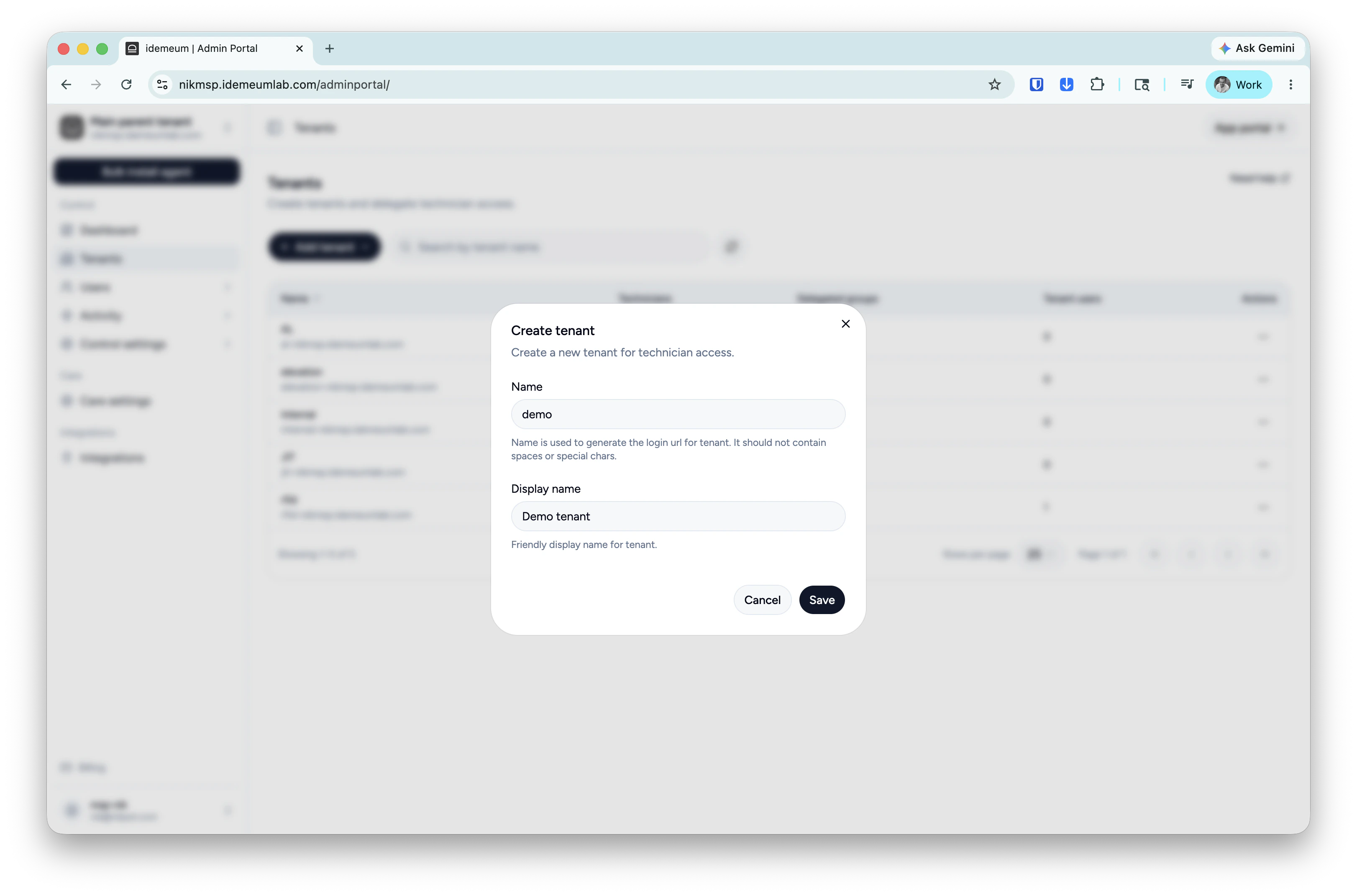
Tenants→ clickAdd tenantand choose manually -
Provide subdomain and display names and save the configuration
3
(Optional) - Configure JIT settings
If you want to try default configuration with
local admin accounts, then skip this step. If you want to use JIT domain accountsyou need to install idemeum agent on Domain Controllers as well as domain workstations. And you need to enable JIT login with domain accounts.- In case of MSP login to your child tenant admin portal
-
Access
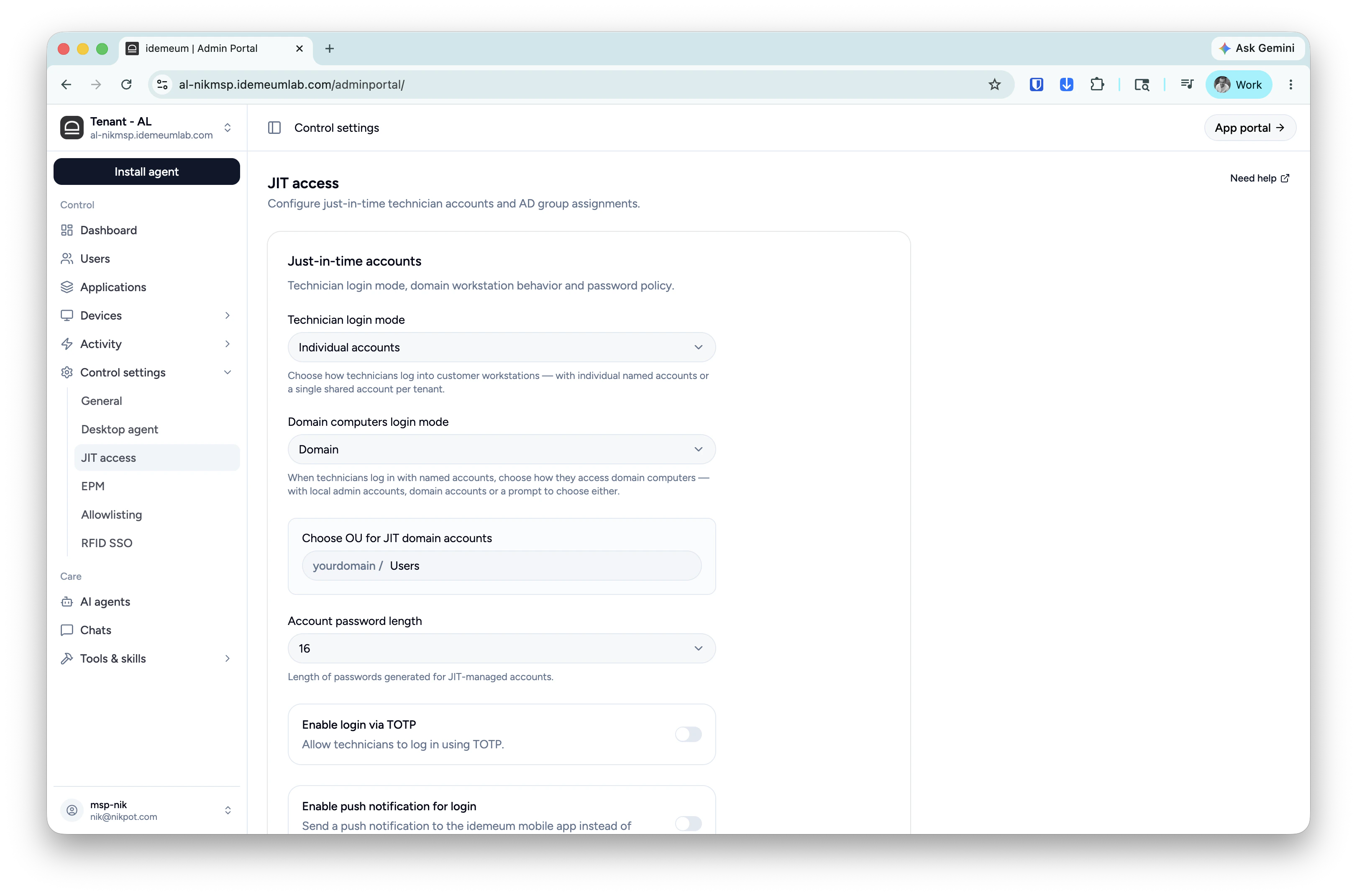
Control settings→JIT access -
If you want to use
domain accountschoose that option in thedomain login mode -
Make any other settings changes that you need
4
Grab installation command to deploy agents
Click on the 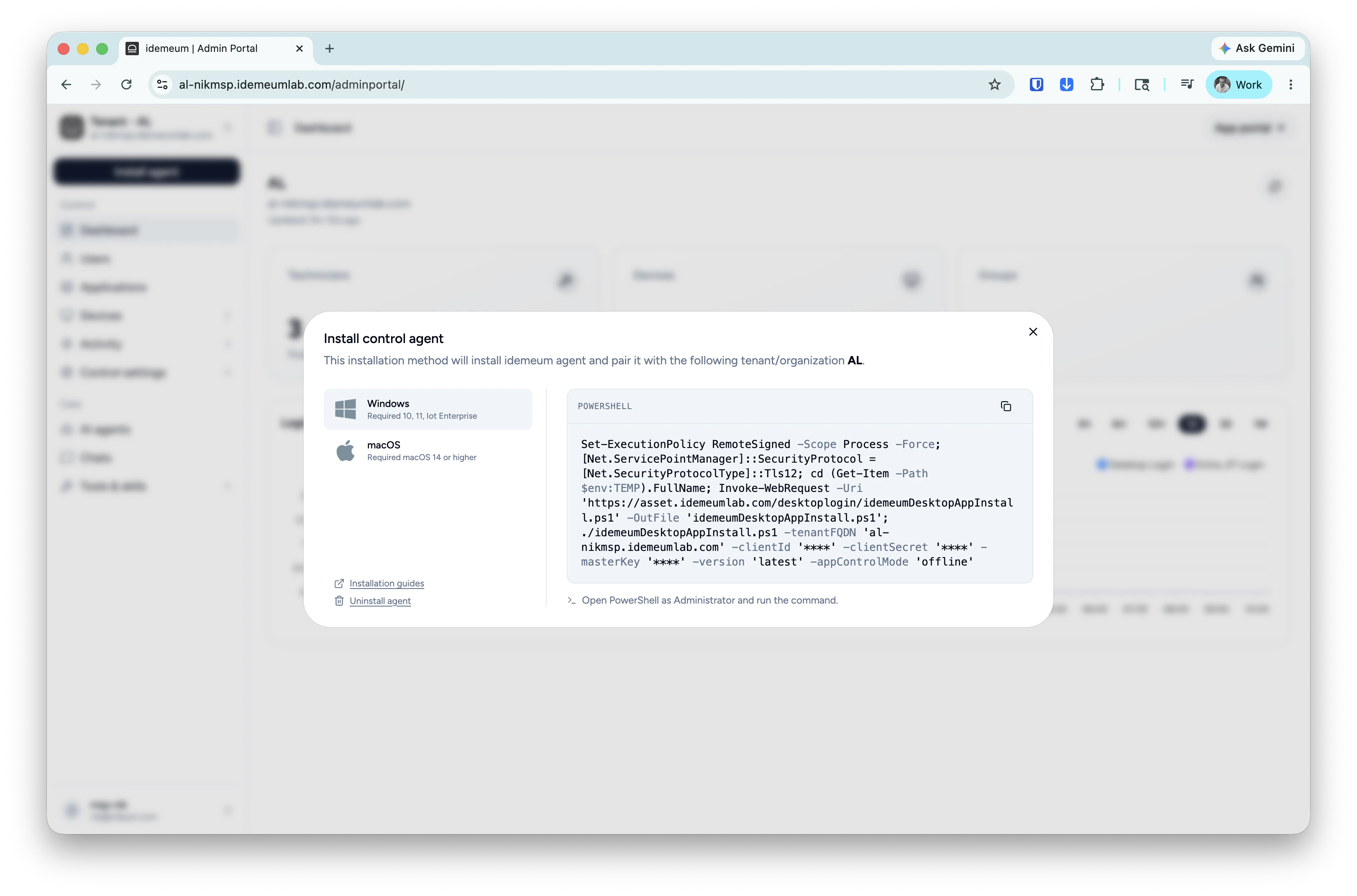
Install agent → choose Control agent and copy the installation command for Windows or macOS. 5
Perform test JIT login
Now you can log out from the workstation and perform passwordless JIT login by scanning a QR-code. Click on the QR-code at the bottom left of the screen, open your idemeum mobile application, choose 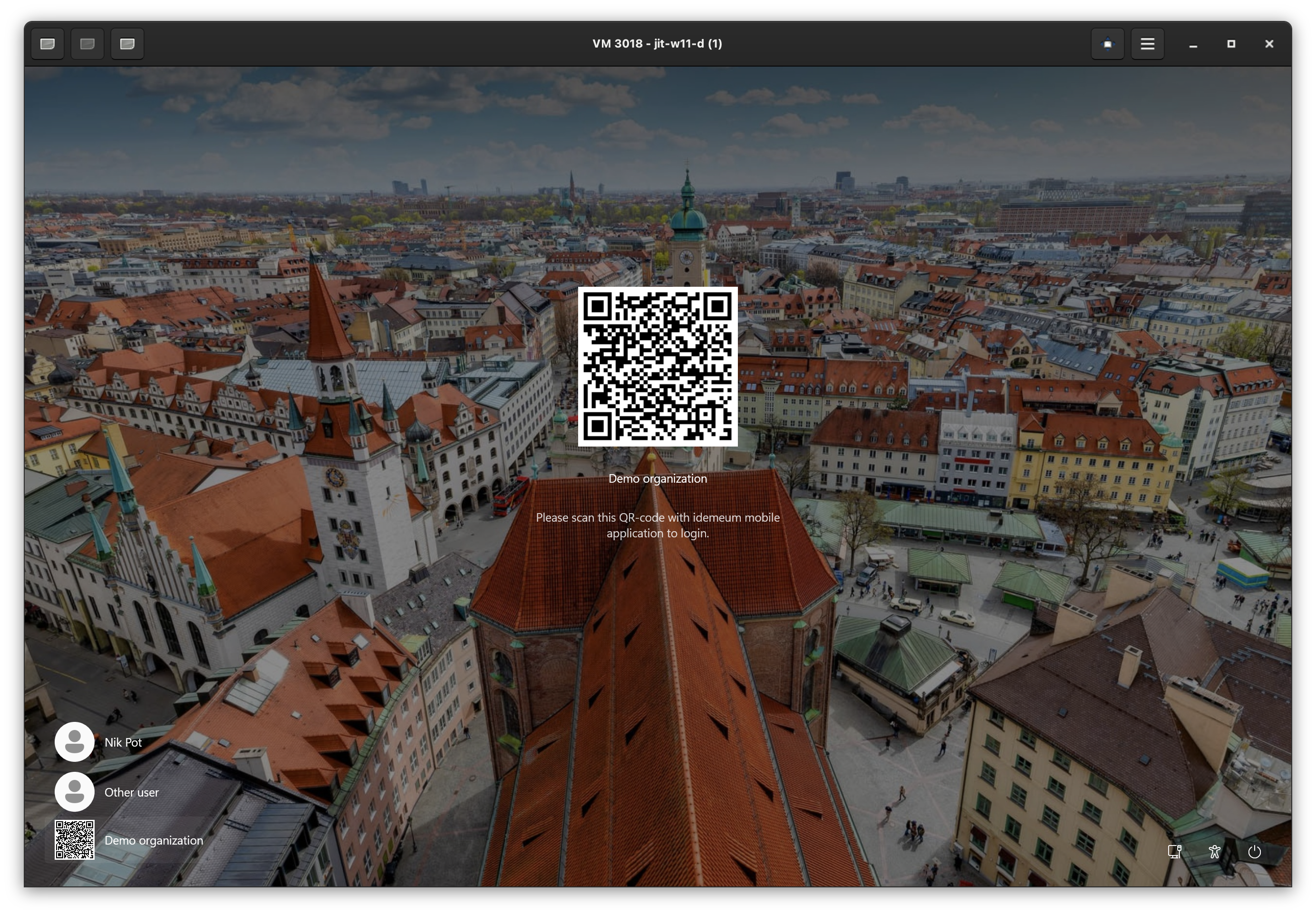
Login, scan the code and approve with biometrics.