What is LAPS for computers?
Cloud LAPS allows you to create break-glass / emergency accounts on all customer workstations (including domain controllers), automatically rotate passwords for these accounts every24 hours, and store the credentials in idemeum zero-knowledge cloud vault.
Cloud LAPS overview
Full documentation section for Cloud LAPS
Get started with Cloud LAPS
LAPS for computers
In this section we will set up break-glass account rotation on workstations. We will need to enable LAPS and install idemeum control agent on workstations.1
Sign up for idemeum tenant
Sign up for free idemeum IT or MSP tenant on our website → idemeum.com
2
(MSP) - Create child tenant
If you are an MSP, please create a child tenant / organization.
- Login to your MSP admin portal
-
Navigate to
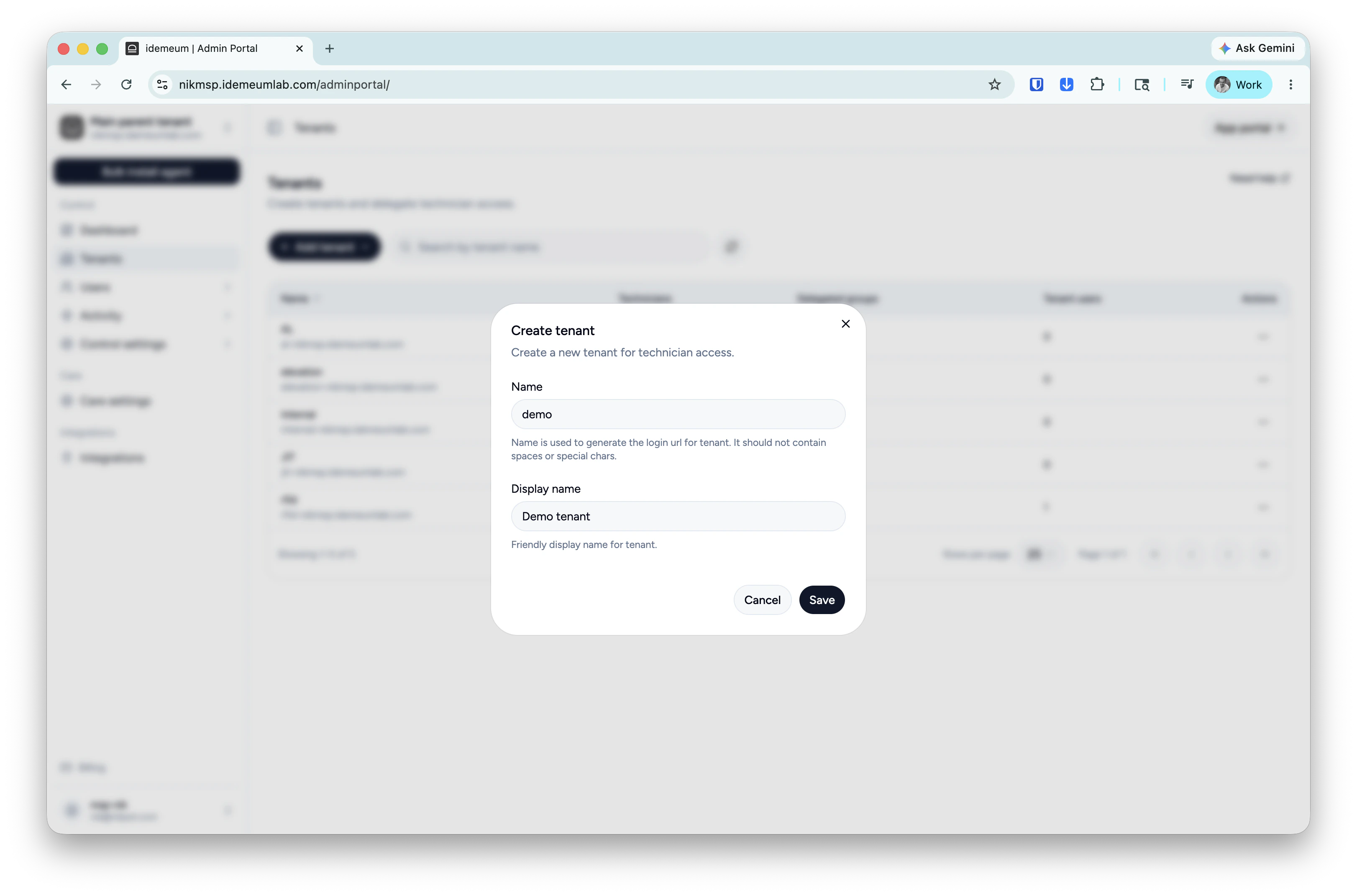
Tenants→ clickAdd tenantand choose manually -
Provide subdomain and display names and save the configuration
3
Configure LAPS settings
-
In your tenant navigate to
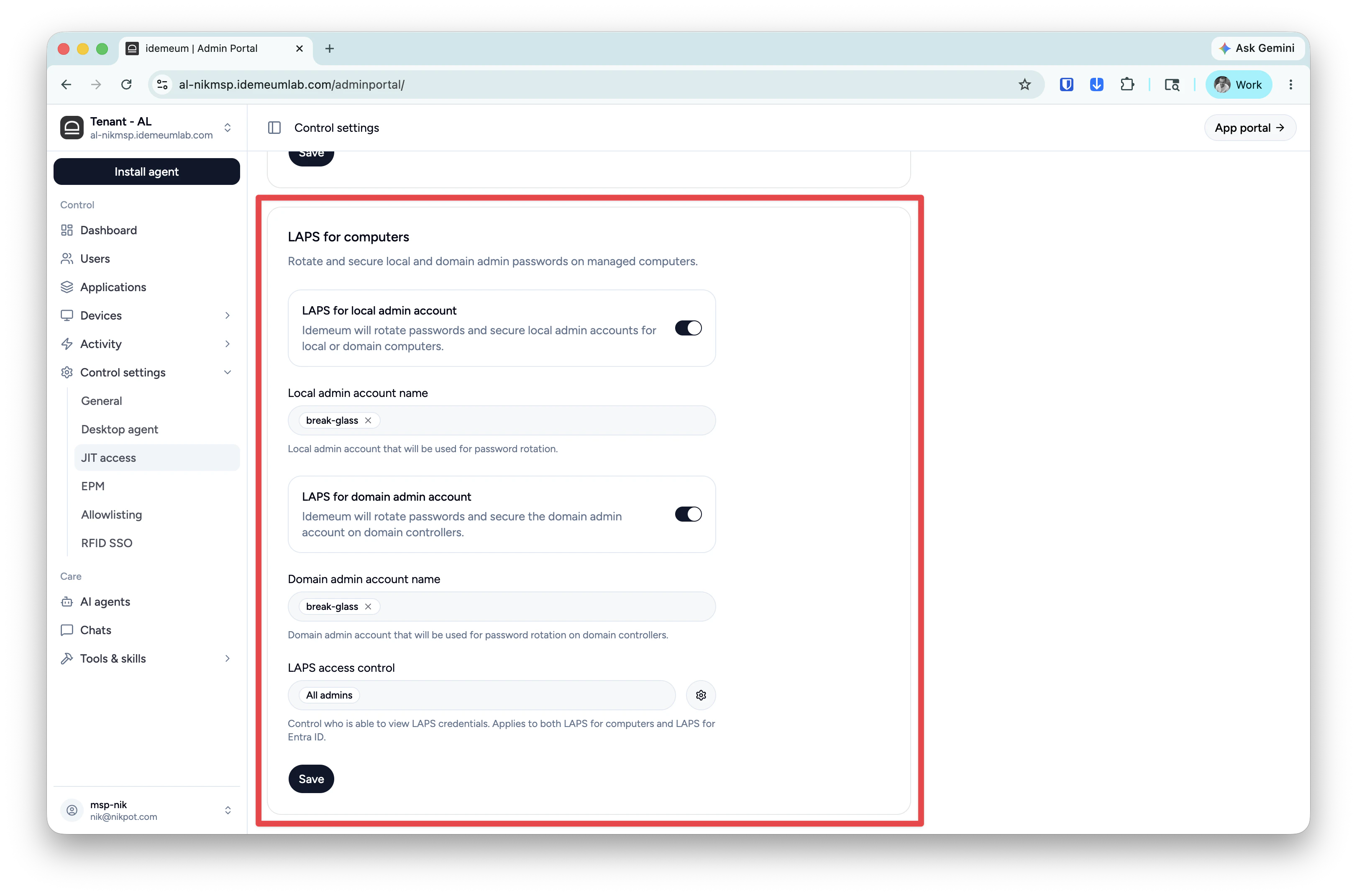
Control settings→JIT accessand scroll down to the LAPS section - Enable LAPS (you can enable LAPS for workstations to rotate local admin accounts, and for domain controllers to rotate domain admin accounts)
-
Specify the account name to use (if account exists, it will be taken over for password rotation)
4
Grab installation command to deploy agents
Click on the 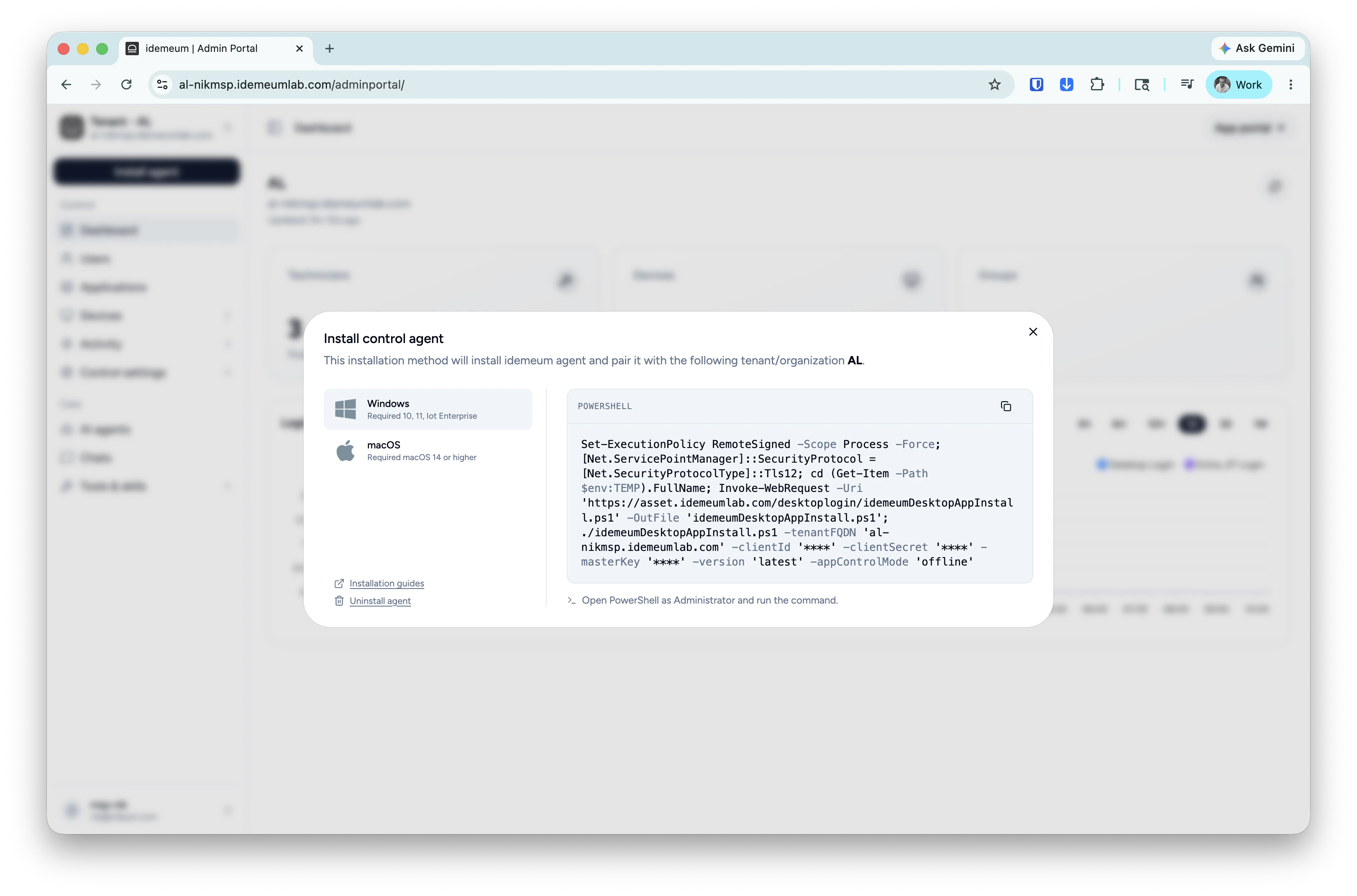
Install agent → choose Control agent and copy the installation command for Windows or macOS. 5
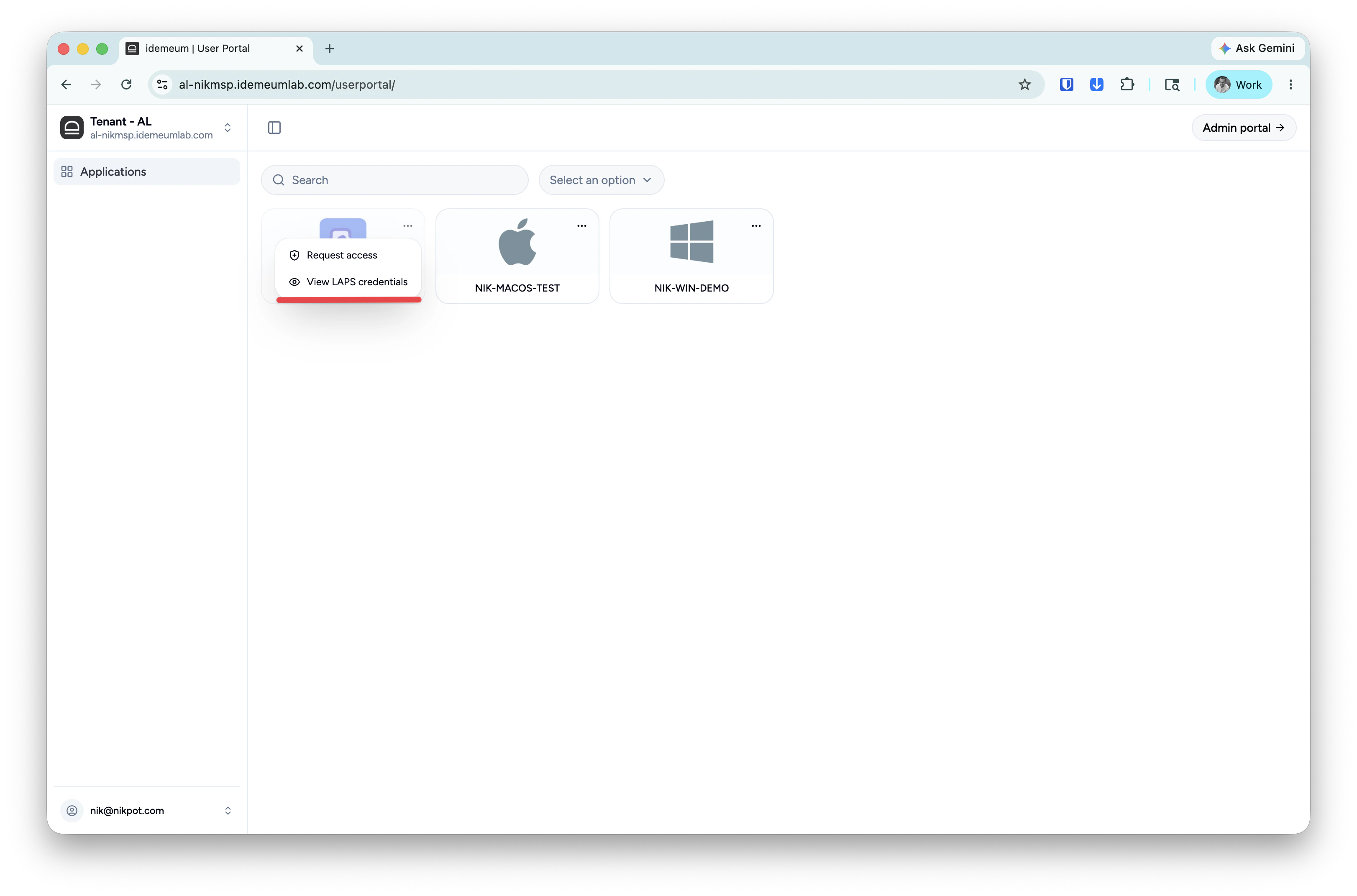
View LAPS credentials
Navigate to 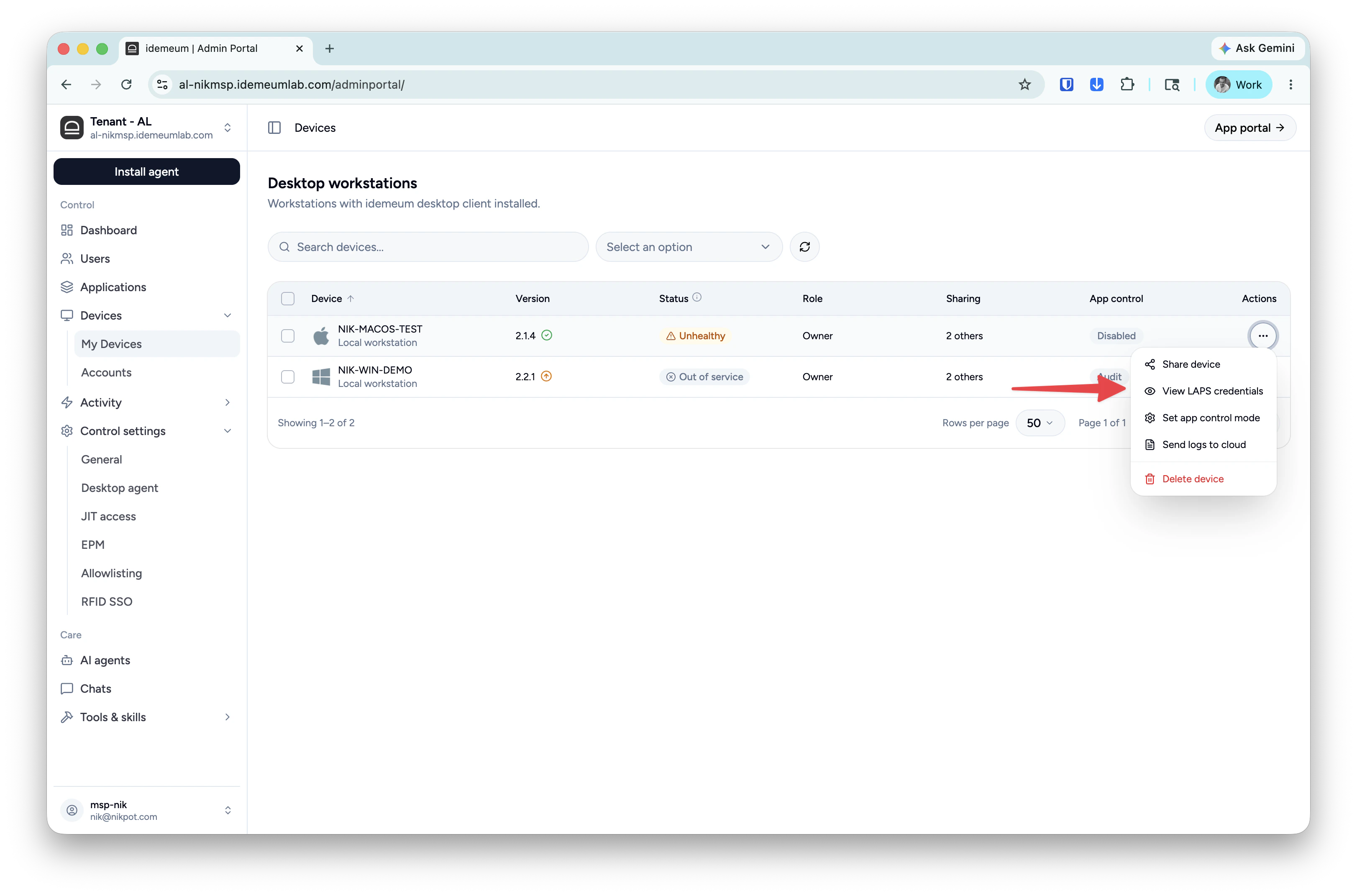
Devices table and search for the device agent that you installed, click on ... and choose View LAPS credentials.LAPS for Entra ID
In this section we will configure break-glass password rotation for Microsoft Entra ID tenants. We will need to connect Entra ID tenant to idemeum tenant to create accounts and rotate passwords.1
Connect Entra ID to idemeum tenant
At this step you need to create an application in Entra ID tenant and set up idemeum to connect to M365 tenant using that application.Follow these steps to perform this configuration.
2
Make sure LAPS is enabled
At the bottom of the Entra ID application configuration make sure you have LAPS enabled and the account name specified.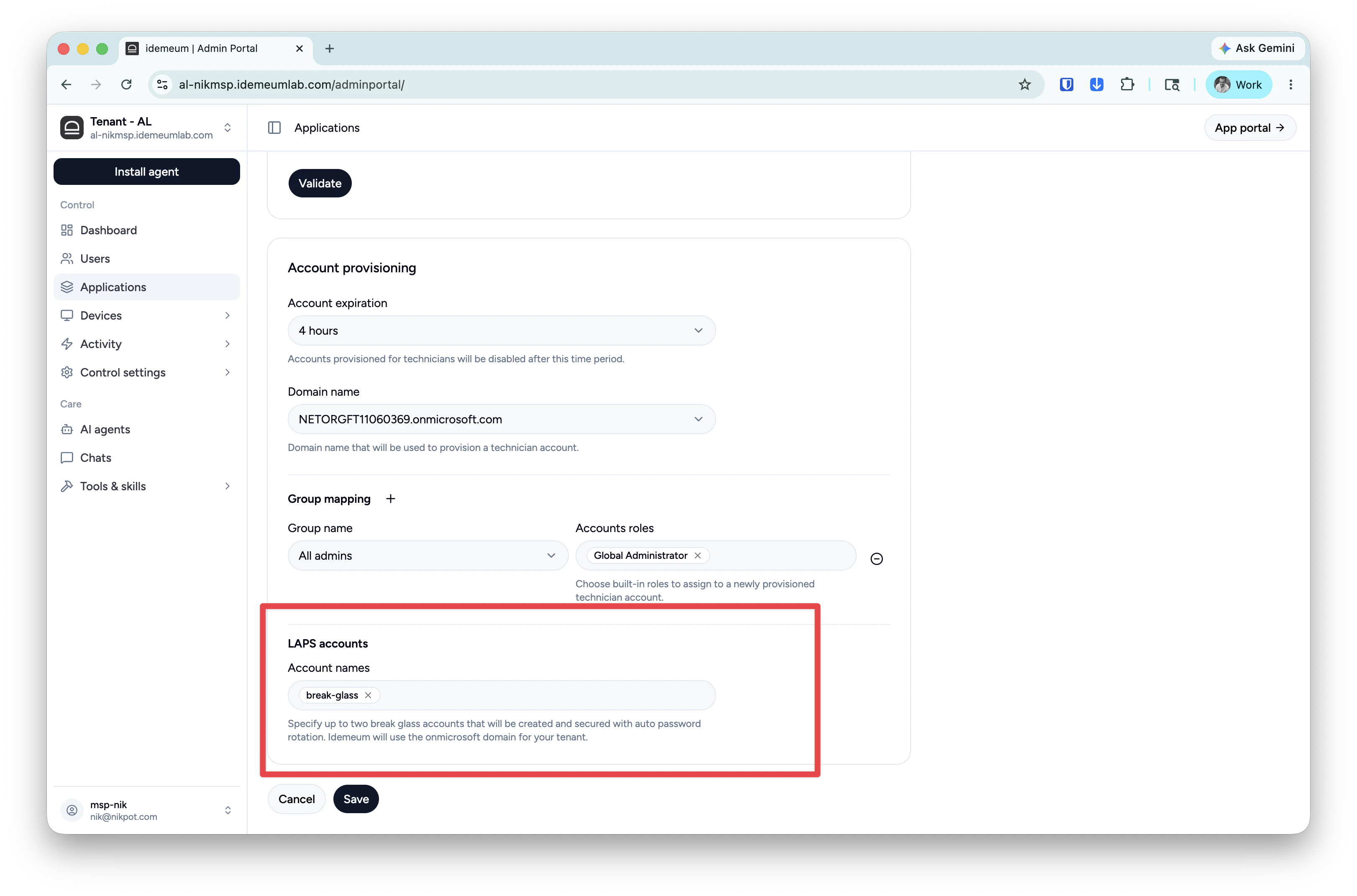
3
View Entra ID LAPS credentials
- Navigate to the customer / organization user portal
-
Search for Entra ID application and click on
... -
Choose
View LAPS credentials