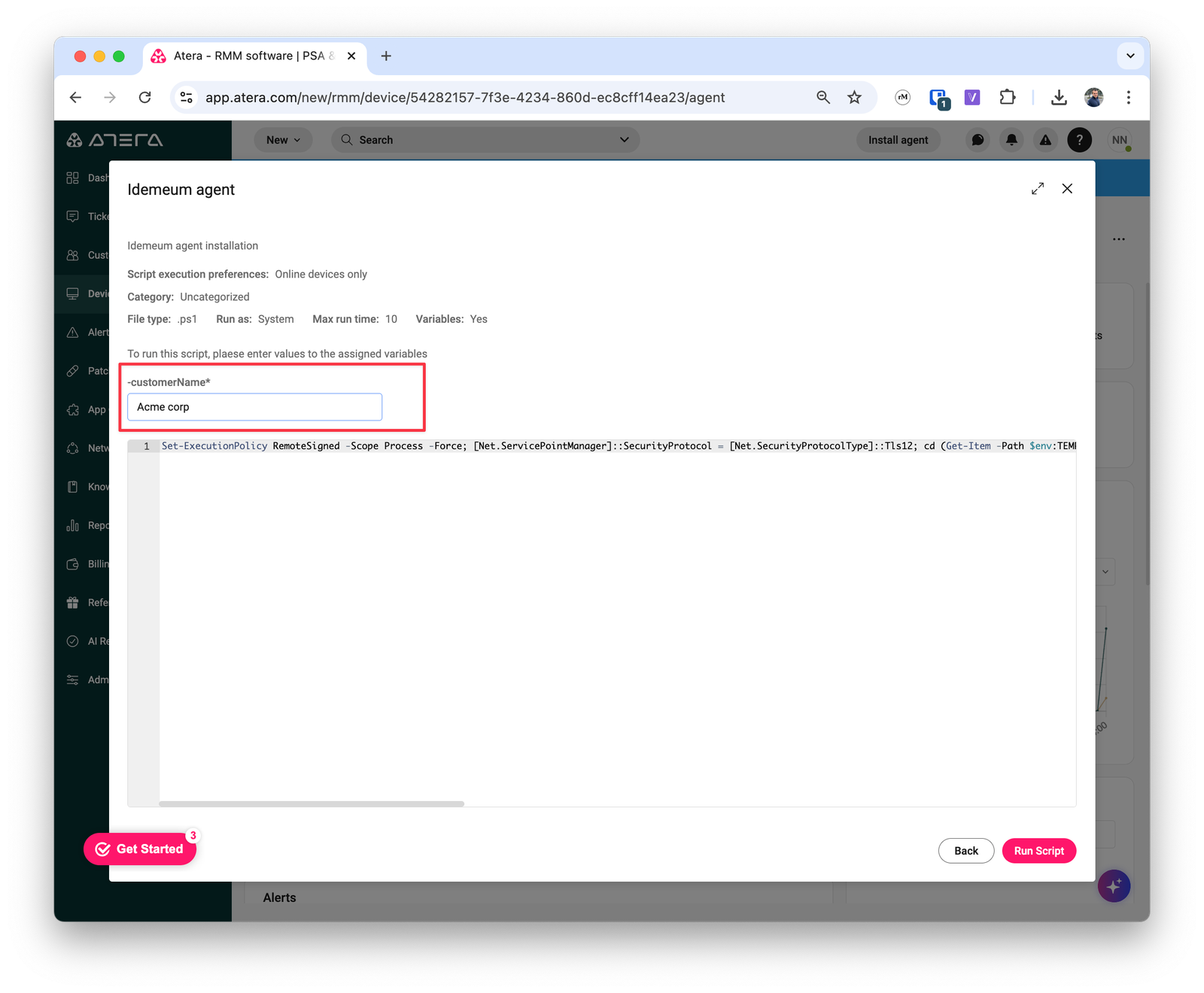
Obtain unified install script
- Navigate to the admin portal of your
Main MSP dashboard - Click on
Bulk install agentthen chooseControl agent - Choose the operating system and copy the unified install script command
- Save this command somewhere as we will need to use it in Atera
Create script in Atera
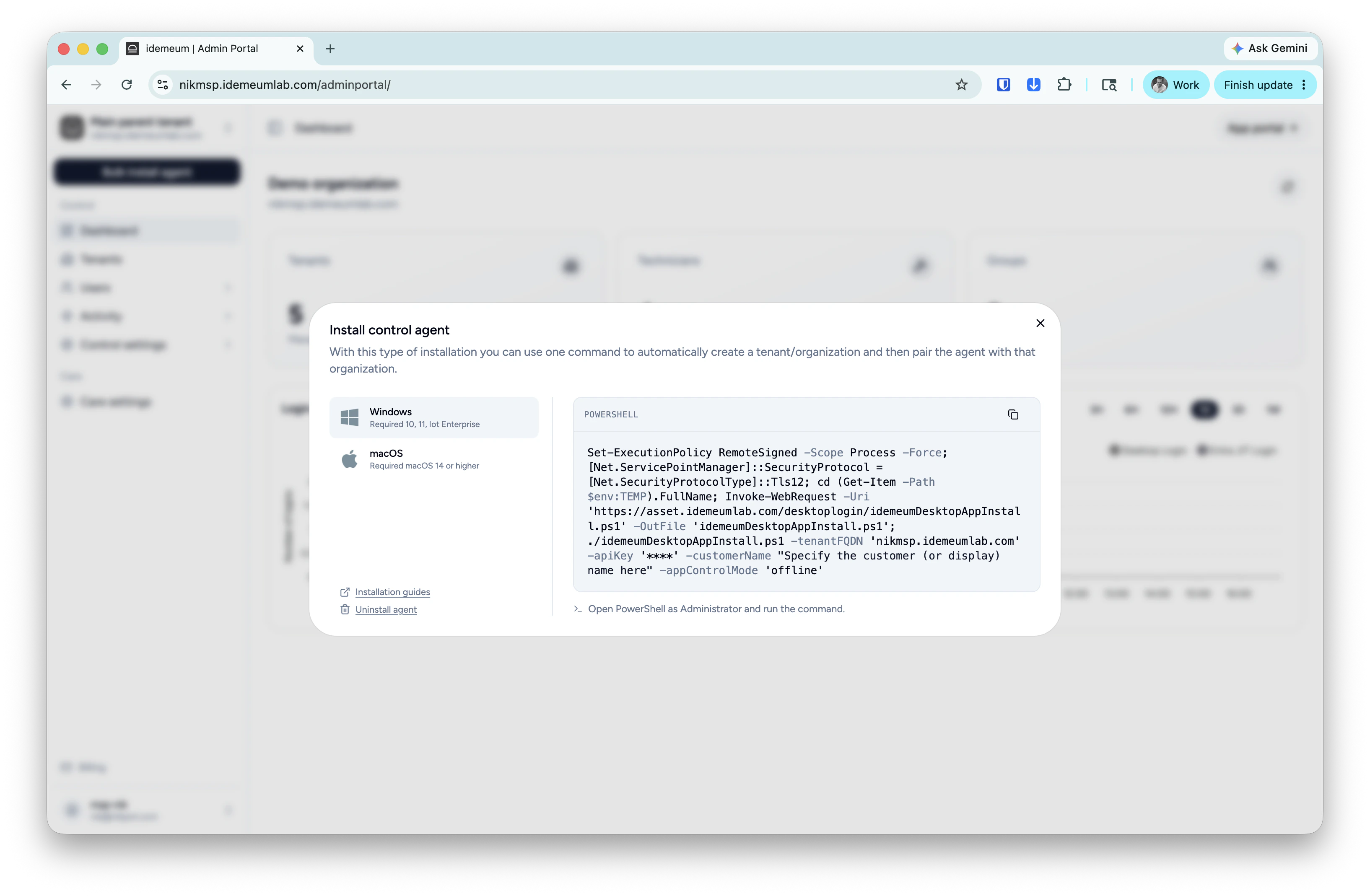
- Access the Atera management dashboard
- Click on
Newat the top left and chooseScript
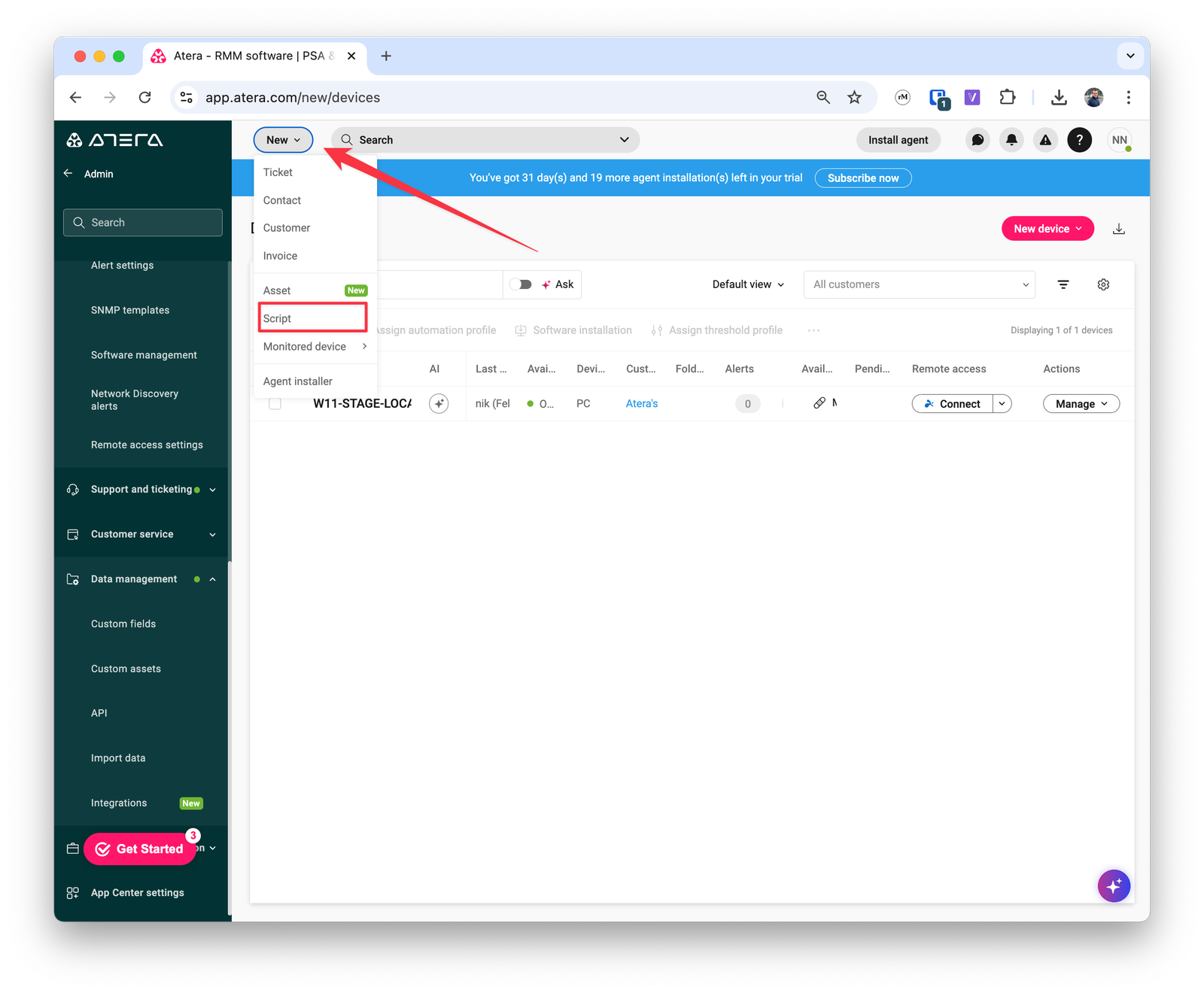
- Specify the following parameters for the script
- Provide script name and description
- File type
ps1 - Max run minutes
10 - Run as
System
- In the script editor window paste the idemeum command that you obtained in the previous section
- Scroll to the
-customerNameattribute and reference a dynamic variable using"". In this care we are using variable{[customerName]}. - Create the script
Deploy Atera script
- Access the workstation where you would like to deploy idemeum
- Click
Manageand chooseRun script
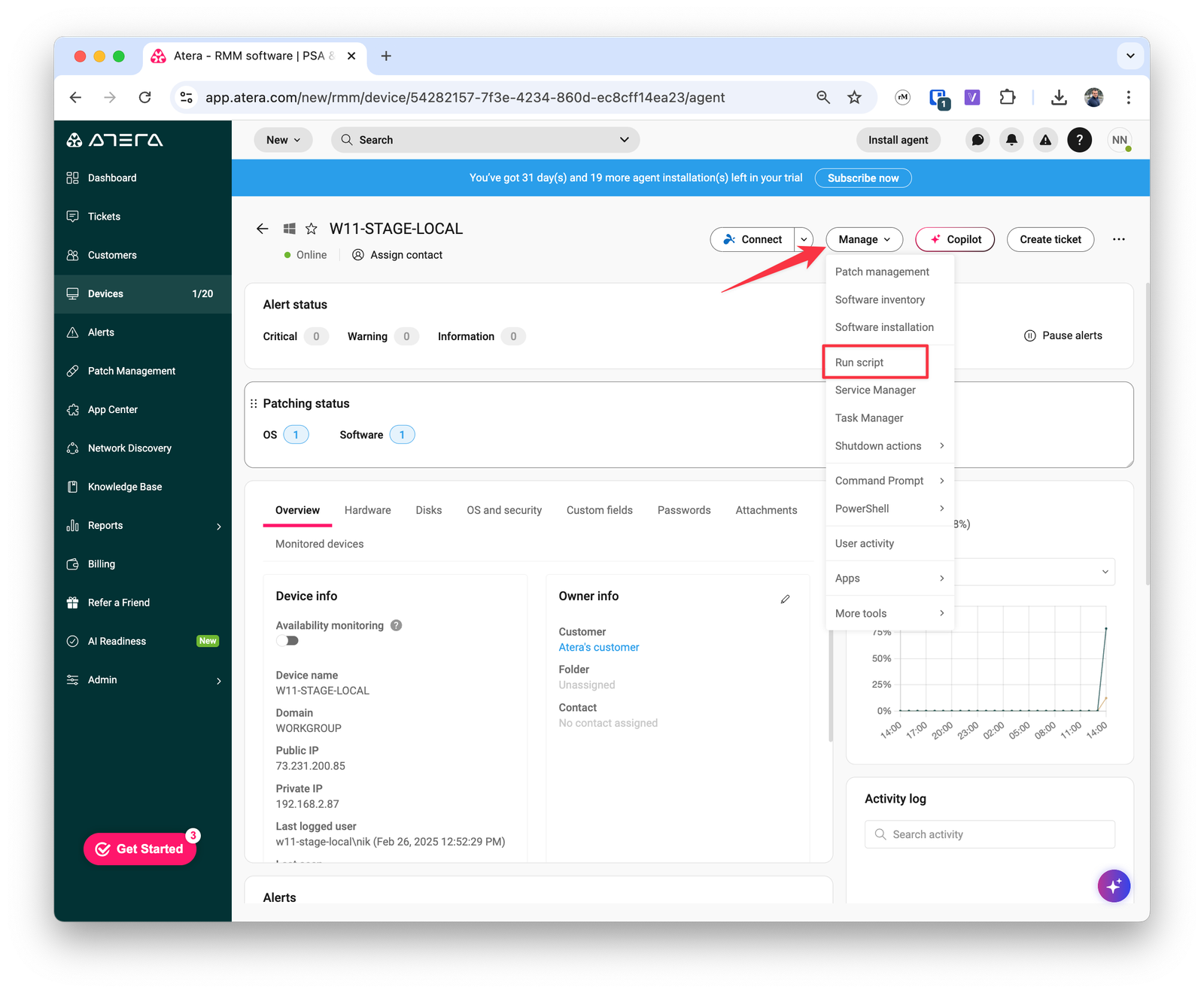
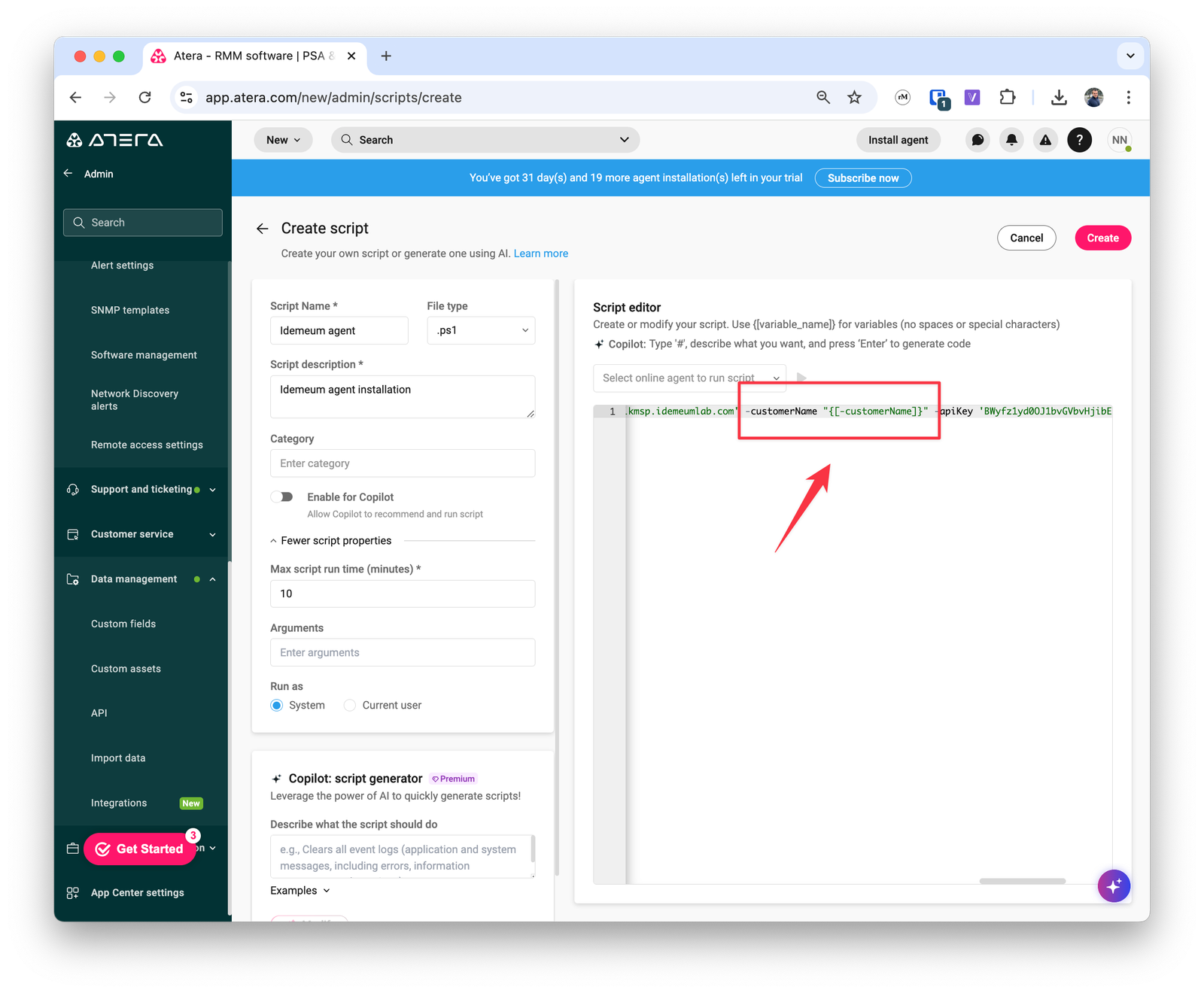
- Choose the idemeum script you created before and click
Runnext to it - You will be prompted to enter the customer name. You can provide the organization name for which you are deploying idemeum agent. If the organization does not exist in idemeum, the customer tenant will be automatically created.
- Run the script for idemeum agent to be installed and configured