- Push computer LAPS credentials to Hudu
- Push Entra ID LAPS credentials to Hudu
- Automatically map customer names in idemeum to customer names in Hudu
- Manually map customer names in idemeum to customer names in Hudu
Push LAPS credentials to Hudu
Push LAPS break-glass credentials for all computers and Entra ID tenants to Hudu documentation platform.
Create Hudu API key
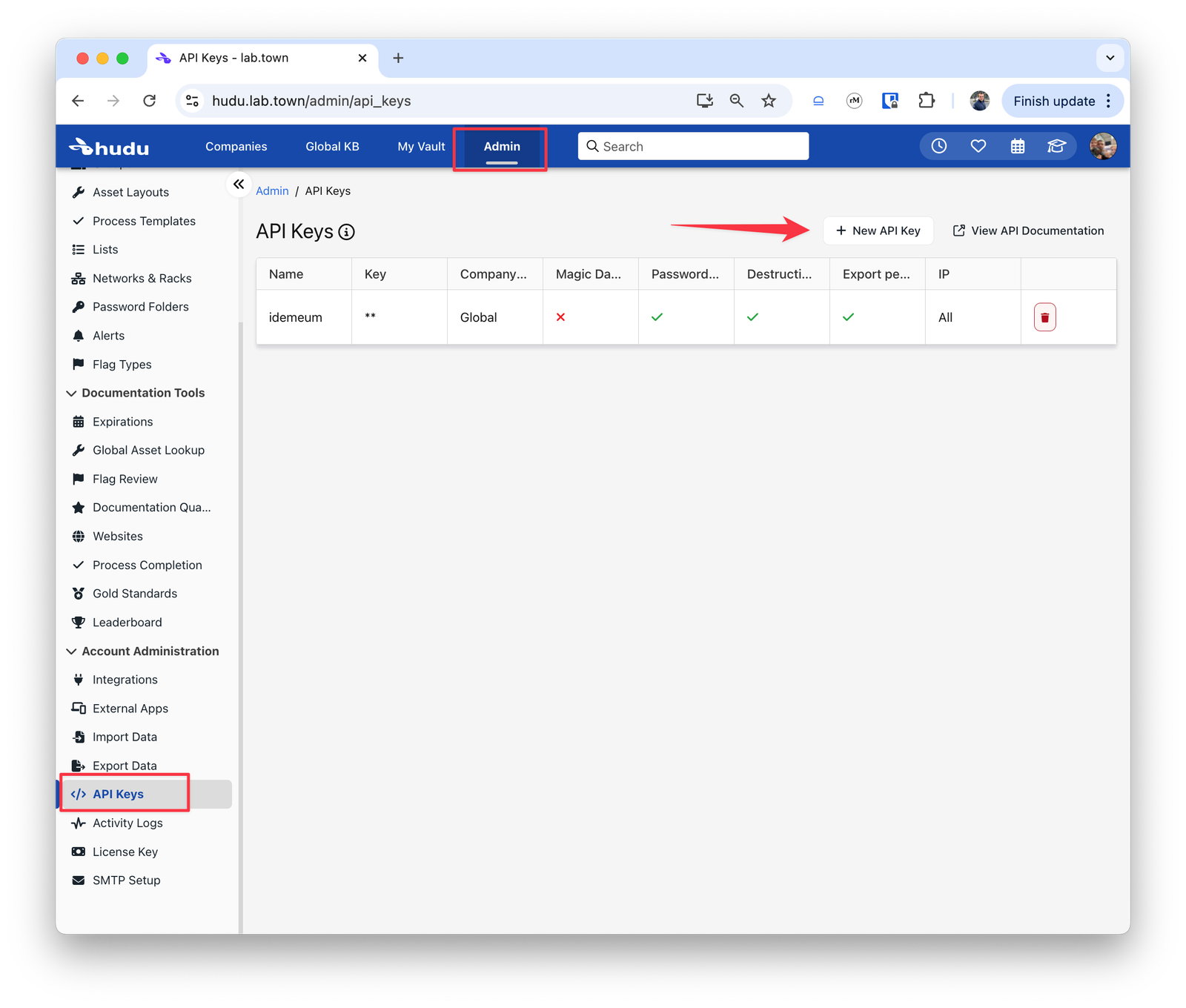
- Navigate to
Admin→API keysand choose+ New API key
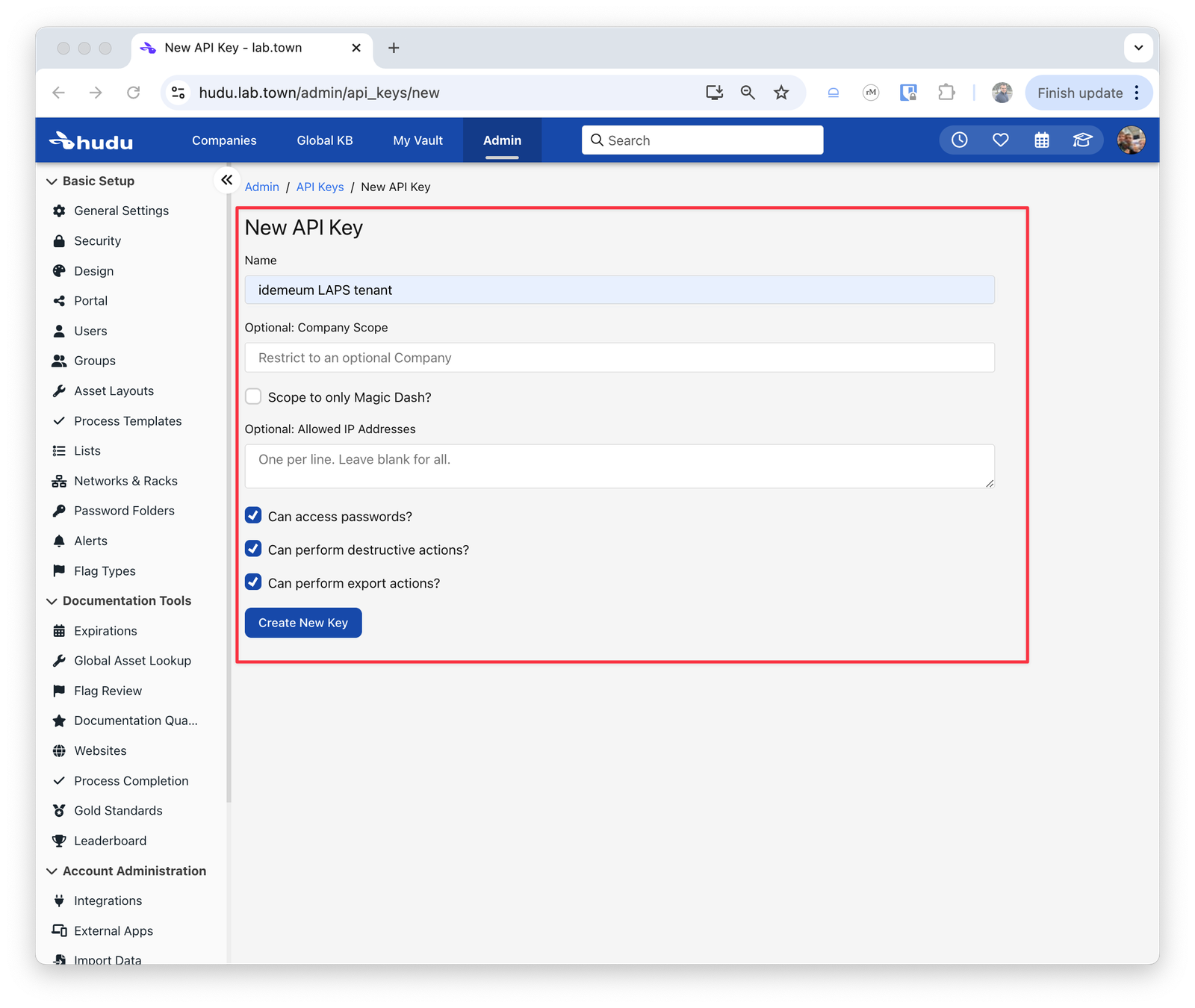
- Provide the key name and allow access permissions
- Copy the key as you will need to use it for idemeum configuration
Configure idemeum
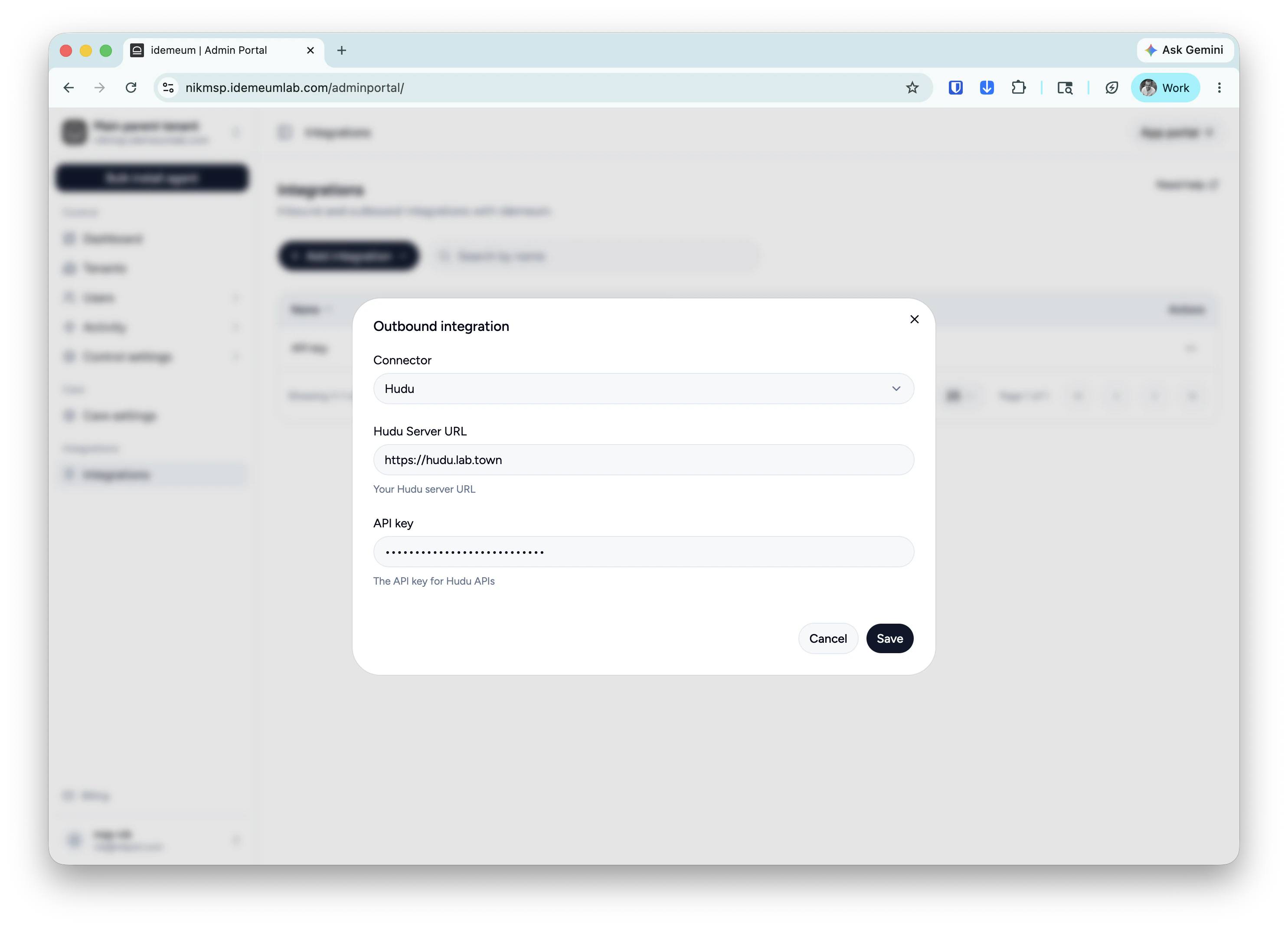
- Access your idemeum tenant admin portal and navigate to
Integrations - Choose
Add new integrationand thenOutbound integration - From the dropdown choose
Hudu - Add your Hudu URL and the API key that we generated in the previous step
- Save the configuration
Customers mapping
Once the integration with Hudu is added, you will see the newHudu column in the Tenants section.
Automatic mapping
As a first step idemeum will try toautomatically map the customers in idemeum to customers in Hudu. Here is how we will try to do that:
- Use the
Display Nameof the customer in idemeum to search for a customer in Hudu - If no match was found using the
Display Name, then we would use theNameof the customer in idemeum to search for a customer in Hudu - If no match was found using the
Name, then the admin will have to manually link the customers
Link button to manually map the customer in Hudu.
Manual mapping
The admin can manually link a customer from idemeum with one in Hudu by providing the name of the customer from Hudu.- Enter the Hudu customer name to map this idemeum customer to
- Once found we will display the customer name from Hudu in the idemeum customer table
LAPS credentials
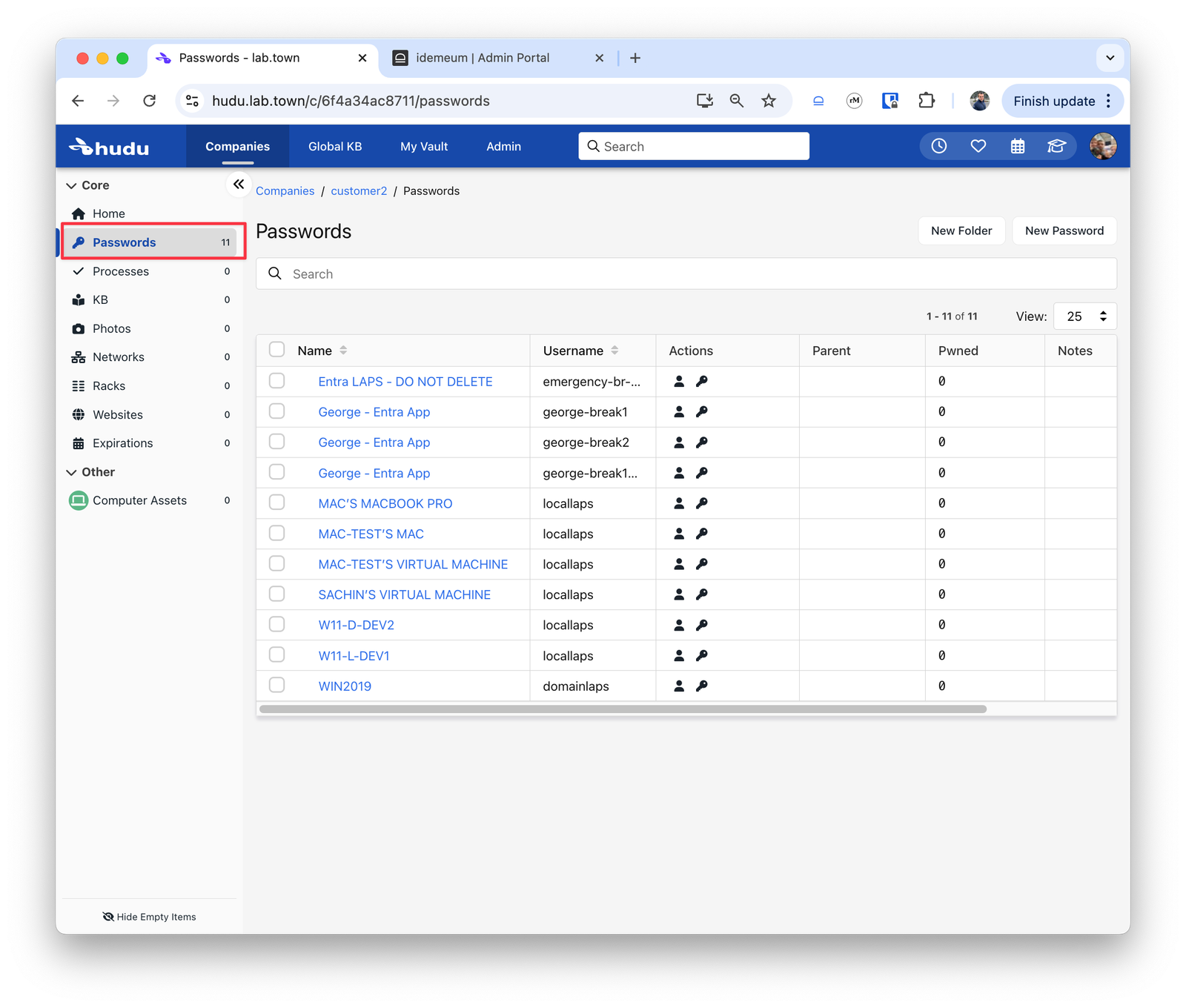
- Navigate to any company in Hudu and access
Passwords. - You will now be able to see all LAPS credentials