

Documentation Index
Fetch the complete documentation index at: https://docs.idemeum.com/llms.txt
Use this file to discover all available pages before exploring further.
JIT login methods
QR-code login
QR-code login
Navigate to workstation where idemeum agent is installed, click on the QR-code at the bottom of the screen, and then scan the QR-code with idemeum mobile app.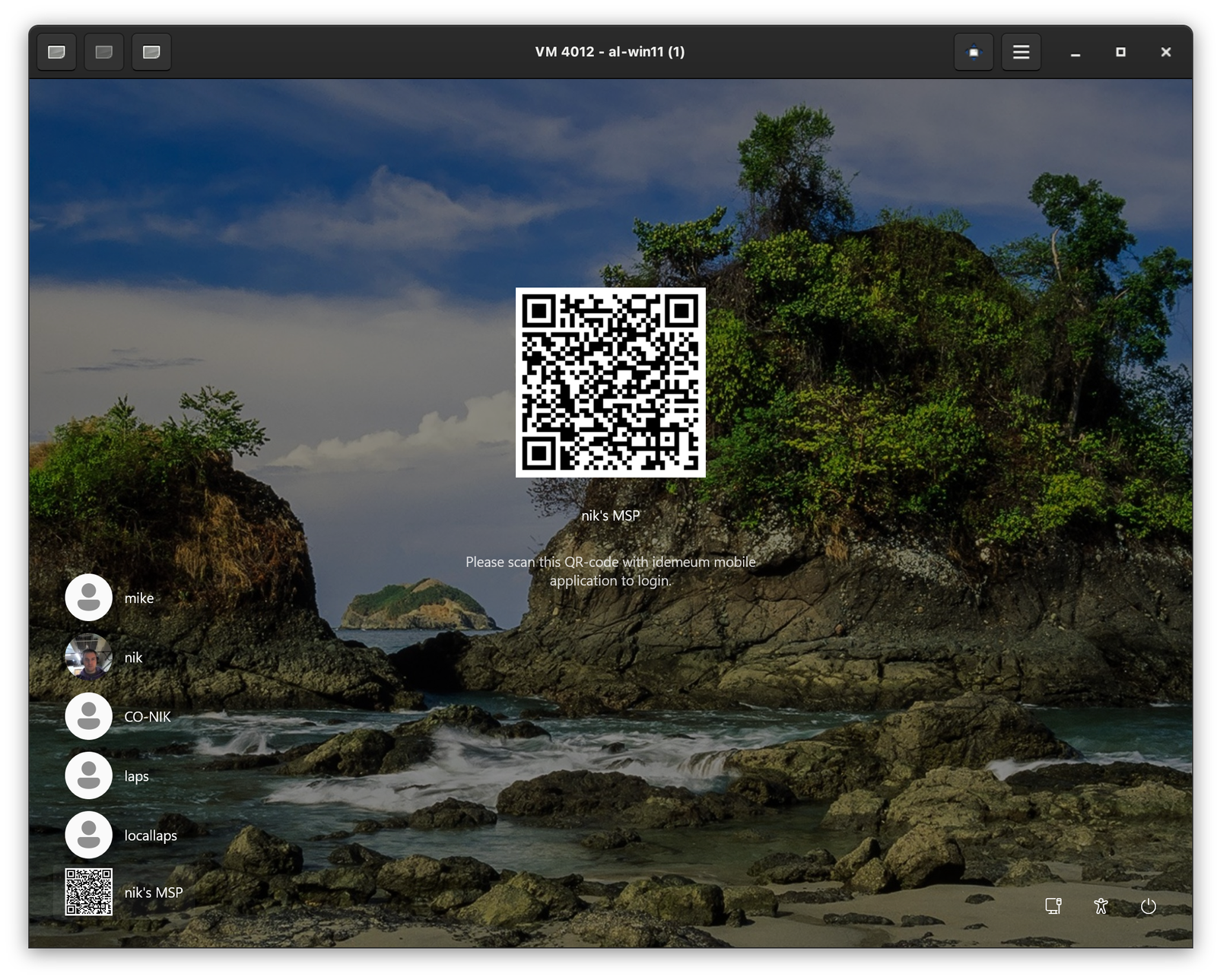
Push notification login
Push notification login
You need to enable this option in JIT settings first.
Send notification link. Now you are able to enter your email address (the one you registered with in idemeum) and you will receive a login notification.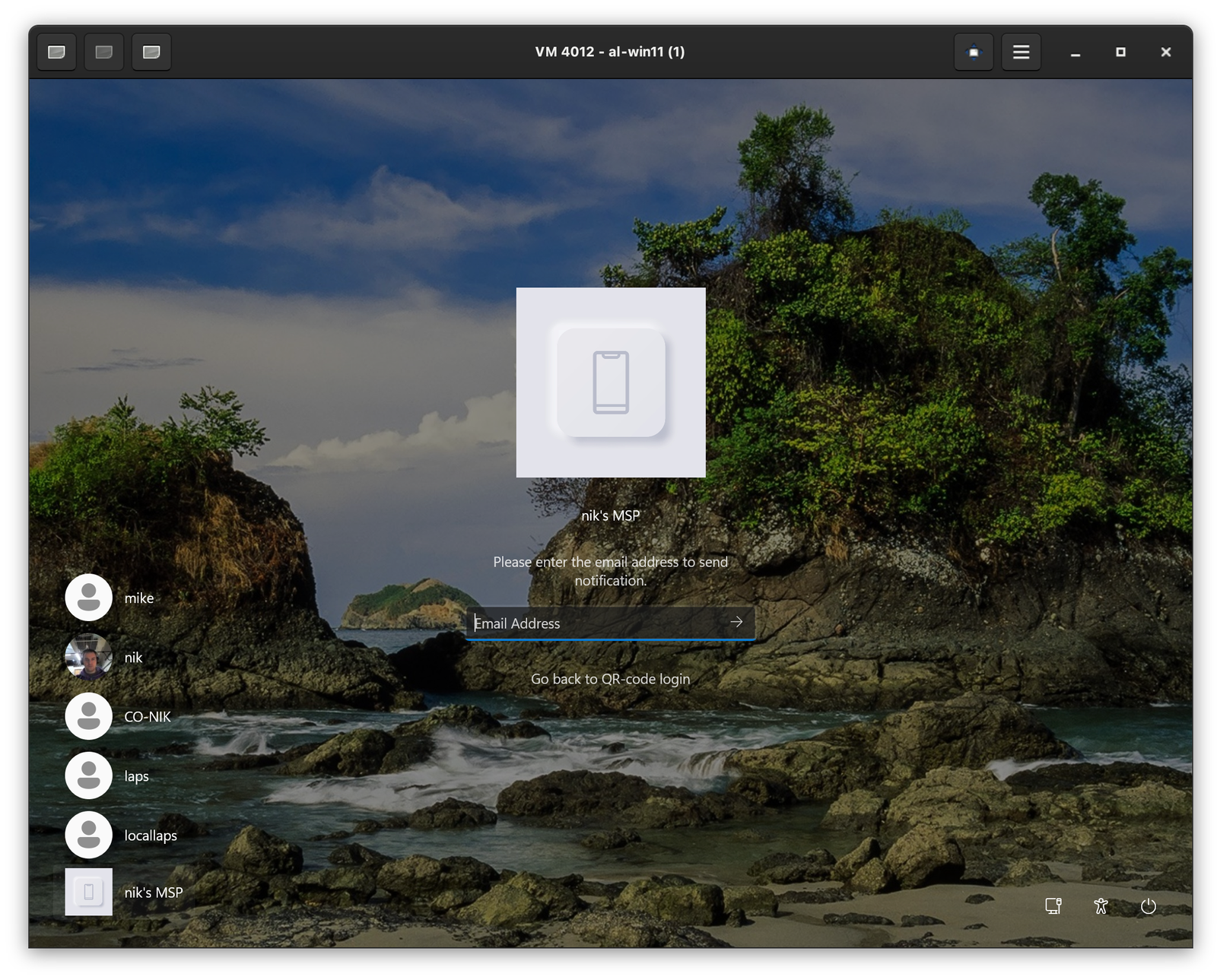
OTP login
OTP login
You can use this method when computer is offline. When computer is offline, idemeum agent can not render a QR-code and automatically switches to OTP login mode. Or you can enable this option to login with OTP even when computer is not offline. Navigate to workstation, click on QR-code at the bottom left to load idemeum login options, click on 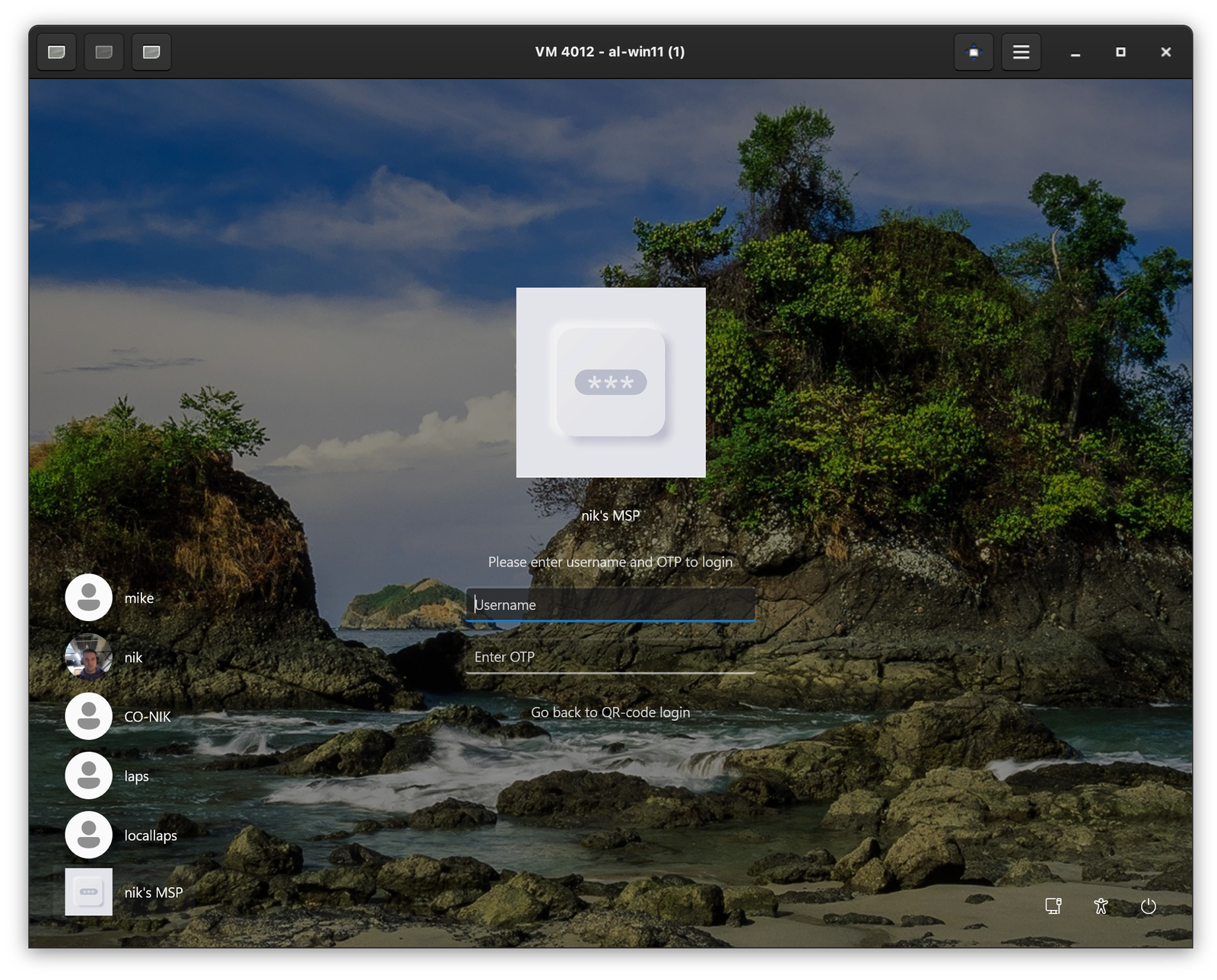
Login via OTP. Now you can retrieve username and OTP for the workstation from your idemeum mobile app.