How user notifications work
When users request application elevations, and these requests are approved or denied by IT team, idemeum offers a feedback loop to notify users of the request outcome. There are several ways users get notified.Push notifications
Push notifications
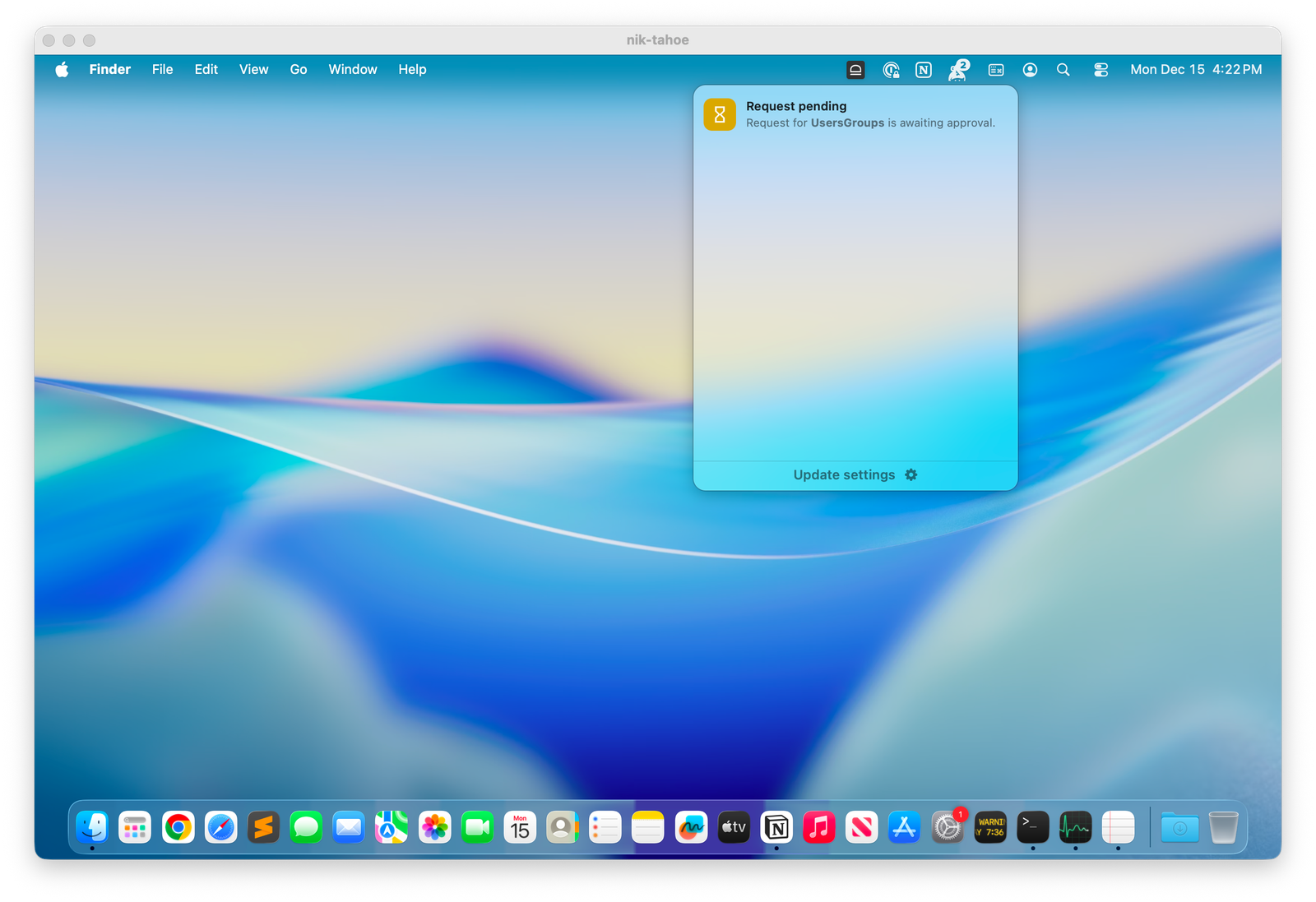
When the elevation request is approved or denied, idemeum will send a push notification back to Windows or macOS agent. If notifications are enabled on the desktop, the user will see a pop up notification detailing the request and the outcome.
Email notifications
Email notifications
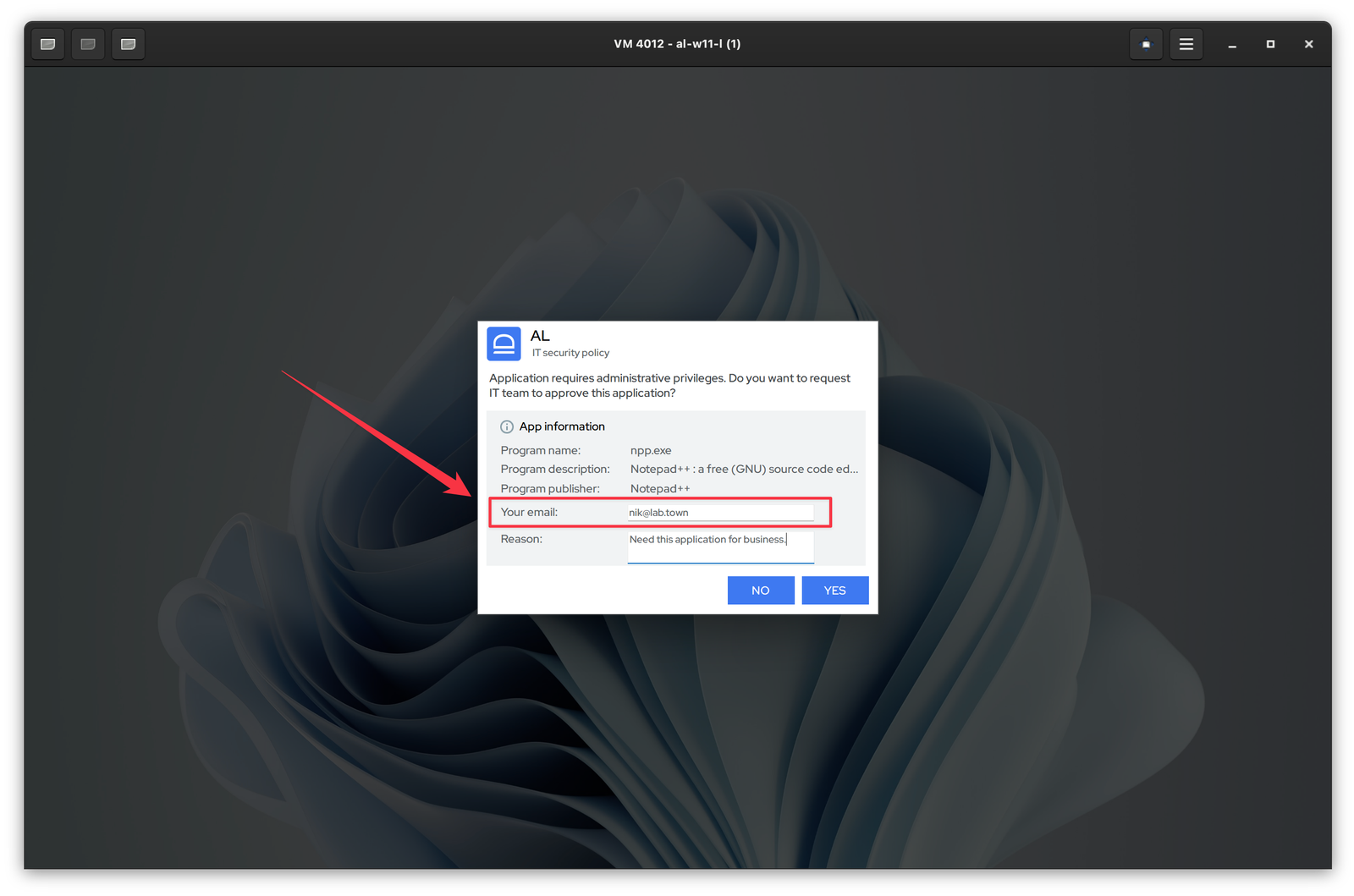
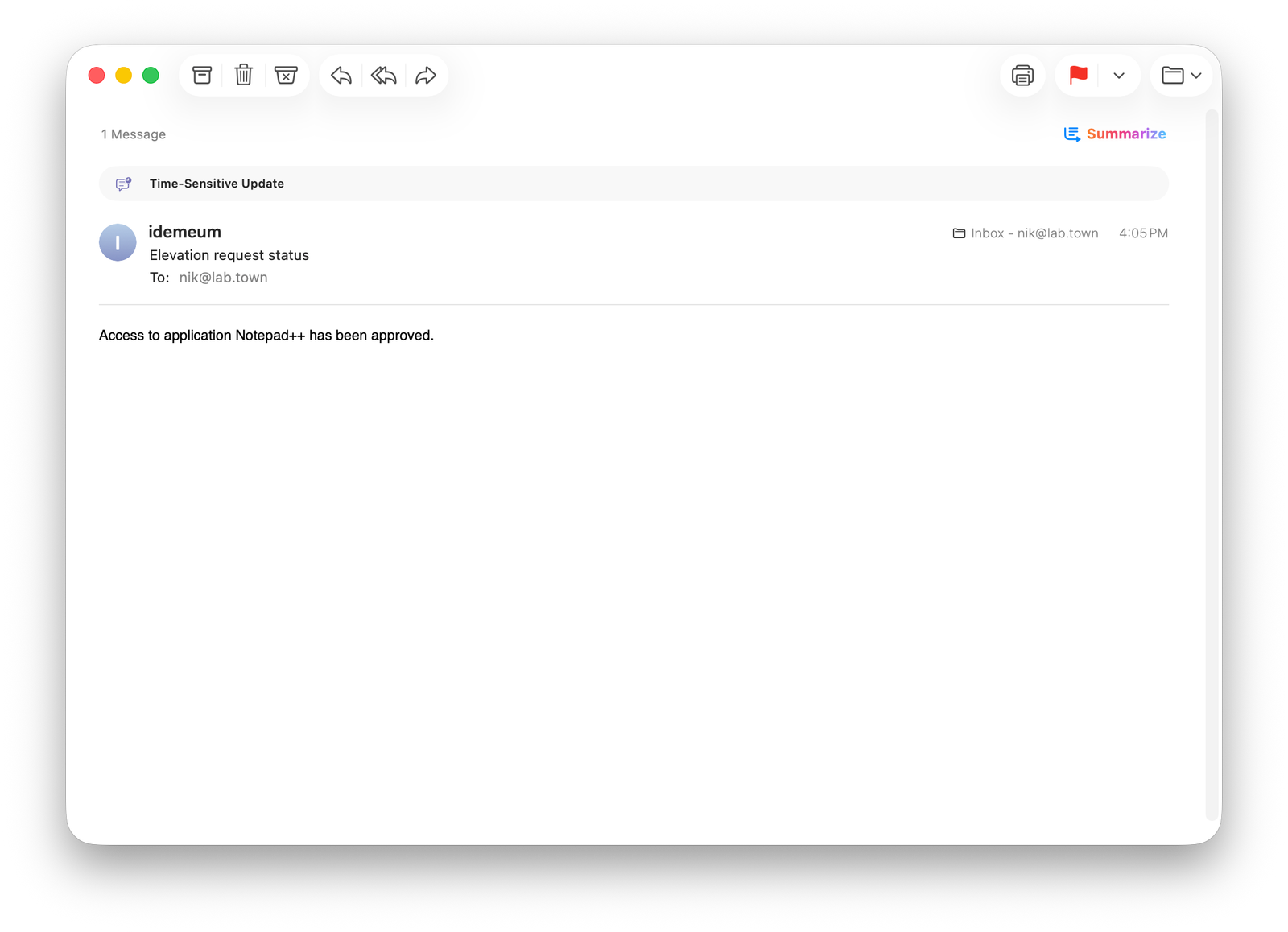
When users request application elevations, they can provide certain pieces of information with the request, including email address. When the application elevation is approved or denied, the email with the result will be sent to user provided email address.
Users need to provide the email only once. Once entered, it will saved and auto filled for any subsequent requests.
Push notifications user experience
On Windows we send the notification back to device and display it at the bottom right of the screen.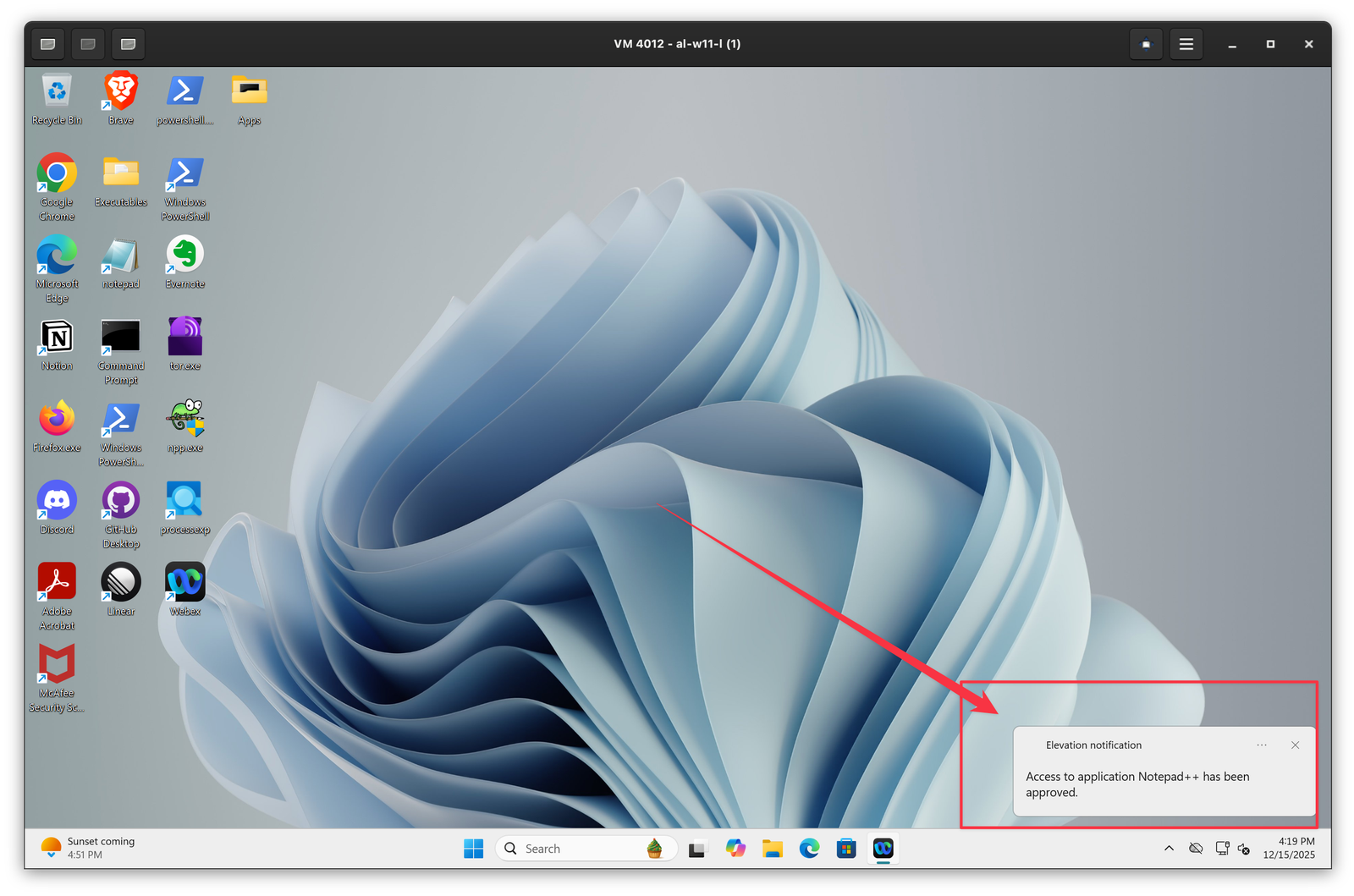
Email notifications user experience
On Windows or macOS workstation users can provide the email address when requesting application elevation.