How elevation requests work
- When the application needs elevation, and the elevation is not blocked or auto approved, then users can submit the request to allow elevation.
- To notify admins on the request and users about the status the following will be done:
- Mobile notification will be sent to all admins of the idemeum tenant
- If integration with ticketing is configured, idemeum will create an elevation ticket
- If users provided the email address when requesting an elevation, the approval or denial updates will sent to that email address (user elevation notifications)
- When the elevation request is approved / denied idemeum will send a push notification to the user workstation
- If admin elevation notifications are configured, idemeum will send the request information to the specified list or email addresses
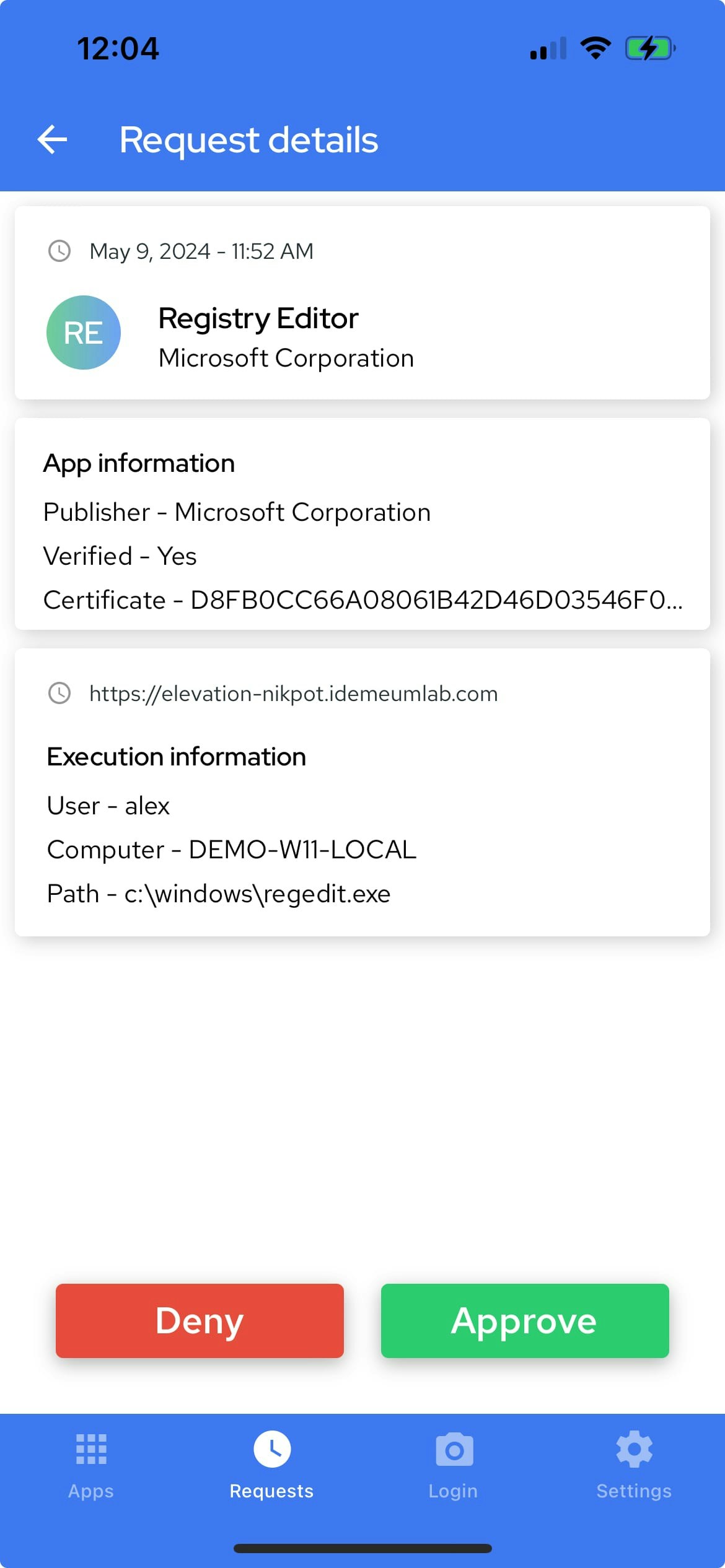
- Requests can be viewed in the web portal and also the mobile app
- Requests contain all metadata information for who is requesting what
- IT technicians can approve / deny requests from mobile app, web portal, or integrated ticketing system.
- Once request is approved, it is removed from the list, and the audit event is created for who handled the request
- Requests automatically expire if not acted upon after
4 days
Elevation request actions
When you approve / deny elevation request, you can take the following actions:Approve /deny once for user- you can approve or deny request once for the current application and requesting user. Once the request is approved, user will be able to carry our privileged action without the need to elevate. The approval will only be valid for one-time use, and if the user tries to do the same action again, she will need to request again.Approve / deny for tenant- you can approve or deny request with automatic rule creation, so that all further requests from other users for this application or action will be handled by the rule. For example, if you deny PowerShell launch asadminfor useralexby creating a rule, all other users will not be able to launch PowerShell as admin.
Respond to elevation requests
EPM requests in web portal
- Navigate to your idemeum admin portal
- Access
Activity→Requeststo see all requests in the queue - Once you access the request, you can click on
...and choose if you want to approve or deny the request. If you decide to create a rule, you will be presented with the dialog for rule configuration, and you can leverage any event attributes for rule definition.
EPM requests on mobile
- If you received a mobile notification, click on it and the request details will be shown. You will be able to see all associated metadata, and you will be able to approve / deny the request