Configure Cloud LAPS for computers
Before you configure idemeum Cloud LAPS, make sure you have idemeum control agent installed on all computers where password rotation needs to be enabled.- Login to your idemeum admin portal
- Navigate to
Control settings→JIT accessand then scroll toLAPS for computerssection - You have two options:
- LAPS for local admin accounts (for computers that are NON domain controllers)
- LAPS for domain accounts (for domain controllers)
- Toggle the options for the
localordomainadmin accounts password rotation - Specify the account you want us to rotate
- If the account exists, idemeum agent will take over that account and start the rotation
- If the account does not exist, idemeum will create it on all workstations
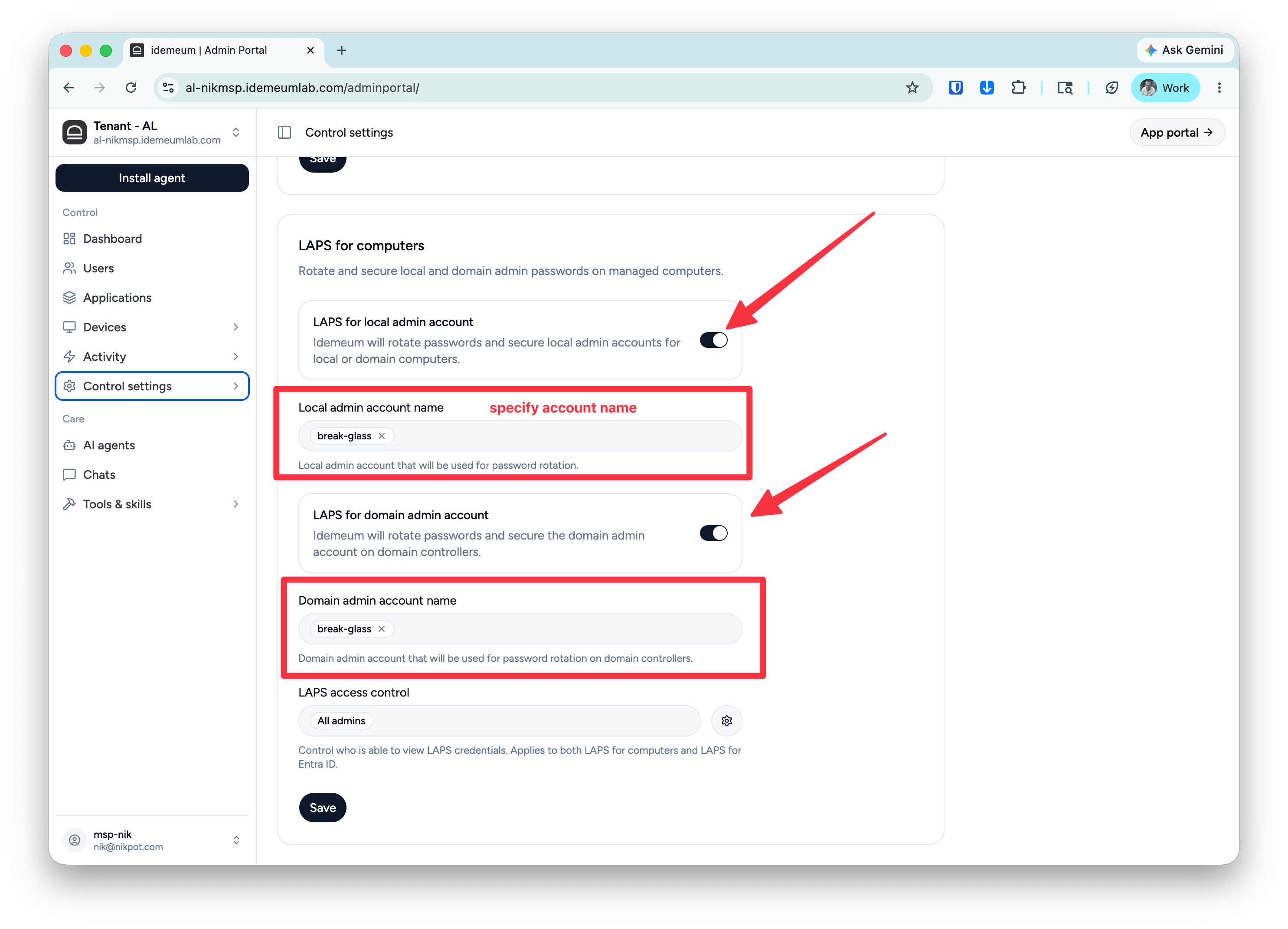
- If you want to control what groups of technicians have access to LAPS credentials you can use
LAPS access controlsection. By default every admin who has access to the tenant can view LAPS credentials.
Configure Cloud LAPS for Entra
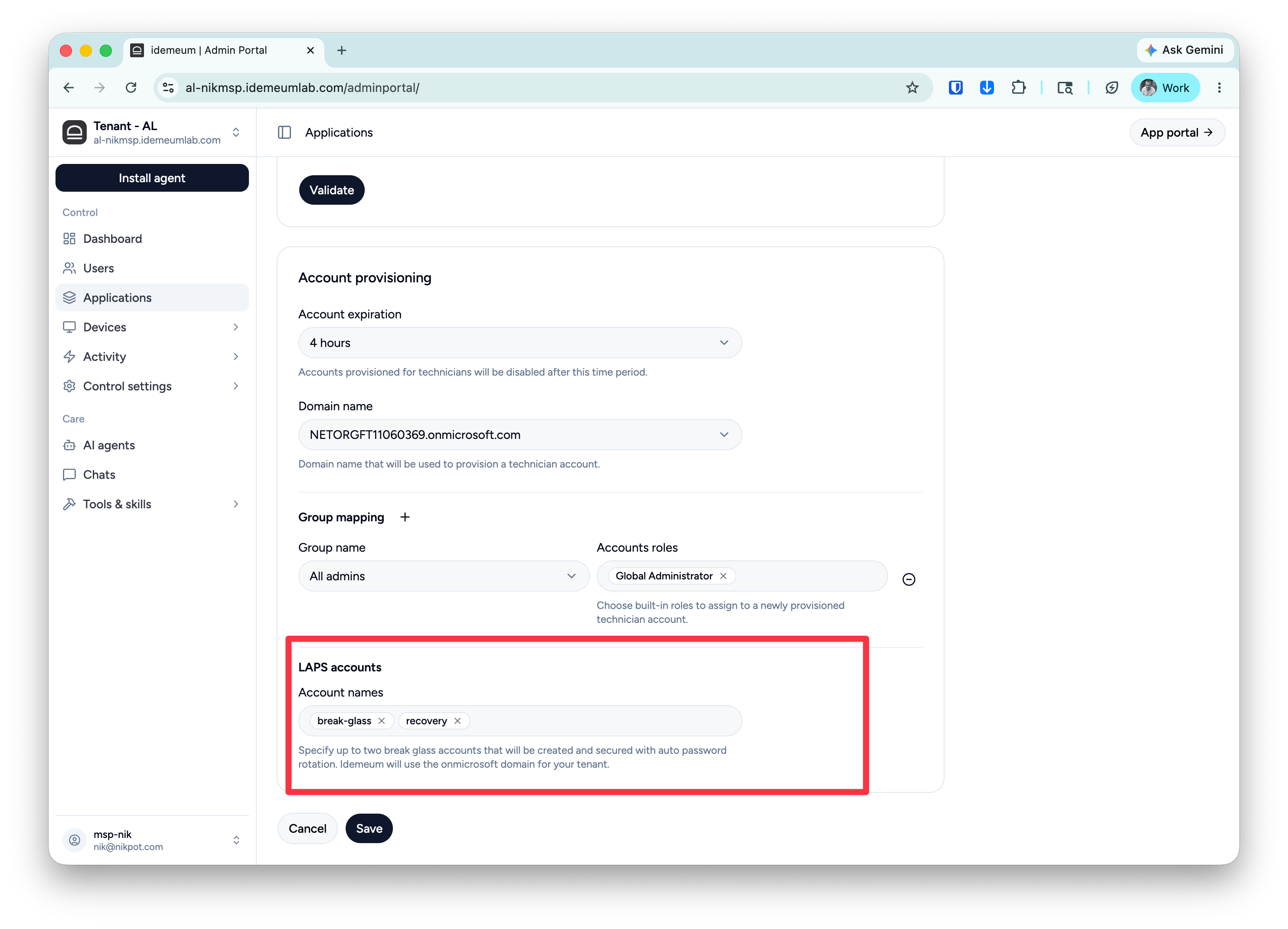
First you need to set up JIT for Entra ID connection with idemeum tenant. At the end of configuration you can specify if you want to enable LAPS for Entra ID.- Scroll to the end of configuration section
LAPS accounts - Click
+to add up to two LAPS accounts - Specify the account names to use. The accounts will be created with the domain chosen for Entra JIT accounts