
JIT computer elevation
When you login as technician with mobile device, you might need to perform certain actions that require elevation. When the elevation screen comes up, you can simply scan the QR-code to elevate the application. For instance, on Windows simply clickMore options, then enlarge idemeum QR-code, and scan with your mobile app. The action will be elevated and UAC will be handled by idemeum agent behind the scenes. Similar experience is offered on macOS workstations.
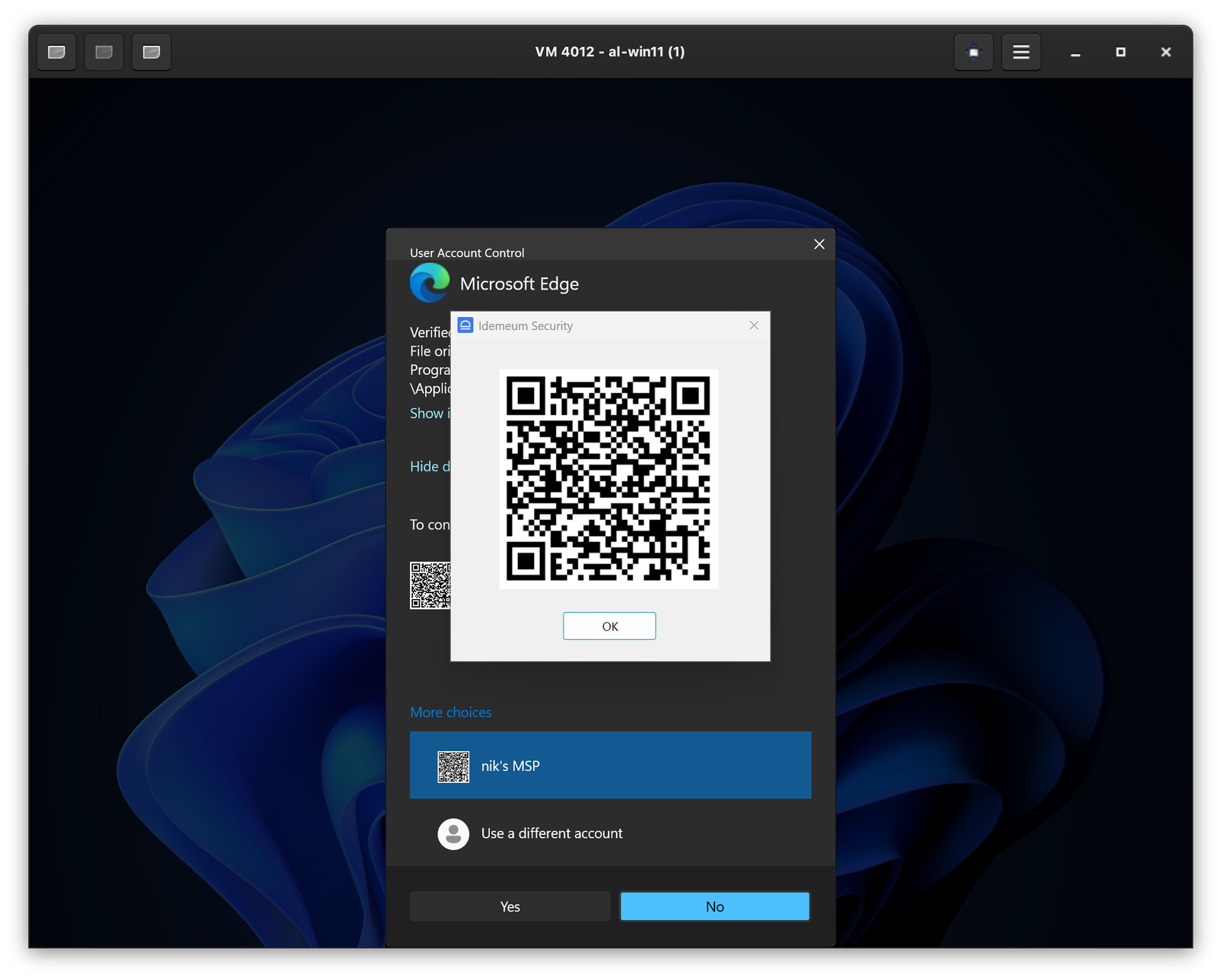
JIT for computers login methods
QR-code login
QR-code login
Navigate to workstation where idemeum agent is installed, click on the QR-code at the bottom of the screen, and then scan the QR-code with idemeum mobile app.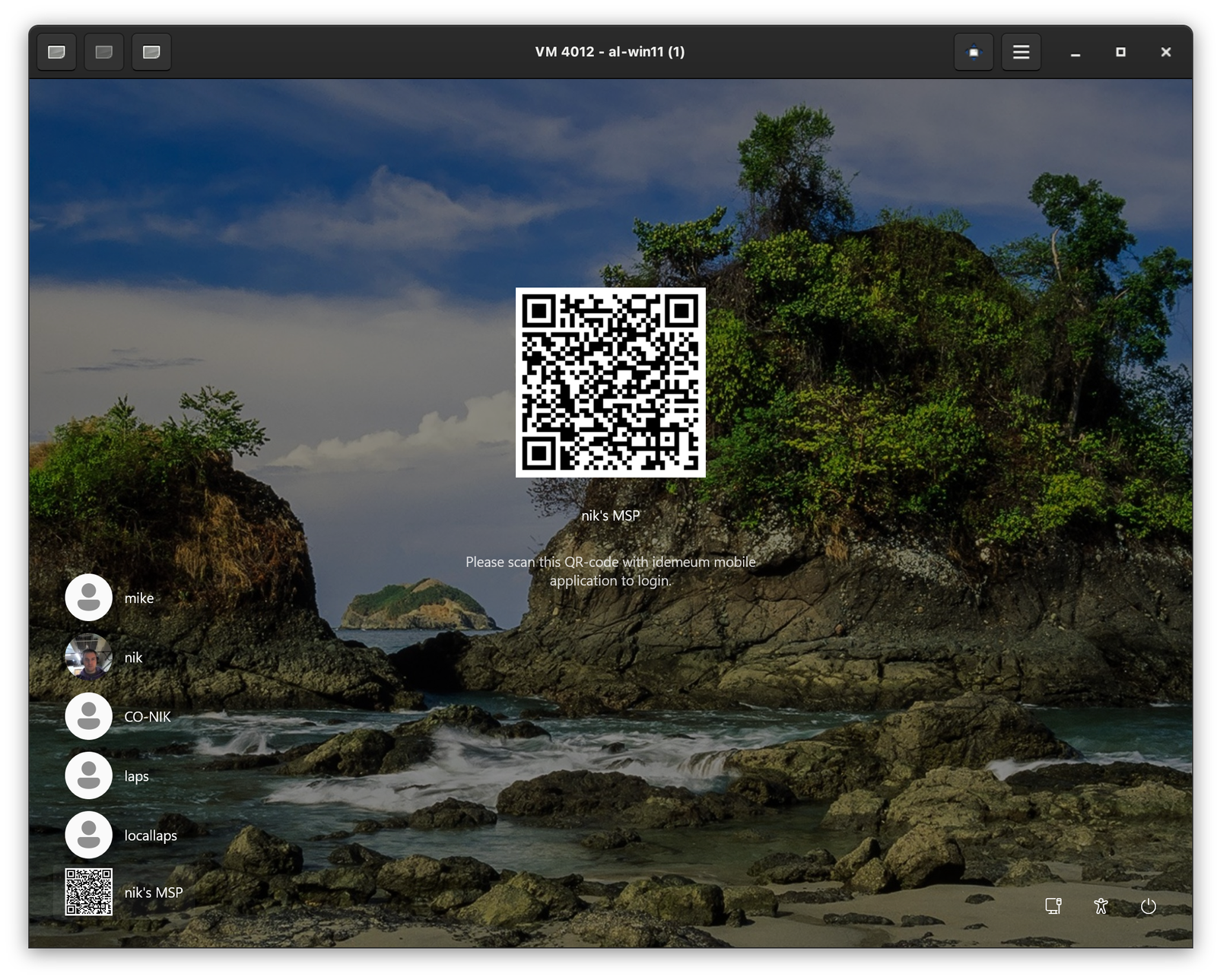
Push notification login
Push notification login
You need to enable this option in JIT settings first.
Send notification link. Now you are able to enter your email address (the one you registered with in idemeum) and you will receive a login notification.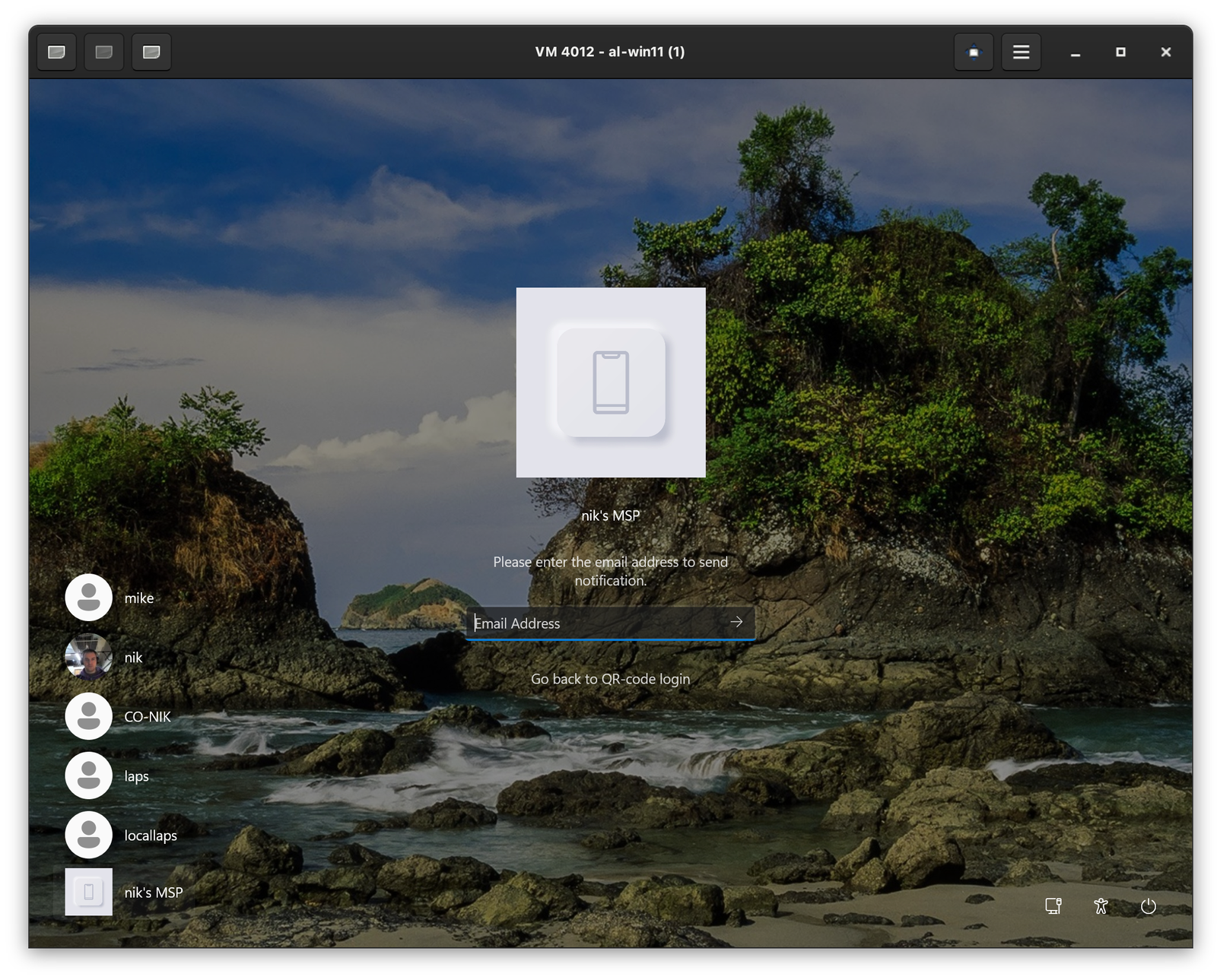
OTP login
OTP login
You can use this method when computer is offline. When computer is offline, idemeum agent can not render a QR-code and automatically switches to OTP login mode. Or you can enable this option to login with OTP even when computer is not offline. Navigate to workstation, click on QR-code at the bottom left to load idemeum login options, click on 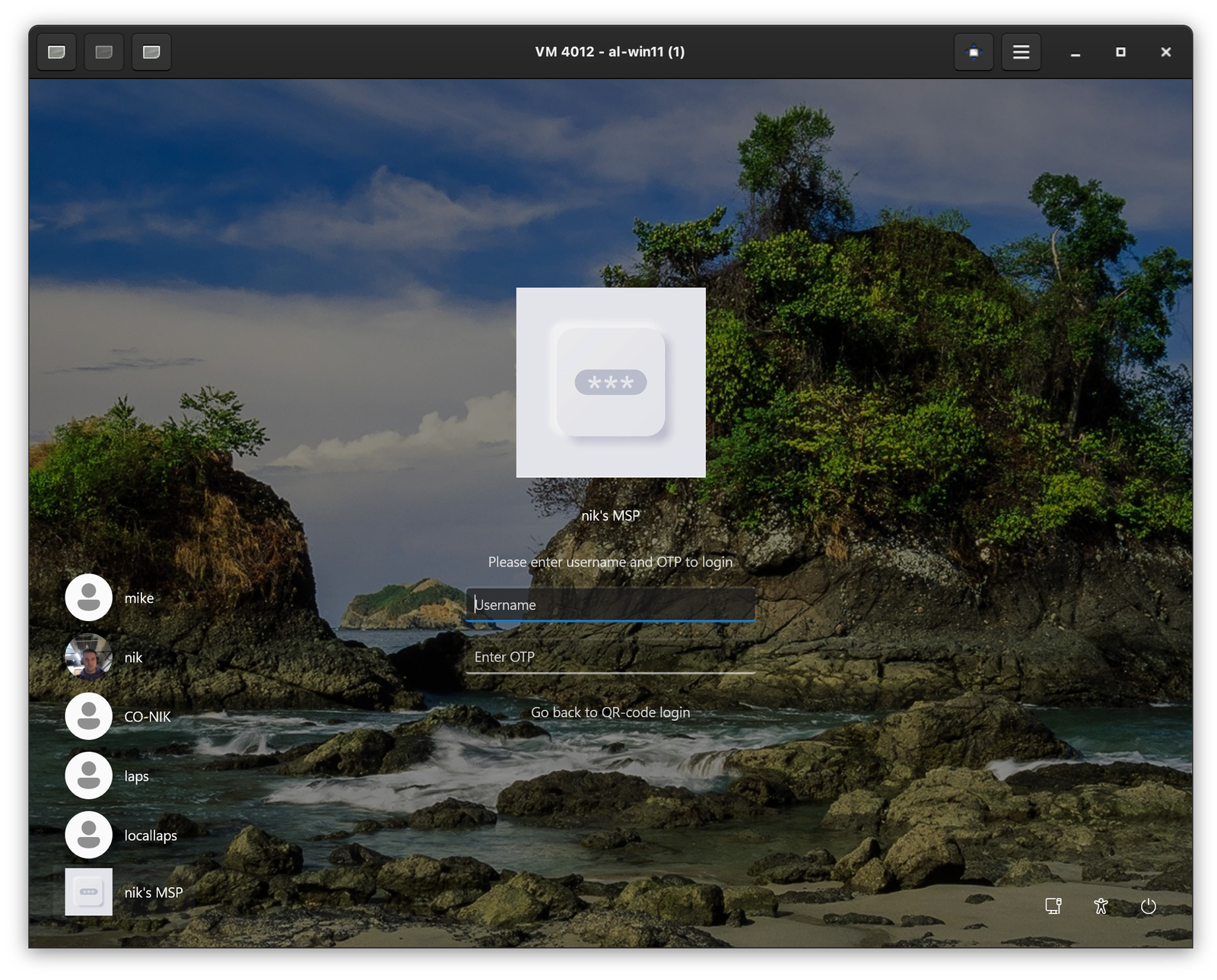
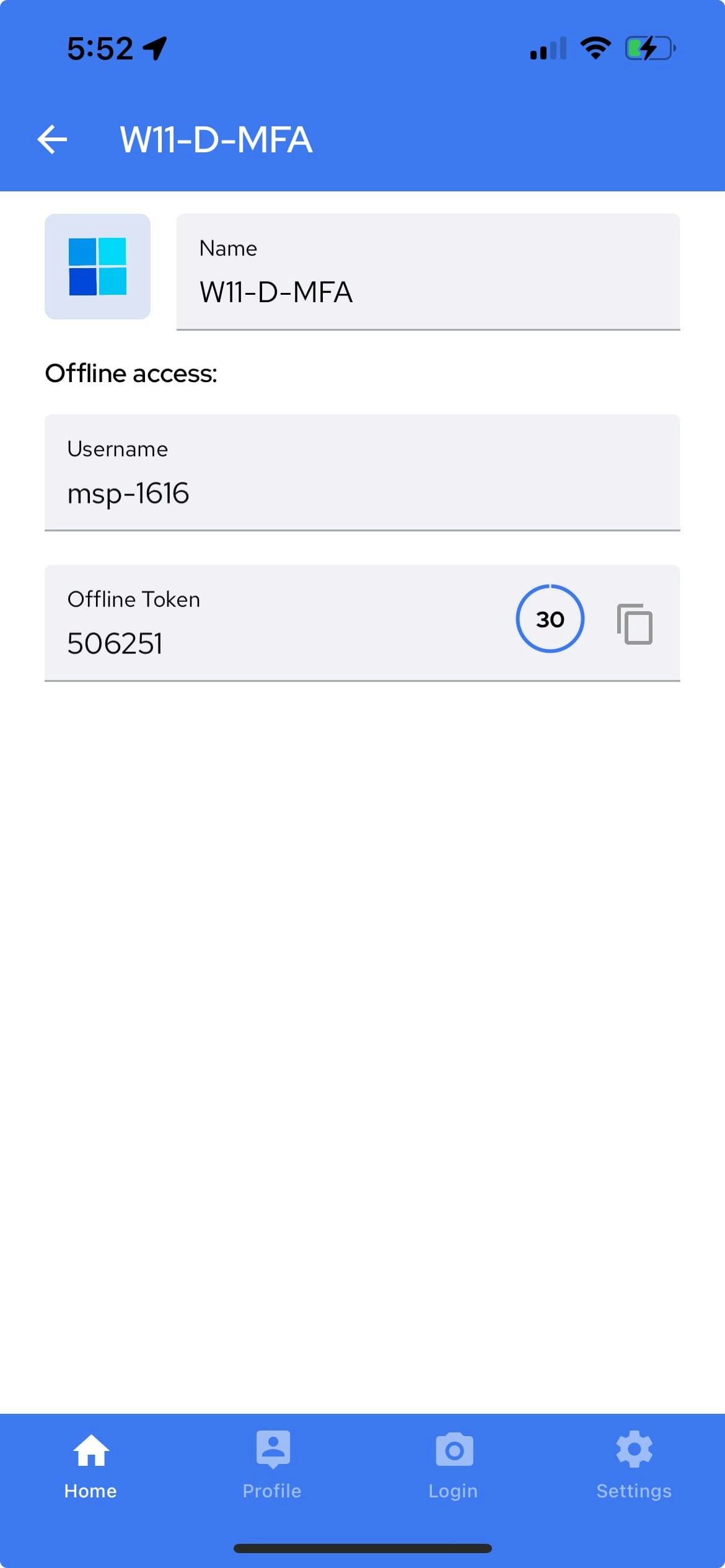
Login via OTP. Now you can retrieve username and OTP for the workstation from your idemeum mobile app.Offline computer access
When the computer is offline, idemeum credential provider will automatically switch to offline mode. Instead of displaying the QR-code for admin access, it will show the username and offline secret fields.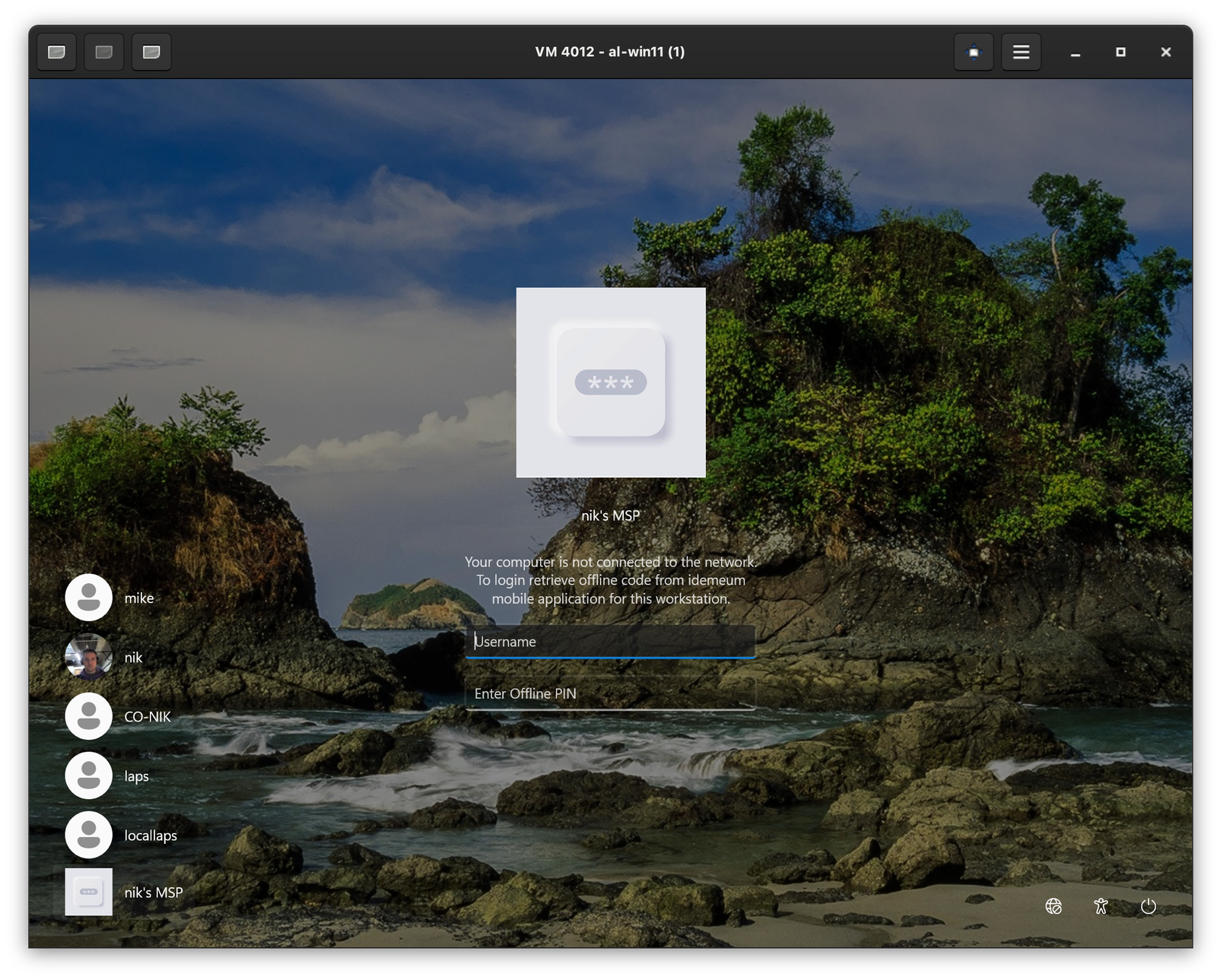
... and retrieve username and OTP code.
Selective computer JIT login
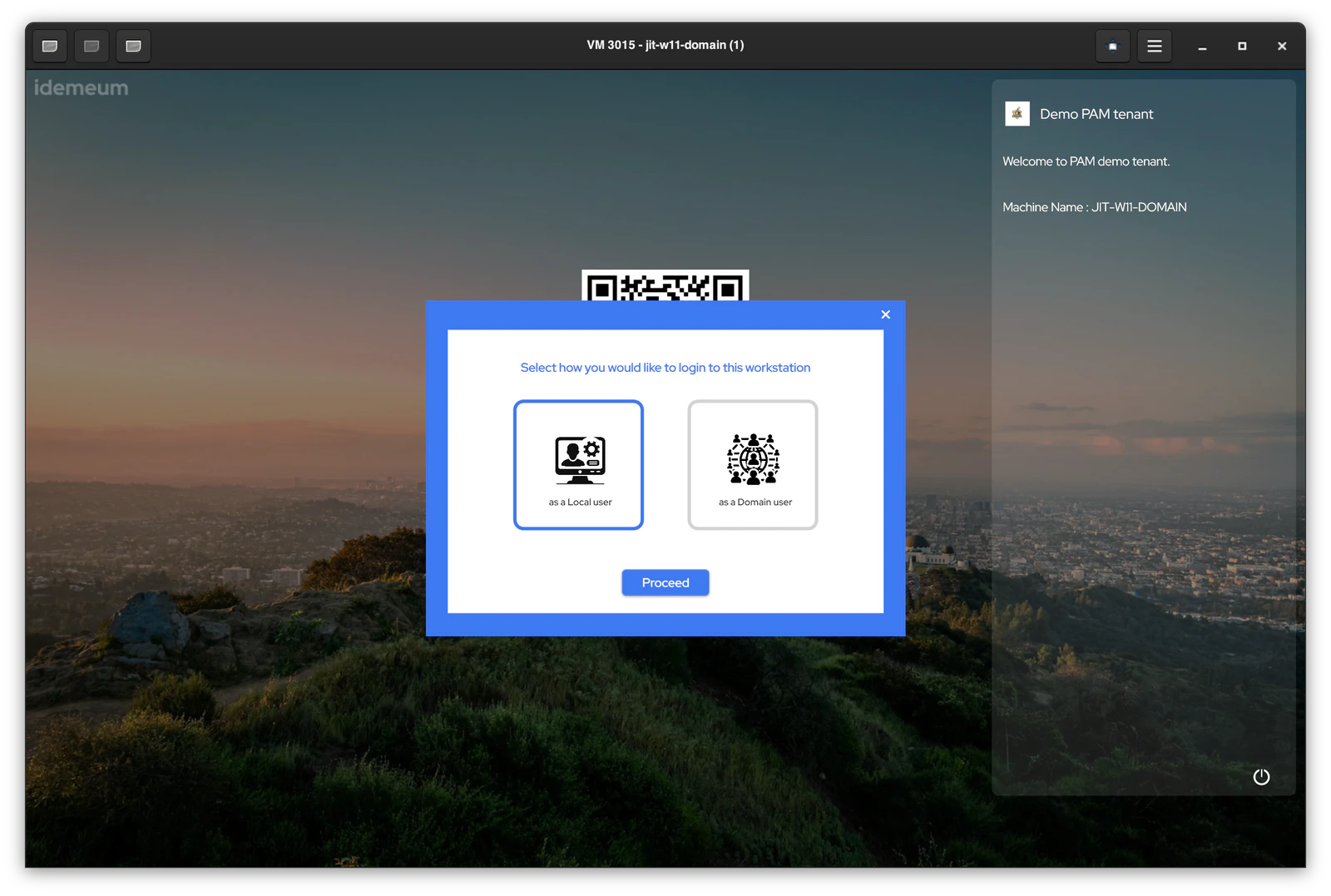
You need to enable this feature for the tenant. More about configuration here.
RDP with JIT accounts
RDP access with JIT accounts
Quick demo for how to RDP with JIT accounts.
RDP JIT prerequisites
- Supported on domain-joined workstations only
- Desktop agent installed on
sourceandtargetmachine - Domain accounts login enabled for the customer tenant
- Domain controller is reachable from the RDP
sourceworkstation - Agent is installed on domain controller
How to RDP with JIT account
- Login to
sourcedomain-joined workstation - Open Windows Remote Desktop Client and connect to the
targetdomain-joined machine - You will then be prompted to authenticate. Click
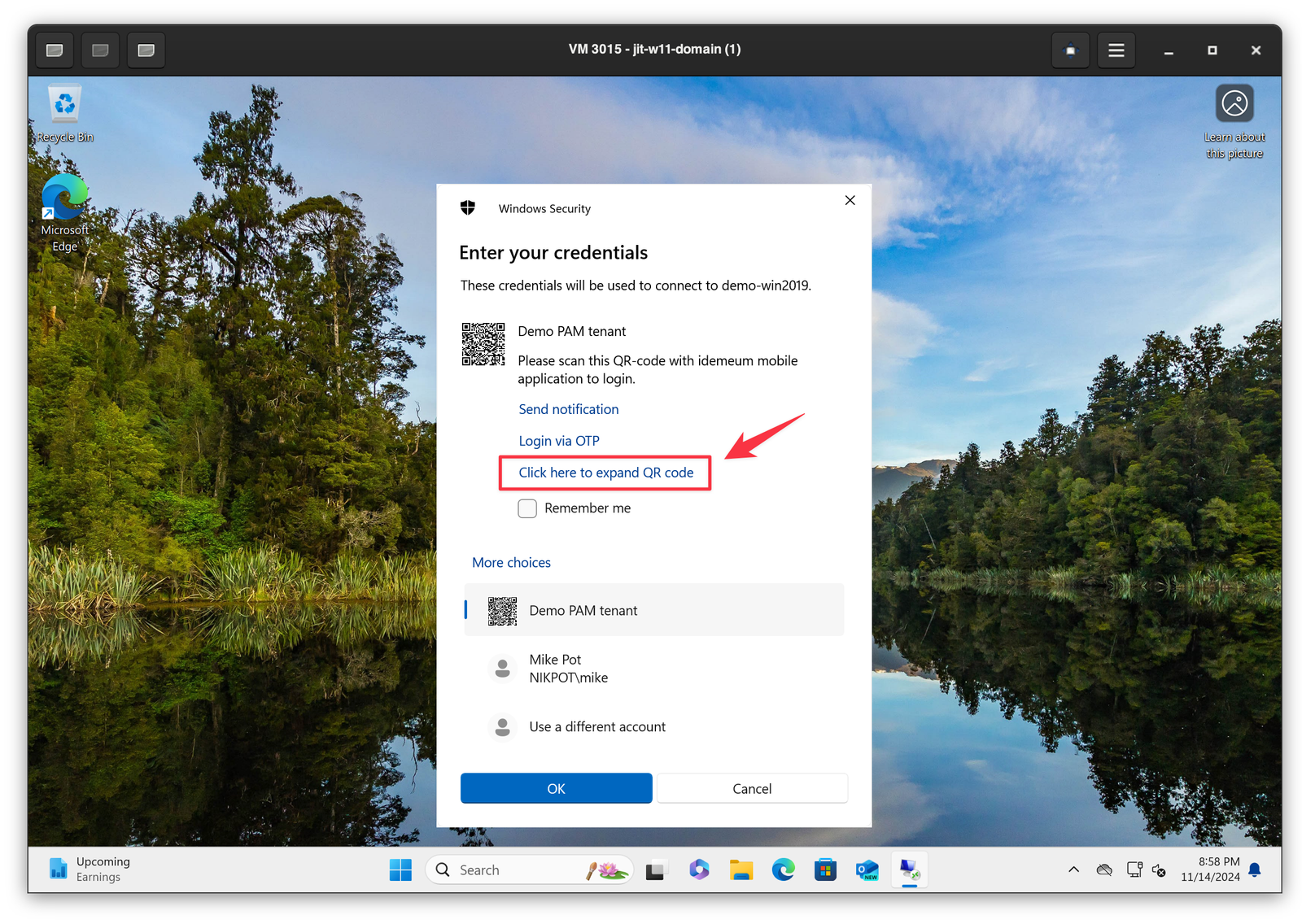
More optionsand then selectidemeum credential providerto scan the QR-code. - You can enlarge the QR-code so that it is easier to scan by clicking on
Click here to expand QR code - Scan the QR-code with idemeum mobile application and approve with biometrics
- You will be logged in to the
targetworkstation
Computer access control
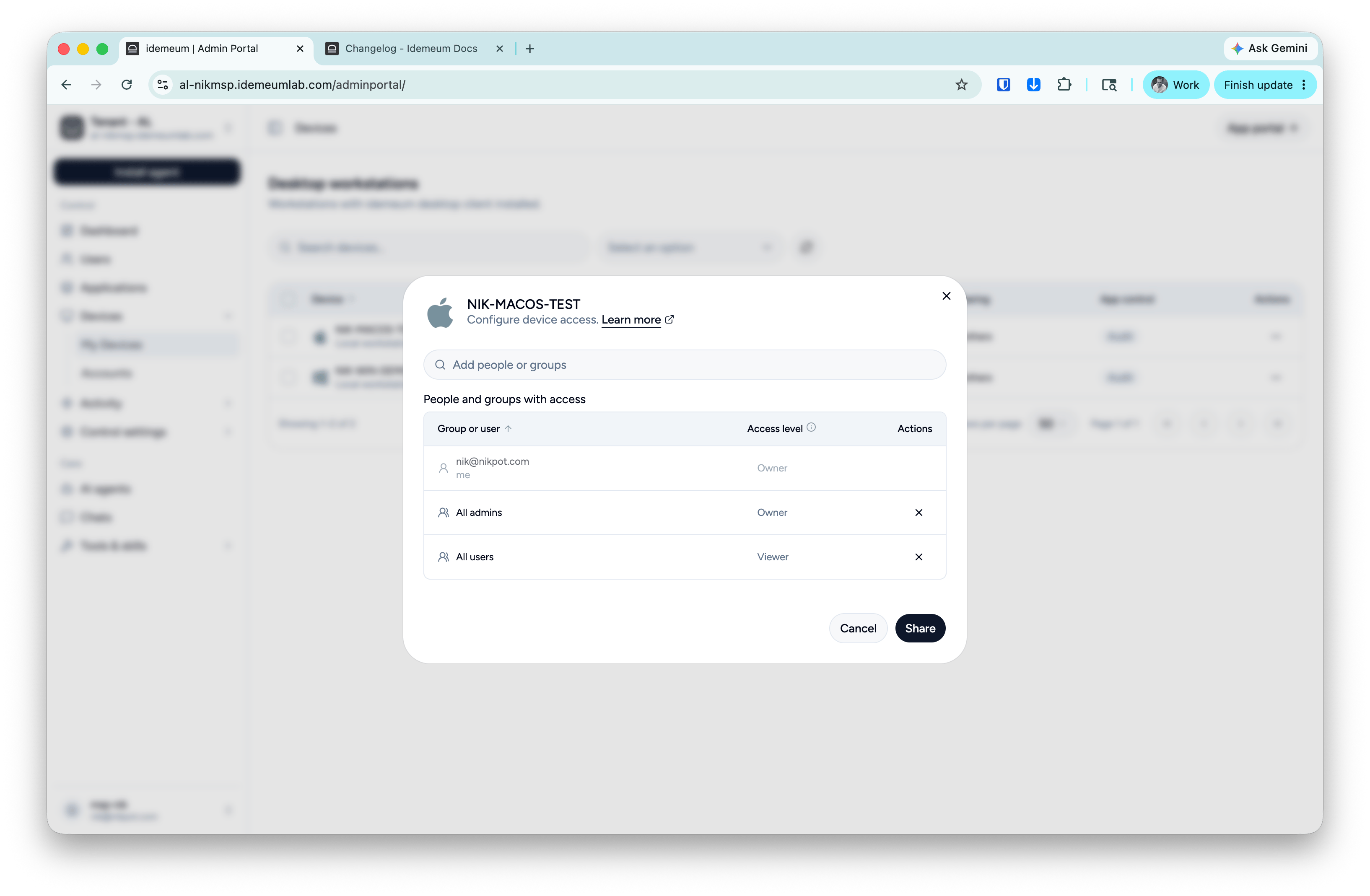
You can control what technicians have access to what workstations. Important to note that if technician is aGlobal admin, she can access and edit everything everywhere. If you want to apply access control you first need to delegate technician access to certain customer / organization with read-only permissions, and then edit workstation access control settings.
- Navigate to admin portal of customer / organization
- Access
Devices, then click on...for the device you want to edit, and chooseShare device - By default
All adminsandAll userswill be there - To control technician access, remove
All adminsrole and only add technicians that need to access this workstation
JIT domain account auto removal
When technicians use JIT access for computers in domain environments, individual domain admin accounts are created every time new technician logs in for the first time. When these accounts are not in use, they are in disabled state. In order to make the number of accounts manageable, idemeum agent that is installed on domain controller will periodically inventory all technicain JIT accounts. And if the account has not been used for the last 30 days, it will be deleted.Let’s look at the example. Technician
alex logs into the domain controller and the account msp-alex is created. Once alex logs out, the JIT account is disabled. For 30 days alex does not login to this domain environment. As a result, the account is deleted after 30 days. If alex tries to login after a period of 30 days the account msp-alex will be recreated.