
Single tenant installation
Here you install control agent and pair it directly with your tenant. If you need to install agent in bulk and pair with multiple tenants (MSP setting) navigate to the next section.
- Windows
- macOS
Installation
1
Obtain PowerShell script
Navigate to your idemeum admin portal, click 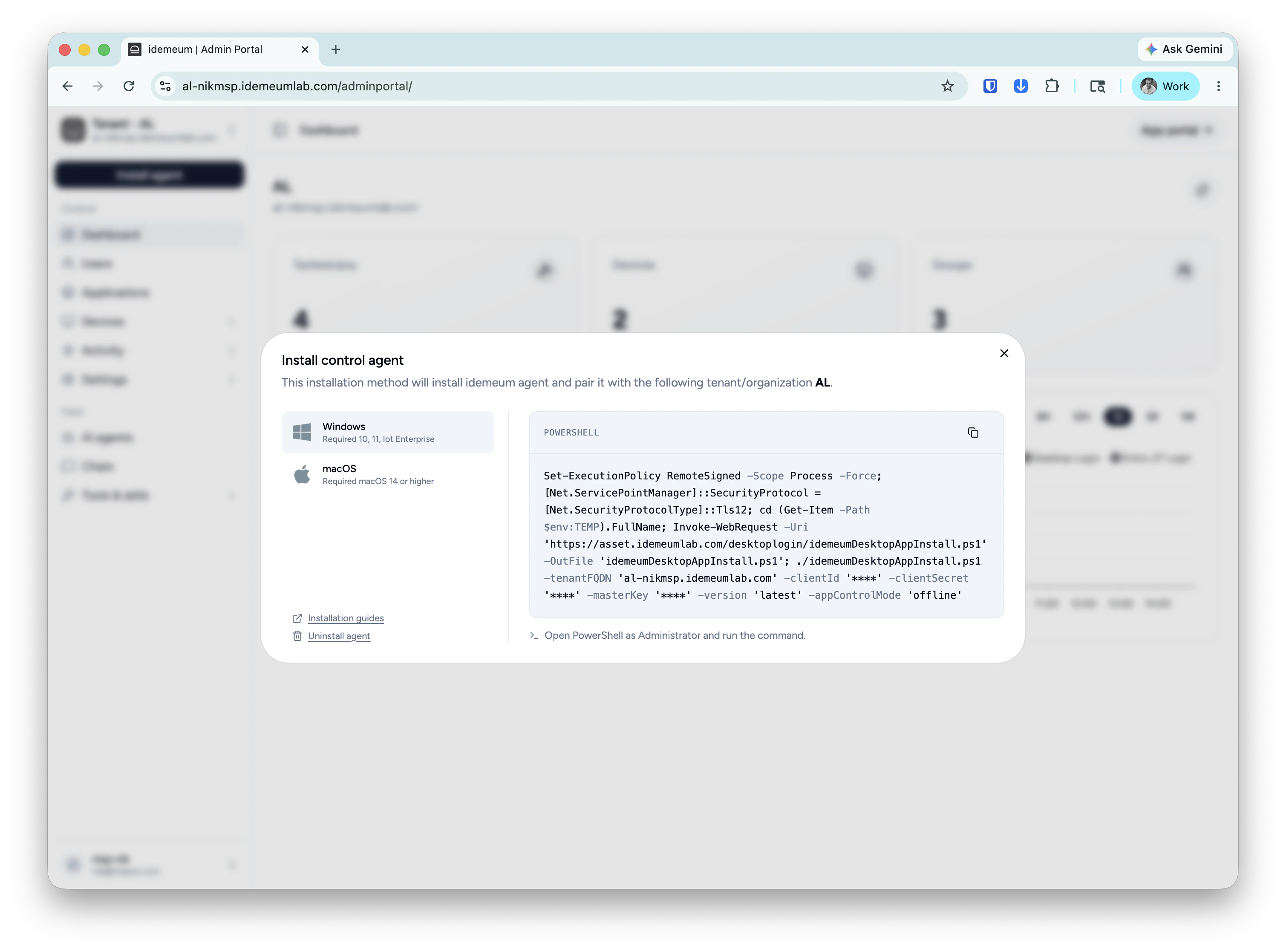
Install agent button, then choose Control agent and copy the installation script for Windows.2
Execute script using PowerShell
Open PowerShell and execute the installation script with Administrator privileges. Idemeum will install all required prerequisites before installing the agent. No restart is required after successful installation.
Command-line arguments
You can pass additional command-line arguments to the installation script:'true' | 'false'
Restart is not required, however you can still trigger the restart after the successful installation by passing
true as an option.'disabled' | 'audit' | 'rules'
By default when the agent is installed it operates in
disabled mode. You can pass the mode which you want to apply at installation time.'2.5.1'
Pass the desktop version that you want to install. By default the latest version will be installed. You need to pass the version with ”, for instance ‘2.5.1’.
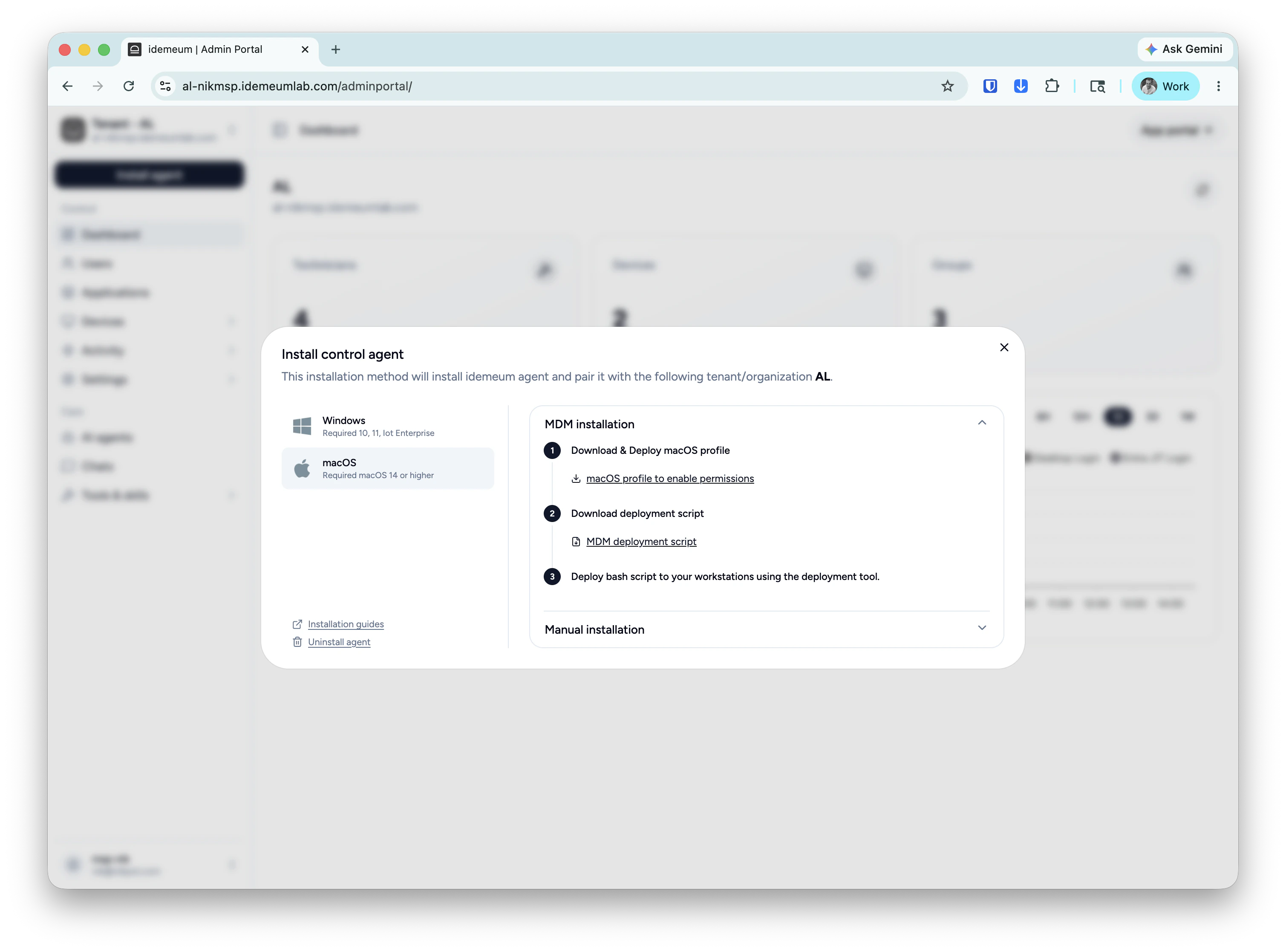
Bulk agent installation
Bulk installation helps MSPs to deploy agent across multiple tenants with a single command. Instead of obtaining installation command from a customer tenant, obtain a command from your MSP tenant instead. Then you can use this command with RMM and leverage RMM variables to dynamically pass the customer name to an installation command. Idemeum control agent will automatically create customer tenants.1
Obtain bulk command from MSP parent tenant
Login to your MSP tenant, click 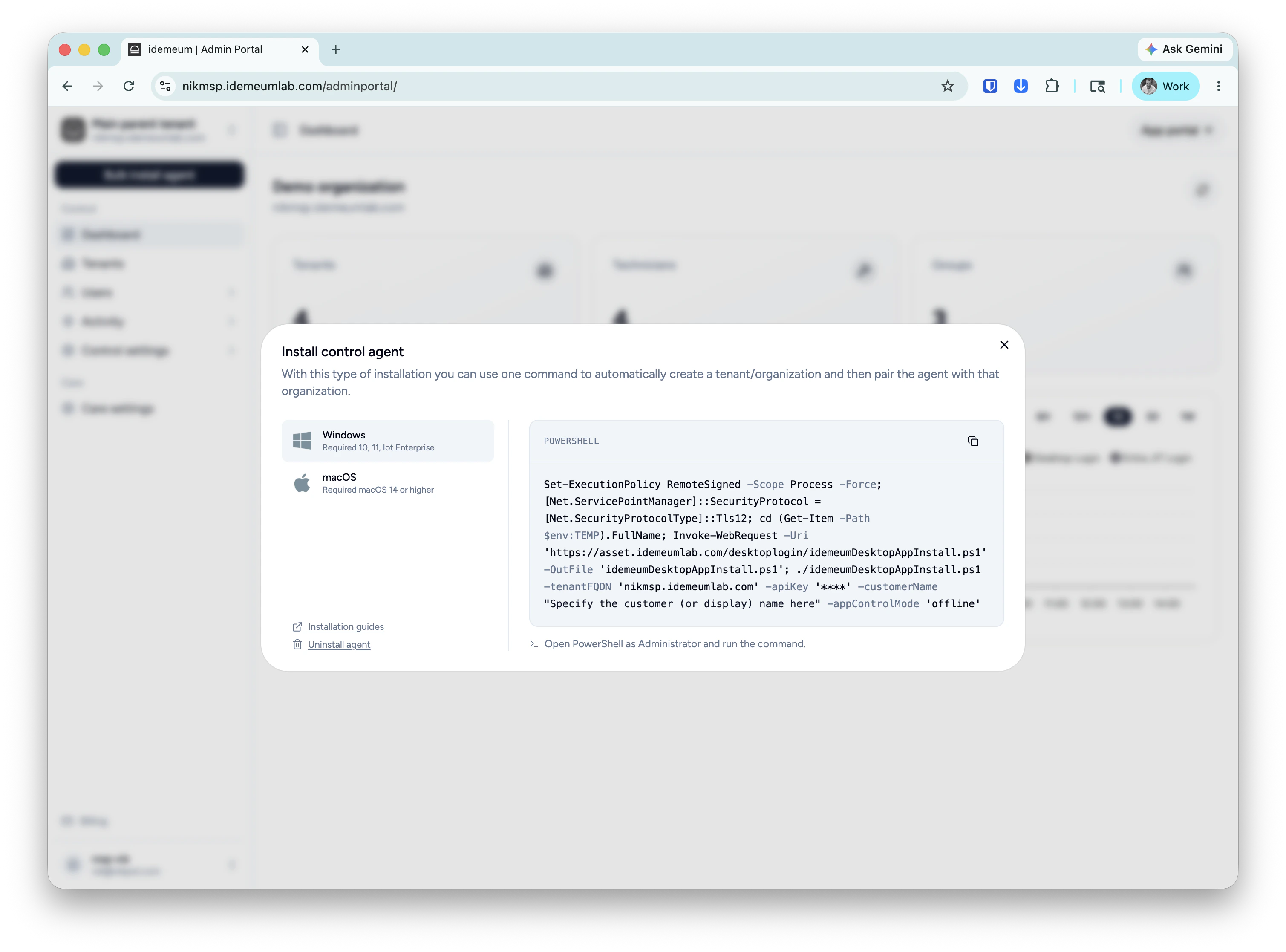
Bulk agent install and then choose Control agent. Copy the installation command for Windows or download the profile and installation script for macOS.2
Store the command in your RMM
Store the bulk installation command in your RMM. Make sure you leverage proper customer name variable and pass it to the installation script
-customerName input variable.3
Explore integration guides
Check our integration page to explore the examples of how to deploy idemeum agent with various RMMs.