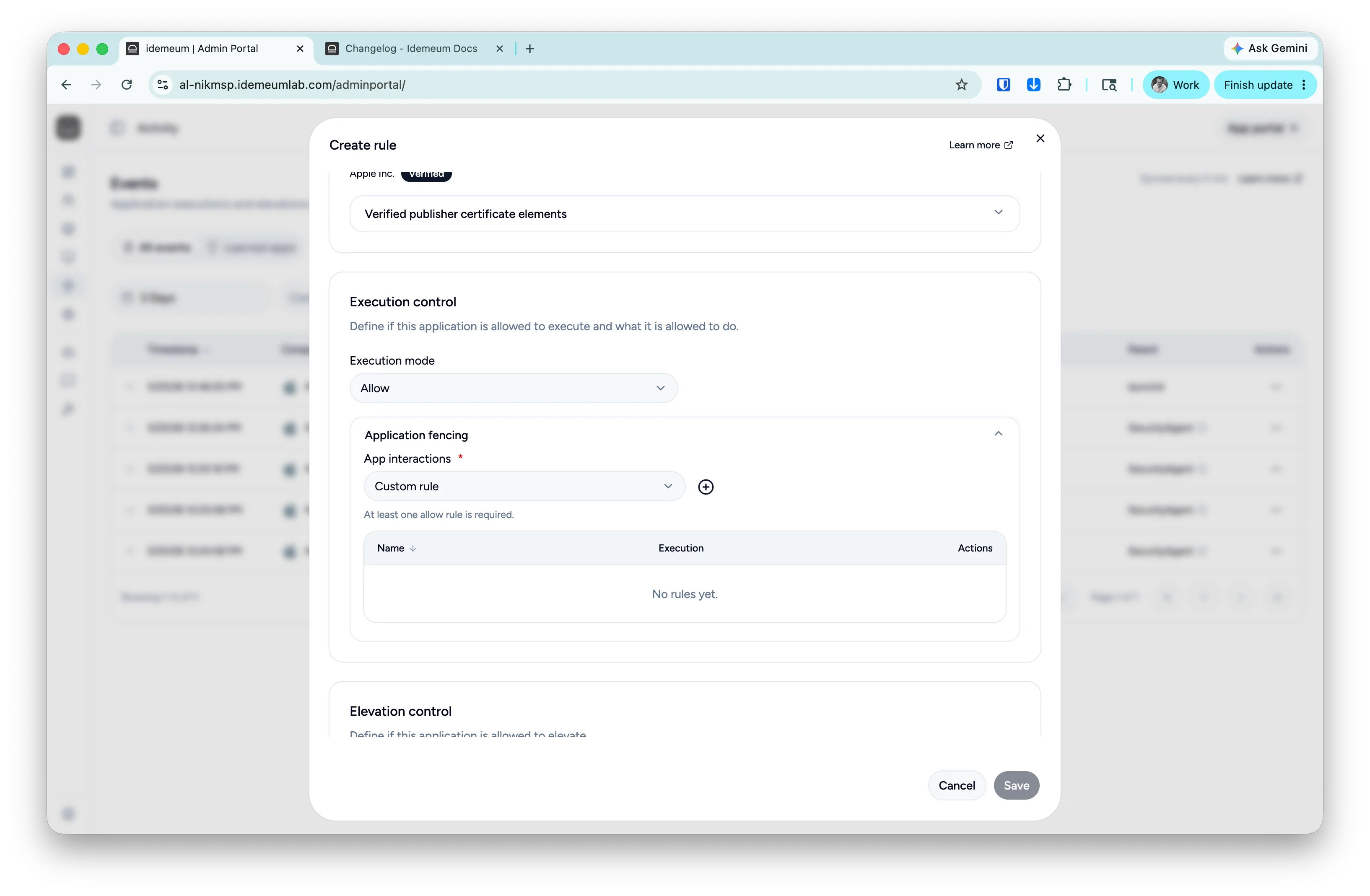
How application fencing works
With application fencing you can control how your application interacts with other applications. Or in other words, what child processes / applications your current application is allowed to launch. When legitimate applications are launched, they are doing many things on your system, including other application launches. For instance when you launchGitHub client on Windows, it launches other applications such as git.exe on your system along with other things. However, certain behaviors need to be restricted, such as Microsoft Word document trying to launch PowerShell.
Configure application fencing
If you trust the application publisher / developer, the simplest way is to allow all child processes for that application. This way you do not have to manually track what application needs to install / launch. Idemeum allows you to create custom rules to explicitly allow or deny certain interactions. For instance, you can deny all applications fornotepad.exe, or deny only powershell.exe for Microsoft Word while allowing to launch other Microsoft applications.
- Navigate to your idemeum admin portal
- Create a manual rule, rule from event, or edit any other idemeum catalog rule
- Navigate to
Application fencingsection and chooseCustom rule - Click
+button to define custom rule - You can add as many application fencing allow or deny rules as you need
- Save the configuration